

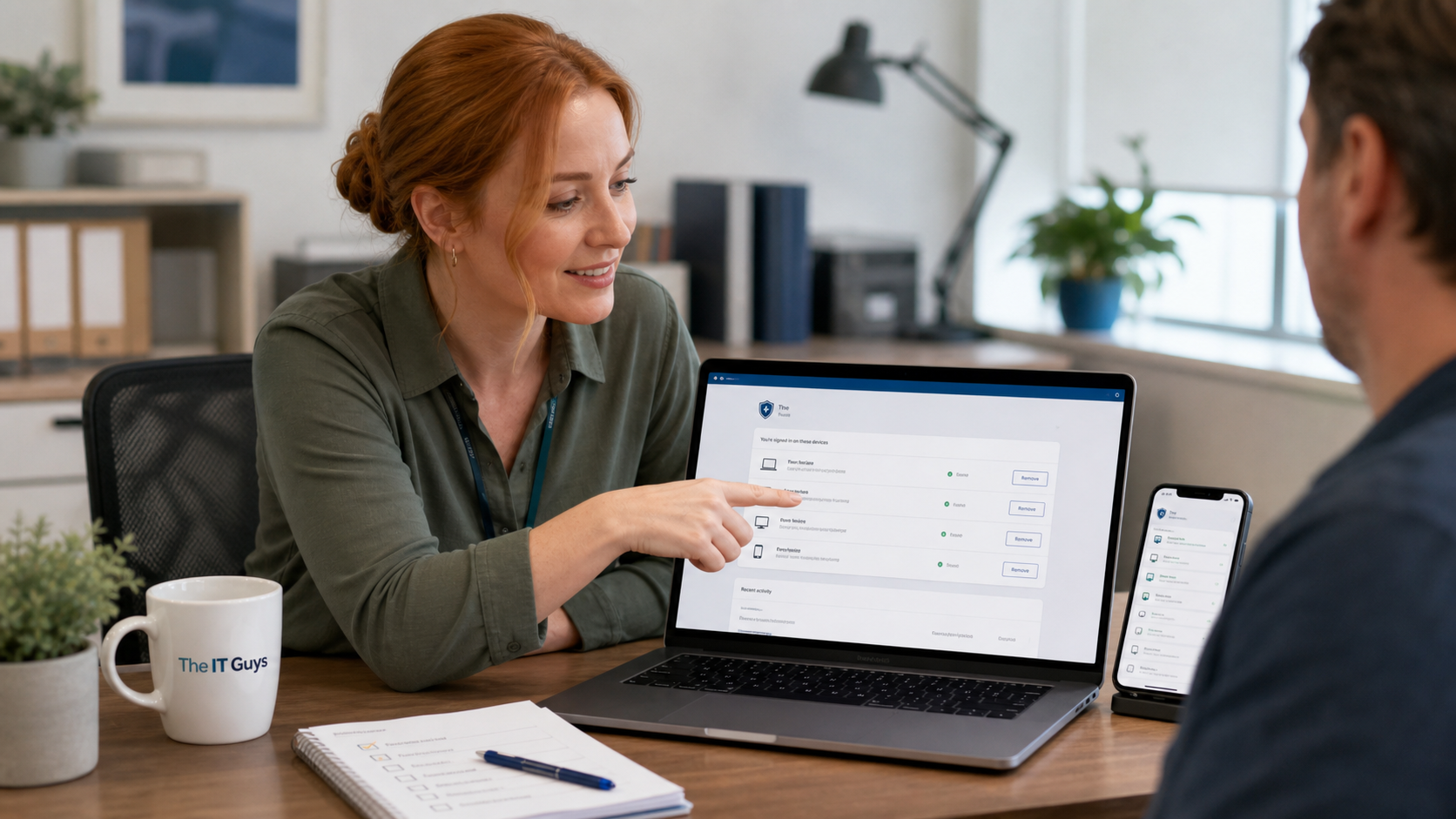
Quick tech tip: take ten minutes today to review which phones, tablets, laptops, browsers, and old computers are still signed in to your important accounts. This is one of those small security chores that catches real problems: a sold laptop that still has access, an old phone you forgot about, a browser session from a borrowed computer, or a former employee device that never got cleaned up.
Most people think account security means changing a password. That helps sometimes, but it is not the whole picture anymore. Google, Microsoft, Apple, banks, cloud storage, social media, and many business apps keep lists of trusted devices, active sessions, passkeys, app passwords, and recovery methods. If an old device still has a valid session, someone may not need your current password to cause trouble.
This is especially important for small businesses in Port Saint Lucie, Jensen Beach, Fort Pierce, Vero Beach, and the surrounding area. One overlooked device can keep access to email, invoices, customer files, shared drives, saved browser passwords, or admin portals long after that device should have been retired.
Why this matters
A signed-in device review helps answer a simple question: where can this account still be used right now? That is different from asking who knows the password. It is also different from checking whether two-factor authentication is enabled.
For example, your Google Account device page shows devices that recently accessed the account. Apple lets you check the device list tied to your Apple Account and explains that a device may reappear if it is still signed in and comes back online. Microsoft offers personal account device management at its account devices page and separate work or school account device management for connected organizational devices.
The practical takeaway: removing old access is not a one-time password reset. It is an account cleanup habit.
Do this today: review your signed-in devices
Set aside about ten minutes. Use a trusted computer or phone, not a public computer, and work through your most important accounts first.
- Start with email. Your email account is usually the recovery key for everything else. Check Google, Microsoft, Apple, Yahoo, Proton, or whatever mailbox you actually use.
- Open the account security page. Look for sections called devices, signed-in devices, recent activity, sessions, trusted devices, or security checkup.
- Make a quick inventory. Keep devices you recognize and still use. Flag anything you sold, recycled, gave away, replaced, lost, stopped using, or cannot identify.
- Check dates and locations carefully. A city or location can be approximate, especially on cellular networks or VPNs, so do not panic over one odd location. Pay more attention to unknown device names, unexpected operating systems, and recent activity you cannot explain.
- Sign out or remove old devices. Use the provider’s own remove, sign out, disable, or unlink option. If you still have the old device, sign out directly on that device too.
- Change the password if anything looks suspicious. If you find a device you do not recognize, change the password after removing unknown sessions, then review recovery email, recovery phone, MFA methods, forwarding rules, filters, and connected apps.
- Turn on MFA if it is missing. The FTC and CISA both recommend multi-factor authentication because a stolen password alone should not be enough to take over an account.
- Repeat for cloud storage and business apps. Check Microsoft 365, Google Workspace, iCloud, Dropbox, QuickBooks, payroll, banking, social media, remote access, and website admin accounts.
Where to check common accounts
These links are useful starting points. Some pages require you to sign in before they show account-specific details.
- Google: use the official Google Account device activity page to review devices that recently accessed your account.
- Microsoft personal accounts: Microsoft documents how to manage devices used with your Microsoft account, including removing or unlinking devices you no longer use.
- Microsoft work or school accounts: Microsoft documents how to manage connected organizational devices from the work or school account devices page.
- Apple: Apple explains how to check your Apple Account device list and remove devices. Apple also has separate guidance for removing devices from Find Devices on iCloud.com.
- General account security: the FTC explains why to use two-factor authentication, and CISA has a small-business-focused page on why to require multifactor authentication.
What to remove
Remove or sign out anything that clearly no longer belongs:
- Old phones after an upgrade
- Computers that were sold, recycled, donated, or handed down
- Borrowed computers used during travel or an emergency
- Old tablets used only for a temporary project
- Former employee phones, laptops, or browser sessions
- Devices with names you cannot explain after checking with your household or team
For businesses, this should also be part of employee offboarding. When someone leaves, do not only disable the main account. Also review signed-in sessions, company phones, saved browser profiles, shared vault access, cloud sync clients, email forwarding, OAuth app access, and MFA methods.
Important cautions
Do not remove a device blindly if it is the only device you use for MFA prompts, passkeys, authenticator codes, or account recovery. You can lock yourself out if you remove your only working sign-in method before setting up a replacement.
Be especially careful with Apple devices and Find My. Apple notes that devices can reappear if they are still signed in and reconnect, and removing Activation Lock is a separate issue when a device has been sold or given away. If you are preparing a device for resale, follow the provider’s reset and sign-out process, not just the account web page.
For Microsoft 365, Google Workspace, and other managed business accounts, the user-facing device list may not show the whole story. Admins may need to check Entra ID, Intune, Google Admin, MDM, remote wipe status, conditional access, sign-in logs, and compliance policies. If your business handles customer data, payment records, medical records, legal files, or payroll, treat unknown device access as a real incident until it is reviewed.
If you find something suspicious
If you see a device you truly do not recognize, do not stop at removing it. Use this checklist:
- Take a screenshot or write down the device name, approximate location, browser, operating system, and last activity time.
- Sign out or remove the unknown device if the account page allows it.
- Change the account password from a trusted device.
- Review MFA methods and remove any phone numbers, authenticator apps, passkeys, or security keys you do not recognize.
- Check recovery email and recovery phone settings.
- Check email forwarding rules, mailbox delegates, filters, and connected apps.
- Check recent account activity for failed sign-ins, successful sign-ins, password changes, security changes, and file sharing.
- For a business account, contact IT before deleting logs or wiping devices, because evidence may matter.
When to call an IT professional
Call for help if you see unknown devices on a business account, cannot tell whether a device is legitimate, have a former employee access concern, lost a phone with business email on it, see mailbox forwarding rules you did not create, or need to preserve logs for a possible compromise.
The IT Guys can help review account security, remove stale access, clean up MFA methods, check Microsoft 365 or Google Workspace sign-in history, and build a simple offboarding checklist so old devices do not stay trusted after they leave your office.