

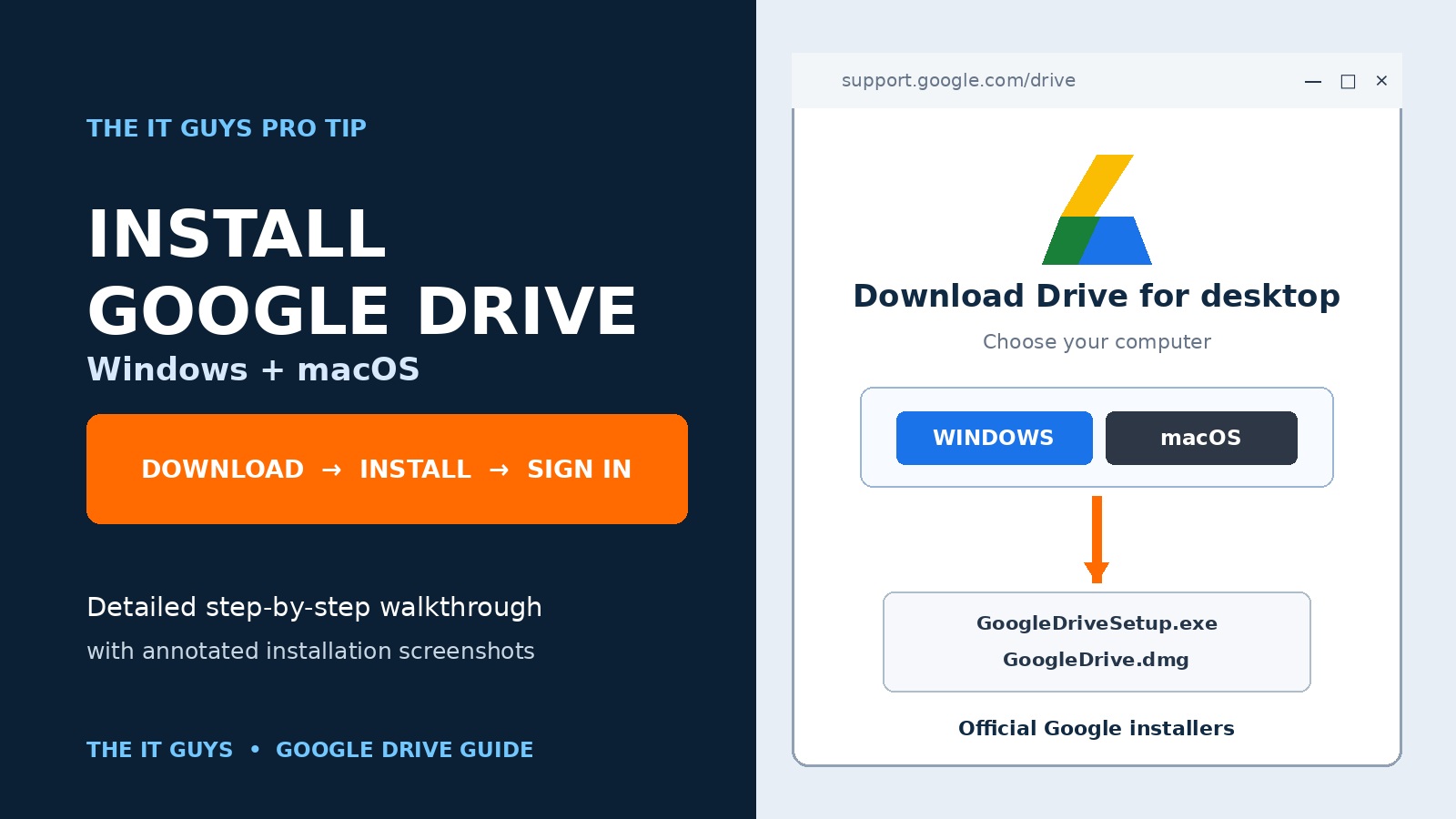
Google Drive for desktop places your cloud files directly inside Windows File Explorer or macOS Finder. Once installed, it can keep files synchronized, make selected content available offline, and let you work with Drive documents using familiar desktop applications.
Download, install, and sign in
- Windows: download
GoogleDriveSetup.exefrom Google, open it, select Install, then choose Get started and sign in. - macOS: download
GoogleDrive.dmgfrom Google, open it, follow the Installer prompts, then sign in and approve only the folder permissions you need. - After setup, Drive appears in File Explorer on Windows or Finder on a Mac.
Before you install Google Drive
Windows requirements
- 64-bit Windows 10 or later.
- Windows 11 or later on ARM64.
- Microsoft WebView2, normally included with Windows 11 and most Windows 10 systems. Google says its installer can obtain WebView2 automatically when missing.
- An account with permission to install applications.
macOS requirements
- macOS Ventura 13.0 or later.
- An administrator password or Touch ID may be required.
- Permission for any Desktop, Documents, Downloads, Photos, removable-drive, or network locations you choose to synchronize.
- A supported personal, work, or school Google Account.
Use Google’s installer—not a download website
Google publishes the Windows installer at dl.google.com as GoogleDriveSetup.exe and the Mac disk image as GoogleDrive.dmg. Avoid third-party “download managers,” repackaged installers, advertisements, and unofficial setup tools. On Windows, confirm that any administrator prompt identifies Google LLC as the verified publisher.
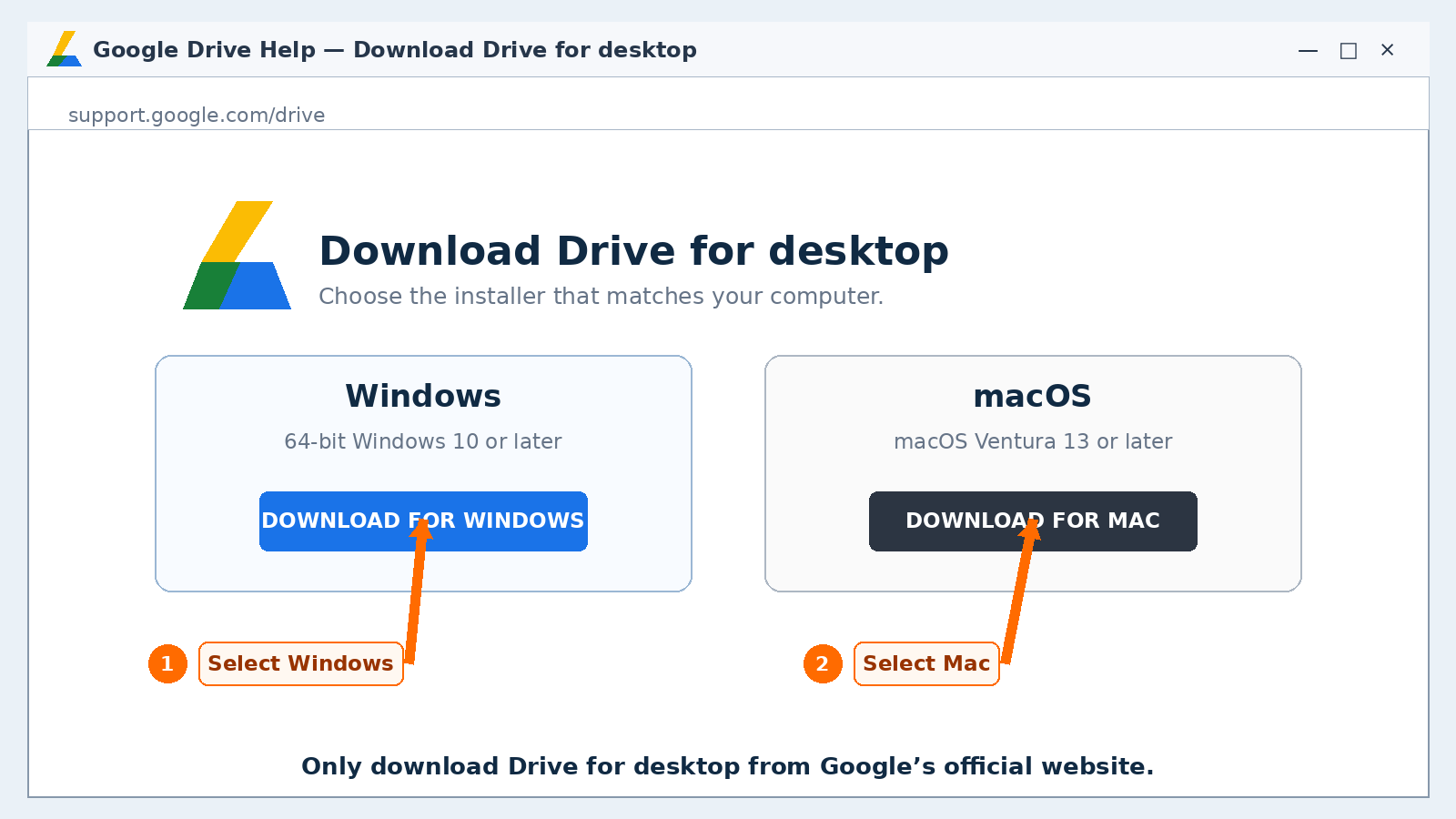
Windows: install Google Drive for desktop
- Download the official Windows installer.Select the blue download button above or visit Google’s official Drive for desktop help page. Your browser normally saves
GoogleDriveSetup.exein Downloads. - Open the Downloads folder.Press Windows key + E, select Downloads, and double-click
GoogleDriveSetup.exe. - Approve the administrator prompt.If User Account Control asks whether the app may make changes, verify that the publisher is Google LLC, then select Yes. Stop if the publisher is unexpected or unknown.
- Choose optional shortcuts.The installer may offer a Google Drive desktop shortcut and shortcuts for Google Docs, Sheets, and Slides. These are optional; Drive works without placing extra shortcuts on the desktop.
- Select Install.Allow setup to finish. Google may automatically install Microsoft WebView2 if your computer requires it.
- Launch Google Drive.Open it from Start if it does not begin automatically. The Drive icon normally appears near the clock; use the hidden-icons arrow when necessary.
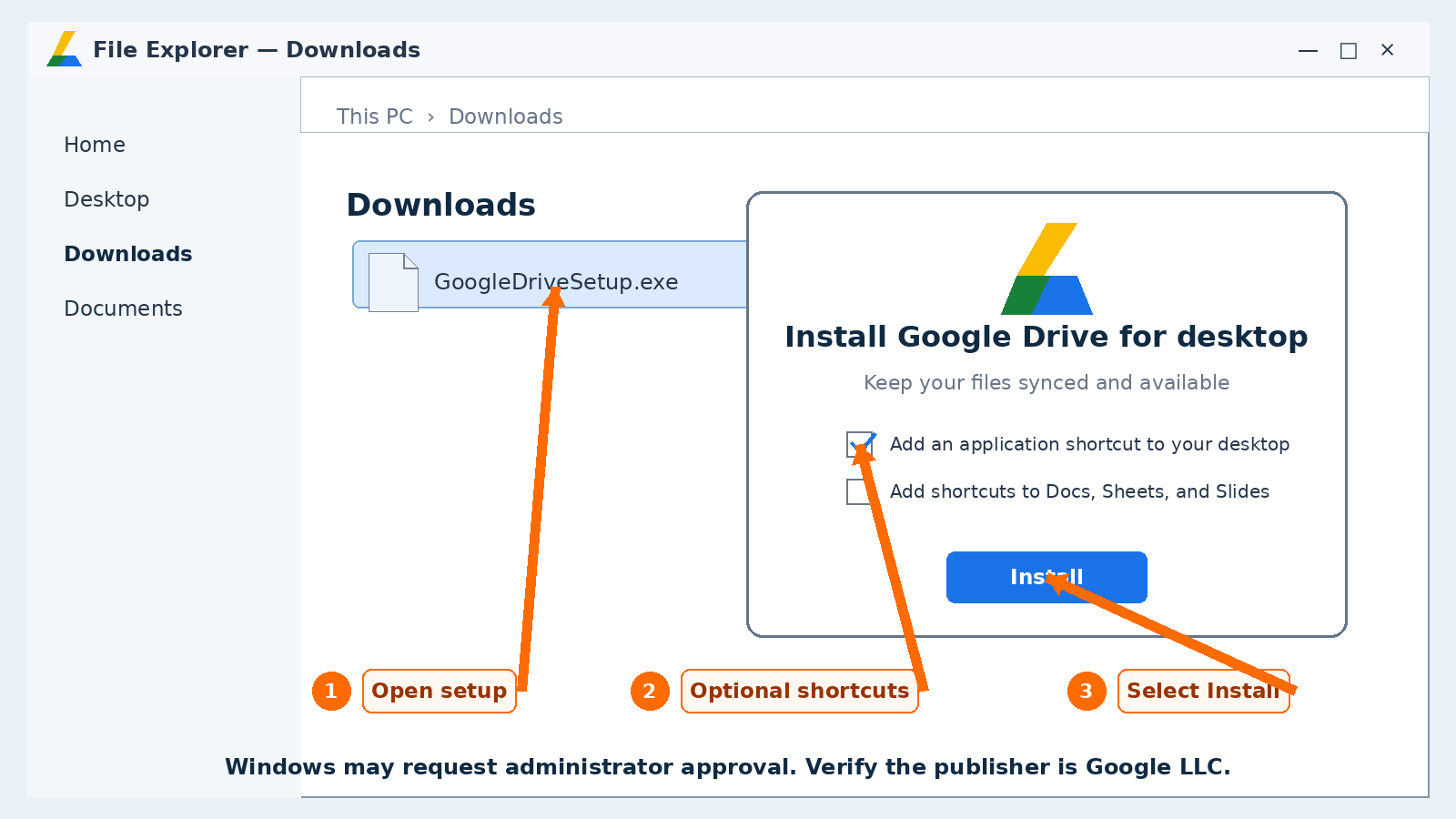
GoogleDriveSetup.exe, review the optional shortcuts, and select Install.Sign in on Windows
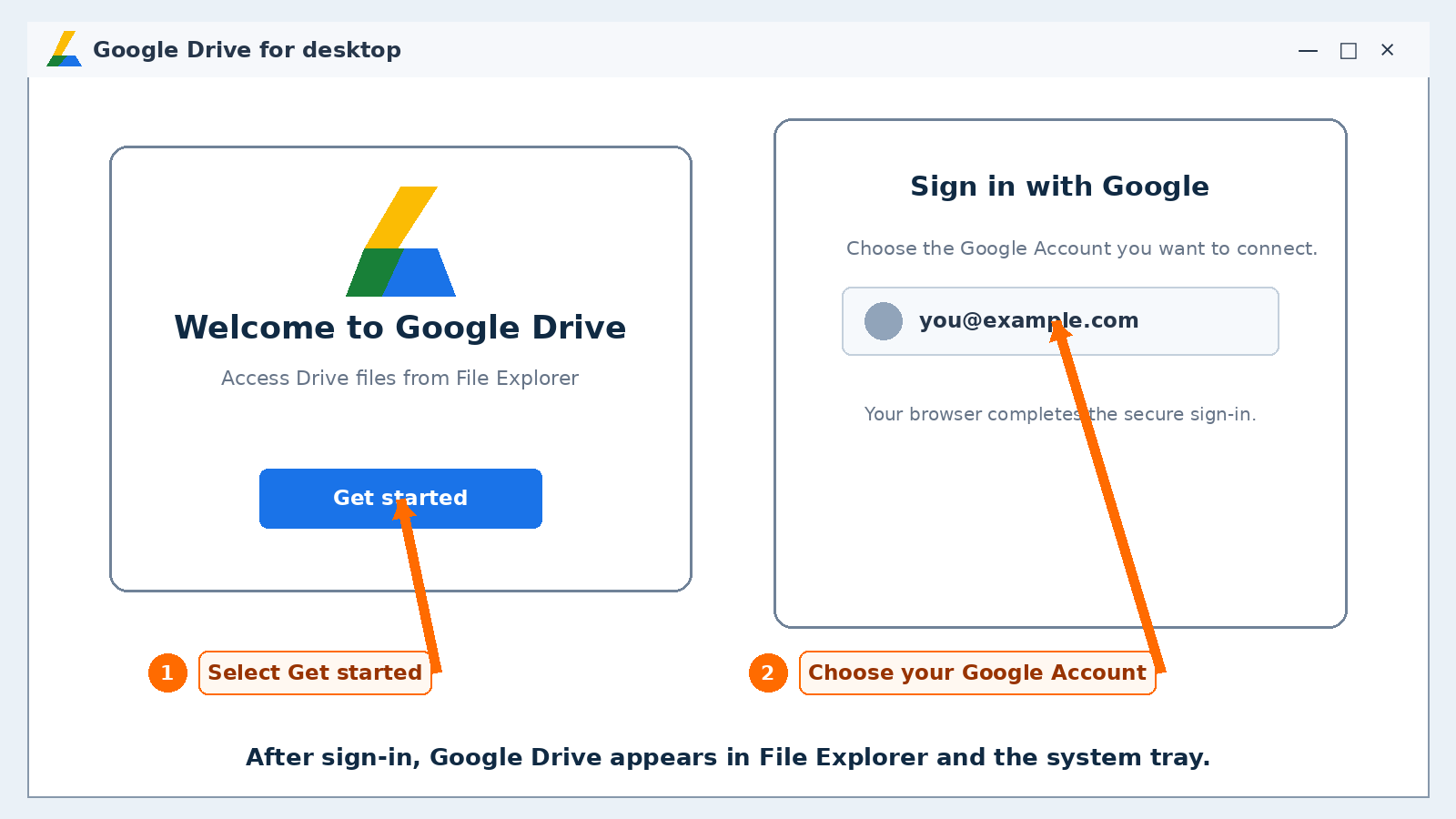
- Select Get started.Google Drive opens its welcome window after installation.
- Continue to sign-in.Google’s current instructions direct you to choose Get started and then Sign in. Your default browser opens for the secure account login.
- Choose the correct Google Account.Be especially careful when personal and company accounts are both listed. Google says Drive for desktop can use up to four accounts at one time.
- Complete Google’s browser prompts.Do not enter your password into an unfamiliar pop-up, download page, or third-party application. The sign-in page should be on a Google domain.
- Confirm that Drive is running.Open File Explorer and look for Google Drive. Also check for the Drive icon in the Windows system tray.
macOS: install Google Drive for desktop
- Download the official Mac installer.Select the dark download button above or use Google’s official download page. Safari or your chosen browser normally saves
GoogleDrive.dmgin Downloads. - Open GoogleDrive.dmg.Open Finder → Downloads, then double-click the disk-image file.
- Start the installer.Open the installer package shown inside the mounted disk image, if prompted, and select Continue.
- Select Install.Review the destination and installation details, then continue with the standard installation.
- Authenticate the installation.Enter an administrator password or use Touch ID if macOS requests approval.
- Open Google Drive.Find it in Applications. You can drag the app to the Dock if you want a permanent shortcut.
- Select Get started and sign in.Choose the appropriate Google Account in your browser and complete Google’s prompts.
- Confirm Drive in Finder.Look under Finder’s Locations section and for the Google Drive icon in the macOS menu bar.
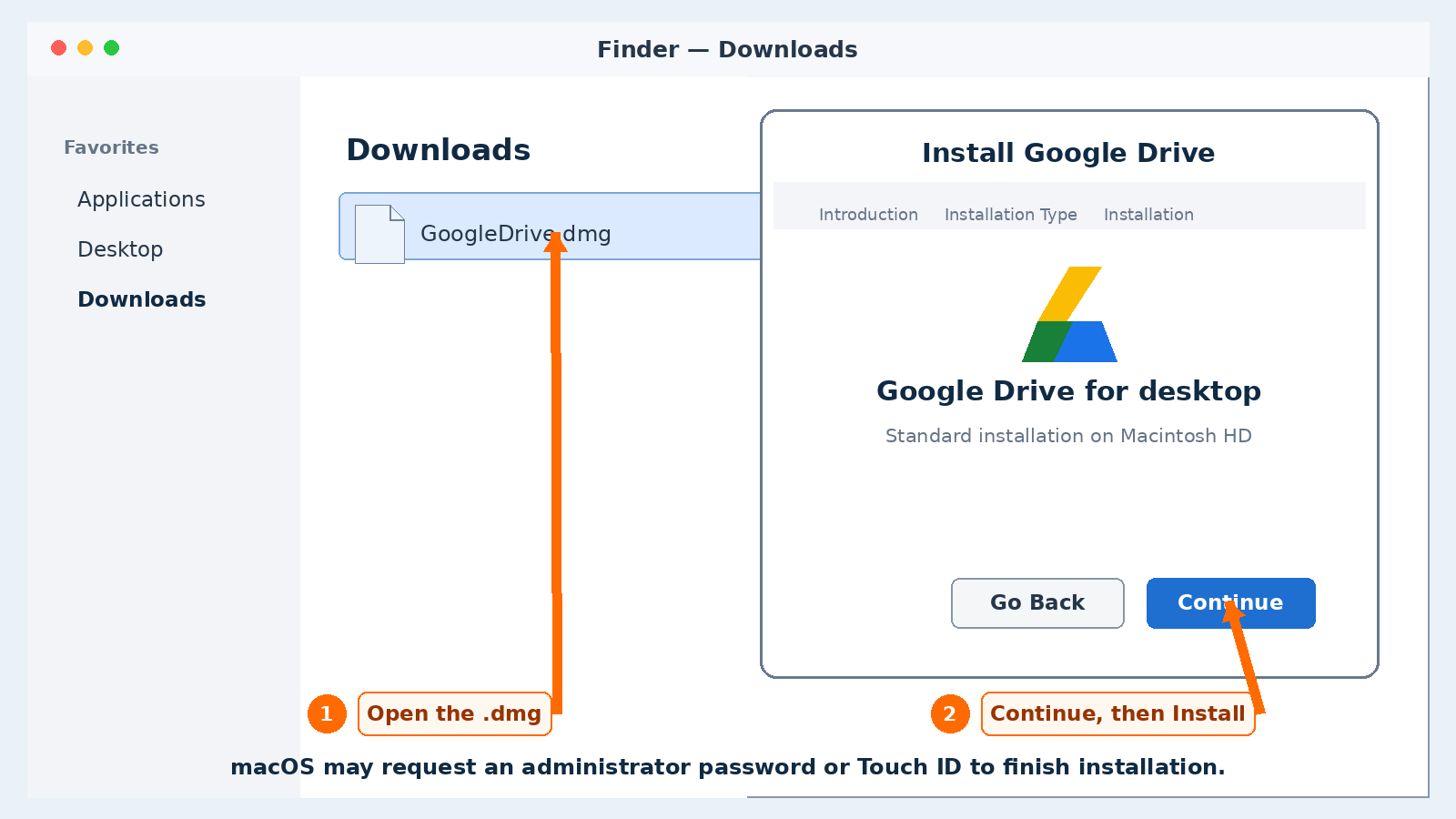
GoogleDrive.dmg, continue through the standard Installer, and authenticate when macOS requests it.Approve macOS permissions carefully
Google says Drive may need permission for folders or devices you intentionally synchronize, including Desktop, Documents, Downloads, removable or network volumes, and the Photos library.
- Open System Settings.Select the Apple menu → System Settings.
- Select Privacy & Security.Open Files and Folders or Photos, depending on the permission Google Drive requested.
- Locate Google Drive.Enable only the folder or library access needed for your intended synchronization.
- Restart Drive if necessary.Google notes that Drive for desktop—or the Mac—may need a restart before a newly granted permission takes effect.
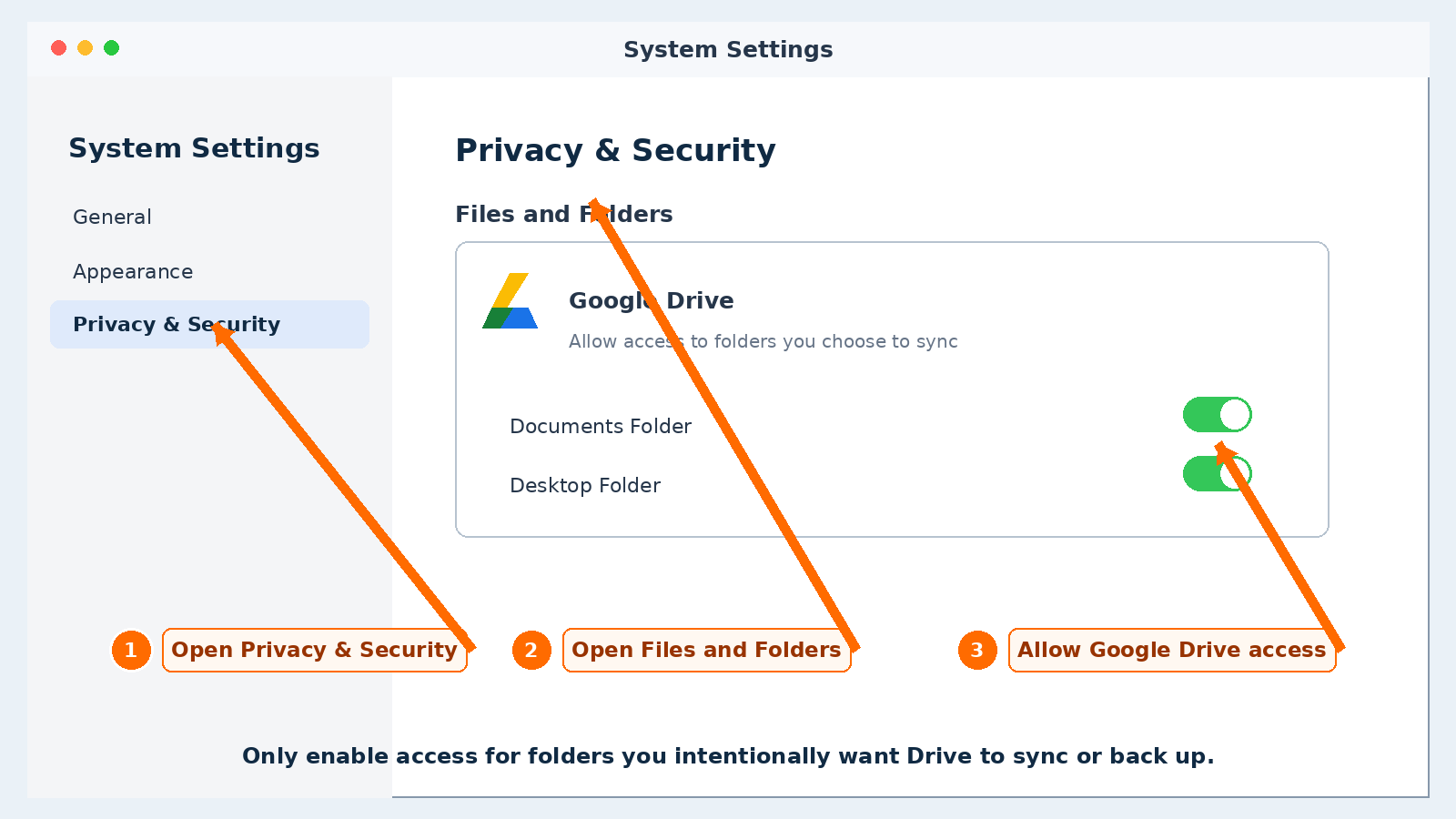
Choose Stream files or Mirror files
After installation, open the Drive menu → Settings → Preferences → Folders from Drive. Under the My Drive synchronization options, choose the storage behavior that fits the computer.
Stream files
- Stores files primarily in Google’s cloud.
- Uses relatively little local disk space.
- Downloads files as you open them and caches recent content.
- Specific items can be marked available offline.
- Drive for desktop must be running to access streamed files.
Mirror files
- Keeps a full copy of My Drive on the computer and in the cloud.
- Files are available offline by default.
- Consumes local storage roughly according to the mirrored content.
- Can be helpful for large media projects and workflows needing constant offline access.
- Does not increase your Google Account storage allowance.
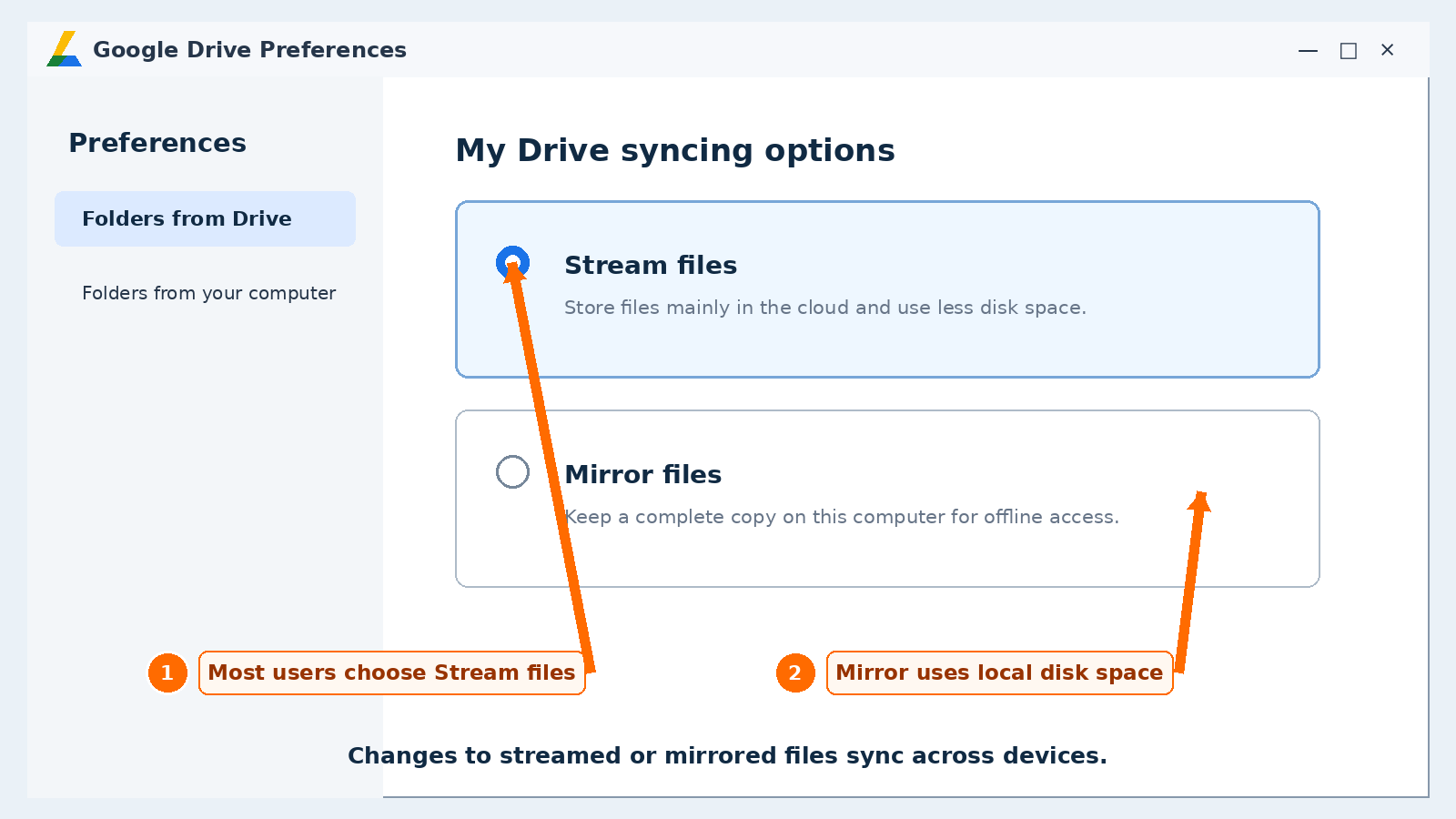
Synchronization is not the same as an independent backup
Google states that changes to streamed or mirrored files synchronize across devices. That convenience also means an unwanted deletion, overwrite, or encryption event may propagate. Keep separate, tested backups of irreplaceable documents rather than relying on synchronization as the only copy.
Where to find Google Drive after installation
On Windows
- Open File Explorer.
- Select Google Drive in the navigation area or under This PC.
- Open My Drive to browse your files.
- Use the Drive icon near the clock for sync status, recent activity, settings, and account controls.
On a Mac
- Open Finder.
- Select Google Drive under Locations.
- Open My Drive or any available shared-drive locations.
- Use the Drive icon in the menu bar for status and preferences.
Make an individual streamed file available offline
- Open Google Drive in File Explorer or Finder.
- Right-click or Control-click the needed file or folder.
- Choose Offline access → Available offline when that option is shown.
- Wait for Drive to complete downloading before disconnecting from the internet.
- Remember that offline copies consume local storage.
If Google Drive will not install or sign in
- Confirm compatibility: use 64-bit Windows 10 or later, Windows 11 or later on ARM64, or macOS Ventura 13 or later. Google says beta operating systems and 32-bit Windows are not supported.
- Redownload from Google: delete an incomplete installer and obtain a fresh copy from the official Google links above.
- Check WebView2 on Windows: Google’s installer should obtain it when missing, but managed computers may require administrator assistance.
- Check the administrator prompt: installation can fail if you do not have permission to add software.
- Look for the Drive icon: use the hidden-icons arrow near the Windows clock or the macOS menu bar. Launch Drive from Start or Applications if it is not running.
- Check the browser: allow the Google account sign-in page to open, use a supported current browser, and make sure cookies and JavaScript are enabled for Google sign-in.
- Check account policy: a work or school administrator may block installation or limit account access.
- Review macOS privacy permissions: a folder cannot synchronize when Drive lacks read/write permission for that location.
- Check disk and Google storage separately: streaming, mirroring, computer free space, and Google Account storage are related but not interchangeable measurements.
For advanced troubleshooting that requires normally hidden application folders, see our illustrated guide: How to show hidden files in Windows 11 and Windows 10.
Frequently asked questions
Is Google Drive for desktop free?
The desktop application can be installed without a separate app purchase. Storage and features depend on the Google Account or Google Workspace plan connected to it.
Can I use more than one Google Account?
Yes. Google’s current help documentation says Drive for desktop can use up to four accounts at one time.
Does Drive for desktop work on Linux?
Google’s current requirements page says the desktop application is not available for Linux. Linux users can use Google Drive in a supported web browser.
Should I choose Stream or Mirror?
Most people should start with Stream because it uses less local disk space. Choose Mirror when you specifically need a complete offline copy and have enough storage.
Will deleting a file on my computer delete it from Google Drive?
Changes to synchronized files—including moves and deletions—can synchronize across Drive and connected devices. Confirm what is selected before deleting, and maintain a separate backup for important data.
Why can’t I install it on my work computer?
Your organization may restrict software installation or require administrator deployment. Contact the IT administrator rather than trying to bypass management controls.
Can I uninstall Drive without deleting my cloud files?
Uninstalling the application is different from deleting files in Google Drive, but finish synchronization and verify the cloud copy first. Google warns that disconnecting a streaming account removes that account’s offline files from the computer.
Official references
- Google Drive Help: Use Google Drive for desktop — official Windows/macOS installer names, installation summary, sign-in flow, and account limit.
- Google Drive Help: System requirements and browsers — current Windows, ARM64, macOS, WebView2, and unsupported-platform requirements.
- Google Drive Help: Use Drive for desktop on macOS — Finder integration, File Provider, and privacy permissions.
- Google Drive Help: Stream and mirror files — cloud/local storage behavior and offline access differences.
- Google Workspace: Official Drive for desktop download page.
- Microsoft Support: Windows 10 support ended October 14, 2025.
Checked: July 31, 2026. Installer screens and operating-system controls can change after Google, Microsoft, or Apple updates. The images in this article are original annotated The IT Guys instructional reconstructions, not Google-, Microsoft-, or Apple-provided screenshots.
Want Google Drive configured correctly?
The IT Guys can install Drive for desktop, connect the correct account, choose safe synchronization settings, resolve missing-file problems, and build a separate backup plan for important data.