

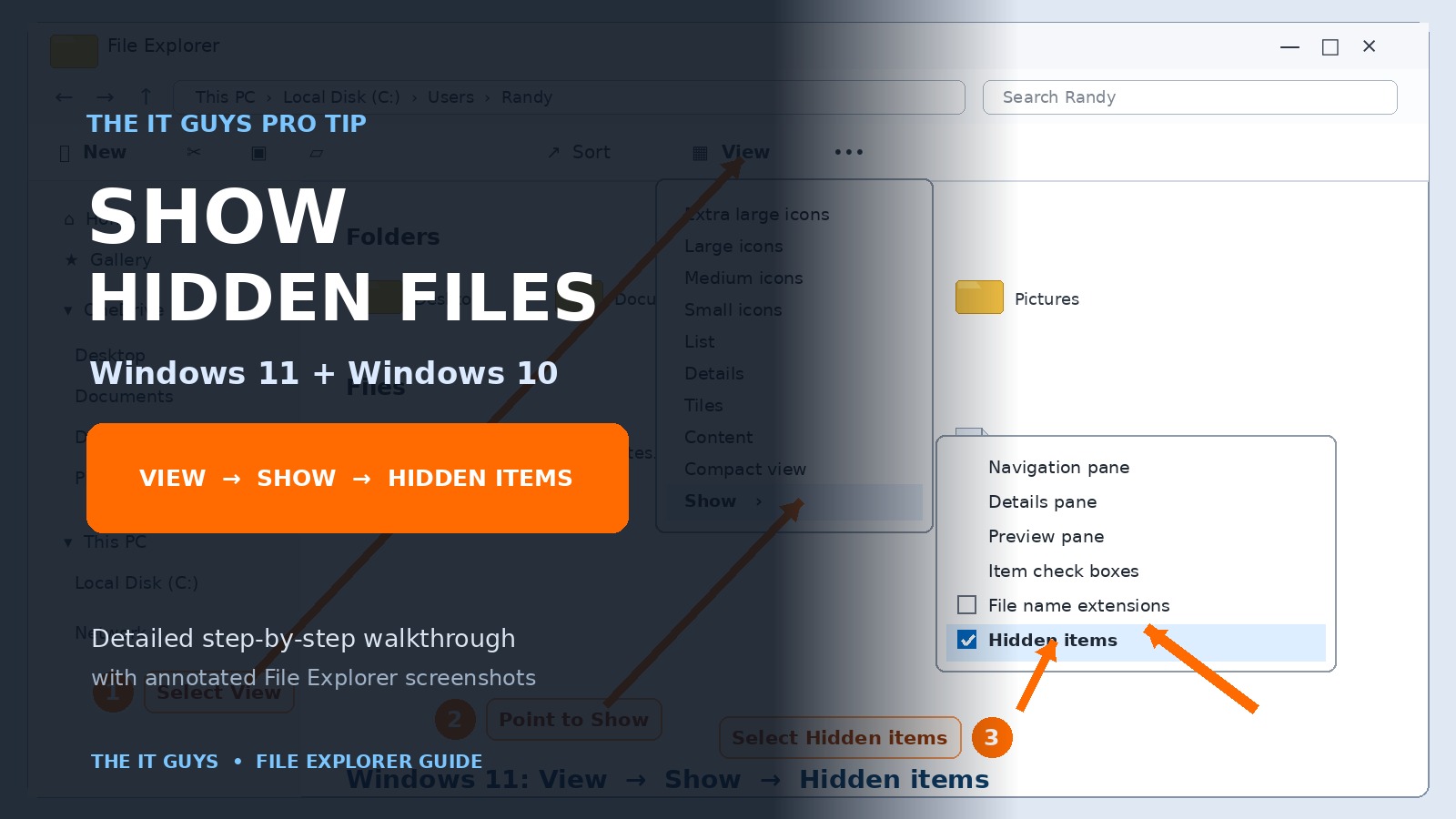
Hidden files are not deleted—they are simply excluded from File Explorer’s normal view. Windows hides folders such as AppData and ProgramData to reduce clutter and help prevent accidental changes. When you need one for troubleshooting, backup, application settings, or data recovery, you can reveal it in a few clicks.
Show hidden files quickly
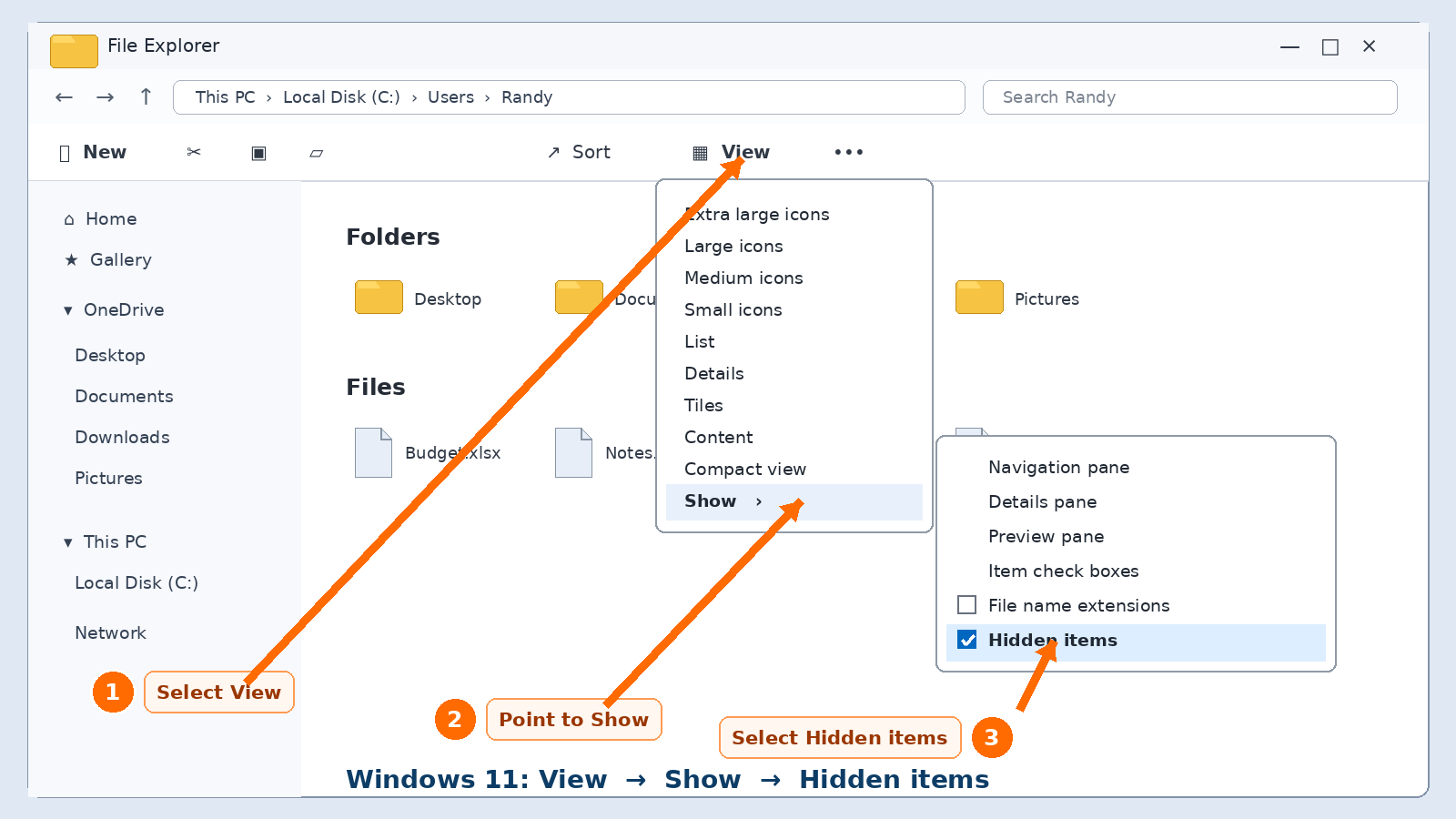
- Windows 11: File Explorer → View → Show → Hidden items.
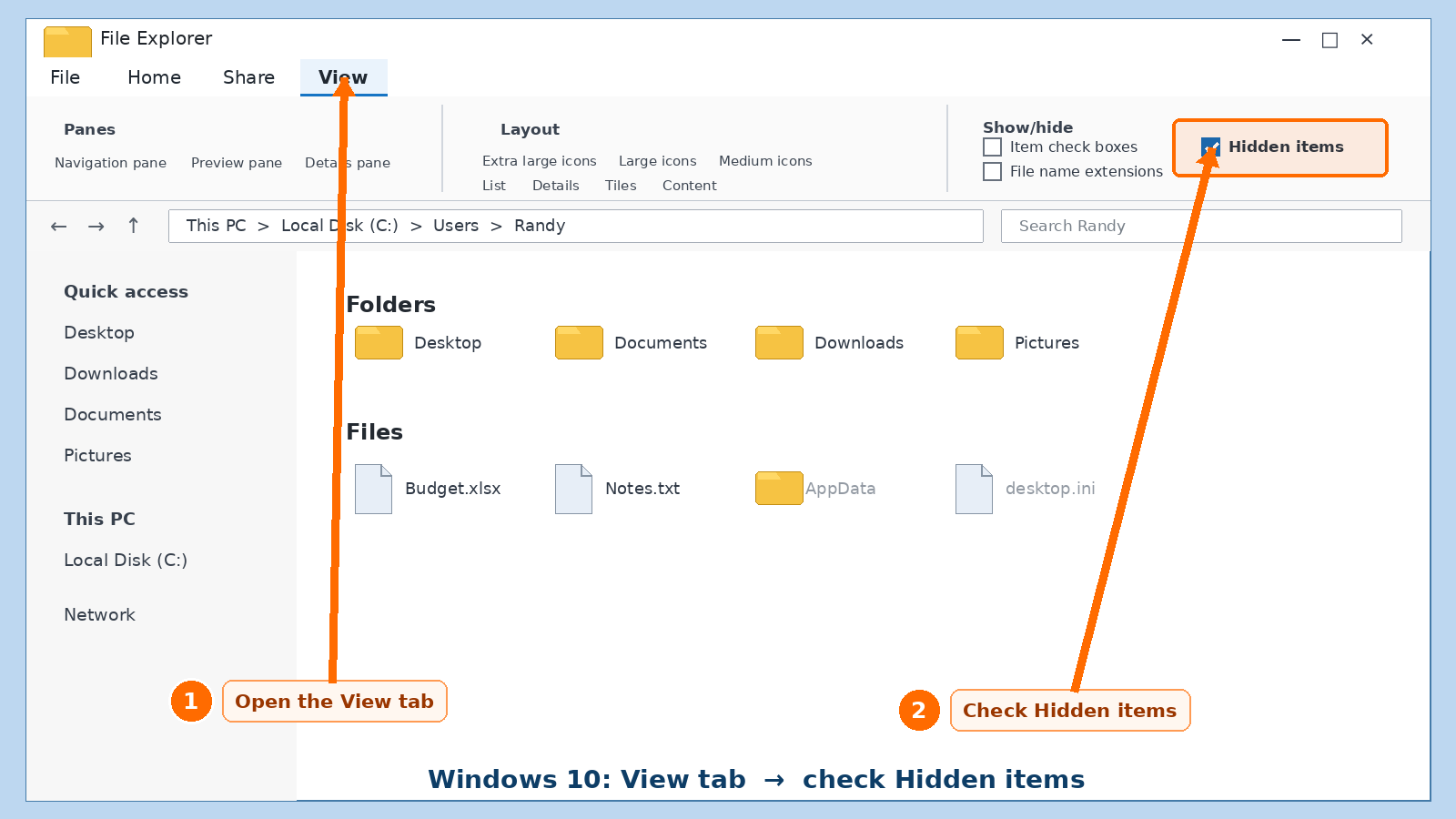
- Windows 10: File Explorer → View tab → check Hidden items.
- Press Windows key + E to open File Explorer on either version.
What enabling this reveals
- Ordinary files and folders carrying the Hidden attribute.
- Your user-profile
AppDatafolder. ProgramDataand other hidden application folders.- Files you intentionally marked as hidden.
What it does not reveal
- Deleted files.
- Files belonging to another account that you cannot access.
- Protected operating-system files while the recommended protection remains enabled.
- Cloud-only files that have not synchronized or belong to a different OneDrive location.
Windows 11: show hidden files
- Open File Explorer.Press Windows key + E, select the folder icon on the taskbar, or open File Explorer from Start.
- Select View on the command bar.It appears near the top of the File Explorer window. If the window is extremely narrow, some commands may move into the three-dot menu.
- Point to or select Show.A second menu opens with navigation-pane, preview-pane, file-extension, and hidden-item controls.
- Select Hidden items.A checkmark appears beside it. The change applies immediately; there is no Save button.
- Verify the result.Browse to
C:\Users\YourName. TheAppDatafolder should now appear slightly faded, indicating that it is hidden but currently visible.
Windows 10: show hidden files
Windows 10 uses the older ribbon-style File Explorer. The control is visible directly on the View tab.
- Open File Explorer.Press Windows key + E or select the folder icon on the taskbar.
- Select the View tab.The ribbon expands across the top of the window.
- Find the Show/hide group.It normally appears toward the right side of the ribbon.
- Check Hidden items.The change takes effect immediately.
- Confirm that hidden items appear.Look inside
C:\Users\YourNamefor the fadedAppDatafolder.
Alternative method: File Explorer Options
Use this method when the quick checkbox is missing, a narrow window hides the command, or the setting does not remain enabled.
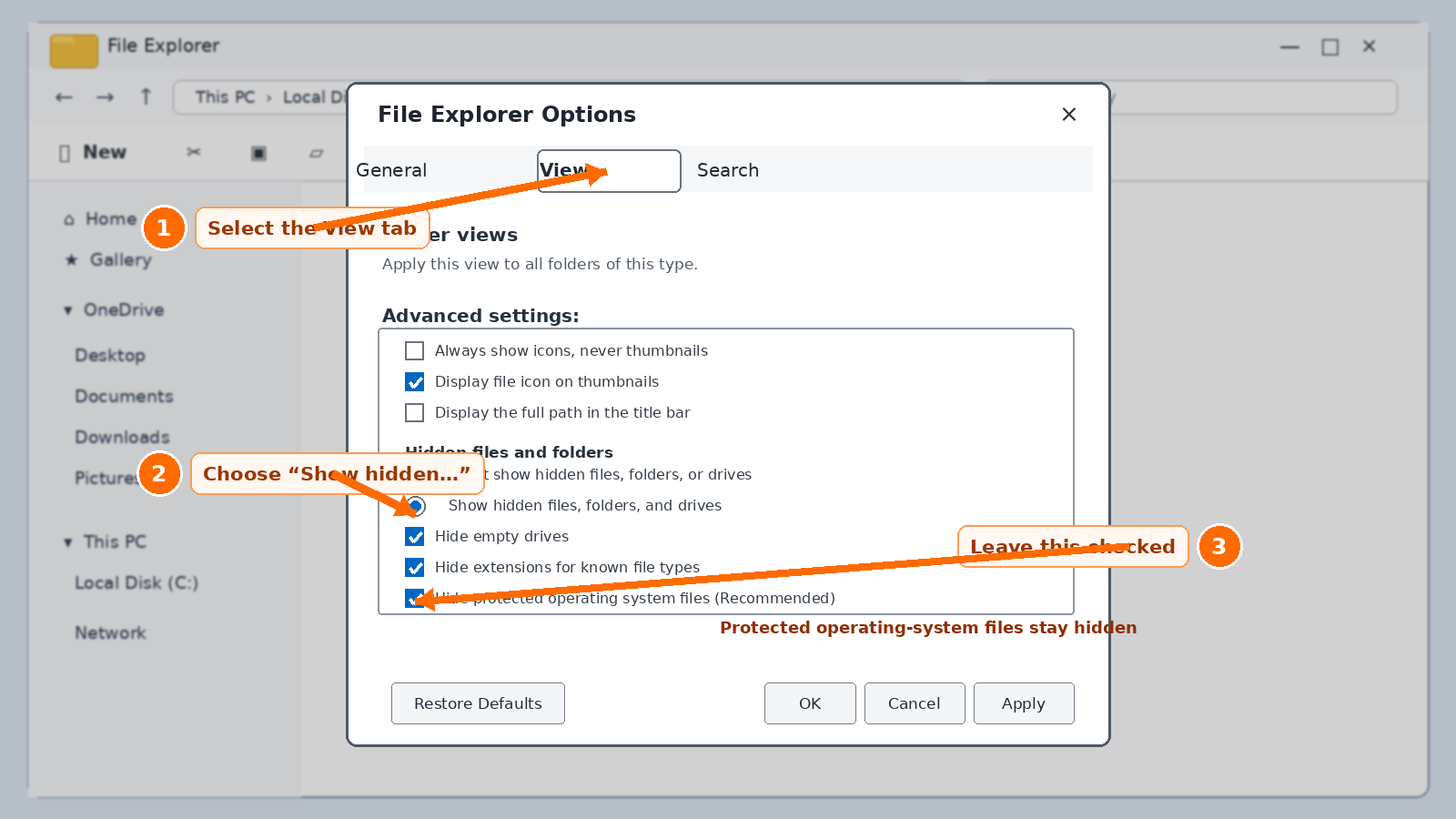
- Open File Explorer Options.In Windows 11, select the three dots (See more) → Options. In Windows 10, select View → Options → Change folder and search options.
- Open the View tab.Look under Advanced settings.
- Select “Show hidden files, folders, and drives.”This is the radio-button choice beneath Hidden files and folders.
- Leave “Hide protected operating system files (Recommended)” checked.Ordinary hidden items do not require disabling this safety setting.
- Select Apply, then OK.Close and reopen File Explorer if the current window does not refresh.
Do not casually reveal protected operating-system files
The separate Hide protected operating system files (Recommended) setting conceals boot and system components that Windows expects to remain in place. Disabling it creates visual clutter and makes accidental deletion or modification easier. Only change it when a trusted repair procedure specifically requires access—and turn it back on afterward.
Open common hidden folders directly
You often do not need to enable hidden-item viewing at all. Enter one of these variables into the File Explorer address bar and press Enter:
%AppData%Opens the current user’s AppData\Roaming folder.%LocalAppData%Opens the current user’s AppData\Local folder.%ProgramData%Opens the computer-wide ProgramData folder.%UserProfile%Opens the current user-profile folder.Hidden files versus protected system files
| Type | Example | Shown by Hidden items? | Recommended handling |
|---|---|---|---|
| Ordinary hidden file or folder | AppData, ProgramData |
Yes | Safe to reveal temporarily; edit only what your repair instructions identify. |
| Protected operating-system file | Boot and core Windows files | No, not while protection is enabled | Keep protected unless a trusted, specific procedure requires otherwise. |
| File-name extension | .exe, .jpg, .docx |
Separate setting | Showing extensions is generally useful and helps identify misleading filenames. |
| Deleted or inaccessible file | Removed item or another user’s restricted data | No | Check Recycle Bin, backup, synchronization, account, permissions, or recovery options. |
Pro tip: show file-name extensions too
Hidden-item visibility and file-name extensions are separate settings. Showing extensions helps distinguish invoice.pdf from a misleading executable named something like invoice.pdf.exe.
- Windows 11: File Explorer → View → Show → File name extensions.
- Windows 10: File Explorer → View tab → check File name extensions.
- Do not rename or remove an extension unless you understand the file format; changing the ending does not convert the file.
How to mark your own file or folder as hidden
- Right-click the file or folder and select Properties.
- On the General tab, check Hidden.
- Select Apply.
- For a folder, Windows may ask whether to apply the change to that folder only or to all subfolders and files.
- Remember: the Hidden attribute is for organization, not security. Anyone can enable Hidden items and view it.
If the hidden folder still does not appear
- Refresh File Explorer: press F5, close and reopen the window, or restart Windows Explorer from Task Manager.
- Use File Explorer Options: confirm Show hidden files, folders, and drives is selected, then choose Apply.
- Check the path:
AppDatais inside each individual profile atC:\Users\AccountName\AppData. - Check the account: you may be signed in to a different Windows profile than the one containing the data.
- Check OneDrive: Desktop and Documents may have moved under the OneDrive folder when folder backup is enabled.
- Consider protected status: the item may be a protected operating-system file rather than an ordinary hidden item.
- Consider deletion or permissions: showing hidden items cannot recover a deleted file or bypass access controls.
Frequently asked questions
Does showing hidden files make my PC less secure?
Simply revealing ordinary hidden items does not disable Windows security. The risk is accidental modification. Avoid changing unfamiliar files, and keep protected operating-system files hidden.
Why does AppData look faded?
File Explorer uses a lighter, semi-transparent appearance to indicate that an item carries the Hidden attribute but is currently visible.
Can I leave Hidden items enabled permanently?
Yes, but the extra files may clutter folders and make accidental changes easier. Many technicians leave file extensions visible but show hidden items only when needed.
Will this recover a missing or deleted file?
No. It only changes File Explorer’s display. Check Recycle Bin, OneDrive, File History, backups, or recovery tools for deleted data.
Is a hidden folder password-protected?
No. Hidden is an attribute, not encryption or access control. Use proper Windows permissions, BitLocker, an encrypted archive, or another appropriate security method for sensitive data.
Why are some desktop.ini files still missing?
Some are protected operating-system files. Keep that protection enabled unless a specific trusted procedure requires access.
Official references
- Microsoft Support: File Explorer in Windows — current Windows 11 and Windows 10 menu paths for hidden items and file-name extensions.
- Microsoft Support: Common file-name extensions in Windows.
- Microsoft Support: Windows 10 support ended October 14, 2025.
Checked: July 31, 2026. Windows interface labels can move as Microsoft updates File Explorer. The screenshots are original annotated instructional graphics by The IT Guys and are not Microsoft-provided screenshots.
Still cannot find the file you need?
The IT Guys can help identify the correct Windows profile, recover missing data, repair File Explorer problems, and protect important files with a proper backup plan.