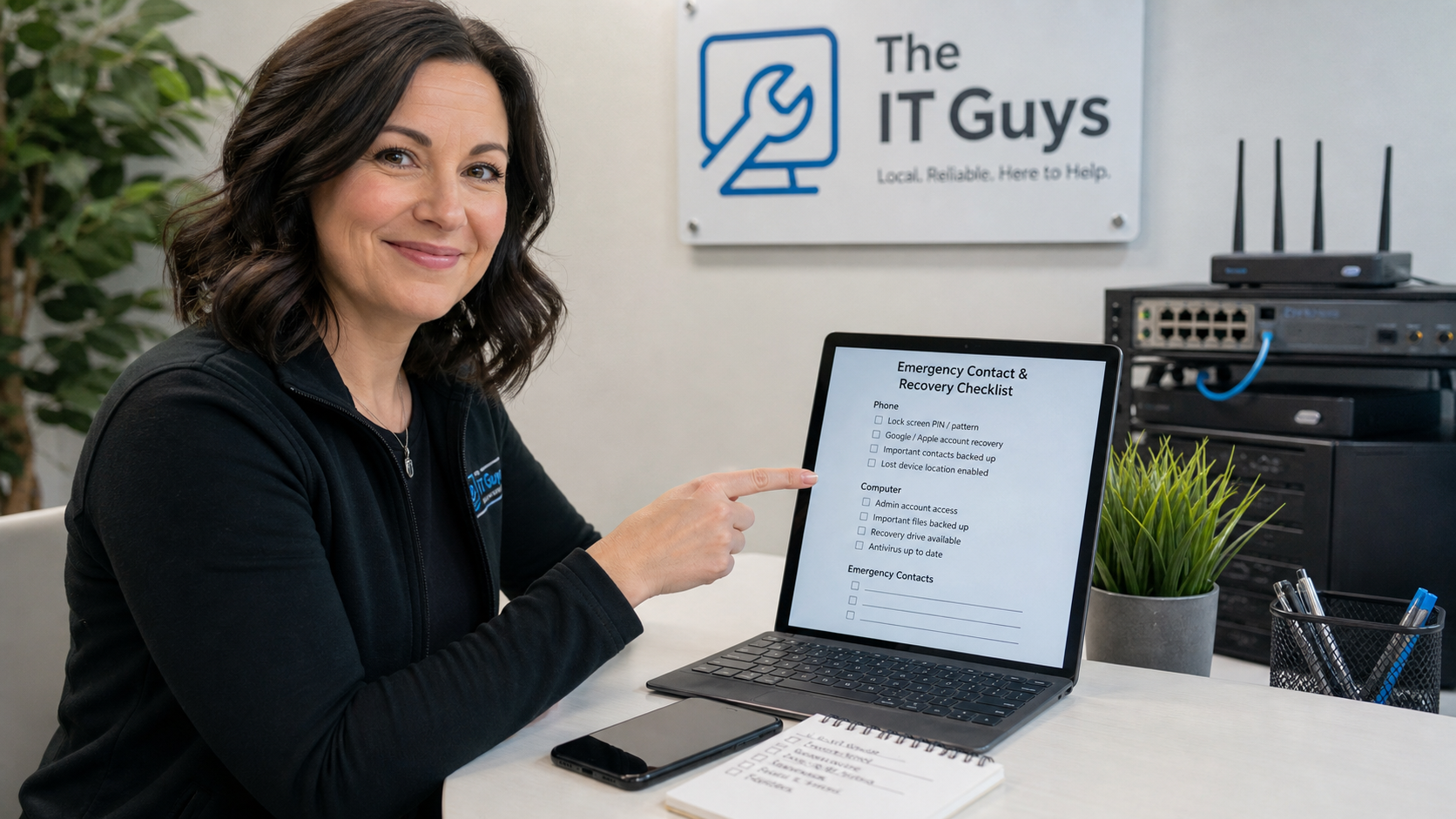
A small technology emergency rarely waits for a quiet afternoon. A phone gets lost, the office internet drops, a Microsoft 365 password reset needs a verification code, a laptop asks for a recovery key, or the person who normally knows the router login is unavailable.
Today’s practical tech tip is simple: make a one-page tech emergency sheet and store it somewhere safe before you need it. This is not a password list. It is a controlled reference page that tells you who to call, where to look, and which recovery paths exist when normal access is interrupted.
Why This Helps
Most home and small-business tech problems become harder when the recovery details are scattered across memory, text messages, one person’s phone, or a browser that is no longer signed in. A short emergency sheet reduces panic because it gives you a starting point when the usual workflow is broken.
This matters most for accounts and devices that control other things: email, Microsoft 365, Google Workspace, Apple Accounts, domain names, internet service, router/firewall access, backup systems, accounting software, and payment or scheduling tools. If one of those fails, the first hour is usually spent figuring out who owns what. The emergency sheet is meant to shorten that hour.
What To Include On The Sheet
- Internet provider details: provider name, account holder, billing phone number, support phone number, service address, and circuit or account number if available.
- Router and Wi-Fi basics: router/firewall model, physical location, Wi-Fi network names, guest Wi-Fi name, and the admin page address. Do not write the admin password in plain text.
- Important account recovery paths: which email address and phone number are used for Microsoft, Google, Apple, domain registrar, hosting, banking, payroll, and accounting recovery.
- Backup location: where backups live, who can check them, the last restore-test date, and whether the backup is cloud, external drive, NAS, or managed service.
- Device recovery notes: where to find BitLocker recovery keys, FileVault/recovery contact notes, mobile device management contact, and serial-number or asset-tag locations.
- Emergency contacts: owner/manager, internal admin, ISP support, website host, payment processor support, and The IT Guys or your chosen IT provider.
- Shutdown and restart notes: which device should not be unplugged casually, such as a server, NAS, firewall, phone system, payment terminal, camera recorder, or medical/business-specific device.
How To Make It Safely
1. Start With The Accounts That Unlock Other Accounts
List your main email/admin accounts first. For Microsoft accounts, review the security information and verification methods Microsoft uses for sign-in checks. Microsoft warns that phone numbers and email addresses used for verification should stay up to date because old information can block access later. For Google accounts, check recovery email, recovery phone, two-step verification methods, and backup codes if your setup uses them. Google’s own backup-code guidance says backup codes are for signing in when your normal 2-Step Verification method is unavailable.
For Apple Accounts, confirm trusted phone numbers and trusted devices. Apple also offers recovery contacts and recovery keys, but recovery keys need extra care: Apple says turning on a recovery key changes the standard account recovery process, so losing that key can create a serious lockout problem.
2. Record Where Secrets Are Stored, Not The Secrets Themselves
The emergency sheet should say “passwords are in the company password manager” or “sealed recovery envelope is in the office safe,” not “router password is Password123.” If you use recovery codes, treat them like passwords. A printed sheet that anyone can photograph should not contain live passwords, full MFA backup-code lists, banking credentials, or private recovery keys.
3. Add The Physical Details People Forget
Write down where the modem, router, battery backup, network switch, server, NAS, camera recorder, and main printer are located. If the office has a closet full of similar-looking boxes, label them. During an outage, a clear “do not unplug this” label can prevent a small internet issue from becoming a phone-system, camera, or payment-terminal issue.
4. Confirm Backup And Recovery Before You Trust The Page
Do not just write “backups are fine.” Add a line for the backup system, what it protects, who receives alerts, and the last date someone restored a test file. If nobody can remember the last successful restore, schedule one. A backup plan is only useful if recovery has been tested.
5. Store Two Copies In Controlled Places
Keep one printed copy in a locked office location and one copy with the business owner or trusted manager. For a home user, that might be a small folder in a safe with insurance papers and device receipts. For a business, it may be a sealed envelope in a locked cabinet plus a copy with the owner. Do not leave it taped near the router or saved as an unprotected document named “all passwords.”
6. Review It On A Schedule
Put a calendar reminder on the first business day of each quarter. Update the sheet after employee changes, phone-number changes, ISP changes, router replacements, domain/hosting changes, accounting software changes, and any password-manager or MFA rollout. The page should be boring, current, and short enough that someone will actually use it.
Important Cautions
- Do not make a plain-text password sheet. The goal is recovery guidance, not a shortcut around security.
- Do not store the only copy inside the account it helps recover. If your Google recovery details are only in Google Drive, that will not help when you cannot sign in.
- Be careful with Apple recovery keys. Apple’s recovery-key option can improve account control, but it changes the recovery process. Only enable it if you understand where the key will be stored and who is responsible for it.
- Do not share the sheet broadly. Limit access to the owner, trusted manager, and IT provider. Review access after staff turnover.
- Do not assume sync equals backup. OneDrive, iCloud Drive, Google Drive, and Dropbox can be useful, but deleted or encrypted files can sync too. Keep a real backup strategy for important business data.
When To Call An IT Professional
Call for help if you are locked out of Microsoft 365 or Google Workspace admin access, cannot find a BitLocker or FileVault recovery path, see suspicious mailbox rules or login alerts, have multiple devices asking for recovery keys, suspect ransomware, or need to document a business recovery plan with proper owner/admin separation.
For small businesses, this is also a good time to ask for an admin-access review. A professional can confirm who owns your domain, who controls DNS, whether MFA is set up safely, whether backup alerts reach the right person, and whether a single lost phone could stop the business from signing in.
Useful Source Links
- CISA: Turn On MFA
- FTC: Creating strong passwords and protecting your accounts
- Microsoft: Manage account security info and verification codes
- Google: Sign in with backup codes
- Apple: Trusted phone numbers and trusted devices
- Apple: Set up a recovery key
- Microsoft: Find your BitLocker recovery key