

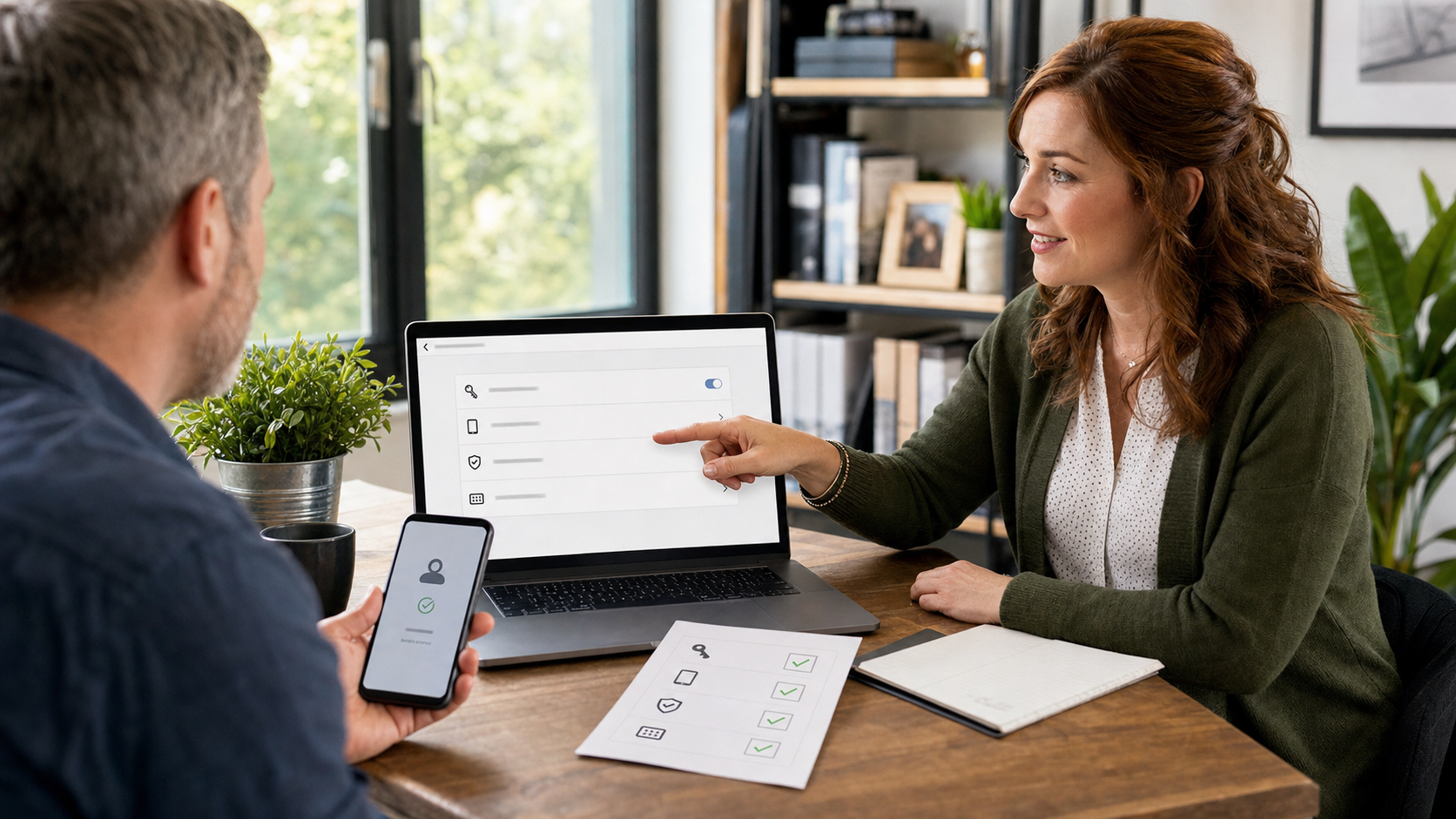
Passkeys are one of the best account-security upgrades normal people can actually live with. Instead of typing a password that can be stolen by a fake login page, a passkey lets your phone, computer, password manager, or hardware security key prove it is really you. For many accounts, that means you sign in with Face ID, Touch ID, Windows Hello, a device PIN, or a security key touch instead of typing the account password.
Today’s practical tip: turn on passkeys for your most important accounts, but do it with a recovery plan. The recovery part matters. A passkey is more secure than a reused password, but a lost phone, wiped laptop, disabled employee account, or forgotten device PIN can still turn into a business interruption if nobody thought through backup access.
Where To Start
Do not try to convert every login in one afternoon. Start with the accounts that would cause the most pain if someone got in: email, Microsoft 365 or Google Workspace, banking, payroll, accounting, domain registrar, website hosting, cloud backups, remote access, and social media pages connected to the business.
For a household, start with the main email account, Apple ID or Google Account, Microsoft account, banking, password manager, and any account used to reset other accounts. Email is especially important because attackers often use a compromised mailbox to reset everything else.
Step-By-Step: Set Up A Passkey Without Locking Yourself Out
- Choose one important account first. Good first choices are your Google Account, Microsoft account, Apple account ecosystem, password manager, or primary business email.
- Confirm your recovery email and phone number are current. If the recovery address goes to an old employee, abandoned inbox, or disconnected phone number, fix that before adding a new sign-in method.
- Turn on multi-factor authentication if it is not already enabled. Passkeys are strong, but most services still expect you to maintain good recovery and security settings around them.
- Create the passkey on a device you control. Use your own phone, laptop, password manager, or hardware security key. Avoid creating passkeys on shared front-desk computers, borrowed devices, or public machines.
- Name the passkey clearly if the service allows it. Names like “Randy iPhone July 2026,” “Office YubiKey,” or “Jennifer admin laptop” make future cleanup much easier.
- Test the passkey immediately. Sign out in a private browser window or another browser profile, then sign in with the new passkey. Do not wait until a real emergency to learn how it works.
- Add a second recovery method. Depending on the service, that may mean a second trusted device, a printed recovery code set, an authenticator app, or a hardware security key stored somewhere secure.
- Document who owns the recovery path. For a business, do not leave the only recovery method attached to one employee’s personal phone. Use named roles, company-controlled admin accounts, and a written offboarding process.
How To Find The Settings
The exact menu changes by service, but these official pages are good starting points:
- Google: Sign in with a passkey instead of a password
- Google: Make your account more secure
- Microsoft: Create and save a passkey
- Microsoft: Manage your saved passkeys
- Apple: About the security of passkeys
- Apple: Use passkeys to sign in to websites and apps on iPhone
If you use Microsoft 365 or Google Workspace at work, the business administrator may control which sign-in methods are allowed. That is normal. In that case, plan the rollout instead of letting each person improvise.
Why This Helps Against Phishing
Traditional passwords can be typed into the wrong place. That is why fake Microsoft, Google, bank, shipping, and payroll login pages still work so well. A passkey is designed to work with the real website or app it was created for, so a fake login page should not be able to simply collect and reuse it the way it can collect a password.
That does not mean passkeys make people invincible. Attackers can still abuse remote-control tools, trick someone into approving a separate request, steal an already-signed-in device, or exploit weak recovery settings. Passkeys are a strong layer, not a reason to ignore endpoint security, device locks, employee training, and account monitoring.
Small-Business Checklist
- Use passkeys first on admin accounts. Start with business email admins, Microsoft 365 or Google Workspace admins, website hosting, DNS, accounting, and payroll.
- Keep at least two admin recovery paths. A single owner phone is not a business continuity plan.
- Prefer company-controlled devices for business passkeys. Personal phones may be acceptable in small teams, but document what happens if that employee leaves.
- Store recovery codes securely. Do not leave them in a shared Google Doc or plain text note named “backup codes.” Use a business password manager vault or sealed physical copy in a controlled location.
- Review old passkeys quarterly. Remove passkeys for lost devices, replaced phones, retired laptops, and departed employees.
- Train staff on the new prompt. People should know what a real passkey sign-in looks like and when to stop and ask for help.
What Can Go Wrong
The most common mistake is setting up a stronger sign-in method without checking recovery. If the phone is lost, the laptop is wiped, or the employee leaves, the business may discover that nobody else can get into the account. Another common issue is saving the passkey in the wrong place, such as a personal password manager when it should have been stored in a managed company vault.
Also watch for sync assumptions. Apple passkeys can sync through iCloud Keychain when the right Apple settings are enabled. Google Password Manager and Microsoft’s passkey tools have their own account and device behavior. Hardware security keys are excellent, but they need a spare key and a secure storage plan. Before removing old sign-in methods, make sure the new method works from more than one realistic recovery path.
When To Call An IT Professional
Call for help before changing sign-in settings if the account controls payroll, email administration, website hosting, domain registration, financial systems, backup systems, security cameras, or remote access. Also get help if you use shared accounts, have former employees still listed as recovery contacts, cannot identify the real account owner, or are not sure whether your Microsoft 365 or Google Workspace tenant has emergency admin access.
For a small business, the right goal is not “everyone clicks the passkey button today.” The right goal is stronger sign-in, tested recovery, clear ownership, and fewer chances for a fake login page to take over the account that runs the business.
Bottom Line
Pick one critical account today. Add a passkey on a trusted device. Test it. Save recovery codes or a second recovery method somewhere controlled. Then write down who can recover the account if that device is lost. That small amount of planning can prevent both phishing trouble and lockout trouble.