

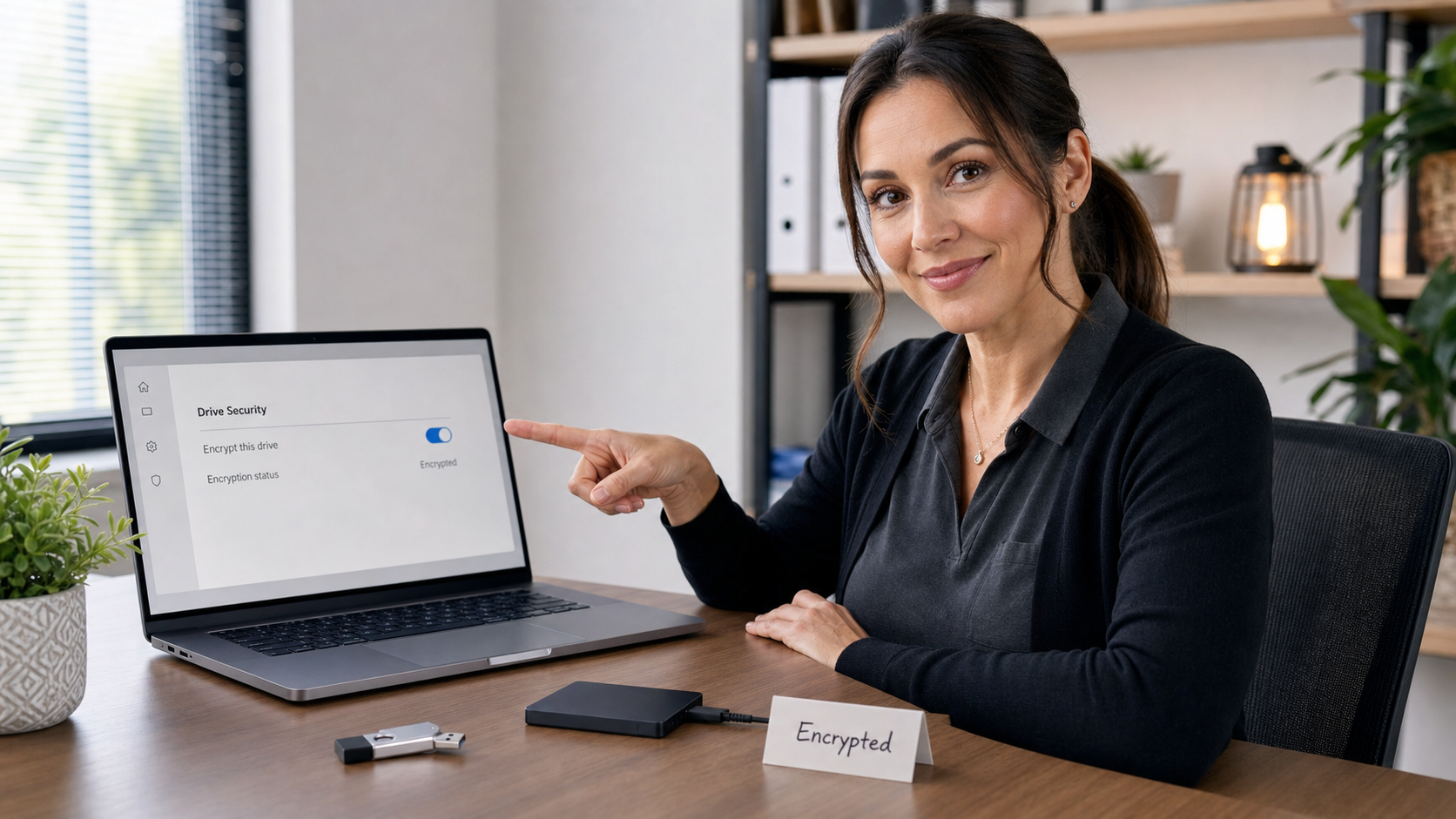
Quick tech tip: before you copy private files to a USB flash drive or portable SSD, encrypt the drive first. This is especially important for tax documents, payroll exports, customer records, QuickBooks files, medical or legal paperwork, scanned IDs, HR forms, and anything a small business would not want found in a parking lot.
Portable drives are convenient because they are small. That is also the problem. They get left in bags, cars, desks, hotel rooms, job sites, and repair counters. Encryption turns a lost drive from “whoever finds it can open the files” into “the files are locked unless the finder has the password or recovery method.”
The goal today is simple: pick one USB drive you use for real files, encrypt it, label it, test it, and write down where the unlock password or recovery information is stored.
Why This Matters
CISA warns that attackers can use USB drives to move malware between computers, and it also recommends protecting data stored on removable media from unauthorized access. Those are two separate risks: unknown USB drives can be dangerous to plug in, and your own USB drives can expose private files if they are lost or stolen.
For home users, this protects ordinary sensitive files: taxes, insurance paperwork, medical documents, family records, photos, school documents, and saved work. For small businesses, it protects portable copies of customer lists, invoices, bank exports, employee records, vendor documents, and field-service data.
Encryption is not a backup, and it is not a substitute for clean file-sharing systems like OneDrive, SharePoint, Google Drive, Dropbox, or a managed business file server. But when a USB drive is necessary, encryption should be the default for anything private.
First, Decide Whether A USB Drive Is Even The Right Tool
Before encrypting, ask whether the file needs to travel on removable media at all. A secure cloud share with the right permissions is often better because access can be revoked, files can stay versioned, and users do not have to pass around a physical object.
- Use a secure cloud link when the recipient has an account, the file can stay online, and access needs to be controlled or revoked later.
- Use an encrypted USB drive when internet access is unreliable, a device is air-gapped, a vendor specifically requires removable media, or a large local transfer is the only practical option.
- Do not use a random found USB drive. If you find a drive in a parking lot, lobby, mailbox, or desk drawer and do not know its source, do not plug it into a work computer.
The 15-Minute Setup
- Start with a clean, known-good drive. Use a drive you bought from a reputable source. If the drive has important files on it already, copy them somewhere safe before changing encryption or formatting.
- Name the drive clearly. Use a boring label like Encrypted Client Transfer or Encrypted Office USB. Avoid putting client names or sensitive details on the physical label.
- Choose a strong unlock password. Use a password manager to generate and store it, or use a long passphrase that is not reused anywhere else. Do not use the business name plus the year.
- Encrypt the drive on the system that will use it most. Windows users will usually use BitLocker Drive Encryption on supported Windows editions. Mac users can use Disk Utility or Finder encryption for Mac-formatted drives.
- Test it before trusting it. Copy a harmless test file, eject the drive, plug it back in, unlock it, open the test file, then eject it again.
- Document the process. Record who owns the drive, what it is for, where the unlock password is stored, and when the drive should be erased or retired.
Windows: Use BitLocker For Removable Drives When Available
Microsoft’s BitLocker Drive Encryption support page explains that BitLocker can manually encrypt drives on Windows Pro, Enterprise, and Education editions. If your edition supports it, this is the normal Windows path for encrypting a USB flash drive or portable SSD.
- Plug in the USB drive or portable SSD.
- Open File Explorer, right-click the drive, and look for Turn on BitLocker. On some systems, search the Start menu for Manage BitLocker.
- Choose to unlock the drive with a password.
- Save the recovery key somewhere secure and reachable. Do not save the only copy on the same USB drive.
- Let encryption finish before removing the drive.
- Remove and reconnect the drive to confirm it prompts for the password and opens correctly.
If you do not see BitLocker, the computer may be running an edition that does not include full BitLocker management, or the drive may be controlled by business policy. Do not force a workaround on a company computer without checking with whoever manages the device.
Mac: Encrypt The Drive With Disk Utility Or Finder
Apple’s Disk Utility guide says encrypting and protecting a storage device with a password requires erasing the device first. That warning matters: if the drive already contains files, copy them somewhere else before erasing and encrypting it.
- Back up anything already on the external drive.
- Open Disk Utility.
- Choose View > Show All Devices.
- Select the physical external storage device in the sidebar.
- Click Erase, choose an encrypted format such as encrypted APFS for Mac use, and set a strong password.
- After formatting, eject and reconnect the drive to confirm the password prompt appears and the drive opens.
Apple also notes that if you forget the password for an encrypted disk or disk image, you cannot access the data. That is the point of encryption, but it means the password-storage plan matters just as much as the checkbox.
Compatibility Warning: Windows, Mac, And Vendors
Encryption can make a drive less convenient across different computers. A drive encrypted for Windows may not unlock easily on a Mac without extra software or policy support. A Mac-encrypted APFS drive is not a good general-purpose handoff drive for Windows users. That does not make encryption bad; it means the format should match the workflow.
- Windows-only office: BitLocker is usually the cleanest option when supported and managed properly.
- Mac-only workflow: encrypted APFS is usually the cleaner choice.
- Mixed Windows/Mac handoff: consider a secure cloud share, a managed encrypted transfer tool, or a hardware-encrypted drive that is tested on both platforms before real files are copied.
- Vendor transfer: test with a harmless file first. Do not discover during a deadline that the recipient cannot unlock the drive.
Small-Business Policy That Actually Works
A small office does not need a 40-page removable-media policy to improve. Start with five plain rules:
- No private business files on unencrypted USB drives. If it contains customer, employee, financial, legal, or login-related material, encrypt it.
- No unknown USB drives in work computers. Found drives go to IT, not into a front-desk PC.
- Use named, approved drives. Keep a short list of company-owned encrypted drives and who has them.
- Store unlock passwords in the right place. Use a managed password vault or secure documentation system, not a sticky note on the drive.
- Erase transfer drives after the job is done. A drive used for one-time transfer should not become an accidental archive of old client files.
What Can Go Wrong
- The password gets lost. If the only unlock password is gone, the files may be unrecoverable. That is normal encryption behavior, not a glitch.
- The drive gets erased during setup. Mac Disk Utility encryption workflows can require erasing the device first. Back up existing files before formatting.
- The recipient cannot open it. Test the encrypted drive on the kind of computer that will receive it before moving real data.
- Someone copies files back to an unsafe place. Encryption protects the portable drive, not the desktop folder, email attachment, or downloads folder where files are later saved.
- Malware risk is still real. Encryption protects data at rest, but it does not make random USB devices safe to plug in.
- Hardware can still fail. USB drives are not permanent archives. Keep the original file in a backed-up location.
When To Call An IT Professional
- You need removable-media rules for employees, vendors, or regulated customer data.
- You need encrypted drives that work reliably across Windows and Mac computers.
- A business computer does not show BitLocker or says settings are managed by an organization.
- An encrypted drive contains important data and the password or recovery key is missing.
- You found or received a suspicious USB drive and need to inspect it safely.
- You need a better way to transfer files than passing USB drives between people.
The habit is the win: private files should not ride around on plain USB drives. Encrypt the drive, test the unlock, document the password location, and keep the original files backed up somewhere safer.
Useful Sources
- Microsoft Support: BitLocker Drive Encryption
- Microsoft Support: Back Up Your BitLocker Recovery Key
- Apple Support: Encrypt And Protect A Storage Device With A Password In Disk Utility
- Apple Support: Protect Your Mac Information With Encryption
- CISA: Using Caution With USB Drives
- CISA: How To Protect The Data That Is Stored On Your Devices