

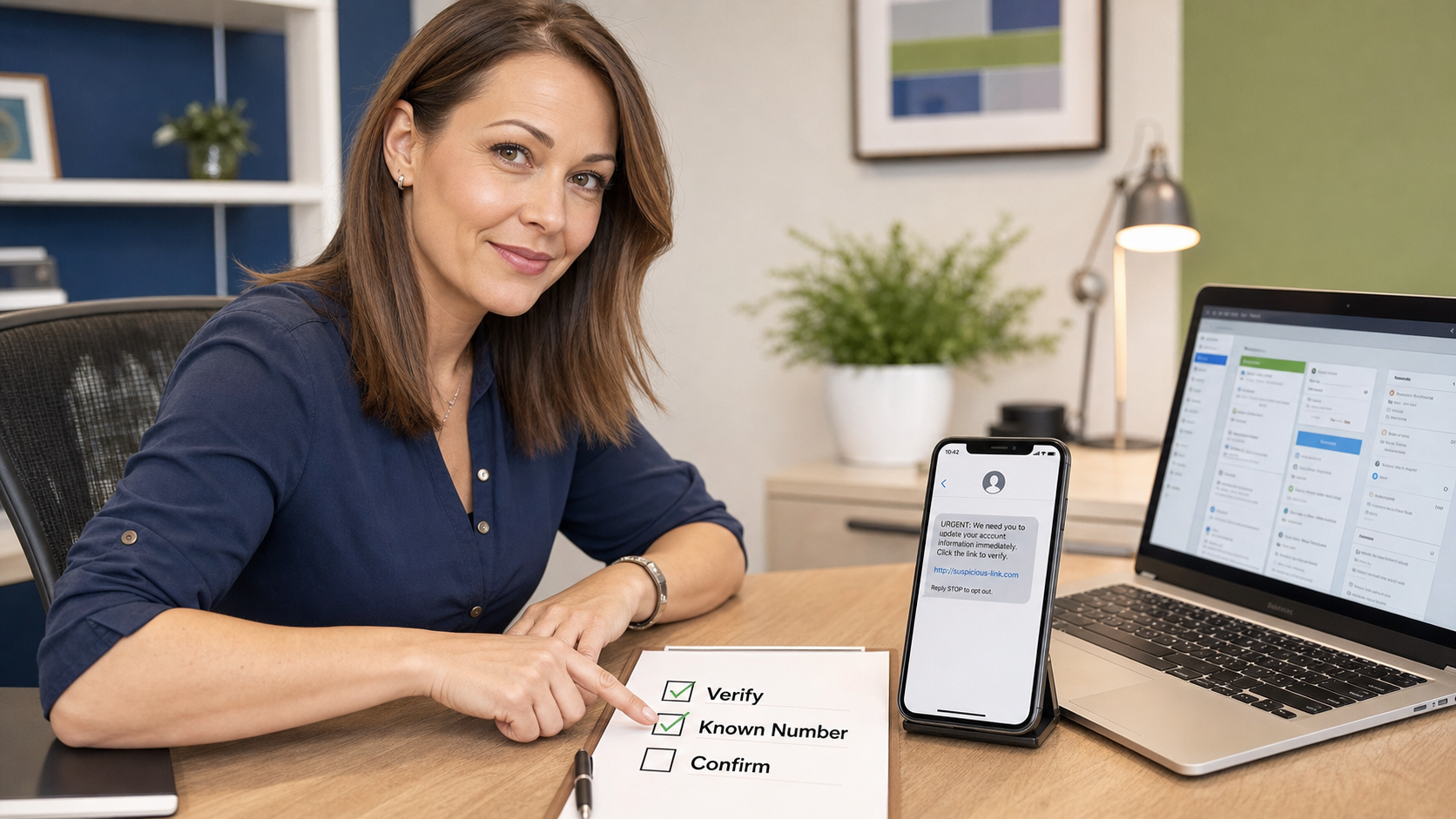
Today’s practical tech tip: before you approve a payment change, reset a password, install a remote-support tool, or give out a code because of a phone call or text, verify the request through a known-good contact path first.
This is the “known-number callback” rule. It is simple: do not use the phone number, link, QR code, or reply path provided in the suspicious message. Use a phone number, website, saved contact, help desk portal, or vendor contact you already trust. That one pause can stop a fake bank call, fake Microsoft support warning, payroll change scam, vendor invoice trick, or account-recovery attack before money or access leaves your control.
For home users, this protects banking, email, shopping accounts, phone carriers, cloud storage, and family tech-support requests. For small businesses, it is even more important because scammers often target whoever can approve invoices, update payment details, unlock accounts, buy gift cards, or let someone remote into a computer.
Why This Works
Scams often rely on pressure. The message may say an account will close today, a customer payment failed, a manager needs gift cards, a vendor changed bank details, a package is delayed, or a computer is infected. The request feels urgent, so the victim follows the easiest path: call the number in the pop-up, reply to the text, click the email button, scan the QR code, or give the caller a one-time code.
That easy path is exactly what the scammer controls. A known-number callback breaks the attack by moving the conversation away from the contact information supplied by the suspicious message. Instead of asking, “Does this message look real?”, you ask, “Can I confirm this through a channel I already know is real?”
The FTC, CISA, Microsoft, and Google all publish consumer and business guidance around phishing, online scams, tech-support scams, and account-safety checks. The common pattern is the same: slow down, avoid suspicious links or contact details, and verify directly with the real organization before acting.
Use The Rule For These High-Risk Requests
- Payment changes: new wire instructions, ACH changes, invoice-bank updates, refund requests, overpayment stories, or “send it today” pressure.
- Password and MFA requests: someone asks for a password, one-time code, password reset approval, MFA prompt approval, backup code, or recovery key.
- Remote access: a caller or pop-up asks you to install AnyDesk, TeamViewer, Quick Assist, browser extensions, VPN software, or “security tools” you did not request.
- Account lockouts: emails, texts, or calls saying your Microsoft, Google, Apple, bank, phone, payroll, domain, or hosting account will be closed unless you act now.
- Gift cards and emergency purchases: urgent texts that appear to come from a boss, relative, church contact, school, or vendor asking for gift cards or quick purchases.
- Vendor/customer changes: a supplier, contractor, employee, or customer suddenly wants a new payment path, new file-sharing link, or new point of contact.
Step 1: Build A Small Trusted Contact List
Do this before there is a problem. A trusted contact list does not need to be complicated. Start with the accounts and vendors where a wrong decision could cost money, expose data, or lock you out.
- List your most important accounts: bank, credit card, email provider, Microsoft 365 or Google Workspace, Apple Account, phone carrier, payroll, accounting, web hosting, domain registrar, insurance, tax, and payment processor.
- For each one, record the official website you normally use and the customer-service number printed on a statement, card, invoice, contract, or official portal.
- For business vendors, record the normal account manager, billing contact, support portal, and the person in your company who is allowed to approve changes.
- Save these contacts somewhere practical: a password manager note, a printed office procedure, a shared internal document with controlled permissions, or a small emergency IT sheet.
- Do not copy numbers out of suspicious emails, texts, pop-ups, search ads, or voicemail transcripts into this list.
For a small business, keep the list short enough that employees will actually use it. “When in doubt, call the known number on this sheet” is easier to follow than a long policy nobody reads.
Step 2: Make The Callback Habit Specific
The habit works best when the rule is specific, not vague. Use this wording:
If a message asks for money, password changes, MFA codes, remote access, payment details, account recovery, or urgent purchases, verify through a known-good contact method before doing anything.
That wording matters because scammers try to make the request sound normal. They may say they are from your bank, Microsoft, Google, Apple, Amazon, PayPal, a delivery company, your boss, a vendor, a customer, a technician, or a family member. The label does not matter. The action they want matters.
Step 3: Verify Without Using The Suspicious Message
- Stop interacting with the message or caller. Do not click the link, scan the QR code, reply, call the provided number, or keep following instructions.
- Open the official website from a trusted bookmark or type the address yourself.
- Use the support number or portal you already trust, not the one in the message.
- If the request claims to be from a person, contact that person through a separate known method. For example, call the number already in your contacts or message through the normal company channel.
- Ask a plain question: “Did you request this payment change, password reset, remote session, code, or purchase?”
- Document the answer if it affects business money, customer data, payroll, or account access.
- If you cannot verify it, do not proceed. Escalate it to the owner, manager, bank, vendor, or IT support contact.
For business payments, make the callback person-to-person when possible. Email-only verification is weak if the vendor’s mailbox or your mailbox is already compromised.
Step 4: Add A Two-Person Rule For Business Money
If your business pays invoices, sends wires, changes ACH details, buys equipment, handles payroll, or refunds customers, add a second person to the process. The two-person rule does not have to slow normal work down much. It just means one person cannot receive a message, trust it, and send money without a second check.
- New vendor payment details: require callback verification and manager approval.
- Changed bank information: verify by phone with an existing vendor contact before updating the accounting system.
- Urgent executive requests: require voice or in-person confirmation through a known number.
- Gift cards: treat any gift-card request by text or email as suspicious until independently confirmed.
- Remote support: allow only preapproved IT providers and tools. A random pop-up is not a support ticket.
Step 5: Protect MFA Codes And Remote Access
A one-time code is often a key to your account. Do not read MFA codes, backup codes, password-reset links, BitLocker recovery keys, Apple recovery keys, Google verification codes, or Microsoft Authenticator numbers to someone who called you. Real support teams generally do not need you to hand over your sign-in code.
Be just as careful with remote support. Microsoft warns about tech-support scams where criminals claim there is a problem with your computer and ask for remote access or payment. If you did not initiate the support session with a trusted provider, stop and verify first.
What Can Go Wrong
- The scammer spoofs caller ID: caller ID can display a familiar company name or local number. Treat caller ID as a hint, not proof.
- The message includes a real-looking number: a phishing email can include a fake support number that sounds professional when you call.
- Search ads can mislead you: when looking for a support number, avoid sponsored results and use official statements, cards, invoices, portals, or trusted bookmarks.
- Email accounts can be compromised: a reply from a real vendor mailbox does not always prove the payment change is safe. Callback verification matters.
- Employees may fear slowing the boss down: make it clear that verifying unusual money or account requests is expected behavior, not insubordination.
- Too many exceptions weaken the rule: if every urgent request bypasses the process, the process does not exist.
When To Call An IT Professional
Call an IT professional if someone already clicked a suspicious link, gave out a password or MFA code, approved an unexpected sign-in prompt, installed remote-access software, changed payment details, or paid a suspicious invoice. The right response may include password resets, session revocation, mailbox rule checks, device scans, MFA reset, vendor/bank notification, and a review of signed-in devices.
Businesses should also get help building a simple verification process for accounting, payroll, Microsoft 365, Google Workspace, remote access, password managers, shared mailboxes, and employee onboarding. A one-page procedure can prevent a very expensive mistake.
Quick Checklist
- Save trusted contact numbers and official portals before an emergency.
- Use trusted bookmarks for important logins.
- Do not use contact details from suspicious messages.
- Verify payment changes by phone through an existing contact.
- Never give MFA codes, backup codes, or recovery keys to an unexpected caller.
- Require a second approval for unusual business payments or vendor changes.
- Report suspicious messages internally so the next person does not fall for the same trick.
Source Links
- FTC: How To Recognize and Avoid Phishing Scams
- FTC: How To Avoid A Scam
- CISA: Avoiding Social Engineering and Phishing Attacks
- CISA Secure Our World: Use Strong Passwords
- Microsoft Support: Protect Yourself From Tech Support Scams
- Google Account Help: Avoid and Report Phishing Emails