

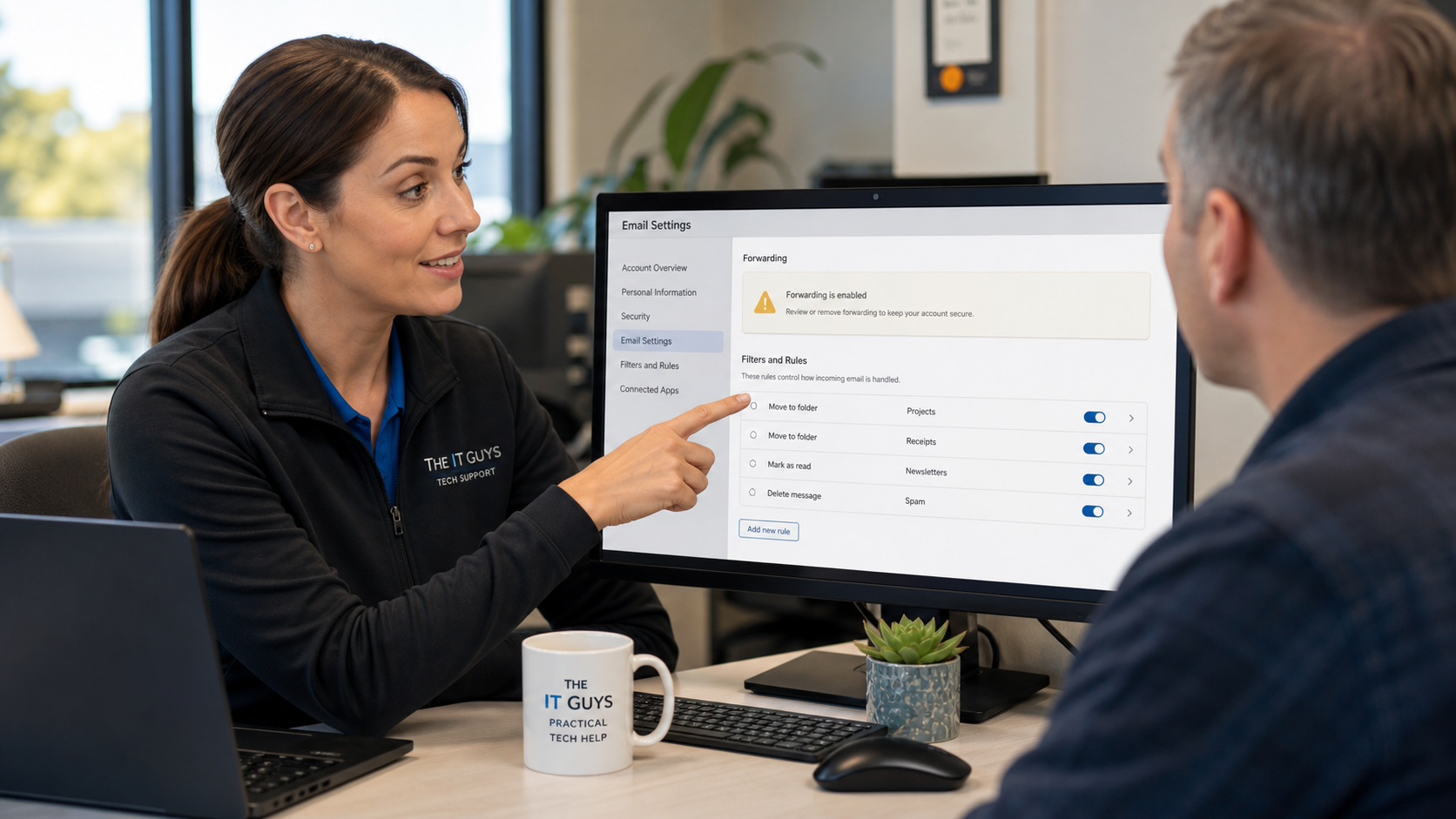
Quick tech tip: take ten minutes today to check whether your email account is secretly forwarding messages or hiding important replies with inbox rules. It is one of the simplest account checks you can do, and it catches a common problem after phishing, password reuse, shared computers, or a mailbox compromise.
Changing a password is important, but it does not always undo every change a scammer made while they were inside the mailbox. A hidden forwarding address, filter, or rule can keep sending invoices, password reset messages, customer replies, or bank alerts to someone else after the password has already been changed. For a small business, that can turn into invoice fraud, missed customer messages, payroll exposure, or a second account takeover.
Why this matters
Most email systems let you create rules that automatically move, delete, archive, mark, redirect, or forward mail. Those features are useful when you set them up on purpose. They are risky when a rule was created by someone who briefly got into your account.
The FTC specifically recommends checking email settings for forwarding rules after an account is hacked and deleting rules you did not create. Microsoft’s security documentation also treats suspicious inbox forwarding and inbox manipulation rules as investigation items because attackers can use them to quietly monitor or redirect mail. Gmail’s own help explains that forwarding can apply to all new messages or to specific filtered messages, which is why you need to check both forwarding settings and filters.
The 10-minute check
Do this from a trusted computer, not from a link in an email. Open your mail provider directly from a saved bookmark or by typing the address yourself.
- Open your email settings. In Outlook on the web, look under Settings > Mail > Forwarding and Settings > Mail > Rules. In Gmail, open Settings > See all settings, then review Forwarding and POP/IMAP and Filters and Blocked Addresses.
- Look for forwarding addresses you do not recognize. If forwarding is enabled and you did not set it up, pause and treat the account as potentially compromised.
- Review every rule or filter. Watch for rules that forward mail, delete mail, archive mail, mark mail as read, move messages to odd folders, or target words like invoice, payment, wire, payroll, password, bank, statement, tax, quote, customer, vendor, or administrator.
- Disable suspicious rules before deleting them. If this is a business mailbox, take a screenshot or export evidence first. Then disable the rule so it stops running. Delete it only after you have captured what you need for cleanup.
- Check sent, deleted, archive, junk, and unusual folders. A rule may have been hiding messages instead of forwarding them. Search for recent messages involving payment changes, password resets, vendor requests, or customer complaints.
- Change the password and review sign-ins. If anything looks wrong, change the email password from a clean device, sign out other sessions, check recovery email/phone settings, and turn on stronger MFA.
- Check connected apps and mail clients. Remove old phone mail profiles, unused desktop mail apps, and third-party apps that no longer need mailbox access.
What suspicious rules usually look like
You are not looking only for a rule named “forward everything.” Attackers often use boring names and narrow conditions so the mailbox still looks normal. Common warning signs include:
- A forwarding address outside your company or outside the account owner’s personal addresses.
- Rules that move invoices, payment requests, bank alerts, shipping notices, or password reset emails to Archive, RSS Feeds, Conversation History, Notes, Junk, or a folder you never use.
- Rules that mark messages as read before you see them.
- Rules that delete messages from a specific vendor, customer, bank, payroll provider, Microsoft, Google, Apple, QuickBooks, PayPal, Stripe, Square, or domain registrar.
- Filters created around the time you clicked a suspicious link, entered a password on a fake page, lost a device, or noticed strange sign-in alerts.
Outlook and Microsoft 365 notes
For personal Outlook.com or Outlook on the web accounts, Microsoft documents forwarding controls under the mailbox forwarding settings, and rule controls under Mail > Rules. Check both places. A rule can forward or redirect specific messages even if full-mailbox forwarding is not obvious.
For Microsoft 365 business tenants, this is not just a user setting. Admins should also review external forwarding controls, outbound spam policies, mailbox forwarding, sign-in logs, compromised-user alerts, and Defender alerts if the tenant has those tools. Microsoft notes that users can configure Inbox rules to forward externally, and admins can configure mailbox forwarding too, so both paths need review.
If your business handles payments, contracts, medical, legal, tax, or customer identity information, do not assume that changing one password closes the incident. Check whether any invoice or payment conversations were accessed or redirected, and notify affected parties if needed.
Gmail and Google Workspace notes
In Gmail, check both Forwarding and POP/IMAP and Filters and Blocked Addresses. Google explains that Gmail can forward all new messages or forward only messages matching a filter. That means a bad filter could hide just payroll emails, quote requests, password resets, or bank notices while the rest of the inbox looks normal.
For Google Workspace, admins should also review account activity, recovery settings, OAuth app access, delegated mailbox access, and security alerts. If several users share one mailbox password, fix that habit. Use individual accounts or delegated access instead, because shared passwords make it much harder to know who changed a rule or approved a login.
What can go wrong
Some forwarding and rules are legitimate. A bookkeeper may forward invoices to an accounting system, a manager may route support requests to a shared mailbox, and a user may archive newsletters automatically. Do not delete business rules blindly without understanding what they do.
- You may break a workflow. Document useful rules before removing anything.
- A rule may be only one symptom. If a suspicious rule exists, also check password changes, MFA methods, recovery options, connected apps, recent sign-ins, and sent mail.
- Forwarded data may already be exposed. Removing the rule stops future forwarding, but it does not recover messages already sent out.
- Business accounts may need tenant-level cleanup. User-visible rules are not the only way mail can be forwarded in Microsoft 365 or Google Workspace.
When to call an IT professional
Call for help if you find a rule you did not create, see forwarding to an unknown address, notice missing emails involving money or account recovery, receive strange sign-in alerts, or run a business mailbox used for invoices, payroll, medical, legal, or customer records. A professional can preserve evidence, remove hidden forwarding, review sign-in activity, revoke suspicious sessions, clean up connected apps, and check whether other mailboxes are affected.
The IT Guys can help home users and small businesses in Port Saint Lucie, Jensen Beach, Fort Pierce, and Vero Beach review suspicious mailbox behavior, clean up account access, and harden Microsoft 365 or Google Workspace settings. If email is tied to money movement or customer data, treat this as more than a nuisance.
Useful official references
- Microsoft Support: turn automatic forwarding on or off in Outlook.com
- Microsoft Support: manage email messages by using rules in Outlook
- Gmail Help: automatically forward Gmail messages to another account
- Gmail Help: create rules to filter your emails
- FTC: how to recover your hacked email or social media account
- Microsoft Defender XDR: suspicious inbox forwarding rules
- Microsoft Defender for Office 365: controlling external email forwarding