

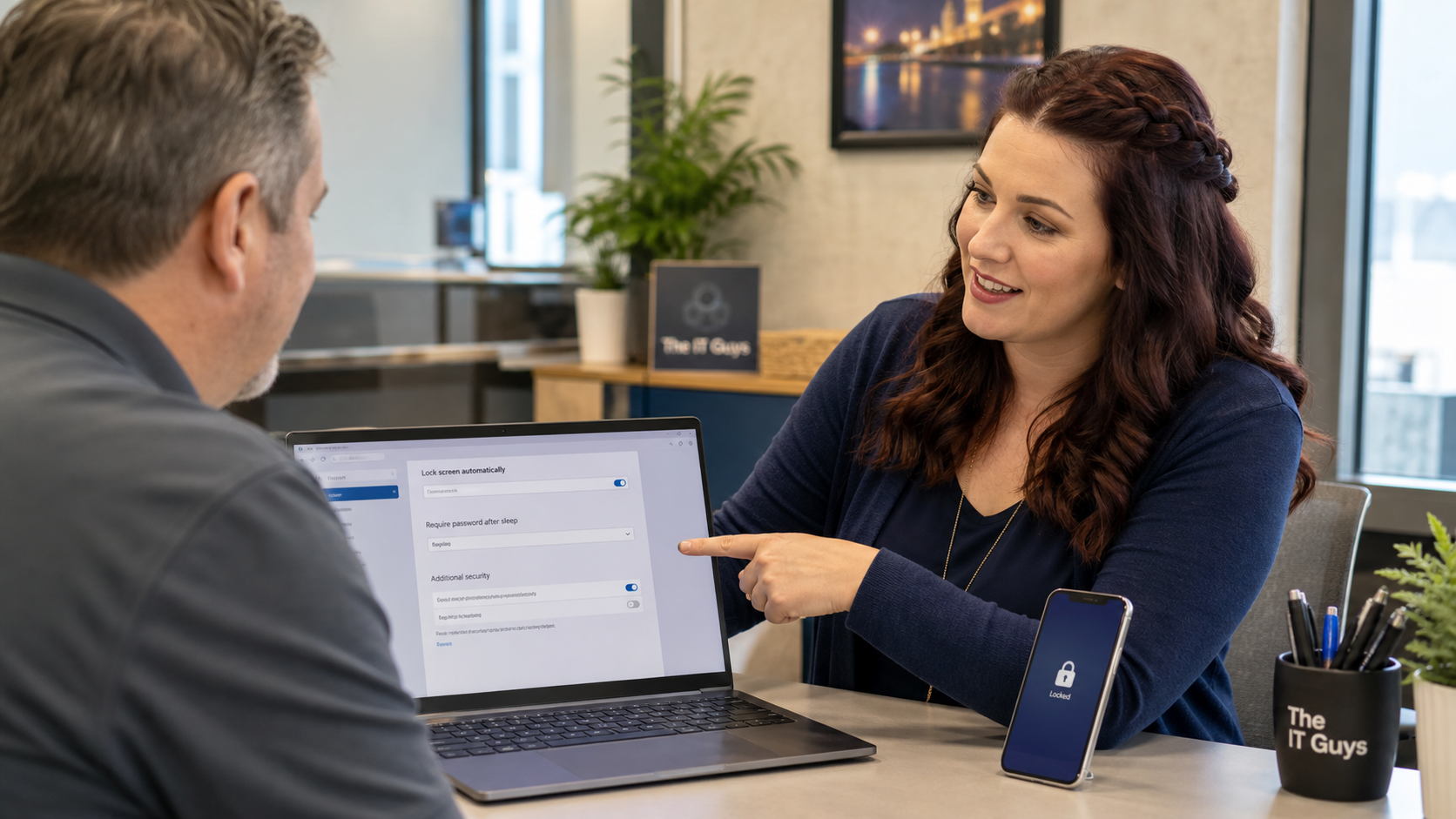
A computer or phone does not have to be hacked from across the internet to leak private information. Sometimes the risk is much simpler: someone walks past an unlocked screen while email, invoices, saved passwords, customer records, or banking tabs are still open.
Today’s practical tech tip is to set every everyday computer and phone to lock automatically after a short idle period, then require a password, PIN, fingerprint, Face ID, or Windows Hello sign-in when it wakes back up. It is one of the easiest security wins for homes, front desks, offices, repair counters, medical desks, real estate teams, bookkeepers, and anyone who uses a laptop in public.
The Quick Version
- Home computer: lock after about 10 to 15 minutes of inactivity.
- Work computer: lock after about 5 to 10 minutes, shorter for front desks or shared spaces.
- Phone: use a real passcode and a short Auto-Lock or screen timeout.
- Best habit: lock it manually before walking away: Windows + L on Windows, Control + Command + Q on Mac, or the power/side button on a phone.
Why This Matters
An unlocked device can expose more than the file you were working on. It may already be signed in to email, Microsoft 365, Google Workspace, QuickBooks, banking, customer portals, social media, browser profiles, password managers, messaging apps, and cloud storage. If the device is used by a business, that can turn into a customer privacy problem, payroll problem, invoice fraud problem, or account takeover.
Automatic lock is not a replacement for strong passwords, multi-factor authentication, separate user accounts, good backups, or endpoint protection. It is a safety net for the very human moment where someone steps away to help a customer, grab a package, answer the door, or take a phone call.
Set Automatic Lock On Windows 11
- Open Settings.
- Go to Accounts > Sign-in options.
- Find the setting for when Windows should require you to sign in after you have been away. Set it to require sign-in when the PC wakes from sleep or after a short away period, depending on the options available on that computer.
- Go to Settings > System > Power & battery > Screen and sleep.
- Set the screen to turn off after a reasonable idle time. For many small-business desktops, 5 to 10 minutes is a good starting point. For home desktops, 10 to 15 minutes may be less annoying.
- Test it: let the computer sit until the screen turns off, wake it, and confirm Windows asks for your PIN, password, fingerprint, face sign-in, or security key.
Windows also includes Dynamic lock, which can automatically lock a PC when a paired Bluetooth phone moves away. It can help, but I would treat it as a backup convenience, not your only lock method. Bluetooth distance can vary by room layout, device, and signal conditions.
Set Automatic Lock On Mac
- Open the Apple menu > System Settings.
- Click Lock Screen.
- Set the display to turn off after a short inactive period.
- Set Require password after screen saver begins or display is turned off to immediately or a short delay.
- Test it by locking the Mac or letting the display turn off, then waking it again.
Apple’s Lock Screen settings guide explains the Mac options. For business Macs, do not loosen this setting just because a shared counter computer feels inconvenient. The better fix is usually a short lock time plus separate user accounts or a proper point-of-sale workflow.
Set Auto-Lock On iPhone
- Open Settings.
- Go to Face ID & Passcode or Touch ID & Passcode and make sure a passcode is enabled.
- Go to Settings > Display & Brightness > Auto-Lock.
- Choose a short time, such as 30 seconds, 1 minute, or 2 minutes, depending on how you use the phone.
- Lock the phone with the side button, wake it, and confirm it requires your passcode, Face ID, or Touch ID.
Apple’s iPhone passcode guidance explains that the default passcode behavior asks for the passcode after the screen locks, and Apple’s iPhone passcode settings guide includes the Auto-Lock path.
Set Screen Lock On Android
- Open the Settings app.
- Go to Security & privacy.
- Choose Screen lock or Device unlock, depending on the Android phone.
- Use a PIN, password, fingerprint, or face unlock option. Avoid “Swipe” as your only lock because it does not meaningfully protect the device.
- Set the screen timeout to a short period under Display or Lock screen settings.
- Lock the phone, wake it, and confirm it asks for your unlock method.
Samsung’s Galaxy screen lock guide is a good example of the Android path, including screen lock type, auto-lock timing after the screen turns off, and instant locking with the side button. Android menus vary by manufacturer, so Samsung, Google Pixel, Motorola, and OnePlus phones may use slightly different names.
Small-Business Setup Checklist
- Decide the lock time by location. A private office may tolerate 10 minutes. A front counter, warehouse station, shared laptop, or medical/finance workstation should usually be shorter.
- Use individual accounts. Automatic lock works best when each person has their own Windows, Mac, Microsoft 365, Google, point-of-sale, or business-app account.
- Do not rely on browser profiles as device security. Browser profiles help organize work, but they do not replace operating system sign-in or proper account permissions.
- Check shared tablets and phones. Delivery phones, estimator phones, service tablets, and payment devices often get overlooked.
- Document the standard. Write down the expected lock time so new computers and replacement devices are configured the same way.
- Train the habit. Teach staff to lock manually before stepping away, especially before helping a customer away from the desk.
What Can Go Wrong
The most common problem is setting the lock time too aggressively. If a computer locks every minute while someone is actively reading a document or entering a long form, people will look for workarounds. Start strict where the risk is high, but keep the setting usable enough that people will live with it.
Another problem is false confidence. A locked screen helps protect a device that is unattended, but it does not fix weak passwords, shared passwords, phishing, missing MFA, old admin accounts, or lost-device recovery. If a laptop is stolen and the drive is not encrypted, a screen lock alone may not protect the data.
When To Call An IT Professional
- You manage several employees and want the lock policy applied consistently across Windows PCs, Macs, phones, or tablets.
- A shared workstation runs line-of-business software and you are not sure whether separate accounts will break licensing, printers, mapped drives, scanners, or saved settings.
- You handle sensitive customer records, card payments, medical information, payroll, legal documents, tax data, or business banking.
- You need help confirming that BitLocker, FileVault, iPhone encryption, Android device encryption, MFA, backups, and account recovery are in place too.
- Employees are bypassing the lock settings because the workflow is too painful. That usually means the workflow needs cleanup, not that security should be abandoned.
Related Reading
- Stop sharing one computer login with everyone
- Hide lock-screen notification previews
- Save your device encryption recovery key before you need it
Bottom Line
Automatic screen lock is a small setting with an outsized benefit. Set a short idle time, require sign-in after sleep or screen-off, and practice locking devices before you walk away. For a small business, that one habit can prevent a surprising amount of avoidable exposure.