

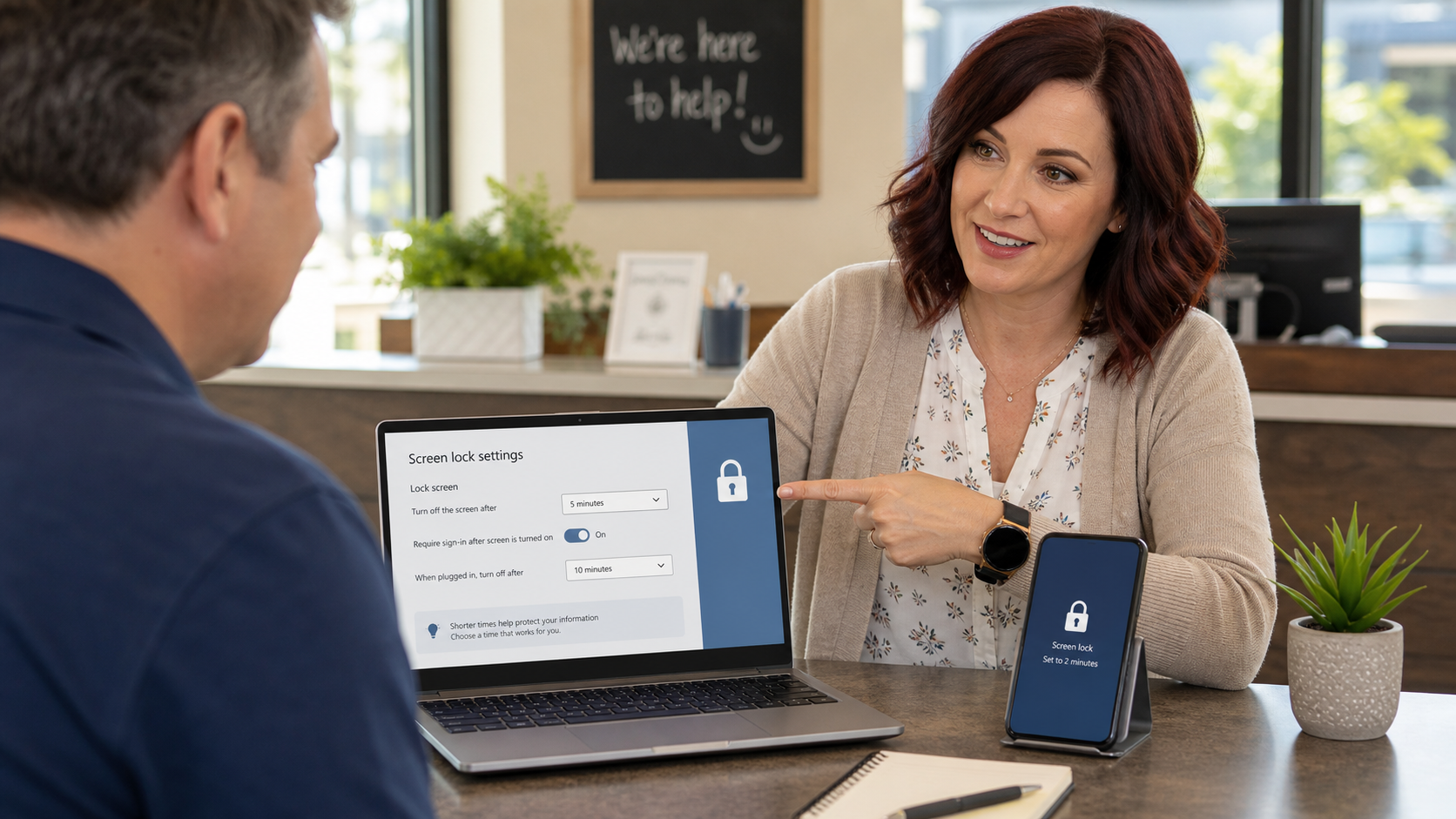
Today's practical tech tip: hide sensitive notification previews on lock screens, especially on phones and laptops used around customers, coworkers, visitors, family, repair counters, front desks, or shared work areas.
Automatic screen lock is important, but it is not the whole story. A locked phone or laptop can still leak useful information if text messages, email subjects, calendar reminders, authenticator prompts, delivery codes, customer names, or banking alerts appear on the screen before the device is unlocked.
This is a small setting change, but it closes a real everyday gap. Someone does not need to hack your account to learn from a visible notification. They only need to glance at the screen at the wrong moment.
Why Lock-Screen Previews Matter
Lock-screen notifications are convenient because they let you see what just came in without unlocking the device. The problem is that the same convenience can expose private or business-sensitive details to anyone nearby.
- One-time codes: SMS verification codes, delivery codes, bank alerts, or password-reset messages may be visible before unlock.
- Customer information: messages can show names, appointment details, service notes, addresses, or partial account information.
- Business clues: email subjects and calendar alerts can reveal vendors, payroll dates, invoices, travel plans, hiring activity, or internal issues.
- Scam fuel: a scammer who can see a recent alert may sound more believable when they call, text, or email later.
- Shared-space risk: counters, waiting rooms, conference rooms, job sites, and family spaces all make shoulder-surfing easier.
The goal is not to turn every device into a bunker. The practical goal is simple: let the device still alert you, but hide message content until you unlock it.
The Quick Fix
Set phones, tablets, and computers to hide notification content on the lock screen. For many people, the best balance is:
- Show that a notification arrived.
- Hide the message body, code, email preview, or calendar detail until the device is unlocked.
- Turn off lock-screen previews completely for finance, email, payroll, authenticator, customer messaging, and work apps.
iPhone And iPad: Hide Preview Text Until Unlocked
- Open Settings.
- Tap Notifications.
- Tap Show Previews.
- Choose When Unlocked for a good everyday default.
- For especially sensitive apps, go back to Notifications, tap the app, and turn off Lock Screen alerts or previews for that app.
Apple's notification settings also let you adjust individual apps, which is useful if you want weather alerts on the lock screen but not banking, email, payroll, or message previews.
Android: Hide Sensitive Lock-Screen Content
- Open the device's Settings app.
- Tap Notifications. On some phones this may be under Apps & notifications.
- Look for Notifications on lock screen, Lock screen notifications, or a similar privacy setting.
- Choose an option such as Hide sensitive content or turn off lock-screen notification content.
- Review individual high-risk apps such as email, messaging, banking, password managers, authenticator apps, payroll, point-of-sale, and customer chat tools.
Android settings vary by phone maker and Android version. Google's Android Help notes that some devices provide a Show sensitive content setting under lock-screen notification privacy, while others use slightly different wording.
Windows: Reduce What Appears Before Sign-In
- Open Settings.
- Go to System and then Notifications.
- Review which apps can send notifications.
- Turn off notifications for apps that should not show alerts on a shared or visible computer.
- In notification settings, look for lock-screen notification options and disable lock-screen notification display where appropriate.
Windows notification wording changes across versions and business-managed devices. If a computer is joined to a company Microsoft 365 or domain environment, some notification behavior may be controlled by policy.
What To Check First In A Small Business
If you only have ten minutes, start with the devices most likely to sit in public or semi-public spaces:
- Front desk computers and phones
- Reception tablets
- Point-of-sale tablets and phones
- Shared manager laptops
- Shop-floor or field-service phones
- Conference room computers
- Owner and bookkeeping phones
Then look at the apps with the highest exposure value: email, text messages, Teams or Slack, calendar, banking, payroll, password managers, authenticator apps, accounting tools, remote support tools, and customer messaging platforms.
A Practical Setup That Works For Most People
- Phones: show notification badges or app names, but hide preview text until unlocked.
- Work apps: hide message content on the lock screen, especially for email, chat, calendar, and finance apps.
- Authenticator prompts: avoid showing more detail than necessary before unlock.
- Shared devices: disable lock-screen notifications entirely unless there is a clear business reason to show them.
- Family devices used for work: hide work-message previews so business details do not appear in shared home spaces.
What Can Go Wrong
- You may miss urgent alerts: if you turn notifications off completely, make sure important calls, alarms, emergency alerts, and business-critical tools still reach you.
- Some apps have their own settings: changing the phone or Windows setting may not fully control every app. Check sensitive apps individually.
- Managed devices may override you: business phones and laptops may use mobile-device-management or Microsoft policy settings.
- Preview hiding is not encryption: it reduces casual exposure, but it does not replace a device passcode, automatic lock, updates, MFA, backups, or account monitoring.
- Notifications can still reveal context: even an app name or sender name can be sensitive in some workplaces.
When To Call An IT Professional
Call an IT professional if your business handles customer records, medical information, legal files, financial data, payment systems, or employee records and you are not sure which devices are exposing notifications. This is especially important if devices are shared, used at a front counter, assigned to former employees, or managed through Microsoft 365, Google Workspace, Apple Business Manager, Intune, Jamf, or another device-management system.
You should also get help if one-time codes or password reset messages have been visible on a shared device, if a device was lost, if a staff member reports suspicious sign-in prompts, or if you need one consistent policy across company phones and laptops.
Related Reading
- Set devices to lock automatically before you step away
- Review signed-in devices before an old phone keeps access
- Add passkeys, but save your backup codes first
- Turn on account activity alerts before a bad login gets missed
Sources
- Apple Support: Change notification settings on iPhone
- Google Android Help: Control notifications on Android
- Microsoft Support: Change notification settings in Windows
- FTC: How to recognize and avoid phishing scams
Bottom Line
A locked screen should not become a public preview window. Take a few minutes today to hide sensitive notification content on your phone, laptop, and shared work devices. You will still know something arrived, but the useful details stay private until you unlock the device.