

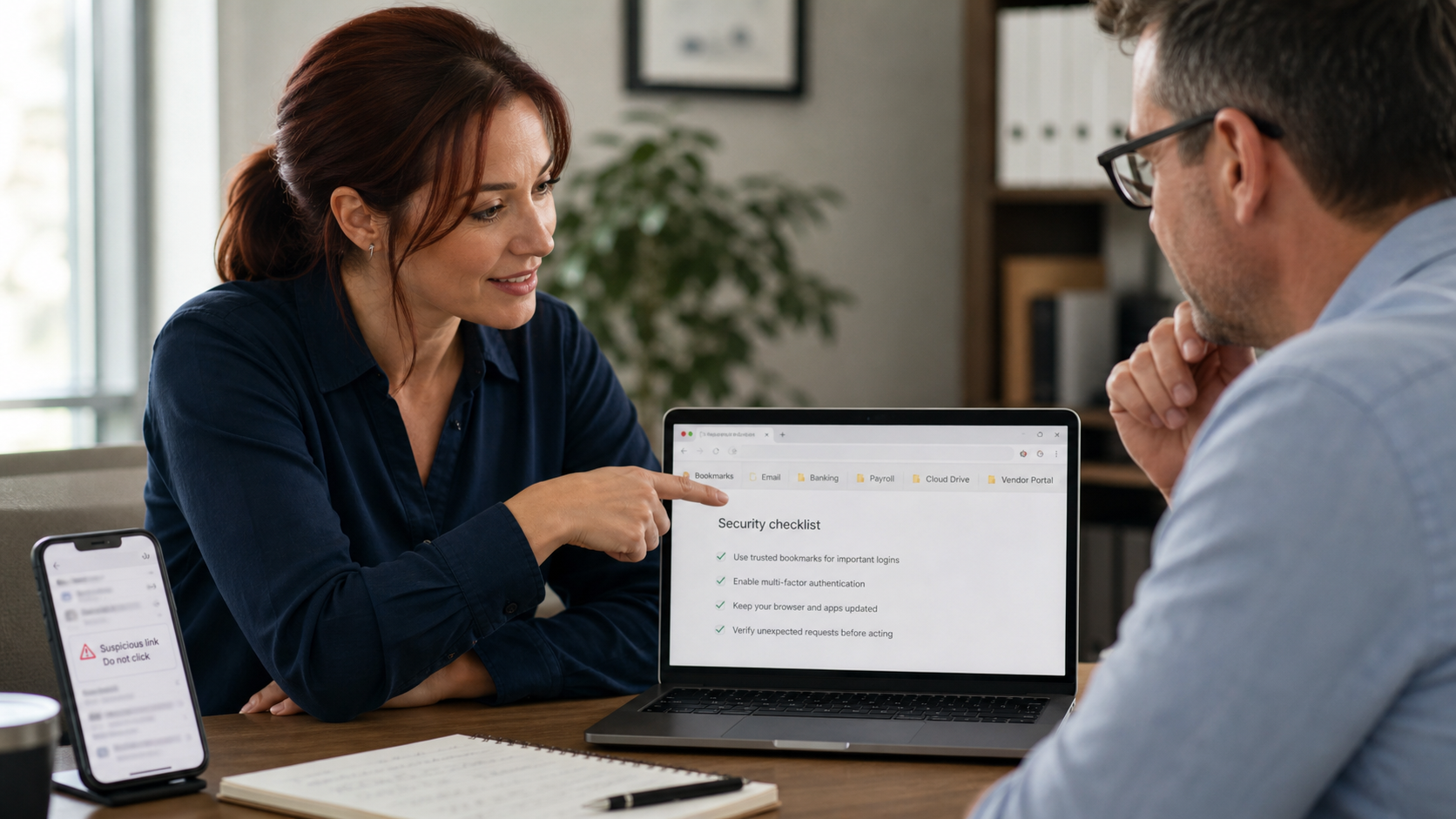
Today’s practical tech tip: make a small folder of trusted bookmarks for your most important logins, then use those bookmarks instead of clicking sign-in links from email, text messages, ads, or chat messages.
This is a simple habit, but it solves a real everyday problem. Phishing messages work because they catch people in motion: a delivery notice, a bank alert, a Microsoft 365 warning, a payroll message, a customer portal update, or a “your account will close today” email. The message may look familiar, but the link can lead to a fake sign-in page.
A trusted bookmark gives you a known-good path back to the real site. If a message says there is a billing issue, password warning, order problem, tax notice, cloud-file alert, or bank message, you can open your browser and go through your saved bookmark instead of trusting the link inside the message.
Why Bookmarks Help Against Phishing
The FTC warns that phishing messages often try to steal logins, account numbers, or personal information by pretending to be a company you know. Microsoft gives the same practical advice for suspicious messages: do not use the link in the message; open a new browser tab and go to the organization’s site from your own saved favorite, a web search, or by typing the address yourself.
For a home user, this protects accounts such as banking, email, shopping, insurance, phone service, utilities, and cloud storage. For a small business, it matters even more because a fake login page can lead to compromised email, vendor portals, payroll, accounting, remote access, Microsoft 365, Google Workspace, payment processors, or line-of-business apps.
Pick The Accounts That Deserve A Trusted Bookmark
You do not need to bookmark every website you use. Start with the accounts where a wrong click would cause the most damage.
- Email: Microsoft 365, Outlook, Gmail, Google Workspace, Yahoo, or your business mail portal.
- Money: bank, credit card, payroll, bookkeeping, accounting, payment processor, tax, and invoicing portals.
- Business operations: CRM, scheduling, dispatch, remote support, domain registrar, web hosting, point-of-sale, vendor ordering, and customer portals.
- Identity and recovery: Apple Account, Google Account, Microsoft Account, password manager, MFA app portal, phone carrier, and insurance accounts.
- File sharing: OneDrive, SharePoint, Google Drive, Dropbox, Box, customer upload portals, and document-signing services.
If your team signs in to the same handful of important services every day, this is one of the easiest security habits to standardize.
Step 1: Get The Right Website Address
- Do not start from an email link, text link, sponsored ad, or social media message.
- Open a fresh browser tab.
- Type the address yourself if you already know it, such as your bank’s normal website or your company’s regular Microsoft 365 sign-in path.
- If you must search, avoid sponsored ads and look for the official result. Be careful with lookalike spelling.
- Confirm that the site address is what you expect before signing in. Look at the domain name, not just the logo on the page.
- After signing in safely, use the site’s normal dashboard or account page as your bookmark target.
The goal is not to memorize every URL. The goal is to create a known-good shortcut once, then reuse it whenever a message pressures you to click.
Step 2: Create A “Trusted Logins” Bookmark Folder
Use a simple folder name, such as Trusted Logins, Work Logins, or Business Portals. Keep it boring and obvious so employees can find it quickly.
Chrome
- Go to the real website you want to save.
- Select the star icon in the address bar, or press Ctrl+D on Windows or Command+D on Mac.
- Rename the bookmark so it is clear, such as “Bank – Main Login” or “Microsoft 365 – Work”.
- Choose or create your Trusted Logins folder.
- Save it, then test it by opening a new tab and using the bookmark.
Google’s Chrome help also explains how to open the Bookmark Manager, edit bookmarks, move them into folders, and export bookmarks if you are moving browsers.
Microsoft Edge
- Go to the real website.
- Select the star icon in the address bar, or press Ctrl+D.
- Name the favorite clearly.
- Save it in a folder such as Trusted Logins or Work Portals.
- Turn on the favorites bar for daily work shortcuts if that helps your workflow.
For Microsoft 365 and other Microsoft-related messages, this pairs well with Microsoft’s guidance to open the organization from your own saved favorite instead of using suspicious email or Teams links.
Safari On Mac, iPhone, Or iPad
- Go to the real website in Safari.
- On Mac, use the Share button or the Bookmarks menu to add a bookmark. On iPhone or iPad, use the Share or More button and choose Add Bookmark.
- Choose a clear folder and name.
- Save it, then test from a new tab or the Safari sidebar/bookmarks view.
Apple’s Safari guides document adding bookmarks on Mac, iPhone, and iPad, including choosing where the bookmark is saved and renaming it if needed.
Step 3: Use The Bookmark When A Message Pressures You
The next time you receive an urgent message, slow the process down.
- Do not click the link in the email, text, QR code, chat message, or pop-up.
- Open your browser manually.
- Use the trusted bookmark for that account.
- Sign in normally.
- Look for the alert, invoice, file, order, password warning, or support case inside the real account.
- If the issue does not appear inside the real account, treat the original message as suspicious.
This habit is especially useful for fake Microsoft 365 password-expiration emails, fake bank alerts, fake DocuSign-style messages, package-delivery scams, fake invoices, payroll portal impersonation, and vendor-payment changes.
Step 4: Make It Work For A Small Business Team
For a business, the bookmark folder should not live only in the owner’s head. Turn it into a small standard operating procedure.
- Document approved portals: list the official sites for email, payroll, accounting, bank, remote access, CRM, scheduling, file sharing, and vendor ordering.
- Name bookmarks consistently: use names such as “Payroll – Official Login” and “Bank – Official Login” instead of vague labels like “login”.
- Set up browser profiles: keep business bookmarks in the work browser profile, not mixed into personal shopping and social media tabs.
- Include onboarding: add trusted bookmarks when a new computer or browser profile is prepared.
- Include offboarding: when an employee leaves, remove saved sessions, review signed-in devices, and check whether any shared browser profile or shared workstation still has sensitive bookmarks and saved logins.
- Review quarterly: remove old vendors and update renamed portals so staff do not drift back to search results or email links.
Bookmarks are not a replacement for multifactor authentication, password managers, endpoint protection, training, or email filtering. They are one small control that reduces the number of risky clicks your team makes during a normal workday.
What Can Go Wrong
- You can bookmark the wrong site: if you start from a phishing email or an ad, you may save the fake site. Build bookmarks from known-good addresses only.
- Search results can be abused: scammers may buy ads or create lookalike pages. A bookmark reduces your need to search for common logins.
- Saved passwords can hide mistakes: if your password manager does not fill on a page where it normally should, stop and check the address carefully.
- Shared computers need care: bookmarks are fine, but saved passwords and signed-in browser profiles on shared front-desk or shop computers can create their own risk.
- Company portals change: mergers, vendor changes, SSO migrations, and domain changes can make old bookmarks stale. Update the documented official address when that happens.
- Bookmarks do not prove a page is safe forever: a real account can still be compromised, and a device can still have malware. Keep MFA, updates, backups, and account alerts in place.
When To Call An IT Professional
Call an IT professional if your business needs a standard bookmark set across multiple employees, managed browser profiles, Microsoft 365 or Google Workspace single sign-on, shared workstations, remote access, vendor portals, or payment workflows. Those are worth setting up cleanly instead of relying on each employee to search for the right login page.
Get help quickly if someone already clicked a suspicious link and entered a password, MFA code, banking detail, payroll login, email login, or remote-access code. The response may need to include password changes, session revocation, MFA reset, mailbox rule checks, device cleanup, bank/vendor notification, and a review of signed-in devices.
Source Links
- FTC: How To Recognize and Avoid Phishing Scams
- Microsoft: Protect yourself from phishing
- Microsoft: Protect yourself from online scams and attacks
- CISA: Take steps to secure your business
- Google Chrome Help: Import, open, move, and export bookmarks
- Apple Safari User Guide: Bookmark websites on Mac
- Apple iPhone User Guide: Bookmark a website in Safari