Since we have been taking a step into a more secure world. When you enable Two-Factor Authentication, what happens to your Gmail username and password is. If you are trying to use something else, like a scan to email. Microsoft Outlook Sign in, or any other type of application. The application will NOT sign in anymore, due to the two-factor authentication blocking the request.
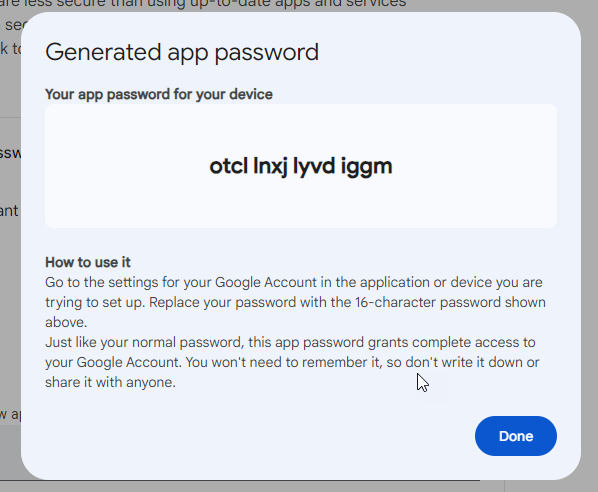
What needs to be done, is to create an app password. This is a single password, that will be shown on the screen, so right it down right away. Because after you click off of the window the password, will be forever lost!
Please follow the following steps, to generate newer App Passwords for Google Accounts.
- While logged into your Google Account. Navigate to the upper right-hand corner of your screen and find your avatar.
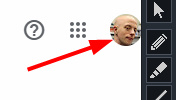
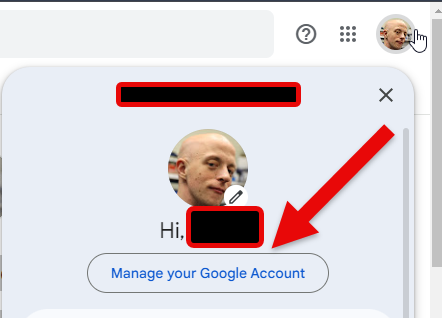
- When the drop-down menu appears, then select “Manage your Google Account“
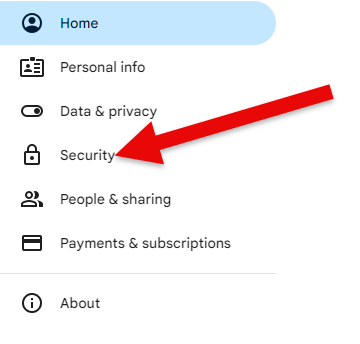
- Under your “Google Account” screen locate where it says “Security“
- Locate in the middle of the security screen. “How you sign in to Google“. Then click on where it says “2-Step Verification” then click on it, to navigate to the app password selections.

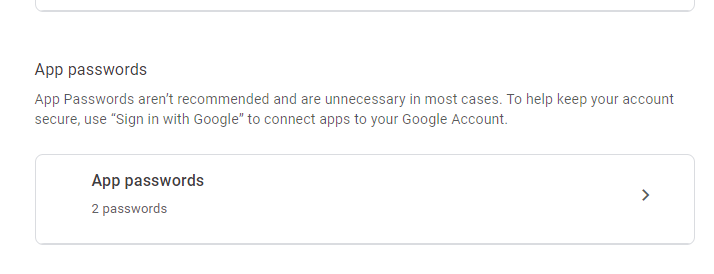
- On the bottom, of the center screen, you will find the section for “App Passwords“. Then click on where it says “App Passwords“
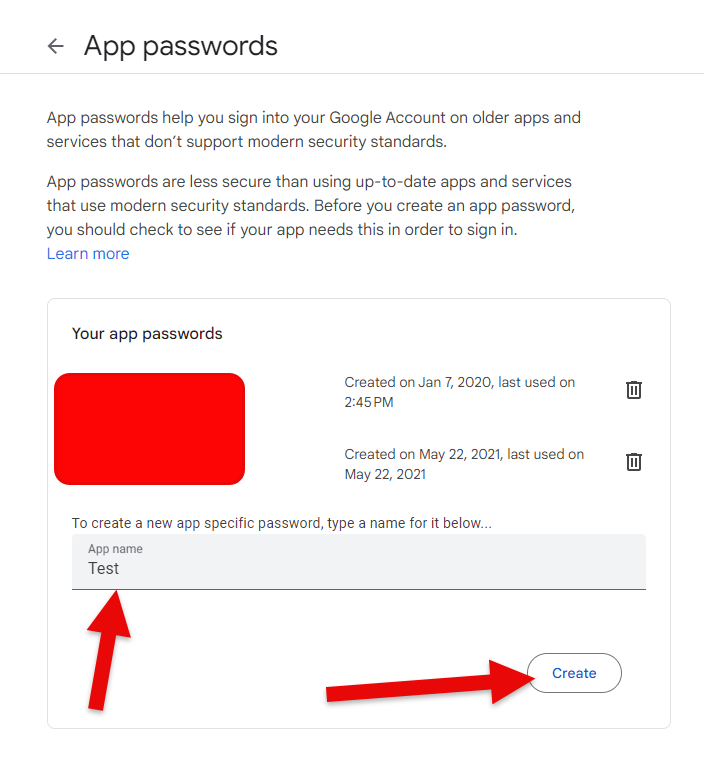
- Once in the “App Passwords” screen. Locate at the bottom To create a new app-specific password type a name for it below. Here you will type in the name of the device and/or service that will be used for this only use password. Click the “Create” button when the password app name, has been created.
Once you click the “Create” button, you will be greeted with the following window. Make sure you write this password down. It will ONLY SHOW ONCE! After the first display and clicking the “Done” button. the password will disappear forever.
Once, you have this password. Now take the time to go back, to the application and/or device and add that newly created password into the password field needed.
Related Reading
- How to remove those relentless Google Chrome and/or Microsoft Edge notifications for GOOD! – related guidance from The IT Guys archive
- How to remove notifications from coming up on Google Chrome and Microsoft Edge – related guidance from The IT Guys archive
- More gaming PCs need, almost need yearly mataintance to maintain temps – related guidance from The IT Guys archive
FAQ
Who is this guide for?
This article is written for regular home users and small businesses that want practical technology guidance without unnecessary jargon.
What should I check before following the steps?
Make sure the instructions match your device, account, software version, and business requirements. If something looks different, pause before guessing.
When should I ask for help?
If the device or account is important for work, contains sensitive data, or the change could affect backups, email, payments, or customer access, it is worth getting help first.