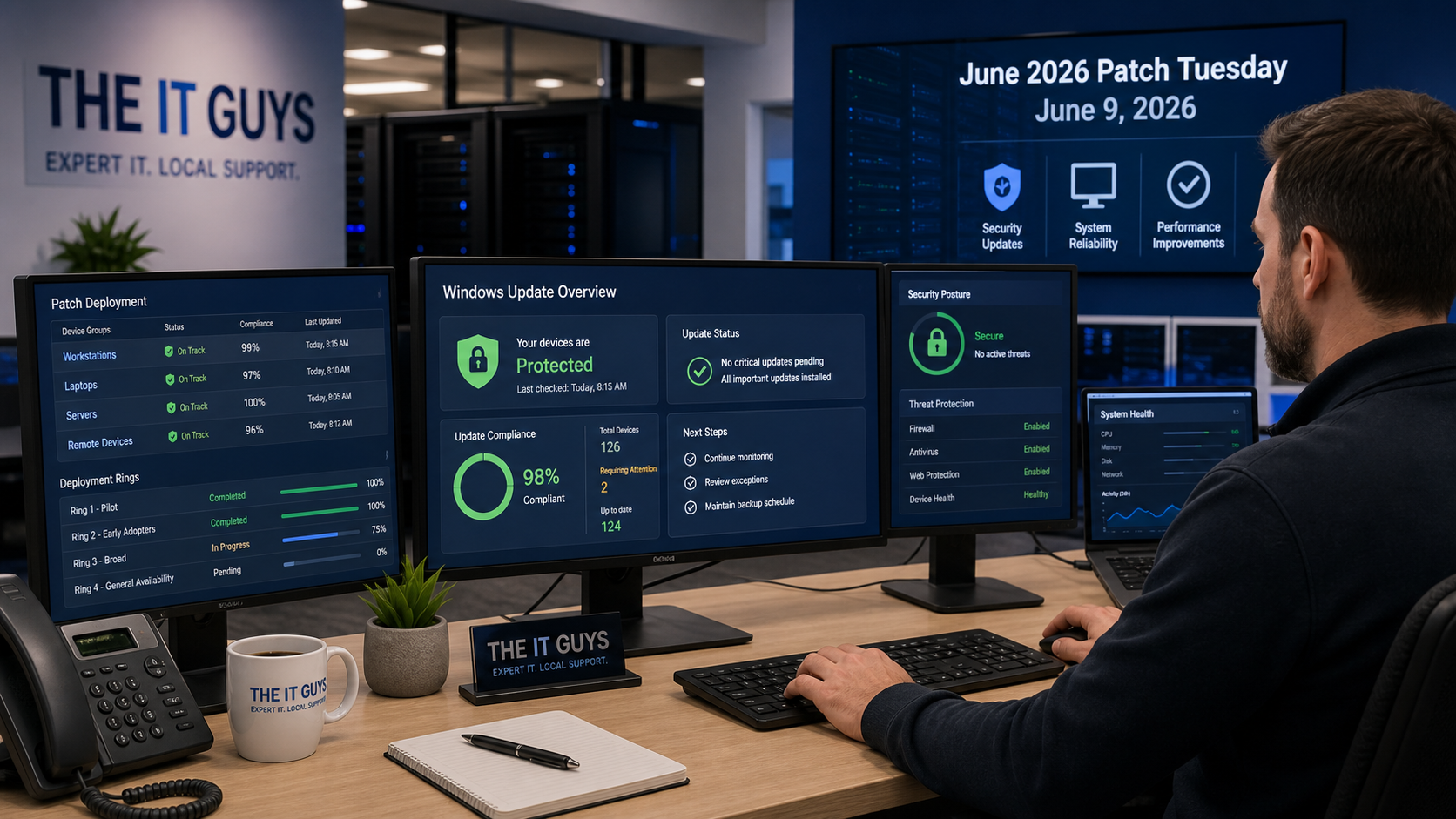
Microsoft’s June 2026 Patch Tuesday updates are now live. If you manage Windows PCs or servers, this is a real monthly security update, not just an optional preview. The main customer takeaway is simple: install the update, but check BitLocker and Secure Boot details before pushing it blindly across a business fleet.
Microsoft published new June 9, 2026 cumulative updates for current Windows 11 releases, Windows 10 ESU/LTSC systems, and Windows Server. The update set includes security fixes, servicing stack improvements, Secure Boot certificate rollout work, and a few quality fixes pulled forward from May preview updates.
In this article
Quick Summary
For most home users, the right move is to let Windows Update install the June security update, restart when prompted, and make sure important files are backed up first. For businesses, especially offices with BitLocker, domain policy, endpoint management, or custom Windows images, this update deserves a controlled rollout instead of a same-minute push to every computer.
The most important operational theme this month is Secure Boot certificate maintenance. Microsoft says Secure Boot certificates used by most Windows devices begin expiring in June 2026. Windows devices should continue to start and receive standard Windows updates, but Microsoft is using Windows quality updates to expand the phased delivery of updated Secure Boot certificates to eligible devices.
Main June 2026 KB Numbers
| Platform | June 2026 update | Build after install | Plain-English note |
|---|---|---|---|
| Windows 11 version 26H1 | KB5095051 | 28000.2269 | Security fixes, May preview improvements, BitLocker reliability testing improvement, and servicing stack update KB5101277. |
| Windows 11 versions 25H2 and 24H2 | KB5094126 | 26200.8655 and 26100.8655 | Security fixes, Secure Boot certificate targeting changes, and a virtualization fix for some restart, VM, and gaming Stop errors after KB5089573. |
| Windows 11 version 23H2 | KB5093998 | 22631.7219 | Security fixes, Secure Boot changes, device management reliability improvements, File Explorer search improvements, and a BitLocker recovery fix related to April’s update. |
| Windows 10 ESU / Enterprise LTSC 2021 / IoT Enterprise LTSC 2021 | KB5094127 | 19045.7417 and 19044.7417 | Security update with Secure Boot reporting changes, File Explorer search improvements, and a known BitLocker recovery-key issue for some managed systems. |
| Windows Server 2025 | KB5094125 | 26100.32995 | June cumulative security update for Server 2025. |
| Windows Server 2022 | KB5094128 | 20348.5256 | June cumulative security update for Server 2022. |
Good Points
- Windows 11 24H2 and 25H2 have no Microsoft-listed known issues at publication time. Microsoft says it is not currently aware of known issues for KB5094126.
- Windows 11 26H1 also has no Microsoft-listed known issues at publication time. KB5095051 is mainly a security cumulative update plus servicing-stack and May-preview improvements.
- Secure Boot certificate rollout is being handled gradually. Microsoft says devices receive new certificates only after enough successful update signals, which should reduce the chance of broad boot problems.
- Windows 11 24H2/25H2 gets a virtualization fix. Microsoft documents a fix for some HYPERVISOR_ERROR and KMODE_EXCEPTION_NOT_HANDLED Stop errors after KB5089573 during restarts, VM activity, or some gaming scenarios.
- Windows 11 23H2 gets several practical fixes. The update includes File Explorer search improvements, device management certificate sync improvements, COSA mobile operator profile updates, and a BitLocker recovery fix tied to an April update condition.
Watch-Outs Before Installing
Windows 10 has the biggest caution this month. Microsoft lists a known issue for KB5094127 where some devices with an unrecommended BitLocker Group Policy configuration might ask for the BitLocker recovery key on the first restart after installation.
Microsoft says the Windows 10 issue is limited to systems where all of these are true: BitLocker is enabled on the OS drive, the TPM platform validation policy includes PCR7, msinfo32.exe reports Secure Boot State PCR7 Binding as “Not Possible,” the Windows UEFI CA 2023 certificate is present, and the system is not already running the 2023-signed Windows Boot Manager. That combination is unlikely on normal home computers, but it can absolutely matter in managed business environments.
Microsoft’s temporary workaround is to remove the explicit BitLocker TPM platform validation profile configuration before installing, run gpupdate /force, suspend BitLocker protection, then resume it so Windows uses the default PCR profile. That is not something most users should improvise. If your business relies on BitLocker, domain Group Policy, Intune, RMM tooling, or compliance baselines, test first.
Another watch-out is imaging and deployment. For Windows 11 dynamic updates applied to existing Windows installation media, Microsoft warns that the boot.stl file needs to be included. If it is missing, devices might fail to start from the installation media and show error 0xc0430001. That matters for IT shops maintaining custom install media, not for ordinary Windows Update installs.
Small Business Patch Checklist
- Patch a pilot group first. Start with a few normal workstations, one laptop, and one device that resembles your most important production setup.
- Confirm backups before servers. Make sure server backups completed and are restorable before installing KB5094125 or KB5094128 on production servers.
- Check BitLocker recovery-key access. Before Windows 10 ESU/LTSC devices reboot, verify that recovery keys are escrowed in Active Directory, Entra ID, RMM documentation, or your password/documentation system.
- Audit BitLocker PCR7 policy on managed Windows 10 devices. If your Group Policy explicitly configures TPM platform validation with PCR7, review Microsoft’s known issue before deployment.
- Watch restart timing. Security updates can interrupt line-of-business apps, QuickBooks workstations, POS systems, VoIP softphones, print workflows, and remote access if they reboot at the wrong time.
- Keep a rollback plan. Document affected KBs, devices, reboot windows, and the person responsible for after-hours recovery.
Home User Checklist
- Save your work before restarting.
- Plug in laptops before installing.
- Make sure OneDrive, an external drive, or another backup method has your important files.
- Let Windows Update install the update normally unless your computer is managed by work or school.
- If BitLocker asks for a recovery key after reboot, do not guess. Check your Microsoft account recovery key page, work/school IT portal, or contact whoever manages the device.
Who Should Install Quickly?
Most actively used Windows computers should install the June security update promptly. That includes workstations used for email, banking, customer data, remote access, file sharing, web browsing, and Microsoft 365 work. Security updates close vulnerabilities that attackers can chain together later, even when the original Patch Tuesday notes do not sound dramatic.
The main group that should slow down and test first is businesses with managed Windows 10 ESU/LTSC systems, BitLocker policy customization, custom Windows deployment images, or production servers where downtime is expensive. “Test first” does not mean “skip it.” It means install deliberately, with recovery keys and backups verified.
Related Reading
- Windows 11 Update Fix: KB5089573 Resolves May Security Update Error 0x800f0922
- Quick Tech Tip: Give Your Business A Monthly Update Window
- Check Your Backups Before You Need Them
FAQ
Is this a security update?
Yes. Microsoft’s June 9, 2026 cumulative updates reference the June 2026 Security Updates guidance and include the latest security fixes for supported Windows releases.
Do Windows 11 users need to worry about the Windows 10 BitLocker known issue?
The specific known issue Microsoft documents in KB5094127 applies to Windows 10 ESU, Windows 10 Enterprise LTSC 2021, and Windows 10 IoT Enterprise LTSC 2021. Windows 11 has its own update notes, and Microsoft listed no known issues for KB5094126 and KB5095051 at publication time.
Can The IT Guys help with patching?
Yes. If you are in Port Saint Lucie, Jensen Beach, Fort Pierce, Vero Beach, or the surrounding area, The IT Guys can help check backups, recovery keys, Windows Update health, endpoint policy, and a safe rollout plan before updates hit every workstation or server.
Official Microsoft Sources
- Microsoft Support: June 9, 2026 – KB5095051 for Windows 11 version 26H1
- Microsoft Support: June 9, 2026 – KB5094126 for Windows 11 versions 25H2 and 24H2
- Microsoft Support: June 9, 2026 – KB5093998 for Windows 11 version 23H2
- Microsoft Support: June 9, 2026 – KB5094127 for Windows 10 ESU/LTSC
- Microsoft Support: June 9, 2026 – KB5094125 for Windows Server 2025
- Microsoft Support: June 9, 2026 – KB5094128 for Windows Server 2022
- Microsoft Windows release health and release information
- Microsoft Security Response Center: June 2026 Security Updates