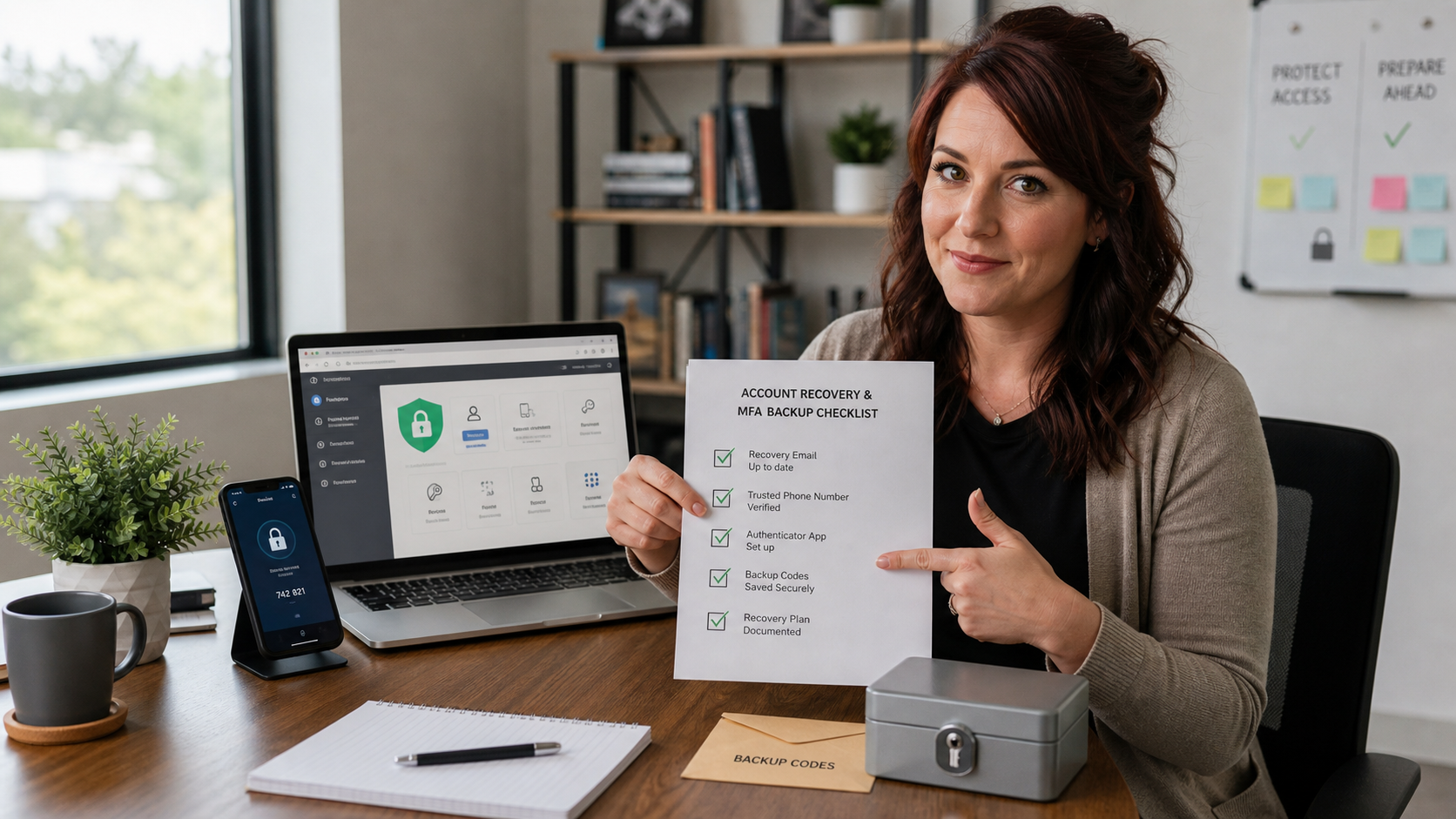
Quick tip: before your phone is lost, replaced, damaged, or traded in, spend 15 minutes checking the recovery options for your most important accounts. Make sure you have backup codes, at least one second way to verify your identity, and a written recovery plan stored somewhere safer than your phone.
This is not exciting work, but it prevents a very expensive kind of bad day. Multi-factor authentication is important, and The IT Guys still recommends using it. The problem is that many people set it up once, then forget that their phone, phone number, authenticator app, or recovery email has become a single point of failure.
If your email account, Microsoft 365 admin account, Google Workspace admin account, Apple Account, banking login, payroll system, domain registrar, or password manager depends on one phone, you should fix that before the phone goes missing. Google’s own backup-code guidance says backup codes are meant for cases where you cannot use your normal 2-Step Verification method. Microsoft’s account security guidance tells users to keep verification methods up to date. Apple’s account recovery contact and recovery key guidance is clear that recovery planning needs to happen before you are locked out.
In this article:
Why This Matters For Home Users And Small Businesses
Most lockouts happen during normal life: a phone is stolen, a SIM card stops working, someone changes carriers, a business owner replaces an old device, an employee leaves, or an authenticator app was never backed up. The password may still be correct, but the account still refuses access because the second step is unavailable.
For a home user, that can mean losing access to photos, email, app purchases, cloud storage, or saved passwords. For a small business, it can block invoices, payroll, bank transfers, tax documents, customer messages, vendor portals, website hosting, domain renewals, and Microsoft 365 or Google Workspace administration.
The practical goal is simple: use strong security, but avoid depending on one fragile recovery path.
Start With These Accounts First
- Your main personal email account, because many other accounts reset through it
- Microsoft 365 or Google Workspace admin accounts
- Your password manager account
- Apple Account, Google Account, and Microsoft account
- Banking, payroll, accounting, tax, and payment accounts
- Domain registrar, website hosting, DNS, and business software accounts
- Any account used by more than one person to keep the business running
Do not try to fix every account at once. Pick the top five accounts that would cause the most damage if you were locked out today.
The 15-Minute Account Recovery Checklist
1. Confirm Your Recovery Email And Phone Number
Open the account’s security settings and check the listed recovery email, alternate email, phone number, trusted number, or security info. Make sure the email inbox still works and the phone number still belongs to you or the business.
For Microsoft accounts, go to the Microsoft account security page and review Manage how I sign in. Microsoft says users should keep the phone numbers or email addresses used to verify sign-in up to date, and notes that personal Microsoft accounts are moving away from SMS as an account recovery method. That is a good reason to add stronger options such as an authenticator app, passkey, or alternate email where appropriate.
2. Generate Backup Codes Where The Service Supports Them
Backup codes are one-time emergency codes you can use when your normal second factor is unavailable. Google says each backup code becomes inactive after it is used, and that creating a new set makes the old set inactive. That is useful because you can replace old or possibly exposed codes.
For a Google Account, go to your Google Account security settings, open 2-Step Verification, and look for backup codes. Print them or write them down, then store them somewhere safe. Do not keep your only copy in Gmail, Google Drive, iCloud Notes, OneDrive, or the same password manager account you are trying to recover.
3. Add A Second Verification Method
One authenticator app on one phone is better than no MFA, but it is not a complete recovery plan. Add another recovery method that fits the account:
- An authenticator app with a documented backup or transfer process
- A passkey on a second trusted device
- A hardware security key stored securely
- A second trusted phone or trusted device
- An alternate recovery email that is not protected only by the same lost phone
- For business accounts, a second administrator account protected by strong MFA
The key is independence. If every method depends on the same phone, same email inbox, or same password manager account, you may still be stuck.
4. Review Apple Recovery Contacts Or Recovery Key Carefully
Apple offers account recovery contacts and an optional recovery key. A recovery contact is a trusted person who can help you regain access by giving you a recovery code; Apple says recovery contacts do not get access to your account. A recovery key is different: Apple describes it as a secret 28-character code used with a trusted phone number and Apple device to recover the account.
Be careful with Apple recovery keys. Apple’s support page warns that when you set up a recovery key, you turn off Apple’s standard account recovery process, and if you cannot provide the recovery key when needed, you can be locked out permanently. That does not mean recovery keys are bad, but they must be stored like a critical document.
5. Store Recovery Information Offline
For the most important accounts, store recovery information in at least one offline location:
- A sealed envelope in a locked file cabinet or safe
- A printed emergency-access sheet for the business owner
- A bank safe deposit box for critical business recovery keys
- A documented break-glass procedure held by a trusted manager or IT provider
Do not include plain-text passwords unless you have a deliberate business emergency-access policy. For many businesses, the safer plan is to document where the password manager emergency access, admin accounts, recovery codes, security keys, and ownership records are kept.
6. Test One Recovery Path Without Locking Yourself Out
Do not intentionally break your sign-in. Instead, confirm that the backup method is available. For example, verify that your backup codes are generated, your recovery email receives mail, your second admin account can sign in, your hardware key is registered, or your Apple recovery contact has accepted the request.
If you are changing phones, test the new phone’s authenticator, passkeys, and trusted-device status before wiping or trading in the old phone.
Small Business Version: Make It A Break-Glass Plan
For a business, this should not live only in one owner’s memory. Create a short break-glass document that says:
- Which accounts are critical for business operations
- Who owns each account
- Who has admin access
- Where backup codes or recovery keys are stored
- Where hardware security keys are kept
- How to contact the IT provider, accountant, web host, domain registrar, and payroll provider
- What to do if the owner, office manager, or main admin is unavailable
Keep the document short enough that someone can use it during a stressful day. Then review it after staff changes, phone upgrades, vendor changes, and ownership changes.
What Can Go Wrong
- Storing codes only in the locked account. Backup codes inside the same email, cloud drive, or password manager account may be unreachable during the emergency.
- Leaving old phone numbers in place. Old numbers can stop working, be reassigned, or belong to a former employee.
- Using only SMS. Text codes are convenient, but phone-number changes, SIM problems, and carrier issues can break them. Use stronger options where available.
- Turning on an Apple recovery key without storing it safely. A recovery key can improve control, but Apple warns that losing it can permanently lock you out if you also lose trusted access.
- Sharing backup codes casually. Backup codes are sign-in tools. Treat them like keys, not like ordinary notes.
- Having only one business admin. A single administrator account is a business continuity risk. Use a second protected admin or documented emergency process.
When To Call An IT Professional
Call an IT professional if you are already locked out, if a former employee controlled recovery options, if the business has only one Microsoft 365 or Google Workspace admin, if you need to move MFA from an old phone to a new one, or if you found recovery emails and phone numbers that nobody recognizes.
This is also worth professional help before a business owner retires, sells a business, changes phones, changes carriers, or hands account management to an office manager. Recovery planning is much easier before the emergency.
A Simple Policy That Works
- Use MFA on important accounts.
- Keep at least two recovery paths for critical accounts.
- Generate backup codes where supported and store them offline.
- Use a second protected admin account for business platforms.
- Review recovery settings after phone changes, staff changes, and vendor changes.
- Keep recovery documentation out of the account it is meant to recover.
Need help setting this up without weakening your security? Schedule with The IT Guys for practical account recovery and small-business MFA support.
Related Reading
- Stop Sharing Passwords by Text and Use a Shared Vault Instead
- Set Devices To Lock Automatically Before You Step Away
- Check Cloud File Sharing Links Before They Spread Too Far
Sources
- Google Account Help: Sign in with backup codes
- Google Account Help: Fix common issues with 2-Step Verification
- Microsoft Support: Manage Microsoft account security info and verification codes
- Apple Support: Set up an account recovery contact
- Apple Support: Set up a recovery key for your Apple Account
FAQ
Should I turn off multi-factor authentication so I do not get locked out?
No. The better answer is to keep MFA on and create a recovery plan. Turning MFA off makes account takeover easier.
Where should I store backup codes?
Use an offline, protected location such as a locked file cabinet, safe, or sealed business emergency-access folder. Do not store your only copy inside the account those codes are meant to recover.
Is an Apple recovery key a good idea?
It can be, but only if you will store it carefully. Apple says a recovery key turns off its standard account recovery process, so losing the key can make the account permanently unrecoverable in some situations.