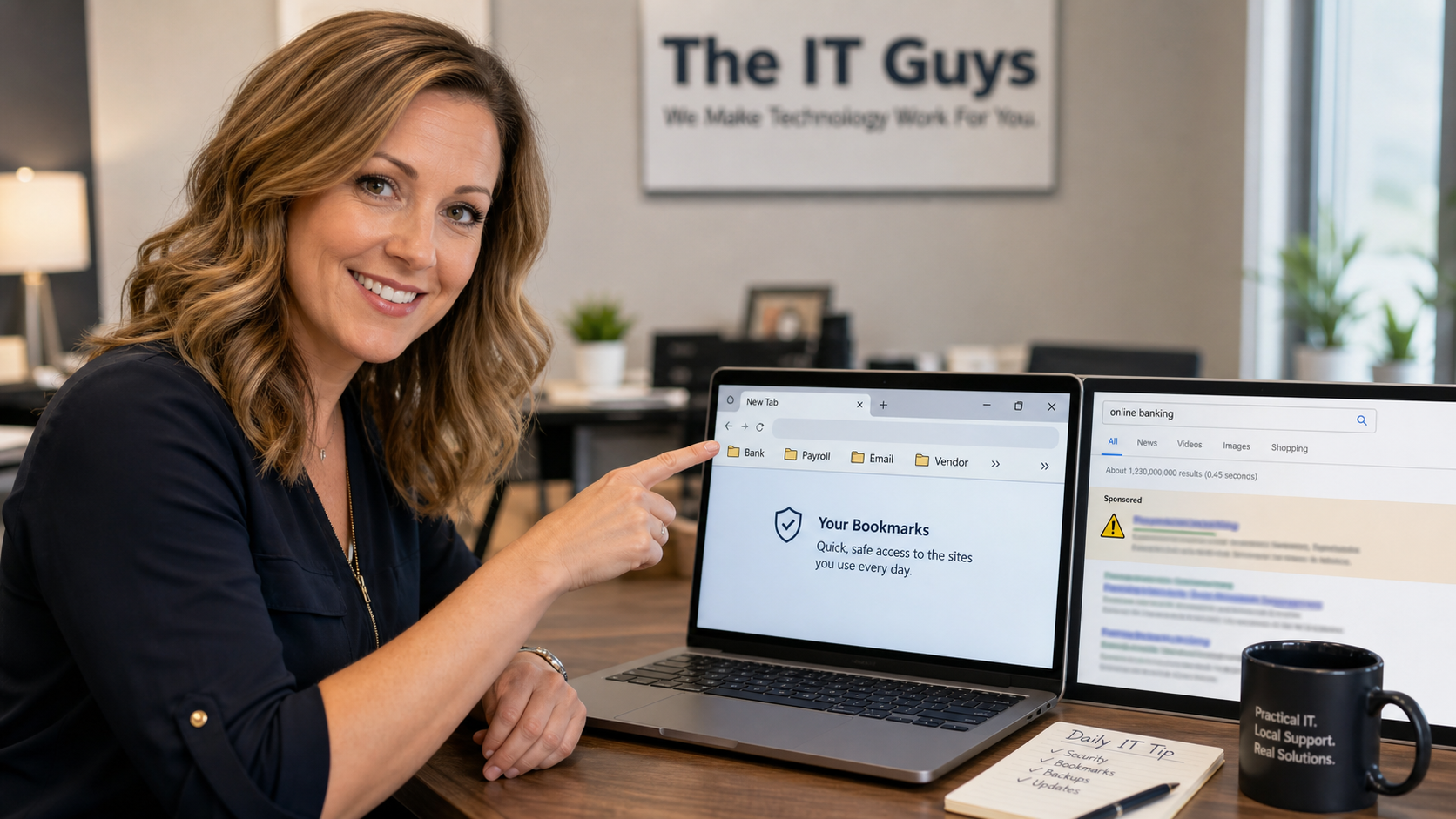
When someone needs to pay a bill, run payroll, open Microsoft 365, or log in to a vendor portal, the fastest habit is often the riskiest one: type the company name into a search engine and click the first result that looks right.
For normal research, that is fine. For banking, payroll, email administration, domain registration, cloud storage, accounting software, insurance portals, and remote-access tools, it is better to use a verified bookmark. A saved bookmark does not make phishing impossible, but it removes one common mistake: clicking a lookalike result, a misleading ad, or a fake support page when you are in a hurry.
The U.S. Office of the Comptroller of the Currency gives the same practical advice for suspicious financial messages: if a contact might be legitimate, go to the company website by typing the address directly or using a page you previously bookmarked rather than following the link in the message. The FTC and Microsoft also warn that phishing and online scams are designed to steal logins, money, and personal information by looking legitimate.
What To Bookmark First
Start with the accounts where a wrong click could cost money, expose customer information, or lock up business operations.
- Banking and credit-card portals used for payments, deposits, statements, and account alerts.
- Payroll, accounting, and tax tools such as payroll processors, bookkeeping platforms, merchant accounts, and IRS/state tax portals.
- Email and cloud admin portals including Microsoft 365, Google Workspace, domain registrars, DNS providers, hosting panels, and backup dashboards.
- Vendor and supplier portals where invoices, ACH details, customer orders, or private business documents are handled.
- Remote access and security tools such as VPN portals, camera systems, password managers, endpoint security dashboards, and ticketing systems.
How To Set Up Safer Bookmarks
Do this once while you are calm, not during a payment deadline or password-reset panic.
- Find the real address from a trusted source. Use an existing statement, the official mobile app, a known printed card, your password manager entry, or a link from the vendor’s main public website. Be careful with links from emails and text messages, even when they look routine.
- Type the address manually the first time. For sensitive sites, avoid searching for the login page. Type the known domain into the address bar, then navigate to the sign-in page from there.
- Check the domain before saving it. Look for the real company domain, not a misspelled or extra-word lookalike. Be cautious with addresses that add unexpected words, numbers, hyphens, or unfamiliar country-code endings.
- Use the browser’s bookmark or favorite button. In Chrome, Google documents bookmark management under Bookmarks and lists. In Microsoft Edge, favorites can be shown on the favorites bar for quick access.
- Rename the bookmark clearly. Use practical labels such as Bank – Business Checking, Payroll Admin, Microsoft 365 Admin, or Vendor Portal. Do not leave five vague links all named Login.
- Create a folder for critical logins. A folder named Verified Logins, Business Admin, or Finance keeps these separate from shopping, news, and personal bookmarks.
- Test each bookmark. Close the tab, open the bookmark, confirm it lands on the expected login page, and verify your password manager recognizes the site before entering credentials.
- Repeat on work devices and approved browsers only. If your business standardizes on Edge, Chrome, or a managed browser profile, keep the verified bookmarks there instead of scattering them across personal devices.
Small Business Version: Make It A Simple Office Standard
For a home user, one bookmark folder may be enough. For a business, treat this as a small operating procedure.
- Keep a short approved-login list. Document the correct URLs for payroll, accounting, bank, email admin, domain registrar, and major vendors.
- Give staff the approved links during onboarding. Do not make new employees search for payroll or email setup pages from scratch.
- Review the list when vendors change. If a bank, payroll provider, or IT vendor changes its login address, update the approved list and remove old bookmarks.
- Pair bookmarks with MFA and password management. A bookmark helps you land on the right page. It does not replace strong unique passwords, phishing-resistant MFA where available, and account alerts.
- Do not share one browser profile across staff. Bookmarks are useful, but each person should still have their own Windows/macOS account, browser profile, and business login where possible.
Cautions That Matter
Bookmarks help only if the original bookmark is correct. If someone saves a fake page, the bookmark preserves the mistake. That is why the first setup step matters.
Also remember that a lock icon does not prove a site is legitimate. It usually means the connection is encrypted, not that the company behind the page is trustworthy. Scammers can use encrypted sites too.
Browser sync deserves a quick review. Syncing bookmarks across your own work laptop and phone can be convenient. Syncing sensitive business bookmarks into a personal browser account, family computer, or shared tablet can create confusion and unnecessary exposure.
Finally, some companies use third-party sign-in providers, regional login pages, or single sign-on pages. If a bookmark stops working, do not assume the next search result is correct. Go back to the vendor’s main website, your account manager, or your IT provider.
When To Call An IT Professional
Call for help if a bookmark suddenly redirects somewhere unexpected, your password manager stops recognizing a familiar login page, MFA prompts appear when you are not signing in, staff members report different login URLs, or someone entered credentials after clicking a suspicious result or message link.
Businesses should also get help building an approved-login list for admin portals, domain/DNS accounts, remote access tools, payment systems, and backup consoles. Those are the accounts where one wrong click can become a real incident.
Useful Source Links
- Office of the Comptroller of the Currency: Phishing attack prevention
- FTC: How to recognize and avoid phishing scams
- Microsoft Support: Protect yourself from online scams and attacks
- Google Chrome Help: Create, find, and edit bookmarks
- Microsoft Edge Support: See your favorites bar
- Google Safe Browsing
Bottom Line
For sensitive accounts, the safest daily habit is boring on purpose: verify the real login page once, save it clearly, use that saved bookmark, and slow down whenever a message or search result tries to send you somewhere else.