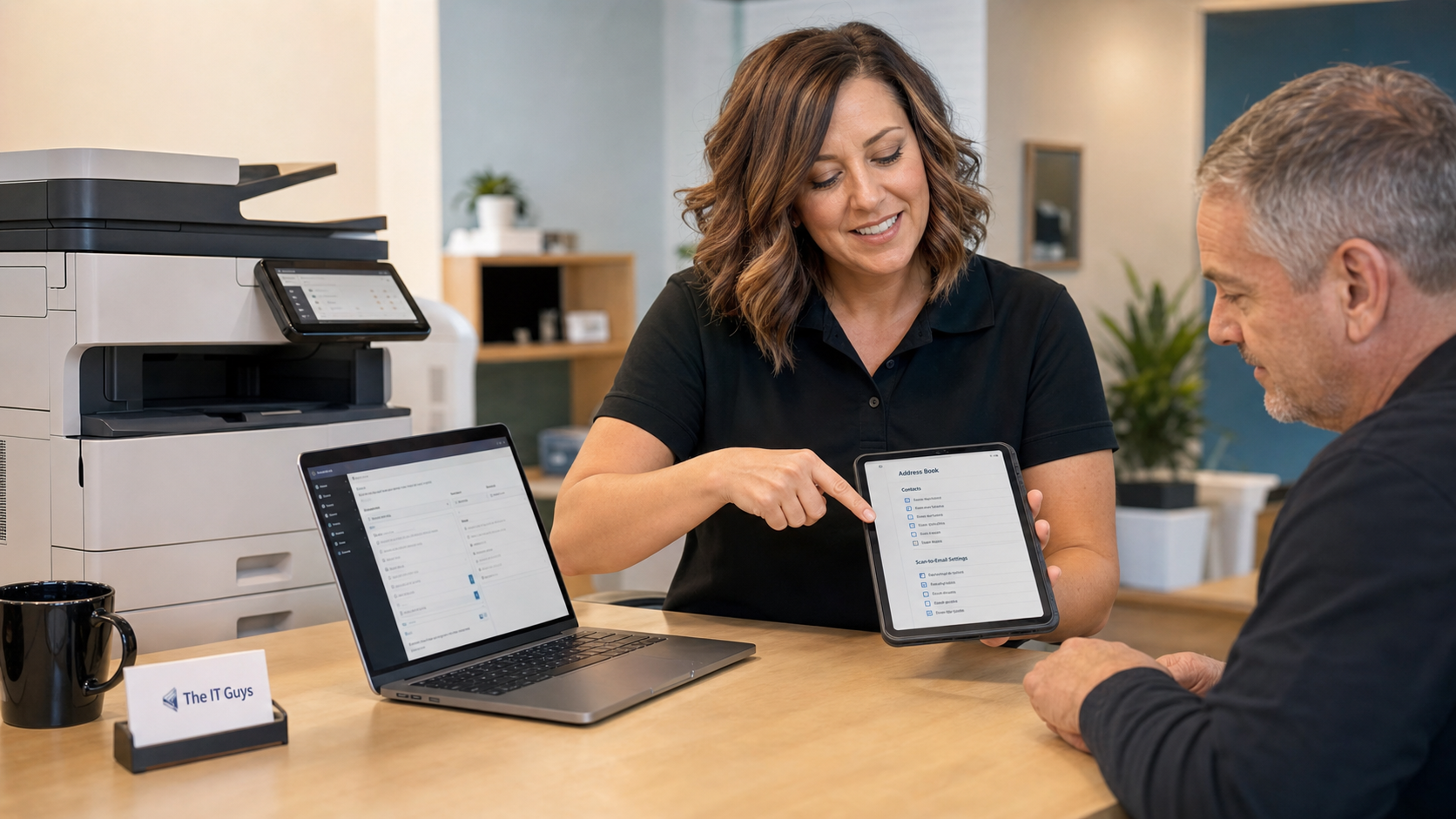
Today’s practical tech tip: take 15 minutes to clean up the address book and scan-to-email settings on the printer or scanner your office uses every day.
Multifunction printers do not feel like security systems, but many of them store names, email addresses, network paths, SMTP settings, administrator passwords, fax-forwarding rules, and sometimes scan history. That makes them easy to ignore and easy to misuse. A stale scan destination can quietly send tax forms, medical documents, contracts, IDs, payroll paperwork, or customer records to the wrong person long after that person left the company.
This is a good midday task because it is small, concrete, and usually does not require downtime. You are not redesigning the network. You are checking whether the device still knows only the people and places it should know.
In this article
Why Printer Address Books Matter
Most offices treat the copier as background equipment. People walk up, scan a document, tap a saved name, and move on. That convenience is exactly why old entries deserve a periodic review.
For home users, the risk is usually privacy: scans of tax papers, insurance documents, IDs, school forms, or medical paperwork can go to an old address by mistake. For small businesses, the risk expands to customer data, employee records, contracts, invoices, legal documents, and compliance-sensitive files. If the scanner has old vendor addresses, former employee mailboxes, generic personal Gmail accounts, or an outdated “bookkeeping” contact, one wrong tap can become a data-handling problem.
NIST has treated copiers, printers, scanners, and multifunction devices as “replication devices” that can affect confidentiality, integrity, and availability of information. In plain English: these devices handle real business data, so they deserve real review.
The 15-Minute Cleanup Checklist
You can do most of this from the printer’s touchscreen or its web admin page. Many HP printers, for example, use an Embedded Web Server where administrators can review settings and firmware. Brother and other vendors also provide scan-to-email and address-book tools depending on the model.
- Print or view the current address book. Look for saved names, email addresses, network folders, fax entries, and one-touch scan buttons.
- Remove people who no longer need access. Delete former employees, old vendors, personal addresses used as temporary workarounds, duplicate entries, and misspelled contacts.
- Check generic destinations. Entries like “Accounting,” “Front Desk,” “HR,” or “Owner” should point to current, monitored business mailboxes. If the destination is a person’s personal mailbox, fix that.
- Send one harmless test scan. Use a blank page or a page that says “test scan only.” Confirm it arrives in the correct mailbox or folder.
- Review who can edit the address book. If anyone can walk up and add scan destinations without a PIN or admin login, consider locking that down.
- Set or verify the printer admin password. Do not leave the printer admin interface on a factory default or blank password. CISA hardening guidance regularly emphasizes changing default passwords on connected systems.
- Check firmware/update status. Printer firmware updates can fix reliability and security problems, but apply them carefully and avoid interrupting an update once it starts.
- Write down the owner. Someone should be responsible for printer/scanner settings when employees leave, email systems change, or the device is replaced.
Scan-To-Email Settings To Review
Scan-to-email is one of the most common places where old office decisions hang around too long. A copier may still be using an account that was created years ago, a password that nobody remembers, or a direct SMTP method that no longer fits your Microsoft 365 or Google Workspace setup.
If your business uses Microsoft 365, Microsoft documents several ways to let multifunction devices and applications send email. The right method depends on whether the device needs to send only inside your organization, send externally, use authenticated SMTP, or use a connector/relay approach. Google Workspace similarly recommends its SMTP relay service for printers, scanners, and apps in many managed environments because it is built for organization-controlled sending.
Here is the practical review:
- Know which mailbox or relay account the scanner uses. Avoid using a real employee’s personal mailbox as the scanner account. If that employee leaves or changes password/MFA, scanning may fail or create an offboarding gap.
- Confirm the sending address is recognizable. A clean address like
[email protected]or[email protected]is easier to audit than a random user account. - Check authentication and encryption. Use your provider’s current guidance. Old unauthenticated or weakly authenticated setups may stop working or expose avoidable risk.
- Keep scan destinations business-owned. For payroll, HR, accounting, legal, medical, and customer files, scan to a shared business mailbox or controlled document location, not a personal inbox.
- Review retention expectations. If scans land in email, they may be retained, searched, backed up, or discoverable like any other email. That is useful for records but risky if sensitive scans go to the wrong place.
Good Practice For Small Offices
A simple pattern works well: create a short list of approved scan destinations, keep the printer admin password in your controlled IT documentation, and review the address book whenever an employee leaves or a department changes roles. For many small businesses, that is enough to prevent the most common scan-to-wrong-person mistake.
If the office has multiple devices, do not assume they all match. The front copier, warehouse scanner, reception printer, and owner’s office printer may each have different address books and settings.
What Can Go Wrong
- You delete a destination someone still needs. Export or screenshot the current address book first if the device supports it.
- You change SMTP settings and scanning stops. Make changes during a quiet period, document the original settings, and send a test scan before walking away.
- You update firmware at the wrong time. Firmware updates can take several minutes. Do not power off the printer mid-update, and do not start right before a busy work period.
- The printer uses a former employee’s mailbox. Fix this carefully. That account may be tied to other automation, but it should not remain unmanaged.
- The address book syncs from a server or directory. Some businesses use LDAP, Active Directory, Microsoft 365, Google Workspace, or vendor tools to populate contacts. In that case, clean the source of truth, not just the printer screen.
When To Call An IT Professional
Call for help before changing printer or scanner settings if the device supports a medical, legal, accounting, warehouse, payment, or regulated workflow; if it scans to network folders; if it uses Microsoft 365 or Google Workspace relay settings you do not understand; if there are multiple locations; or if you find unknown administrator accounts, port-forwarding, remote access, old vendor accounts, or scan destinations you cannot explain.
The IT Guys can help review printer/scanner address books, scan-to-email settings, device firmware, admin passwords, and small-business offboarding workflows so the copier does not become the forgotten weak spot in the office. For help around Port Saint Lucie, Jensen Beach, Fort Pierce, or Vero Beach, visit our small business IT services page.
Quick FAQ
Should I delete every old-looking address?
No. First confirm whether the address is still used. Some generic mailboxes are intentional. The goal is to remove stale or risky destinations, not break normal scanning.
Is scan-to-email less safe than scan-to-folder?
It depends on configuration. Email is convenient and auditable, but sensitive scans can be forwarded, retained, or sent to the wrong address. Scan-to-folder can be cleaner for internal workflows, but only if folder permissions and backups are managed correctly.
Do home printers need this check too?
Yes, especially if the printer stores family email addresses, cloud destinations, or scan shortcuts. Remove anything you no longer use and make sure the printer admin page is not using a default password.
Useful Source Links
- NIST IR 8023: Risk Management for Replication Devices
- CISA hardening guidance, including changing default passwords
- Microsoft: set up a multifunction device or application to send email using Microsoft 365 or Office 365
- Microsoft: troubleshoot printers, scanners, and line-of-business apps that send email
- Google Workspace: send email from a printer, scanner, or app
- HP: use the printer Embedded Web Server
- Brother: set up Easy Scan to E-mail