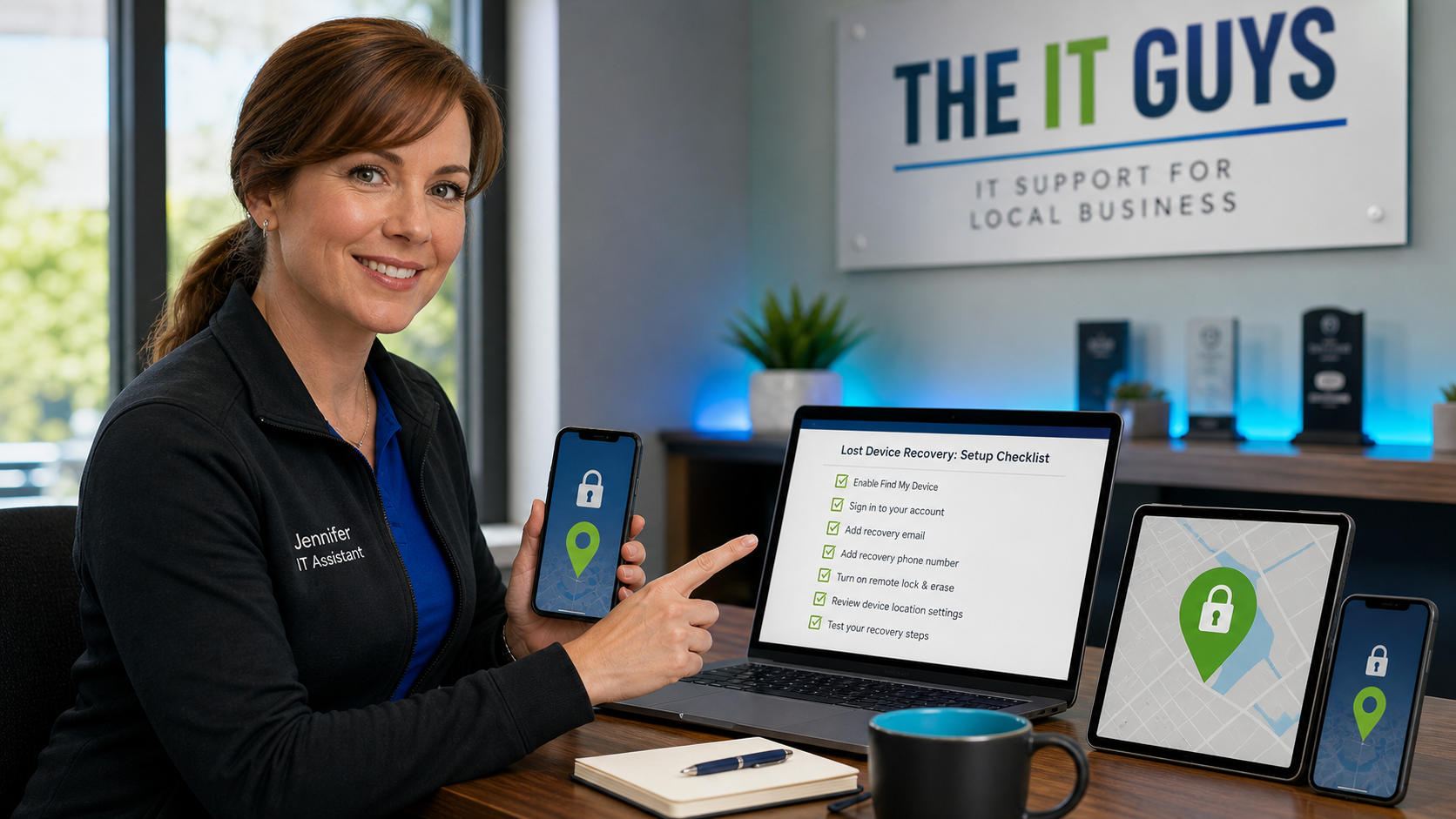
A lost phone or laptop is stressful enough. The bigger problem is finding out too late that location tracking was never turned on, the device was not signed in properly, or nobody knows how to lock it without also locking the business out of important accounts.
Today’s practical tech tip: take ten minutes while the device is still in your hand and make sure lost-device recovery is ready. This does not replace backups, passwords, MFA, or device encryption, but it gives you a better chance to find, lock, or erase a missing device before it turns into a data problem.
Why This Matters
Most people only look for these settings after a phone is already missing. By then, the account may be inaccessible, the battery may be dead, the device may be offline, or the tracking feature may never have been enabled. For a small business, one missing laptop can also mean exposed customer records, saved browser sessions, email access, payment portals, tax documents, payroll files, and shared cloud storage.
Apple, Google, and Microsoft all provide official lost-device tools, but they work best when the device is already signed in, protected with a strong screen lock, and allowed to use location services before anything goes wrong.
Step 1: Turn On The Right Recovery Feature
Start with the platform you actually use. Do not assume the feature is already active just because the device is new.
- iPhone, iPad, Apple Watch, and Mac: confirm Find My is enabled under your Apple Account/iCloud settings. Apple’s official guidance explains how to use Find My to locate a missing device.
- Android phones, tablets, watches, and trackers: confirm the device is signed in to the correct Google Account and that Find Hub/Find My Device is ready. Google provides instructions to be ready to find a lost Android device and to find, secure, or erase a lost Android device.
- Windows laptops and tablets: confirm Find my device is turned on in Windows settings and that the device is tied to the right Microsoft account. Microsoft explains how to find and lock a lost Windows device.
If the device belongs to the business, make sure it is connected to the business-managed account or device-management system, not only an employee’s personal account. Personal recovery tools are helpful, but they are not the same as a managed business inventory, remote lock policy, or offboarding process.
Step 2: Check The Basics That Make Recovery Work
- Confirm the signed-in account. Open the device settings and verify the Apple Account, Google Account, or Microsoft account shown is one you can actually access today.
- Turn on location services. Lost-device tools usually need location services enabled to show the device on a map.
- Use a real screen lock. A short swipe-only unlock is not enough. Use a passcode, password, PIN, biometrics, or a business-approved sign-in method.
- Save recovery options. Make sure the account has a current recovery email, phone number, MFA method, and backup codes where appropriate.
- Name the device clearly. Rename it to something recognizable, such as “Front Desk iPad,” “Randy Work Laptop,” or “Bookkeeper Android Phone.” This makes the right device easier to identify in a recovery dashboard.
- Test the dashboard. From another trusted device, sign in to the official Apple, Google, or Microsoft recovery page and confirm the device appears. You do not need to trigger a lock or erase test; just verify that the device is listed.
Step 3: Decide What To Do If The Device Goes Missing
Make the decision tree before emotions get involved. For a personal phone misplaced in the couch, playing a sound may be enough. For a business laptop left in a restaurant, you may need to lock it, revoke account sessions, rotate passwords, and document what data may have been exposed.
- Play sound first when the device is likely nearby.
- Lock or mark as lost when it may be in a public place, with a message and phone number if the platform supports it.
- Erase remotely when the device contains sensitive data and recovery is unlikely. Treat erase as serious because it may remove your ability to track the device afterward.
- Change account passwords if the device had saved browser sessions, email access, password-manager access, or business apps open.
- Notify the right people if customer, employee, medical, payment, tax, or legal information may have been on the device.
Small-Business Checklist
For businesses, the goal is not just finding the device. The goal is reducing downtime and reducing data exposure.
- Keep a simple device inventory with serial numbers, assigned users, phone numbers, and purchase dates.
- Require screen locks on every work device, including tablets used at counters or job sites.
- Enable device encryption where supported, especially for laptops.
- Use a password manager instead of saving every login directly in the browser.
- Set up a second protected administrator account or trusted recovery contact for emergency access.
- Have a written lost-device procedure: who gets called, who locks the device, who revokes sessions, and who decides whether to erase it.
This pairs well with our earlier guide on turning on device encryption and saving the recovery key. Lost-device tracking helps you respond. Encryption helps protect the data if the device never comes back.
Important Cautions
- Do not chase a stolen device. If a device appears to be stolen, use the recovery tools, document the location if appropriate, and contact local law enforcement. Do not put yourself or an employee in danger.
- Remote erase is not a backup. If the only copy of a file lives on the missing laptop or phone, erasing it may permanently remove that copy.
- Tracking is not guaranteed. A dead battery, no network connection, disabled location settings, account sign-out, or factory reset can limit what recovery tools can show.
- Shared accounts make recovery messy. If multiple people use the same Apple, Google, or Microsoft account, you may not know who owns which device or which sessions to revoke.
- Personal accounts can create business risk. A work laptop tied only to a personal Microsoft account may be harder for the business to manage during an emergency.
When To Call An IT Professional
Call for help if the missing device had business email, saved passwords, financial files, customer records, remote-access software, administrator access, or regulated information. You should also get help if you are not sure whether the device was encrypted, whether browser sessions are still active, or whether a remote wipe completed successfully.
The IT Guys can help home users and small businesses set up lost-device recovery, document device inventory, enable encryption, clean up account recovery options, and build a practical lost-device response checklist before the emergency happens.