

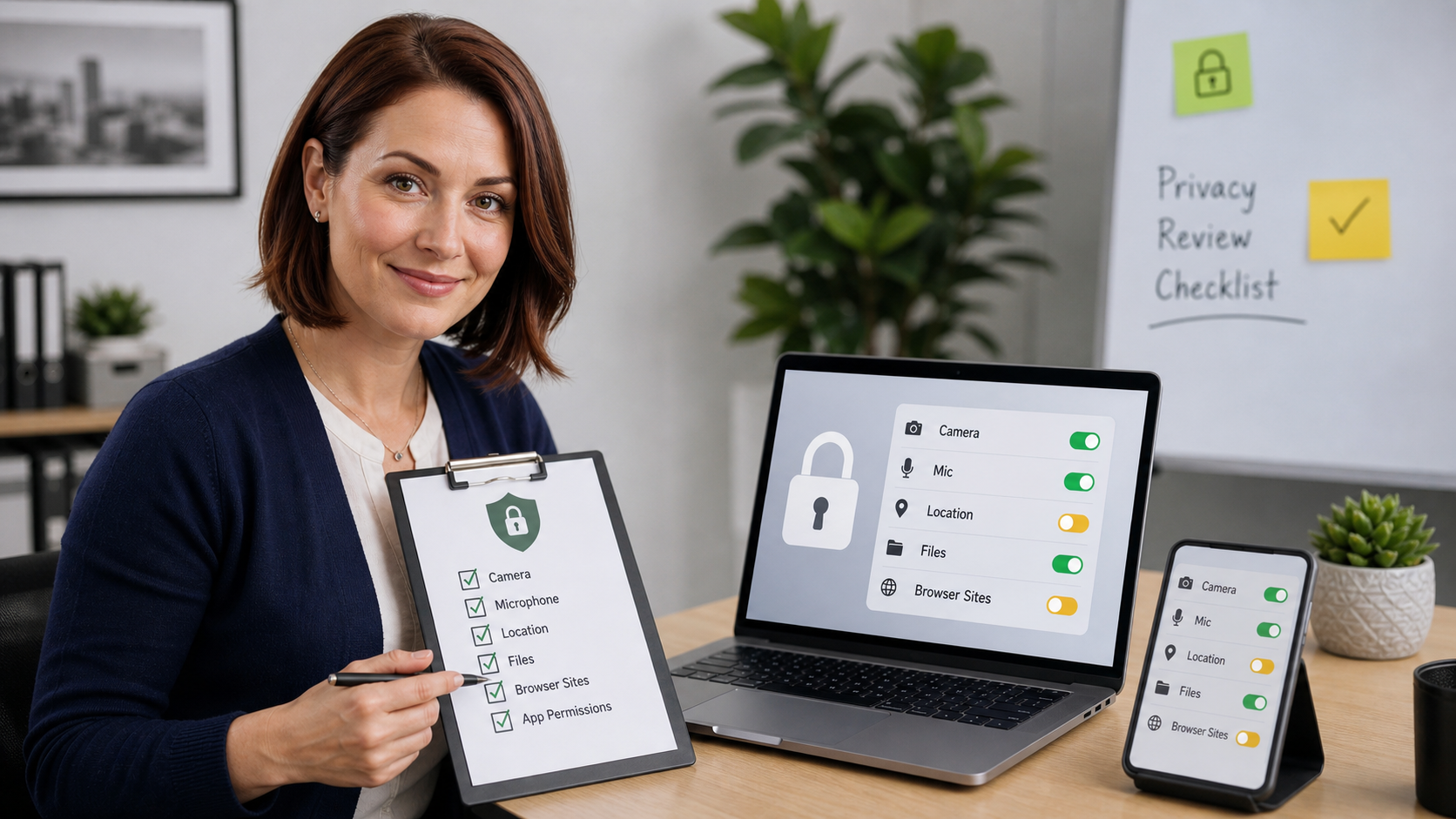
Today’s practical tech tip: take ten minutes to review app and website permissions for your camera, microphone, location, contacts, photos, and files.
Most permission prompts are easy to approve in the moment. A video meeting needs the camera. A map needs location. A receipt app needs photos. A browser site asks for the microphone. The problem is that those permissions often stay allowed long after the original need is gone.
This is not about panic-clicking every permission off. Some apps need access to do their job. The useful habit is to remove access from apps, browser sites, and old tools that no longer need it, while leaving everyday work apps functional.
Why This Is Worth Doing
Permissions are small doors into private parts of a device. Camera and microphone access affect meetings and calls. Location access can reveal travel patterns, customer visits, home addresses, and job sites. Contacts, calendars, photos, and files can expose customer details, invoices, personal pictures, employee records, and business documents.
For a home user, this review reduces everyday privacy exposure. For a small business, it also helps limit what an unnecessary app, abandoned browser permission, or former vendor tool can see if it is compromised, misconfigured, or simply forgotten.
Start With The Highest-Risk Permissions
- Camera and microphone: needed for meetings, calls, scanning, and recording, but should not be broadly allowed for apps you do not recognize.
- Location: use “while using the app” when possible. Be cautious with “always” access unless there is a clear reason, such as fleet tracking, weather alerts, find-my-device features, or job dispatch.
- Photos and videos: prefer limited photo access when the device offers it, especially for social, shopping, or one-time upload apps.
- Contacts and calendar: useful for email, scheduling, and calling tools, but risky for random utilities, games, coupon apps, or old trial software.
- Files and folders: especially important on business computers because broad file access may include customer records, accounting exports, estimates, scanned IDs, or tax documents.
- Browser site permissions: websites can keep camera, microphone, location, notification, and pop-up permissions too. Review the browser, not just installed apps.
iPhone And iPad: Review Privacy Permissions
- Open Settings.
- Tap Privacy & Security.
- Open sensitive categories one at a time, such as Location Services, Camera, Microphone, Contacts, Calendars, Photos, and Bluetooth.
- Turn off access for apps that do not need that permission anymore.
- For location, prefer While Using the App instead of always-on access unless the app has a real reason to work in the background.
- For photos, use limited photo access where it fits your workflow instead of handing a casual app your whole library.
Apple’s iPhone guidance explains that you can go to Privacy & Security, tap a hardware feature such as Camera or Microphone, and turn app access on or off from that list. That makes it faster to review by permission type instead of hunting through every app one by one.
Android: Use Permission Manager
- Open Settings.
- Tap Security & Privacy, then Privacy, then Permission manager. On some phones this may be under Privacy or Apps.
- Review Camera, Microphone, Location, Contacts, Calendar, Files, Photos and videos, SMS, and Phone.
- Tap an app and choose the least access that still lets it work.
- For camera, microphone, and location, use options such as Allow only while using the app, Ask every time, or Don’t allow when available.
- For apps you rarely use, check whether Pause app activity if unused or a similar unused-app setting is enabled.
Google’s Android Help page notes that Android can review permissions by app or by permission type, and that location, camera, and microphone may offer choices such as “allow only while using the app,” “ask every time,” or “don’t allow.” Exact labels vary by phone maker and Android version.
Windows 11 And Windows 10: Check App Permissions
- Open Settings.
- Go to Privacy & security.
- Under App permissions, review Camera, Microphone, Location, Notifications, Contacts, Calendar, Pictures, Videos, Documents, and similar categories.
- Turn off permissions for apps that do not need them.
- Look carefully at separate settings for Microsoft Store apps and desktop apps. Some desktop app privacy controls behave differently from Store app controls.
- On business PCs, check whether settings are managed by Microsoft 365, Intune, domain policy, or another management tool before assuming a local toggle is the whole policy.
Microsoft’s Windows support pages describe app permissions as the place to locate and manage access to device capabilities, and its camera and microphone pages explain that access can be controlled at the device level and for individual apps.
Do Not Forget Browser Site Permissions
Installed apps are only half the review. Browsers can remember site-level permissions for camera, microphone, location, notifications, pop-ups, and downloads. That matters if you have used video meetings, online document signing, remote support portals, job boards, map tools, or customer service websites from the same browser profile.
Chrome On A Computer
- Open Chrome.
- Select the three-dot menu, then Settings.
- Go to Privacy and security, then Site settings.
- Review Camera, Microphone, Location, Notifications, Pop-ups and redirects, and other permissions.
- Remove sites you do not recognize or no longer use.
Google’s Chrome Help documentation says camera and microphone permissions can be reviewed under Privacy and security > Site settings, where you can also review allowed and blocked sites.
A Good Small-Business Permission Policy
If you manage business devices, use a simple rule: grant the minimum access needed for the role, then review it when an employee changes duties, a vendor tool is removed, or a device is reassigned.
- Front desk devices: block location, contacts, microphone, camera, and file access unless the specific job needs them.
- Bookkeeping computers: be extra careful with file, email, browser download, accounting, and document-scanning permissions.
- Field phones: location may be necessary, but it should be tied to approved dispatch, maps, time-clock, or device-recovery apps.
- Shared tablets: remove old customer portals, delivery apps, browsers with saved permissions, and anything tied to a former employee.
- Owner devices: review everything. Owner phones and laptops usually have the widest access to banking, email, payroll, passwords, and client information.
What Can Go Wrong
- You can break a normal workflow: video calls need camera and microphone access, navigation needs location, and scanning apps may need camera or photo access. Test important apps after changes.
- Some permissions come back after reinstalling: a reinstalled app may ask again, and users may approve it again unless they understand why access was removed.
- Browser profiles can be overlooked: a website permission inside Chrome, Edge, Firefox, or Safari is separate from the operating system permission review.
- Managed devices may hide settings: company phones and laptops may be controlled by mobile-device-management or endpoint-management policy.
- Permissions are not a full security plan: you still need updates, MFA, backups, device encryption, screen locks, account recovery, and malware protection where appropriate.
When To Call An IT Professional
Call an IT professional if your business handles customer records, financial information, medical data, legal files, payroll, point-of-sale systems, or regulated information and you are not sure which apps should have access. This is also worth doing before handing a device to a new employee, after a staff member leaves, after installing remote support software, or after switching accounting, scheduling, CRM, dispatch, or phone-system vendors.
Get help immediately if a suspicious app has camera, microphone, SMS, contacts, accessibility, file, or administrator-level access, or if a browser has unknown sites allowed to send notifications, use the microphone, or open pop-ups. Those settings can be involved in scams, fake support alerts, unwanted monitoring, or data exposure.
Related Reading
- Clean up browser notifications before scam pop-ups take over
- Hide lock-screen notification previews before they leak details
- Review signed-in devices before an old phone keeps access
- Separate work, banking, and personal browser profiles
Sources
- Apple Support: Control access to hardware features on iPhone
- Google Android Help: Change app permissions on your Android phone
- Microsoft Support: App permissions in Windows
- Microsoft Support: Windows camera, microphone, and privacy
- Google Chrome Help: Use your camera and microphone in Chrome
Bottom Line
Permissions should match today’s real need, not last year’s one-time setup prompt. Review camera, microphone, location, files, contacts, photos, and browser site permissions today, remove anything stale, and test the apps your household or business actually depends on.