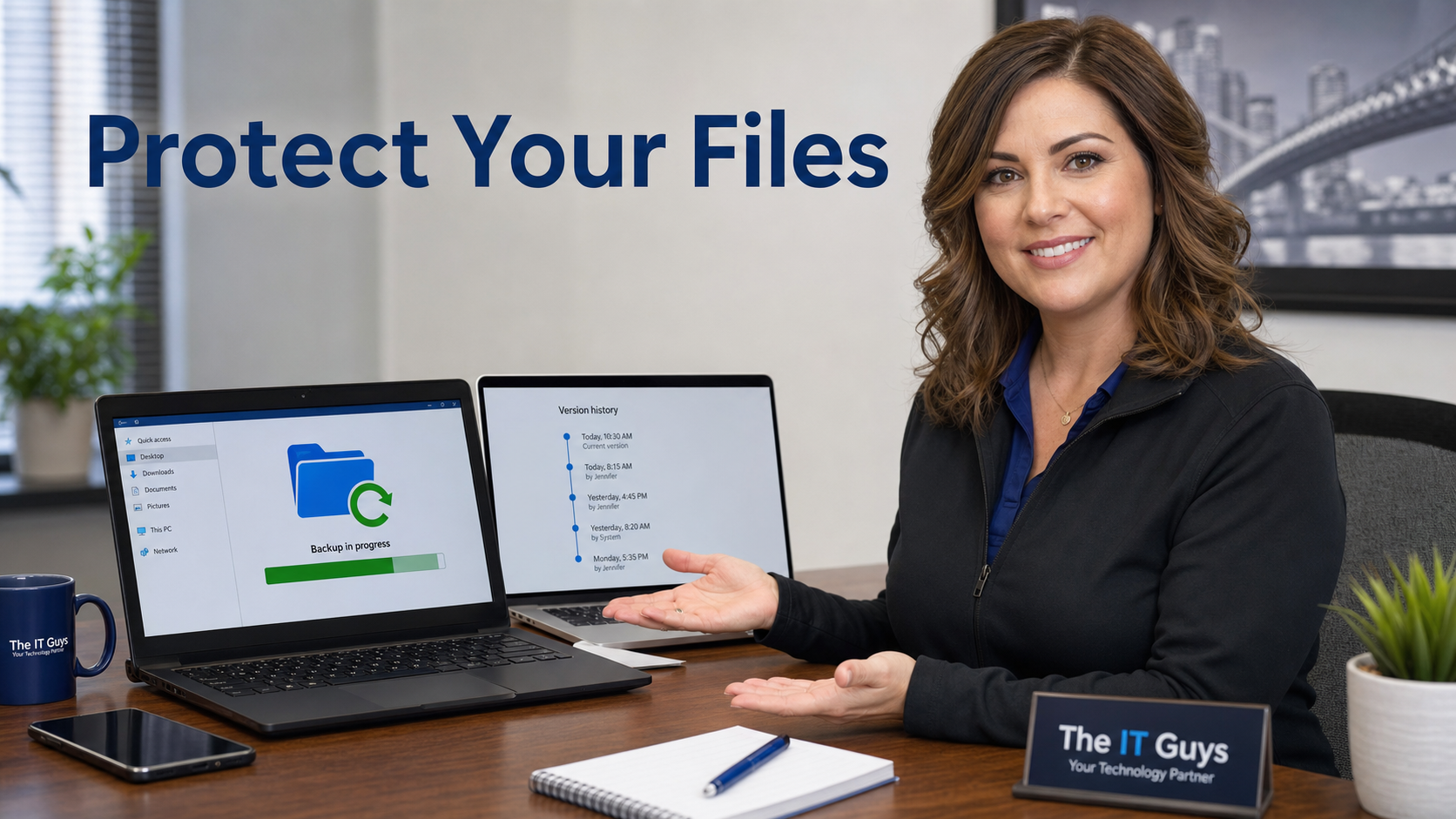
Short version: today is a good day to make sure your most important files can survive a mistake, a bad sync, or a ransomware scare. Do not wait until a folder is encrypted, deleted, or overwritten to learn whether OneDrive, Google Drive, Time Machine, File History, or your backup tool can actually restore it.
For home users, this usually means protecting Documents, Desktop, Pictures, tax records, photos, and password-recovery paperwork. For small businesses, it means client files, accounting data, estimates, invoices, payroll exports, point-of-sale reports, website files, shared folders, and anything needed to keep working if a computer has to be wiped.
Why This Matters
Cloud sync is helpful, but sync is not the same thing as a full backup. If a file is deleted, overwritten, encrypted by ransomware, or synced from a damaged computer, that bad change may copy to the cloud too. The recovery tools built into OneDrive, Google Drive, Windows, and macOS can help, but only if the files were covered and you know where to go.
Microsoft documents Controlled Folder Access as a Windows Defender feature that helps protect important folders from untrusted apps making changes. Microsoft also provides OneDrive ransomware recovery and OneDrive restore tools. Google documents Drive file version restore, bulk restore, and ransomware recovery steps. Apple documents Time Machine as the built-in Mac backup system for restoring files and older versions.
The practical goal is simple: have more than one way back.
Step 1: Pick The Folders That Matter Most
Start by writing down the folders you would panic over if they disappeared tomorrow. Most people do not need to protect every download, installer, or temporary file. Focus on files that are hard to recreate.
- Personal: Documents, Desktop, Pictures, tax files, medical paperwork, family photos, school files, scanned IDs, and home records.
- Business: accounting exports, QuickBooks or bookkeeping files, estimates, contracts, invoices, customer documents, HR/payroll files, website assets, shared project folders, and compliance paperwork.
- IT recovery: BitLocker or FileVault recovery-key location notes, vendor contacts, ISP information, software license records, domain/DNS registrar details, and backup instructions.
If a folder controls money, customers, identity, legal records, or daily operations, it belongs on the recovery list.
Step 2: Turn On Windows Controlled Folder Access Where It Fits
On Windows PCs that use Microsoft Defender Antivirus as the active antivirus, Controlled Folder Access can help block untrusted apps from changing protected folders. It is useful as a ransomware-reduction layer, especially for folders like Documents, Pictures, Desktop, and business data folders.
- Open Windows Security.
- Go to Virus & threat protection.
- Look for Ransomware protection and choose Manage ransomware protection.
- Turn on Controlled folder access.
- Open Protected folders and confirm your important folders are included.
- If a trusted business app gets blocked, use Allow an app through Controlled folder access only after confirming the app is legitimate and current.
Important caution: Controlled Folder Access can block older accounting tools, scanners, line-of-business apps, sync tools, or custom software if they write to protected folders in a way Windows does not trust. Do not just turn it off forever if something breaks. Check Protection History, confirm the exact app path, update the app if needed, and allow only the trusted executable that truly needs access.
Step 3: Confirm Cloud Restore Is Available
If you use OneDrive, Google Drive, Dropbox-style sync, or another cloud file tool, confirm the restore path before you need it. You are looking for three things: deleted-file recovery, version history, and bulk restore or ransomware recovery.
For OneDrive
- Go to OneDrive on the web and sign in from a trusted bookmark or typed address.
- Open Recycle bin and make sure you know where deleted files would appear.
- Open Settings and find the restore options for your account type.
- Review Microsoft guidance for Restore your OneDrive and ransomware detection and recovery in OneDrive.
OneDrive restore can be very helpful after large accidental changes or ransomware-style changes, but it is not a substitute for a separate backup. If the same mistake affects synced local files, cloud files, and shared libraries, you want another recovery path.
For Google Drive
- Go to Google Drive on the web.
- Check Trash so you know how to restore deleted files.
- Right-click an important test file and review version history or file versions where available.
- Review Google Drive guidance for activity and file versions, recovering deleted files, and bulk restore and ransomware recovery.
Google notes that Drive has tools for restoring file versions and that ransomware recovery may involve signing out of Drive for desktop, restoring versions from the web, cleaning the infected computer, then syncing again. That sequence matters because a still-infected computer can damage restored files again.
Step 4: Make A Real Backup Outside The Computer
A cloud sync folder is convenient. A backup is your independent copy. For the best protection, keep at least one backup that is not constantly writable by the same PC. That can be an external drive used for scheduled backups, a managed business backup service, a NAS with snapshots, or a cloud backup product designed for recovery instead of simple sync.
For Windows
Windows users should confirm whether they are using OneDrive folder backup, File History, a third-party backup product, or a business backup tool. If the answer is “I think it backs up somehow,” treat that as unverified.
- Open your backup software or Windows backup settings.
- Confirm which folders are included.
- Confirm where the backup is stored.
- Confirm when the last successful backup ran.
- Restore one harmless test file to a temporary folder.
For Mac
Mac users should check Time Machine if they rely on Apple’s built-in backup. Apple provides instructions for setting up Time Machine and restoring backed-up files. The key point is not just that Time Machine is turned on, but that it has a current backup on a drive or backup destination you can still access.
- Open System Settings.
- Go to General, then Time Machine.
- Confirm a backup disk is selected.
- Check the latest backup time.
- Use Time Machine to restore one harmless test file to confirm the backup works.
Apple’s Time Machine guidance is here: Back up your Mac with Time Machine.
Step 5: Do A Five-Minute Restore Test
This is the step most people skip, and it is the step that proves whether the setup actually works.
- Create a small text file called restore-test-june-2026.txt inside an important protected folder.
- Wait for your backup or sync tool to include it.
- Edit the file and save a second version.
- Try restoring the older version using your cloud version history or backup tool.
- Delete the test file, then restore it from Trash, Recycle Bin, cloud recycle bin, backup, or Time Machine.
- Write down the exact restore path that worked.
If the test fails, that is useful information. It means you found the gap during a calm day instead of during a data-loss incident.
Common Problems To Watch For
- Sync folders were not actually enabled. A user may think Desktop and Documents are backed up, but only one small folder is syncing.
- Important files live outside protected folders. Accounting databases, scanned documents, and exports often end up in custom folders that nobody added to backup.
- External drives are always connected. Always-connected backup drives can be affected by theft, power issues, user mistakes, and some malware. Keep another copy offline or protected.
- Shared cloud folders are not owned by you. If someone else owns a shared folder, your recovery options may be limited.
- Version history is not unlimited. Retention varies by service, account type, storage limits, and file type. Do not assume versions last forever.
- Ransomware recovery gets rushed. Restoring files before cleaning the infected device can cause the same damaged files to sync again.
- Business apps store data in unusual places. Line-of-business databases may need application-aware backups, not just file sync.
What To Do If Ransomware Or Mass Deletion Happens
If you see files suddenly renamed, encrypted, garbled, missing, or replaced with ransom notes, slow down. A rushed recovery can make the damage worse.
- Disconnect the affected computer from the network. Unplug Ethernet and turn off Wi-Fi if you suspect active ransomware.
- Pause cloud sync from that device. Do not let damaged files keep syncing while you investigate.
- Do not wipe anything until you understand the recovery path. You may need logs, file names, timestamps, or forensic context.
- Check cloud restore/version history from a clean device. Use the web portal from a known-good computer.
- Clean or rebuild the affected device before reconnecting sync. If malware remains active, restored files can be damaged again.
- Call your IT provider before restoring shared business libraries. Restoring the wrong point in time can overwrite legitimate work across the team.
When To Call An IT Professional
Call for help if the affected files involve business operations, customer data, payroll, legal records, medical records, shared cloud libraries, server shares, QuickBooks or other accounting files, NAS devices, or multiple computers.
You should also call if Controlled Folder Access is blocking a business app and you are not sure what to allow. The wrong allow-list entry can weaken protection, while the wrong block can stop normal work. For business networks, an IT professional can review backups, endpoint protection, Microsoft 365 or Google Workspace recovery options, NAS snapshots, retention settings, and whether data is recoverable before anyone starts deleting or restoring at random.
Useful Source Links
- Microsoft Learn: Controlled Folder Access overview
- Microsoft Learn: Configure Controlled Folder Access
- Microsoft Support: Detect ransomware and recover files using OneDrive
- Microsoft Support: Restore your OneDrive
- Google Drive Help: Restore files in bulk and recover from ransomware
- Google Drive Help: Check activity and file versions
- Google Drive Help: Recover a deleted file
- Apple Support: Back up your Mac with Time Machine
Bottom Line
A good recovery plan is boring on purpose. Pick the folders that matter, protect them from unauthorized changes where possible, confirm cloud version history, keep at least one real backup outside the computer, and run a small restore test. The best time to find a broken backup is before you need it.