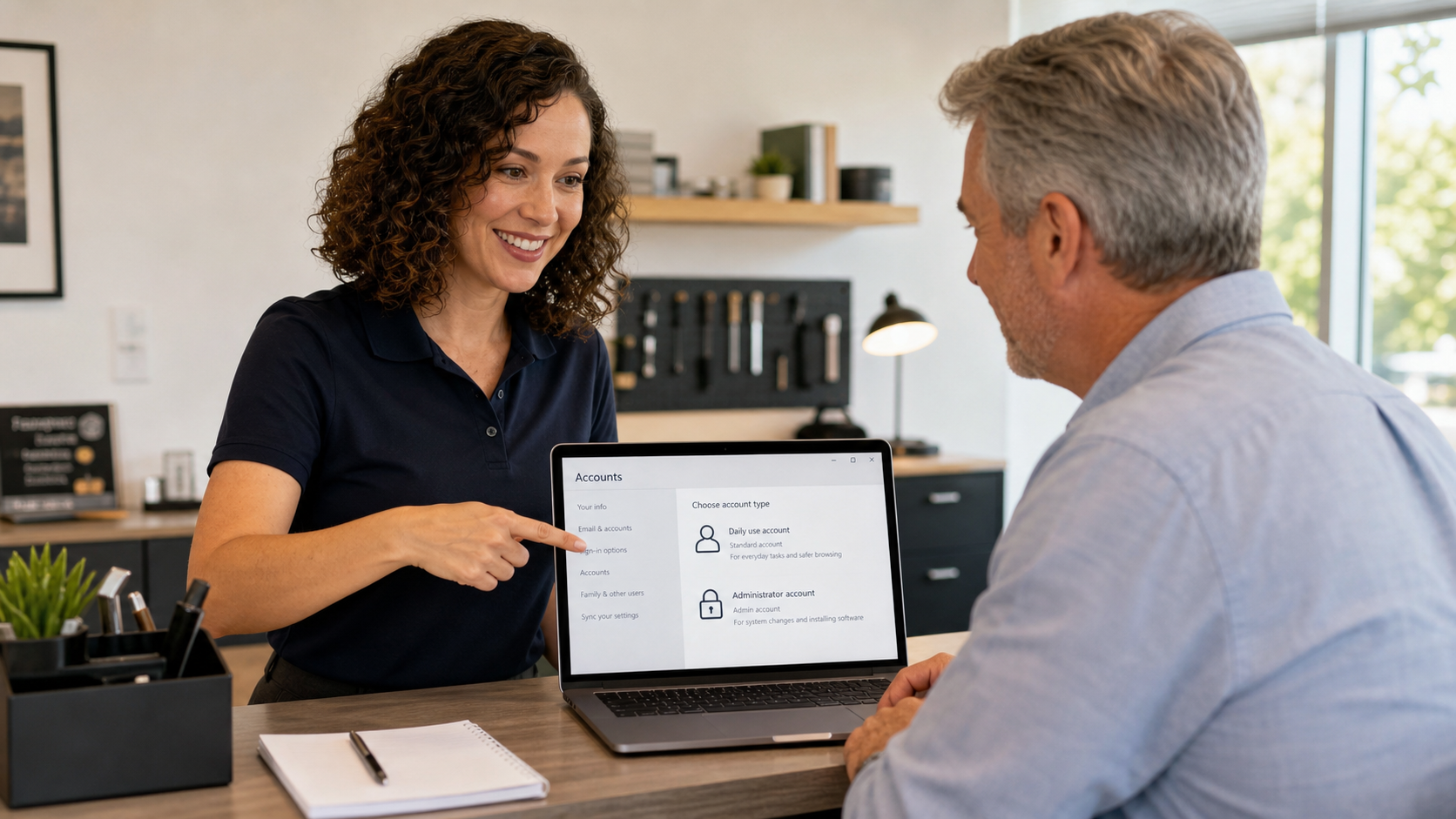
Most people use the first account created on a computer for everything: email, web browsing, invoices, downloads, banking, remote work, printer setup, software installs, and everyday office work. On many home and small-business computers, that first account is an administrator account.
Today’s practical tech tip: keep one administrator account for system changes, then use a standard account for normal daily work. It is a simple change, but it reduces the damage a bad download, browser pop-up, fake support tool, or stolen session can do.
In this article:
Why A Separate Admin Account Helps
An administrator account can install software, manage other users, change security settings, approve system-level prompts, and make changes that affect the whole computer. That power is useful when you are setting up printers, updating drivers, installing business software, or fixing a device. It is not something most people need all day.
The security idea is called least privilege: use the amount of access needed for the job, not more. Microsoft describes least privilege as an essential step for securing a network environment and gives a plain example: if a privileged account runs a virus, that malware has administrative access too. CISA’s Cyber Essentials guidance also tells organizations to grant admin permissions based on need-to-know and least privilege.
For a regular person or small office, this means your normal browsing and email account should not be the same account you use to approve system changes.
The Simple Version
- Admin account: used only when installing software, changing security settings, adding users, managing backups, or fixing the system.
- Standard account: used for normal daily work, email, web browsing, documents, accounting, cloud apps, and customer communication.
You are not removing your ability to manage the computer. You are putting a confirmation step between daily activity and system-level changes.
Step 1: Make Sure You Have A Working Administrator Account
Do this first. Never convert your only working administrator account to a standard account until you have confirmed another administrator account exists and you know its password.
On Windows, Microsoft documents account management in Manage user accounts in Windows. Windows lets you add another user and change an account’s type between Standard User and Administrator.
On a Mac, Apple explains how to add a user or group on Mac. Apple’s Users & Groups documentation also notes that a Mac can have multiple administrators, and warns not to set up automatic login for an administrator account.
Step 2: Create Or Confirm The Admin Account
Use a name that makes the purpose obvious, such as Office Admin, Computer Admin, or IT Admin. Use a strong, unique password and save it in a password manager or another secure business-approved place.
Windows 11 or Windows 10:
- Open Settings.
- Go to Accounts, then Other users.
- Add the admin user if one does not already exist.
- Open that user’s account options and set the account type to Administrator.
- Sign out, sign in to the admin account once, and confirm the password works.
Mac:
- Open System Settings.
- Go to Users & Groups.
- Click Add User.
- Choose Administrator for the admin account type.
- Create the account, sign in once if needed, and confirm the password works.
Step 3: Make Your Daily Account Standard
After you have confirmed the separate administrator account works, change your everyday account to a standard account. This is the part that makes the difference.
On Windows, go back to Settings > Accounts > Other users, select the everyday user, choose Change account type, and set it to Standard User.
On Mac, go to System Settings > Users & Groups, select the everyday user, then remove administrator rights or set the user type to standard. Apple documents account types in its Users & Groups settings guide.
From then on, when a legitimate install or system change needs approval, enter the separate admin account’s username and password. For everyday work, stay in the standard account.
Step 4: Test The Workflow Before You Need It
Do not wait until a printer driver, remote-support session, or tax-software update is urgent. Test the change with something low-risk:
- Open your standard account and confirm your files, browser profiles, email, and cloud apps still work.
- Try a harmless system setting that requires admin approval, then enter the admin account credentials when prompted.
- Make sure the admin password is stored somewhere authorized people can recover it.
- For a business, document who is allowed to use the admin account and when.
What Can Go Wrong
- You lock yourself out of admin rights. This is the big mistake. Confirm the separate admin account works before changing your everyday account.
- Software updates may ask for admin approval. That is expected. It is a security checkpoint, not a failure.
- Some old business software assumes every user is an administrator. That software may need a cleaner install, folder-permission adjustment, vendor update, or replacement plan.
- Shared computers need clear rules. If everyone knows the admin password, the benefit drops. For a business, use named users and limit who knows admin credentials.
- Automatic login is risky for admin accounts. Apple specifically warns against automatic login for administrators because someone could restart the Mac and gain admin-level access.
Small Business Version
For a small business, the better version is not one shared admin password passed around the office. A healthier setup is:
- Employees use standard accounts for daily work.
- Administrative credentials are limited to the owner, manager, or IT provider who actually needs them.
- Admin passwords are unique per device or managed through a proper IT process.
- Former employees are removed quickly from computers, Microsoft 365, Google Workspace, password vaults, remote access, and line-of-business apps.
- Changes that need admin approval are planned instead of handled through random pop-ups.
This pairs well with other basic protections: automatic updates, endpoint protection, encrypted backups, multi-factor authentication, and a password manager.
When To Call An IT Professional
Call for help before changing account types if the computer is used for payroll, accounting, point-of-sale, medical records, customer data, remote access, domain-joined business systems, or older software that is hard to reinstall. Also call if you do not know the current admin password, if a former employee may still have access, or if the computer already shows signs of compromise.
The IT Guys can help set this up cleanly, document the admin process, and make sure day-to-day work still runs without giving every browser tab and downloaded file full control of the machine.
Quick Checklist
- Create or confirm one separate administrator account.
- Save the admin password securely.
- Sign in once to verify the admin account works.
- Change your everyday account to standard.
- Test a normal admin prompt.
- Document who may use admin access.
- Review old users and remove access that no longer belongs.
Related Reading
- Quick Tech Tip: Turn On Device Encryption Before A Lost Laptop Becomes A Data Problem
- Quick Tech Tip: Remove Old App Access Before It Becomes An Account Problem
- Quick Tech Tip: Separate Work, Banking, And Personal Browsing With Browser Profiles
Sources
- Microsoft Support: Manage user accounts in Windows
- Microsoft Support: How to determine your user account type in Windows
- Microsoft Learn: Implementing least-privilege administrative models
- Apple Support: Add a user or group on Mac
- Apple Support: Change Users & Groups settings on Mac
- CISA: Cyber Essentials