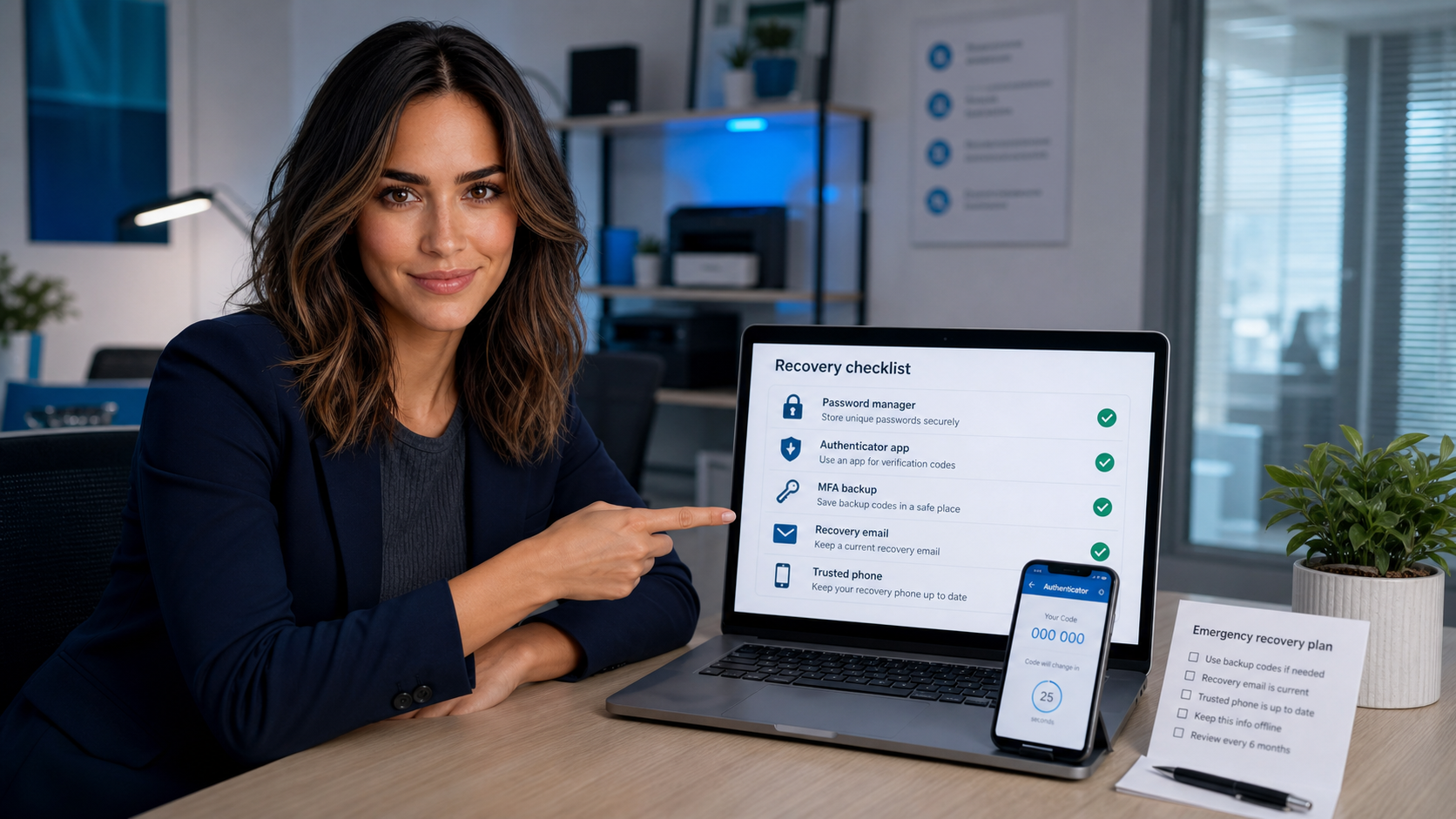
Practical tech tip for Tuesday, May 26, 2026: take 15 minutes today to check the recovery settings on your most important accounts. Multi-factor authentication is good protection, but it can become a lockout problem if your only second factor is a lost phone, an old employee’s number, or a recovery email nobody can access.
This matters for regular people and small businesses because email is usually the reset button for everything else. If someone controls your email, they can reset banking, vendor, cloud storage, social media, website, payroll, and shopping accounts. If you lose access to your email, you may lose the easiest way to recover all of those services.
The Tip: Build a Simple Account Recovery Safety Net
For each critical account, make sure you have at least two valid ways to prove you are the owner and at least one secure offline record you can reach during an emergency. The goal is not to make security complicated. The goal is to avoid relying on one phone, one browser, one employee, or one memory.
Start with these accounts:
- Your primary personal email account.
- Your business email administrator account, such as Microsoft 365 or Google Workspace.
- Your Apple Account, Google Account, and Microsoft Account if they control devices, files, or purchases.
- Your bank, payroll, accounting, insurance, domain registrar, website hosting, and WordPress administrator accounts.
- Your password manager account.
- Any account used to receive customer leads, payments, invoices, or service requests.
Step 1: Confirm the Recovery Email and Phone Are Still Yours
Open the security page for the account and check the recovery email address and phone number. If the email belongs to an old employee, a closed mailbox, an old internet provider, or an account you never check, update it. If the phone number is a landline, disconnected mobile number, or former employee’s phone, replace it.
For major accounts, use the official security pages rather than links from email messages:
- Google account recovery settings: Add or change a recovery phone number or email address.
- Google 2-Step Verification and backup codes: Protect your account with 2-Step Verification and sign in with backup codes.
- Microsoft security info: Microsoft account security info and verification codes.
- Apple trusted phone numbers and account recovery: Two-factor authentication for Apple Account.
Small business note: do not put every recovery path under one employee’s personal phone or personal email. Use named business-controlled admin accounts, assign at least two trusted admins where the platform supports it, and remove people promptly when they leave.
Step 2: Use an Authenticator App, But Keep Backup Codes
If an account supports an authenticator app, use it. Authenticator apps are generally safer than SMS because scam calls, SIM swap attacks, and phone-number takeover attempts are common enough that important accounts should not depend only on text messages. The FTC warns that phishing scams often try to trick people into giving up passwords or account codes, so treat every unexpected code request carefully.
After you turn on multi-factor authentication, look for backup codes, recovery codes, emergency codes, or printable recovery options. Download or print them, then store them somewhere you can reach if your phone is broken, lost, stolen, or wiped.
Good places for backup codes:
- A password manager secure note.
- A printed copy in a locked file cabinet or safe.
- A sealed envelope kept with business continuity paperwork.
- For a business, a controlled administrative vault that at least two owners or managers can access.
Bad places for backup codes:
- A sticky note on the monitor.
- A photo in your camera roll.
- An unencrypted text file on the desktop.
- A shared chat thread.
- The same email account the codes are meant to recover.
Step 3: Check Your Password Manager Recovery Plan
A password manager is one of the best upgrades most people can make, but it also becomes a critical dependency. Make sure you know how account recovery works for the password manager you use. Some password managers cannot recover your vault if you lose the master password. That is often by design, but it means you need a written emergency plan.
At minimum, verify these three things:
- Your password manager master password is strong and not reused anywhere else.
- You know where emergency recovery information is stored.
- A trusted spouse, business partner, or manager has a documented way to recover essential business access if you are unavailable.
For small businesses, this is not just a security issue. It is continuity planning. If only one person can log in to payroll, Microsoft 365, Google Workspace, QuickBooks, the domain registrar, or the company website, the business has a single point of failure.
Step 4: Remove Old Devices and Former Staff Access
While you are in the security settings, review signed-in devices, active sessions, app passwords, connected apps, and delegated access. Sign out anything you do not recognize. Remove old phones, old laptops, unused tablets, and former employees.
Pay special attention to app passwords and older mail apps. Some older apps use special passwords that bypass normal sign-in prompts. If you do not recognize one, revoke it and see whether anything legitimate breaks. It is better to replace an outdated mail app than to leave a mystery access path open.
Step 5: Test Recovery Without Locking Yourself Out
Do not randomly reset your most important password during a busy workday just to see what happens. Instead, do a controlled check:
- Confirm you can sign in normally.
- Confirm your recovery email inbox is reachable.
- Confirm your recovery phone can receive texts or calls.
- Confirm your authenticator app is working.
- Confirm backup codes exist and are stored securely.
- For business accounts, confirm at least one other trusted admin can sign in.
- Write down the date you checked it and review again every 3 to 6 months.
If you change anything major, sign out and back in once from a known safe device before assuming everything is fixed.
What Can Go Wrong
The most common failure is replacing an old recovery method with a new one before confirming the new method works. Another common mistake is saving backup codes inside the same account they are meant to recover. That does not help if the account is locked.
Watch out for these problems:
- Lost phone: if your authenticator app is only on one phone and you do not have backup codes, recovery may be slow or impossible.
- Former employee access: if an employee’s personal phone or email is still listed as a recovery method, they may be able to receive account recovery prompts.
- Phishing: attackers may call or email pretending to be support and ask for a code. Do not share login codes with anyone who contacts you unexpectedly.
- Old admin account: a forgotten admin account with weak security can be easier to attack than your main account.
- No second admin: if the only administrator is on vacation, sick, unavailable, or locked out, the whole business may be stuck.
When to Call an IT Professional
Call an IT professional before making major changes if the account controls business email, Microsoft 365, Google Workspace, domain registration, website hosting, payroll, accounting, customer records, or regulated data. These accounts often have admin roles, conditional access rules, device management settings, and recovery policies that should be changed carefully.
You should also get help if:
- You are not sure who the real account administrator is.
- A former employee may still have access.
- You see unfamiliar devices, forwarding rules, app passwords, or recovery methods.
- You received unexpected MFA prompts or password reset emails.
- You run a business and do not have a documented admin recovery plan.
The IT Guys can help review account recovery settings, clean up old access, set up multi-factor authentication, document emergency access, and make sure security does not accidentally lock the business out of its own tools.
Quick Checklist
- Recovery email is current and accessible.
- Recovery phone is current and business-appropriate.
- Authenticator app is enabled for important accounts.
- Backup codes are saved somewhere secure and reachable.
- Password manager emergency access is documented.
- Old devices, sessions, app passwords, and former staff access are removed.
- At least two trusted admins exist for business-critical platforms.
Do this once today, and you reduce two risks at the same time: account takeover and account lockout. That is the kind of security work that actually pays off.
Related Reading
- Quick Tech Tip: Stop Sharing Passwords by Text and Use a Shared Vault Instead – a practical follow-up checklist readers can use right away
- Quick Tech Tip: Check Your Browser Extensions Before They Cause Trouble – a practical follow-up checklist readers can use right away
- Quick Tech Tip: Check Email Forwarding Rules Before They Leak Your Messages – a practical follow-up checklist readers can use right away
FAQ
Who is this guide for?
This article is written for regular home users and small businesses that want practical technology guidance without unnecessary jargon.
What should I check before following the steps?
Make sure the instructions match your device, account, software version, and business requirements. If something looks different, pause before guessing.
When should I ask for help?
If the device or account is important for work, contains sensitive data, or the change could affect backups, email, payments, or customer access, it is worth getting help first.