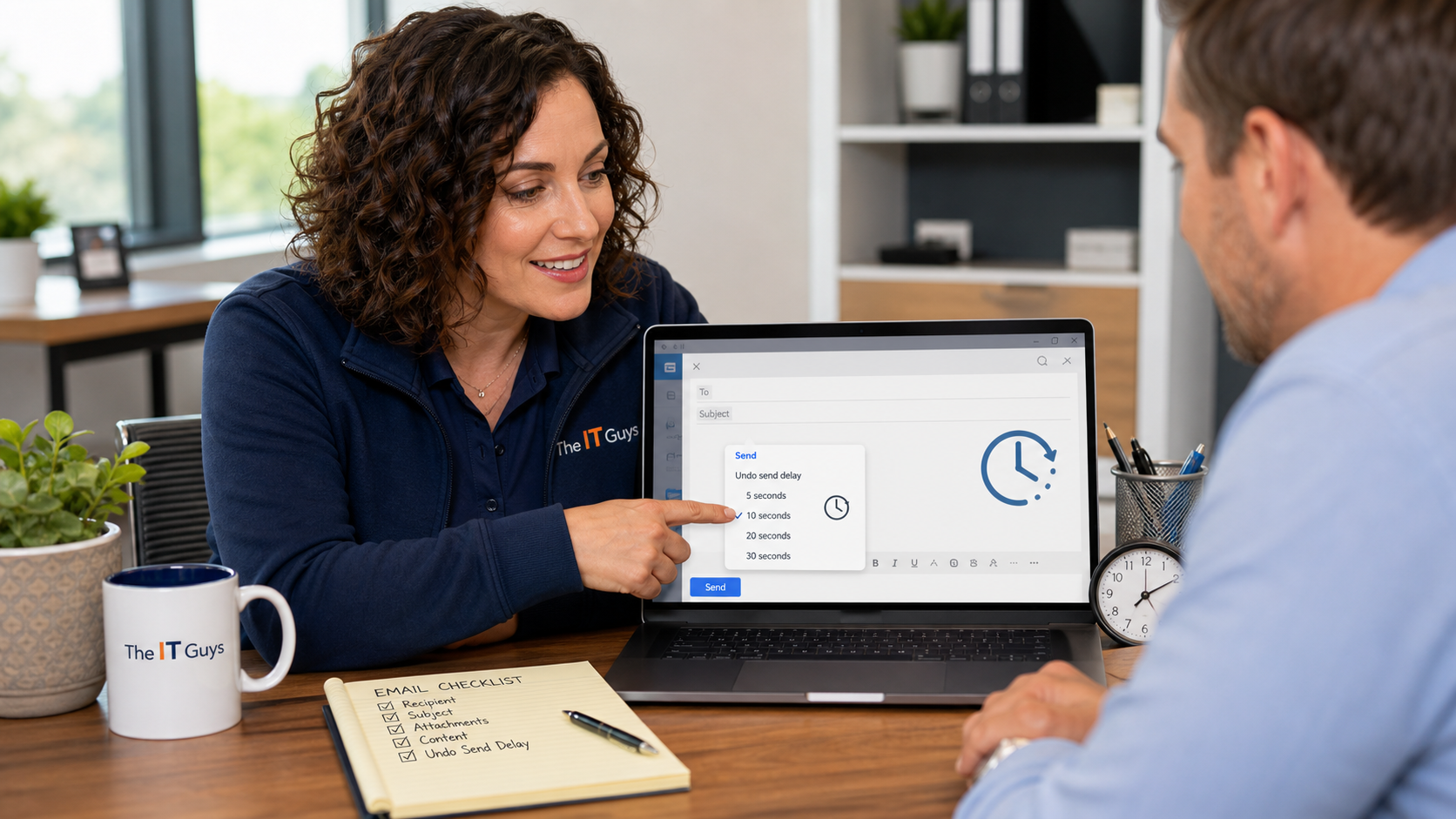
Quick tech tip: set your email app to wait a few seconds before it actually sends a message. That tiny delay can save you from sending the wrong attachment, replying to the wrong person, forgetting a file, or catching a typo right after you click Send.
This is one of the lowest-effort safety settings regular people and small businesses can turn on today. It will not fix every email mistake, and it is not the same thing as magically pulling a message back from someone else’s inbox. But for the common “I noticed the mistake immediately” problem, an undo-send delay is useful.
Why This Helps
Most email mistakes are noticed in the first few seconds: a missing attachment, the wrong customer copied, an old quote left in the thread, a reply-all that should have been private, or a message sent from the wrong account. Undo Send gives you a short pause window so you can stop the message before it finishes leaving your mailbox.
For a business, that small pause can prevent bigger headaches. A mistaken invoice, vendor payment instruction, customer record, HR note, or internal password reset message can create confusion or expose information. Undo Send is not a substitute for good review habits, but it gives you one more guardrail.
Set Gmail To A 30-Second Undo Window
Google’s Gmail help page says the Send cancellation period can be set to 5, 10, 20, or 30 seconds. If you use Gmail in a browser for work or personal email, I recommend choosing 30 seconds unless that delay truly gets in your way.
- Open Gmail on a computer.
- Click the Settings gear in the top-right corner.
- Choose See all settings.
- On the General tab, find Undo Send.
- Set the cancellation period to 30 seconds.
- Scroll to the bottom and click Save Changes.
- Send yourself a harmless test email and click Undo when the message-sent notice appears.
Important limitation: once that Gmail undo window is gone, Gmail is not offering a normal consumer “recall this email from the internet” feature. Treat the delay as a short safety timer, not a recovery tool.
Use Outlook Undo Send And Be Careful With Recall
Microsoft’s Outlook support makes an important distinction: message recall has requirements and limitations. Microsoft says recall works only in certain Microsoft 365 work or school situations where both sender and recipient are in the same organization and the recipient has not opened the message. For personal accounts, Microsoft points users toward the newer Undo Send delay feature instead.
That matters because many people hear “Outlook can recall email” and assume it works for anything. It does not. If you send to a customer, vendor, Gmail address, Outlook.com address, or someone outside your Microsoft 365 organization, recall may not help you.
- In new Outlook or Outlook on the web, open Settings.
- Go to the mail compose or send settings area available in your version.
- Look for Undo send or a sending delay option.
- Choose the longest reasonable delay your version supports.
- Send a test message to yourself and confirm the undo prompt appears.
- If your business relies on Microsoft 365, ask your administrator whether message recall is available and what it can and cannot do in your tenant.
For classic Outlook on Windows, some organizations use rules to delay outgoing mail briefly. That can be helpful, but it should be configured carefully so it does not delay urgent operational messages, break shared mailbox workflows, or surprise employees who expect messages to leave immediately.
Turn On Undo Send In Apple Mail
Apple Mail also supports Undo Send delays. Apple’s Mail guide for Mac says Undo Send is available shortly after sending and that the delay can be changed in Mail settings. Apple’s iPhone guide says to go to Settings > Apps > Mail > Undo Send Delay and choose a delay length.
- On iPhone: open Settings, go to Apps, choose Mail, tap Undo Send Delay, and choose the delay you want.
- On Mac: open the Mail app, choose Mail > Settings, open Composing, and adjust the Undo send delay menu.
- Send a test email to yourself so you know where the Undo Send option appears.
- If you use several email accounts, also check that Apple Mail is sending from the correct default address.
Make The Delay Actually Useful
The setting only helps if you build a quick review habit around it. Before you send anything important, slow down for a few seconds and check the things that cause the most real-world trouble.
- Recipients: check To, Cc, and Bcc. Autocomplete can choose the wrong customer, vendor, or employee with a similar name.
- Attachments: confirm the file is attached, current, and meant for that recipient.
- Account: make sure you are sending from the business account when the message is business-related.
- Thread history: scroll down before replying. Old conversation history can include pricing, internal notes, or unrelated customer details.
- Links: open the link if the message depends on it, especially for invoices, forms, shared files, or payment pages.
- Tone: reread anything sensitive, frustrated, legal, financial, or customer-facing before the message leaves.
A good small-business rule is simple: if the email includes money, passwords, private customer information, employee information, contracts, medical information, tax documents, or legal details, pause and review it like a mini approval step.
What Can Go Wrong
- The window is short. Gmail’s maximum documented cancellation period is 30 seconds. Other apps may have different limits.
- Undo Send is usually a delay, not a true recall. Once the message is actually delivered, you may not be able to pull it back.
- Mobile and desktop apps may behave differently. Test the setting on the device you actually use.
- Shared mailboxes can be confusing. Make sure employees know whether messages are delayed, sent immediately, or controlled by a rule.
- Rules can delay important mail. A broad Outlook delay rule may hold everything, including time-sensitive messages.
- It does not prevent phishing. Undo Send helps with your mistakes. It does not verify incoming links, stop spoofed invoices, or protect against account compromise.
When To Call An IT Professional
Call for help if your business needs consistent email settings across employees, shared mailboxes, Microsoft 365 or Google Workspace policy cleanup, safer external sharing rules, phishing protection, domain authentication, or a review after sensitive information was accidentally sent. Also get help if you need to know whether an Outlook recall actually worked, because the answer depends on account type, recipient environment, and whether the message was opened.
The IT Guys can help small businesses around Port Saint Lucie, Jensen Beach, Fort Pierce, and Vero Beach tighten email settings, reduce accidental sends, review account security, and set up safer workflows for invoices, attachments, shared files, and customer communication.
Useful References
- Google Help: send or unsend Gmail messages
- Microsoft Support: how to recall an email in Outlook
- Apple Support: unsend email with Undo Send in Mail on iPhone
- Apple Mail User Guide: send email messages on Mac
- Apple Support: write and send email in Mail on iCloud.com
- Related: check hidden email forwarding rules today
- Related: use trusted bookmarks so phishing links have less power