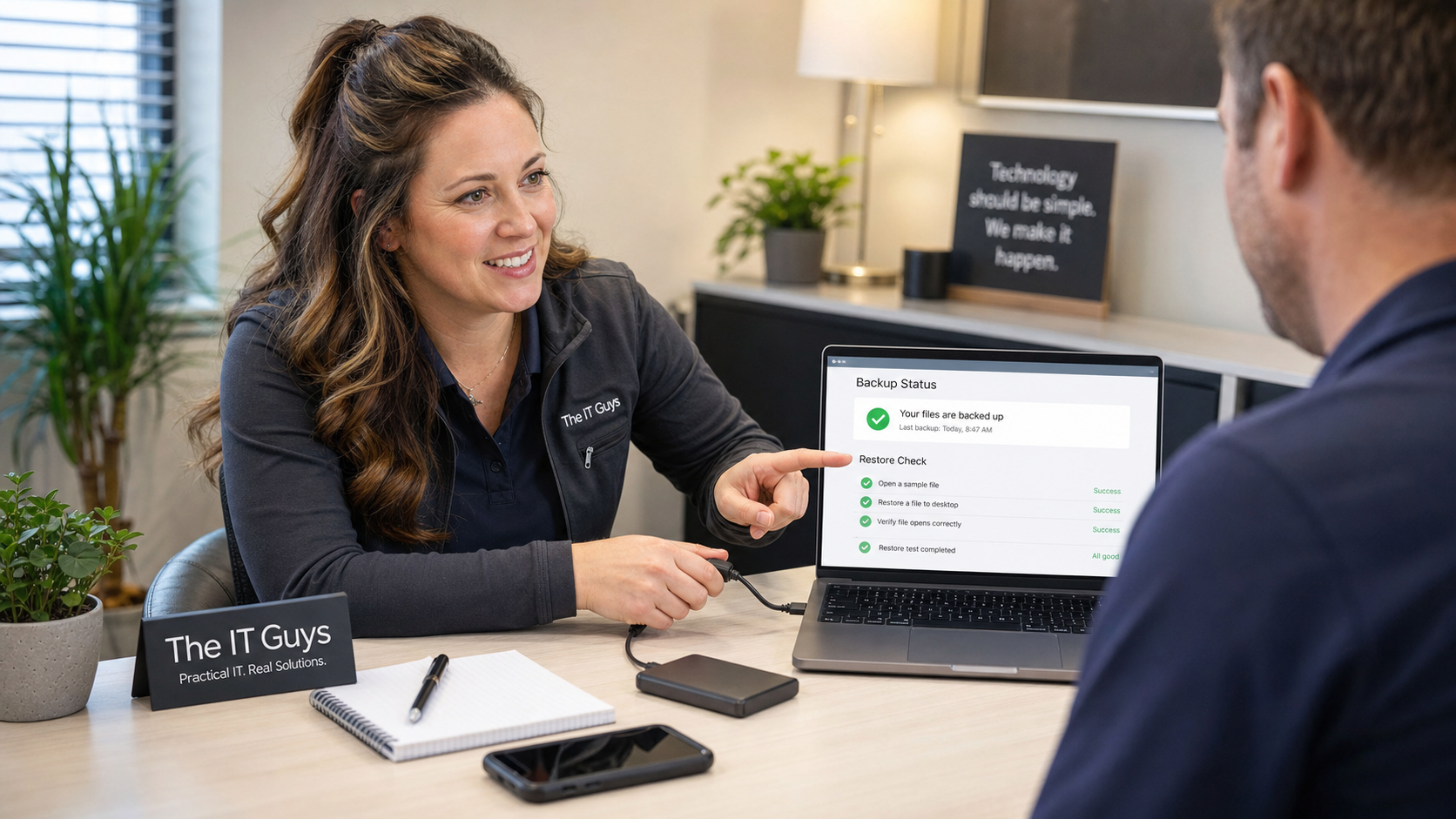
Quick tech tip: do a small restore test today. A backup is only useful if you can actually get a file back when you need it.
Most people check backups by looking for a green checkmark, a “synced” icon, or a cloud storage bill. That is better than nothing, but it does not prove recovery. A real restore test confirms three things: the right files are included, the backup account still works, and the restored copy opens correctly outside the original folder.
This is a practical home and small-business habit. It can catch a OneDrive folder that stopped syncing, a Google Drive file with missing version history, an iCloud storage limit problem, a disconnected external drive, a backup app that has not run in weeks, or a business folder that was never included in the first place.
Why A Restore Test Matters
Backups fail quietly more often than people expect. Sync can pause. Storage can fill up. A laptop can be signed into the wrong account. A folder can be moved outside the protected location. Ransomware, accidental deletion, or a bad edit can also sync to the cloud if the service is acting more like live file sync than a separate backup.
CISA’s ransomware guidance recommends frequent backups and specifically says to maintain offline or cloud-to-cloud backups. CISA’s backup guidance also points to the familiar 3-2-1 idea: keep multiple copies, use more than one storage type, and keep one copy away from the original location. That advice is not just for large organizations. A small office with QuickBooks files, scanned paperwork, customer photos, tax documents, estimates, job records, and email exports needs the same basic recovery discipline.
The 10-Minute Restore Test
Pick one harmless file that matters enough to test but is not sensitive enough to expose carelessly. A PDF invoice template, a photo you already have elsewhere, a blank spreadsheet, or a copied test document works well.
- Create a test restore folder. Make a folder on your desktop called Restore Test. This keeps the test separate from your real files.
- Choose one backed-up file. Pick a file from a folder you expect to be protected, such as Documents, Desktop, a business shared drive, or a cloud folder.
- Restore or download a copy. Use your backup service, cloud website, external-drive backup app, or file-history tool to recover a copy into the Restore Test folder. Do not overwrite the original.
- Open the restored file. Make sure the file is not empty, corrupted, password-locked unexpectedly, or an old version you no longer need.
- Check the file date and location. Confirm the restored file came from the backup source you intended, not from the original folder still sitting on the same computer.
- Write down the result. Record the date, backup source, test file, and whether it restored correctly. For a business, keep this note with your IT documentation.
- Delete only the test copy when done. Leave the original and the backup alone. The goal is proof, not cleanup.
Microsoft 365 And OneDrive Checks
If you use OneDrive, Microsoft documents several recovery paths: restoring deleted files or folders from the OneDrive recycle bin, restoring a previous version of a file, and restoring a whole OneDrive to a previous point in time for Microsoft 365 subscribers. Microsoft also notes that work or school recycle-bin retention can differ from personal accounts and administrator settings.
- Go to OneDrive on the web or your Microsoft 365 OneDrive site.
- Find a non-sensitive file you know should be backed up.
- Download a copy into your Restore Test folder, or use the recycle bin/version-history feature on a harmless test file.
- Open the downloaded or restored copy.
- If this is a business account, confirm the folder is owned by the company account, not an employee’s personal Microsoft account.
Small-business caution: Microsoft Teams and SharePoint files may look like “OneDrive files” because they sync through the OneDrive app, but permissions, retention, and restore controls can depend on the SharePoint library and administrator settings. If the folder holds business-critical data, do not assume every employee can restore it.
Google Drive Checks
Google Drive Help explains how to recover deleted files from Trash and how to review file activity and versions. Google notes that Drive Trash items are normally removed after 30 days, and version history can also have retention limits unless versions are kept.
- Go to Google Drive in a browser.
- Right-click a harmless file and review File information or version/history options where available.
- Download a copy to the Restore Test folder.
- Open it locally and confirm the contents are current enough for real recovery.
- For shared business folders, verify the file owner and sharing permissions make sense.
Apple iCloud Checks
Apple’s iCloud documentation says recently deleted iCloud Drive files can be recovered from iCloud.com within 30 days, but permanently removed files cannot be restored. Apple also has separate recovery paths for photos, iCloud Drive files, and some iCloud information.
- Go to iCloud Drive on iCloud.com.
- Download a harmless file into your Restore Test folder.
- Open it on the computer you would actually use during a recovery.
- Check iCloud storage if the newest files are missing or uploads are paused.
- If you use iCloud Photos, test photo recovery separately from document recovery.
External Drive And Local Backup Checks
External drives are still useful, especially when paired with cloud storage, but they need their own test. A drive that has been unplugged for months, encrypted with a forgotten password, failing mechanically, or full from old backups is not a recovery plan.
- Connect the external drive you believe holds backups.
- Open your backup software, Windows File History, macOS Time Machine, or the folder where backups are stored.
- Restore one harmless file into the Restore Test folder.
- Open the restored copy and confirm the date.
- Safely eject the drive and store it somewhere that is not always plugged into the computer.
For small businesses, keep at least one recovery copy that ransomware cannot immediately reach through a mapped drive or always-connected USB disk. That may mean managed cloud backup, a rotated external drive, a NAS with snapshots, or a backup service with versioning and delete protection.
What Can Go Wrong
- The wrong folders are protected. Desktop and Documents may be backed up, but Downloads, scanner output, accounting exports, photos, or a line-of-business folder may be skipped.
- Sync is mistaken for backup. Cloud sync is convenient, but bad changes and deletions can sync too. Version history and recycle-bin retention matter.
- The account is wrong. A home computer may save business files under a personal Microsoft, Google, or Apple account.
- Storage is full. Backups may stop when cloud or local storage runs out.
- The restored file is too old. A backup from six months ago may technically restore but still be useless for today’s invoices, photos, or customer records.
- The backup password is unknown. Encrypted backups are good, but only if the recovery password or key is stored safely.
- The restore process requires admin access. Business shared drives, SharePoint libraries, NAS snapshots, and backup consoles may require owner or administrator permissions.
When To Call An IT Professional
Call for help if you cannot restore even one file, the backup app has not run recently, you are not sure which account owns the data, files are missing from the cloud website, a business shared folder depends on one employee’s personal account, a NAS or external drive reports errors, or you need a backup plan for QuickBooks, Microsoft 365, Google Workspace, photos, email archives, or line-of-business software.
The IT Guys can help home users and small businesses around Port Saint Lucie, Jensen Beach, Fort Pierce, and Vero Beach review what is protected, test recovery, clean up confusing cloud-sync setups, and build a backup plan that can survive real-world problems instead of just showing a green checkmark.
Useful References
- CISA: StopRansomware Guide
- CISA: Back Up Government Data and 3-2-1 backup guidance
- Microsoft Support: restore deleted files or folders in OneDrive
- Microsoft Support: restore your OneDrive
- Google Drive Help: recover a deleted file
- Google Drive Help: check activity and file versions
- Apple Support: recover deleted files on iCloud.com
- Related: make sure important folders are actually backed up
- Related: test your UPS battery backup