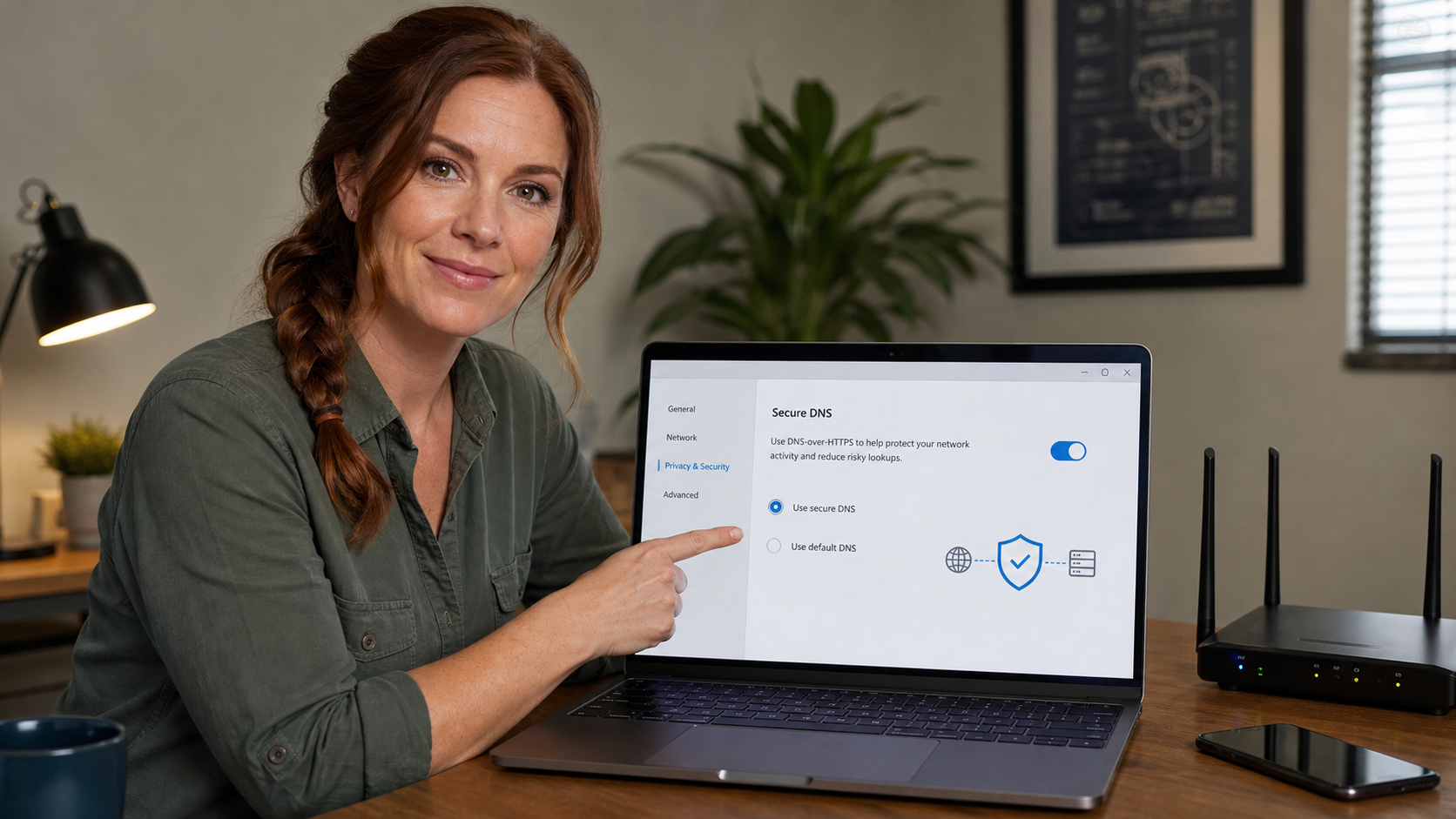
Quick tech tip: turn on Secure DNS where it makes sense, especially on browsers and small-office networks that are used for banking, payroll, email, remote work, accounting, and customer portals.
Secure DNS is not magic security software, and it will not make unsafe clicks safe. But it can make one quiet part of web browsing safer: the DNS lookup. DNS is the phone book step your device uses to find the server behind a website name. Without extra protection, those lookups can be easier for a network provider, public Wi-Fi operator, compromised router, or filtering device to observe or tamper with. Secure DNS, often called DNS-over-HTTPS or DNS-over-TLS, sends those lookups through an encrypted connection to a DNS provider that supports it.
For regular users, the practical goal is simple: reduce exposure from sketchy Wi-Fi, noisy routers, typo-prone web browsing, and some known-bad domains. For small businesses, Secure DNS can also be part of a broader web-safety plan, especially when paired with endpoint security, browser updates, MFA, phishing training, and proper network management.
What Secure DNS Helps With
- More private DNS lookups: encrypted DNS makes it harder for someone on the local network to casually inspect the website names your device is looking up.
- Less router or hotspot meddling: it can reduce some DNS hijacking and redirect behavior from public Wi-Fi, bad routers, or unwanted network filtering.
- Optional malicious-domain blocking: some DNS providers block known phishing, malware, or command-and-control domains before the browser connects.
- Cleaner small-business policy: a managed DNS service can give a business consistent filtering, reporting, and safer defaults across office devices.
The Cybersecurity and Infrastructure Security Agency describes Protective DNS as a service that can prevent access to known suspicious or malicious internet domains. That is useful, but it is only one layer. A malicious email attachment, stolen password, fake invoice, rogue browser extension, or remote-support scam can still cause damage even when DNS is configured well.
The Five-Minute Browser Setup
The easiest place to start is your browser. This does not require changing the whole router, and it is easy to reverse if something breaks.
Google Chrome
- Open Chrome.
- Go to Settings.
- Open Privacy and security.
- Open Security.
- Look for Use secure DNS.
- Turn it on, then choose either your current provider if supported or a provider you trust.
- Close and reopen Chrome, then test the sites you use every day.
Google’s Chrome help describes Secure DNS as a way to look up site addresses over an encrypted connection. If your current DNS provider supports secure DNS, Chrome may be able to use it automatically. If not, Chrome lets you choose a custom provider.
Microsoft Edge
- Open Microsoft Edge.
- Go to Settings.
- Open Privacy, search, and services.
- Scroll to the Security section.
- Find the setting for using secure DNS to specify how to look up network addresses for websites.
- Use your current service provider if supported, or choose another provider after confirming it fits your privacy and filtering needs.
- Restart Edge and test email, banking, Microsoft 365, accounting, and line-of-business sites.
Microsoft documents Secure DNS inside Edge’s privacy and security settings. Edge may use the current service provider when supported, or it can be pointed at a selected provider.
Firefox
- Open Firefox.
- Go to Settings.
- Open Privacy & Security.
- Find DNS over HTTPS.
- Choose a protection level or provider that matches your needs.
- Restart the browser and test your normal websites.
Mozilla’s Firefox documentation explains DNS over HTTPS and gives browser-specific controls. Firefox can be a good place to test this feature before making larger network changes.
Choosing A Provider Without Overthinking It
Use a provider you can explain and support. Some people choose their existing internet provider if it supports Secure DNS. Others choose a public DNS provider with clear privacy and security documentation. Businesses may want a managed Protective DNS service that includes filtering, reporting, policy controls, and support.
- For a home user: choose a reputable provider, enable Secure DNS in the browser, and avoid changing every device at once.
- For a very small office: test on one computer first, then decide whether browser-level setup or router-level setup is better.
- For a business with servers, VPN, domain controllers, or managed devices: do not randomly change DNS on staff machines. DNS may be tied to login, printers, file shares, security tools, filtering, and internal app names.
If you use a DNS provider that blocks malicious or adult content, write down that choice. Six months later, when a site does not load, you want to know whether the block is intentional, a provider mistake, a browser issue, or a real threat.
Router And Device Setup: Better, But Riskier
Changing DNS on a router can protect more devices at once, including smart TVs, tablets, phones, point-of-sale adjacent machines, and guest devices. It can also create a bigger support problem if the wrong DNS servers are entered or if the business relies on internal DNS names.
- Take a picture or backup of the current router DNS settings before changing anything.
- Confirm whether the router supports encrypted DNS, not just regular DNS server entries.
- Change only one network or test device first if possible.
- Test email, cloud storage, accounting, payment processing, printers, VPN, security cameras, and remote access.
- Keep the old settings handy so you can roll back quickly.
Many consumer routers still only let you enter plain DNS server addresses. That can still be useful if the provider blocks malicious domains, but it is not the same as encrypted DNS. If privacy from the local network is the main goal, browser-level Secure DNS or a router that supports encrypted DNS matters.
What Can Go Wrong
- Internal business names stop resolving. A company file server, printer, camera system, or app may rely on local DNS.
- Filtering blocks a legitimate site. Security-focused DNS providers can sometimes block a site your business actually needs.
- Captive portals get awkward. Hotel, airport, and coffee-shop Wi-Fi login pages may behave strangely until you sign in to the network.
- Parental or business filters conflict. Browser Secure DNS can bypass some network-level DNS filtering unless it is managed correctly.
- People think it replaces good habits. Secure DNS does not replace MFA, updates, endpoint protection, backups, or phishing awareness.
The safest rollout is boring: enable it in one browser, test normal work, document the setting, and expand only after you know it does not break anything important.
When To Call An IT Professional
- You manage a business network with Windows domain services, VPN, VLANs, static IP devices, or internal server names.
- You need DNS filtering for employees, guest Wi-Fi, point-of-sale systems, or compliance reasons.
- You are seeing browser redirects, fake search pages, or warnings that the router may already be compromised.
- Your business uses remote desktop, security cameras, NAS devices, accounting software, or line-of-business apps that rely on local network names.
- You want reporting and alerting when devices try to reach suspicious domains.
For a home laptop, browser Secure DNS is a reasonable self-service setting. For a business network, DNS is plumbing. It is worth changing carefully because a small mistake can look like an internet outage, printer failure, VPN problem, or cloud app issue.
Related Reading
- Use verified bookmarks for banking, payroll, and business logins
- Clean up browser notifications before they turn into scam alerts
- Use your phone hotspot for sensitive work on public Wi-Fi
- Do a quick router security check at home or the office
Useful Official References
- Google Chrome Help: Manage Chrome safety and security, including Secure DNS
- Microsoft Support: Secure browsing settings in Microsoft Edge
- Mozilla Support: DNS over HTTPS in Firefox
- CISA: Protective Domain Name System Resolver
- FTC Consumer Advice: how to recognize and avoid phishing scams
Bottom line: Secure DNS is a useful, low-effort privacy and safety improvement when it is tested carefully. Turn it on in the browser first, make sure your daily sites still work, and treat business-wide DNS changes as an IT-managed setting, not a random afternoon experiment.