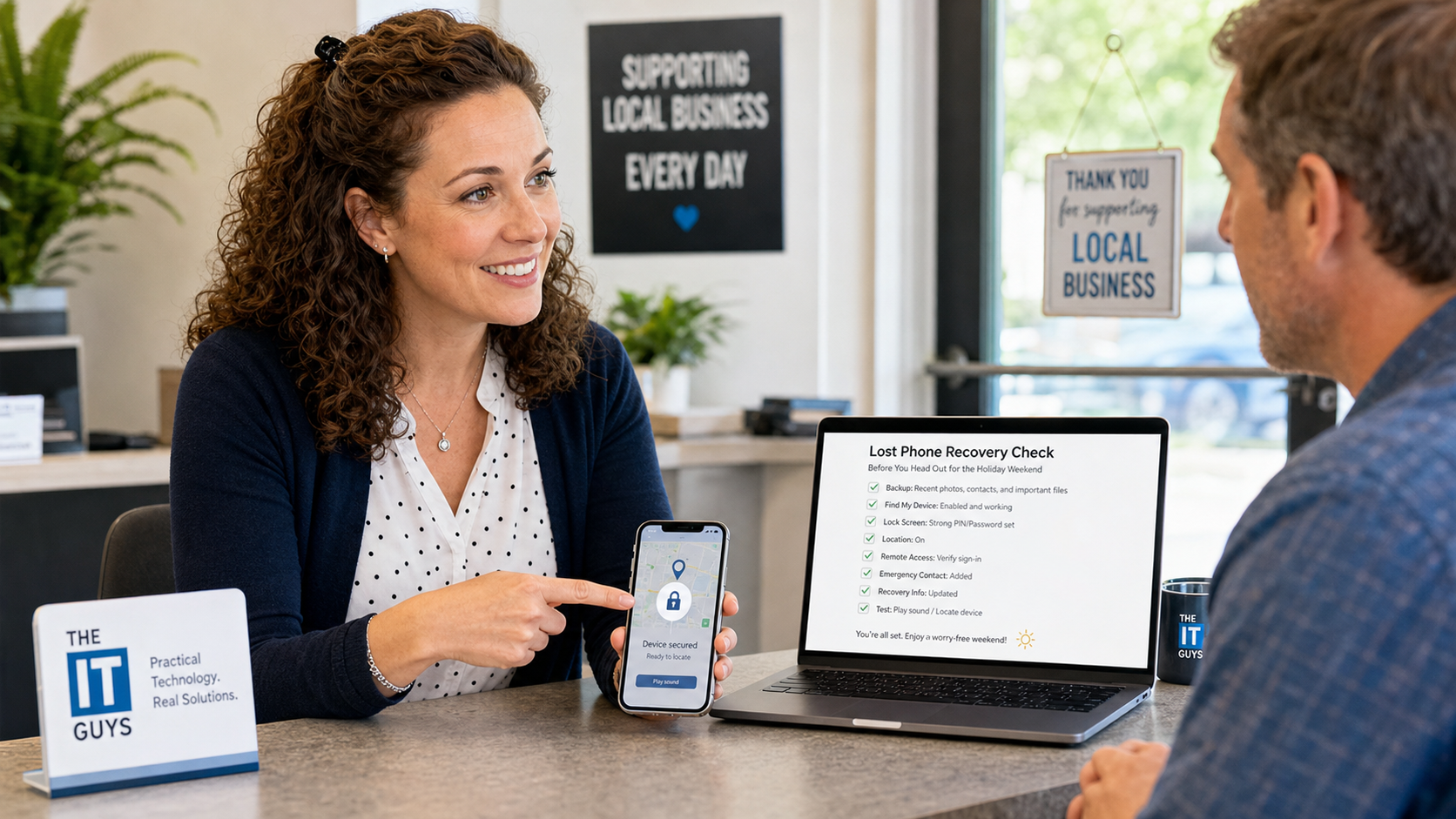
Quick tech tip: before you leave for the long weekend, take ten minutes to make sure your phone can be found, locked, or erased if it disappears. This is not only a travel tip. For small businesses, a lost phone can expose email, text messages, customer photos, authenticator apps, banking apps, payroll access, vendor portals, and saved browser sessions.
The goal is simple: if your phone is lost at a restaurant, beach, job site, airport, hotel, or customer location, you should already know how to locate it, lock it, display a recovery message, and protect the accounts connected to it.
Why This Matters
Most people think about lost-phone protection after the phone is already gone. That is too late for the most important setup items. Apple and Google both provide tools to help locate, secure, or erase a missing phone, but those tools work best when the phone is signed in, location services are enabled, the device has a passcode, and you know how to reach the recovery page from another device.
For a home user, the biggest pain is usually losing photos, messages, payment cards, and account access. For a business owner or employee, the risk is bigger: a lost phone may be the key to Microsoft 365, Google Workspace, banking, payroll, QuickBooks, remote access, social media, and two-factor authentication prompts. A locked phone is not automatically a solved problem if the accounts behind it are weak or the recovery path is unknown.
The 10-Minute Lost-Phone Recovery Check
1. Confirm Your Phone Has A Strong Lock Screen
Start with the basics. Your phone should require Face ID, Touch ID, fingerprint, or a strong passcode before anyone can open it. Avoid obvious PINs like 0000, 1234, birthdays, address numbers, or the last four digits of a phone number.
For business phones, this should not be optional. A device used for company email, customer data, remote access, or admin tools should have a passcode, encryption, current updates, and preferably mobile device management if the business depends on it.
2. Check Apple’s Find My Or Google’s Find Hub Before You Need It
If you use an iPhone, open Settings, tap your name, then check Find My. Confirm that Find My iPhone is enabled. Apple explains that Find My can help locate a missing Apple device on a map, play a sound, get directions to its approximate location, mark it as lost, or erase it when needed.
If you use Android, open your device settings and confirm that the phone is signed in to your Google Account, has location enabled, has a screen lock, and can be reached through Google’s Find Hub. Google says Find Hub can help locate, secure, or erase a lost Android device, and it may ask for the device lock screen PIN or Google password depending on the device and Android version.
Do not wait until the phone is lost to learn where these tools are. From a computer or another phone, bookmark the official recovery pages:
3. Test The Recovery Page From Another Device
This is the part most people skip. Use a laptop, tablet, spouse’s phone, or office computer and sign in to the recovery page. You do not need to trigger any scary action. Just confirm that you can see your device listed and that you understand where the options are.
For iPhone, look for options like playing a sound, marking the device as lost, or erasing it. For Android, look for options to locate the device, secure it, or erase it. If you cannot sign in because you do not know your Apple Account or Google Account password, fix that now while you still have the phone in your hand.
4. Add A Safe Lock Screen Recovery Message
A recovery message can help an honest person return the phone without giving away too much information. Use a simple message such as:
Lost phone. Please call 772-555-0100.
Use a spouse, office, trusted friend, or business main number. Do not put your home address, alarm code, hotel room, full employee name, or private customer information on the lock screen.
5. Save Emergency Information Without Oversharing
Emergency contacts are useful, especially during travel, field work, or events. Apple lets iPhone users set up Medical ID and emergency contacts in the Health app. Google explains that Android’s Personal Safety and emergency information features can save and share emergency information on supported devices.
Keep this practical. Add a trusted emergency contact and medically important details you actually want available from the lock screen. Do not add private business notes, passwords, door codes, customer names, or anything you would not want a stranger to see during a stressful situation.
6. Write Down The IMEI Or Know Where To Find It
Your mobile carrier may ask for the phone’s IMEI if the device is stolen or needs to be blocked from the cellular network. Google notes that Find Hub can show an Android device’s IMEI for devices that have one. On many phones, you can also find it in settings or on the original box or purchase paperwork.
You do not need to post the IMEI anywhere public. Keep it in a secure password manager, asset inventory, or business device record. For businesses, this belongs in a simple device list that includes employee assignment, phone number, serial number or IMEI, carrier, and recovery owner.
7. Check That Photos And Important Files Are Backed Up
Finding a phone is not guaranteed. Batteries die, phones get powered off, location can be unavailable, and stolen devices may never come back. That is why recovery is only half the job. The other half is making sure your important information is already backed up.
Check iCloud Photos, Google Photos, OneDrive, or your business-approved backup method. Open the backup app and confirm that recent photos, documents, or notes have actually synced. If your phone holds job-site photos, receipts, estimates, customer notes, or before-and-after project pictures, treat those as business records and make sure they are not trapped only on the phone.
What Can Go Wrong
The phone is offline. If a device is powered off, out of battery, damaged, or disconnected from Wi-Fi and cellular, location may be limited or unavailable. You may see a last known location instead of a live one.
You cannot pass two-factor authentication. If your only trusted device is the missing phone, signing in from another device can be difficult. Make sure your Apple Account, Google Account, Microsoft account, and business admin accounts have current recovery methods and backup codes where appropriate.
The recovery account password is unknown. If the person who uses the phone does not know the Apple Account or Google Account credentials, recovery gets messy fast. Businesses should avoid setting up employee phones with unknown personal accounts that no one can recover.
You erase too quickly. Erasing a lost phone protects data, but it can also remove your ability to track it in some situations. If the phone is likely stolen, contains sensitive business data, or has regulatory exposure, call IT before guessing.
A stranger contacts you with a scam. If a phone is stolen, criminals may text or call pretending to be Apple, Google, your carrier, or a recovery service. Do not give out your account password, verification code, device unlock code, or two-factor code. Real recovery should happen through official Apple, Google, carrier, or business IT channels.
Small Business Version Of This Tip
If your business has more than a couple of phones, turn this into a short monthly device check. It does not need to be complicated.
- Confirm every work phone has a passcode or biometric lock.
- Confirm the phone is signed in to the correct Apple or Google account.
- Confirm lost-device tracking is enabled.
- Confirm business email and files can be removed remotely if needed.
- Confirm photos and work files are syncing to an approved business location.
- Keep a device inventory with phone number, serial number or IMEI, assigned user, and carrier.
- Decide who has authority to lock, wipe, or suspend a lost device after hours.
For businesses using Microsoft 365, Google Workspace, or managed mobile devices, the better answer may be mobile device management, Conditional Access, remote wipe policies, and a written lost-device procedure. That is especially important for medical offices, legal offices, contractors, property managers, accounting firms, and anyone storing customer data on phones.
When To Call An IT Professional
Call for help before experimenting if the missing phone has access to business email, banking, payroll, customer data, administrator accounts, remote desktop tools, authenticator apps, or shared cloud drives. You should also call if you see suspicious account sign-ins after the phone disappears, if the employee left the company, if the recovery account belongs to someone else, or if you are unsure whether to lock, erase, suspend service, reset passwords, or revoke sessions.
The IT Guys can help set up a practical lost-device plan for home users and small businesses: phone recovery settings, account recovery, backup checks, Microsoft 365 and Google Workspace session cleanup, mobile security policies, and a simple checklist your staff can actually follow when a phone goes missing.
Official Sources And Useful References
- Apple Support: Use Find My to locate your lost Apple device or AirTag
- Apple Support: Set up your Medical ID in the Health app on your iPhone
- Google Account Help: Find, secure, or erase a lost Android device
- Google Android Help: Get help during an emergency with your Android phone
- Apple iCloud Find Devices
- Google Find Hub