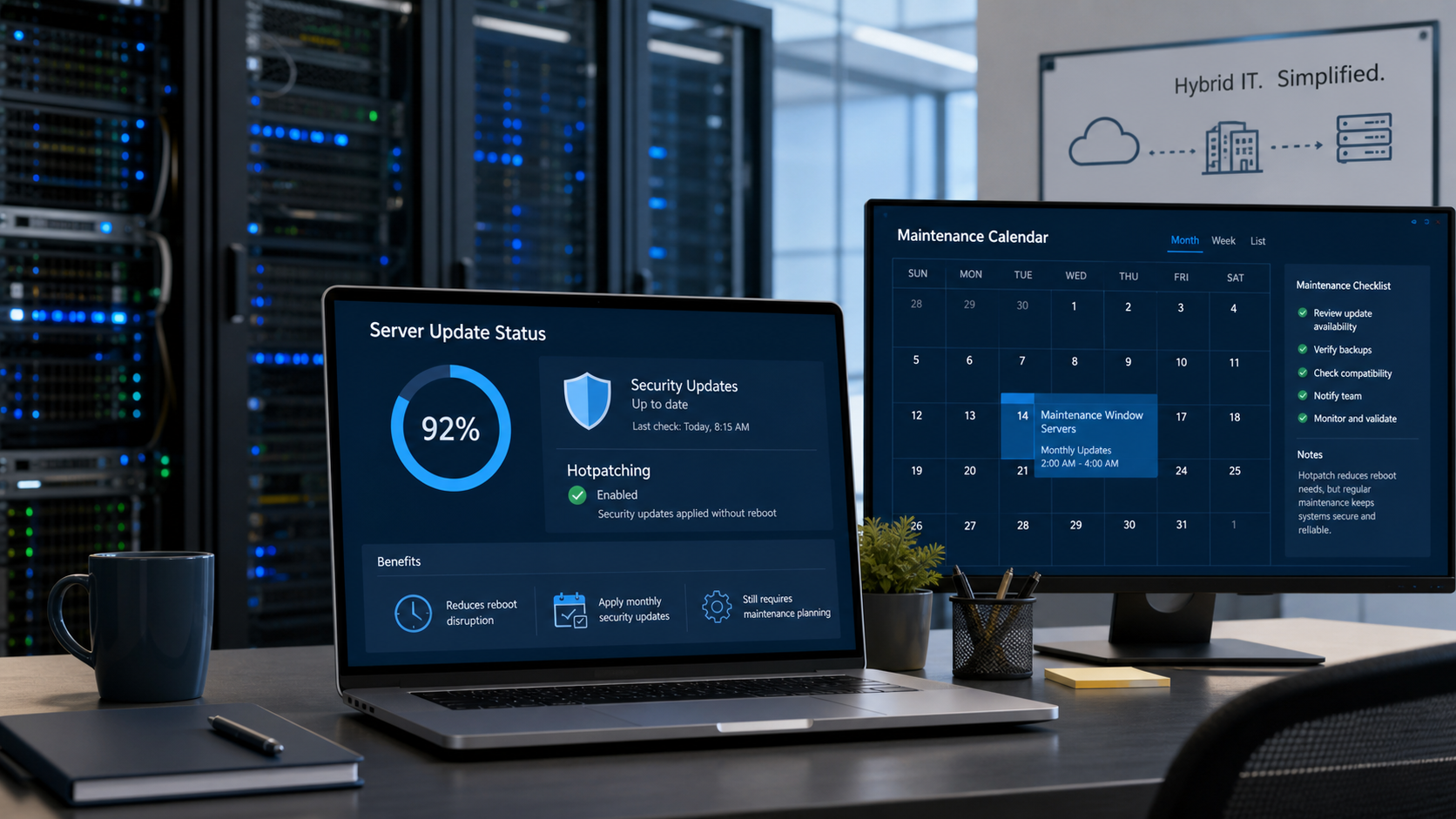
Microsoft posted a Windows message center update on July 1, 2026 that matters for some business server environments: hotpatch update support for Windows Server 2022 Datacenter: Azure Edition is now extended through October 2027. This is not a new Patch Tuesday release, not an emergency Windows update, and not a new CVE advisory. It is a support and lifecycle change for a specific Windows Server hotpatch scenario, and it is useful for IT planning because hotpatching is tied directly to how some organizations apply Windows security updates with fewer restarts.
For most home users and ordinary small-business Windows 10 or Windows 11 PCs, there is nothing to install because of this announcement. For businesses running Azure-hosted or Azure Local Windows Server 2022 Datacenter: Azure Edition workloads that already use hotpatching, the practical takeaway is better runway: Microsoft says hotpatch support is extended one year beyond the original October 2026 end date. The existing monthly hotpatch cadence remains unchanged, and Microsoft says no action is required if the servers are already receiving hotpatch updates.
What Changed On July 1
The official Windows message center lists the July 1 announcement under recent Windows announcements. Microsoft says hotpatch update support for Windows Server 2022 Datacenter: Azure Edition is extended through October 2027. The message also explains why this matters: hotpatching helps protect servers by delivering security updates that do not require a restart, reducing downtime and speeding vulnerability response.
That wording is important. Hotpatching does not mean servers can be ignored, and it does not mean every update avoids a reboot. It means some supported Windows Server security updates can be applied to running systems without the usual restart, which can make monthly patching less disruptive for workloads that need tighter uptime windows.
Microsoft’s Windows Server 2022 lifecycle page still shows Windows Server 2022 mainstream support ending on October 13, 2026 and extended support ending on October 14, 2031. That page also notes hotpatching support for Windows Server 2022 Datacenter: Azure Edition Core through the end of mainstream support. The message center announcement is the same-day item that adds the operational update for hotpatch support timing.
Who Is Affected
This announcement is mostly for IT administrators and businesses with server workloads, not regular Windows PC users. You should care about it if your environment includes one of these:
- Windows Server 2022 Datacenter: Azure Edition workloads using supported Azure images.
- Azure Local virtual machines using supported Windows Server Datacenter: Azure Edition combinations.
- Server patching processes that depend on hotpatching to reduce restart windows.
- Compliance or maintenance plans that already track Windows Server 2022 lifecycle dates.
You are probably not affected if you only run regular Windows 10 or Windows 11 desktops, standard on-premises Windows Server installs without Azure Edition hotpatching, or Macs. This does not replace normal Windows Update, Microsoft Update, endpoint management, backups, or reboot planning.
What Hotpatching Actually Does
Microsoft’s Hotpatch for Windows Server documentation describes hotpatching as a way to install operating system security updates on Windows Server without restarting the machine. In practical terms, hotpatching patches running code in memory so the server can receive certain security fixes with less interruption.
That has real business value. If a line-of-business application, database helper server, remote desktop host, or cloud workload is sensitive to reboots, fewer restarts can mean fewer after-hours interruptions and less pressure to delay security patches. Delaying server patches because “we cannot reboot this tonight” is a common source of risk. Hotpatching is one way to reduce that friction when the workload is eligible.
Microsoft also makes the limits clear. Hotpatching focuses on Windows security updates. Baseline updates still happen periodically, and baseline updates require a restart. Other update types can still require normal maintenance, including nonsecurity Windows updates, .NET updates, drivers, firmware, and non-Windows software. A hotpatch-capable server still needs a real maintenance plan.
Why Small Businesses Should Care
Many small businesses do not think about server patching until something breaks, but servers often hold the highest-risk pieces of the business: identity, remote access, databases, accounting systems, shared files, line-of-business applications, and backup coordination. Anything that improves the speed and reliability of security patching is worth understanding.
The July 1 announcement does not mean every small business should redesign its server environment around hotpatching. It does mean businesses that already pay for Azure-hosted Windows Server workloads may have more time to use their current Windows Server 2022 hotpatch strategy while planning a longer-term move to Windows Server 2025 or another supported platform.
For IT planning, the benefit is not just “fewer reboots.” The benefit is being able to say, “We can apply many security fixes promptly, validate the system, and reserve disruptive restarts for baseline months or non-hotpatch updates.” That is healthier than pushing all server updates into a vague quarterly maintenance window.
What Can Still Go Wrong
Hotpatching reduces restart disruption, but it does not remove patch risk. Before changing your patch strategy, keep these cautions in mind:
- Eligibility matters: unsupported images, custom images, and standard server deployments may not qualify for this hotpatch path.
- Baselines still reboot: Microsoft says planned baseline updates include comparable cumulative update content and require a restart.
- Emergency fixes can change the plan: an important zero-day fix may require an unplanned baseline, which also requires a restart.
- Non-Windows pieces still need updates: .NET, firmware, drivers, backup agents, security tools, SQL/app updates, and vendor software may follow different schedules.
- Rollback is not magic: Microsoft’s hotpatch documentation says hotpatch updates do not support automatic rollback; fixing a bad update can require uninstalling the latest update and installing the last functional baseline update, with a VM restart.
That last point is why backups and restore testing still matter. Reduced downtime during normal patching does not replace a working snapshot, image backup, database backup, or disaster recovery plan.
What IT Admins Should Do Now
If your business has no Windows Server 2022 Datacenter: Azure Edition hotpatch environment, this is mostly an awareness item. Keep normal Windows and macOS patching habits in place.
If you do manage eligible Windows Server hotpatch workloads, use this July 1 announcement as a planning checkpoint:
- Confirm which servers are actually running Windows Server 2022 Datacenter: Azure Edition and which are standard Windows Server deployments.
- Check whether hotpatch is enabled and whether the servers are successfully receiving hotpatch updates.
- Review Azure Update Manager, Windows Update, Group Policy, MDM, or third-party patch management reports for compliance.
- Keep a separate list of updates that still require restarts, including baseline months, .NET, firmware, drivers, security tools, and application patches.
- Verify backups before baseline or high-risk maintenance windows.
- Document who approves server reboots, who validates the application afterward, and what the rollback path is.
- Update lifecycle planning so the October 2027 hotpatch support extension does not hide the larger Windows Server 2022 lifecycle timeline.
Backup And Restart Cautions
Even when an update is designed to install without a restart, do not treat production servers casually. Before a broad rollout, confirm that backups are current, monitoring is clean, storage has enough free space, and the application owner knows the maintenance plan. For cloud VMs, make sure snapshots or backups fit your recovery objective and that someone knows how to restore them.
For businesses with only one server handling multiple roles, schedule carefully. A domain controller, file server, accounting server, remote desktop host, or line-of-business application server can affect the whole office if the update path goes sideways. Hotpatching helps, but it is still production change management.
What About Apple macOS Today?
I also checked Apple’s official Apple security releases page during this July 1 review. I did not find a same-day macOS security release, Rapid Security Response, or macOS support advisory dated July 1, 2026. Mac users should still keep System Settings > General > Software Update current, but today’s meaningful item for this nightly Windows/Mac update check was on the Microsoft Windows side.
When To Call The IT Guys
Call The IT Guys if you are not sure whether your business has Windows Server workloads that qualify for hotpatching, if your server patch reports are unclear, or if you have been delaying updates because restarts are difficult to schedule. We can help inventory the environment, separate normal workstations from server workloads, check update compliance, plan maintenance windows, and make sure backups are tested before changes are applied.
The right answer is not always “install everything immediately on every server.” The right answer is usually a controlled patch process: know what changed, know what systems are affected, test where needed, back up first, deploy in a sensible window, and verify afterward.