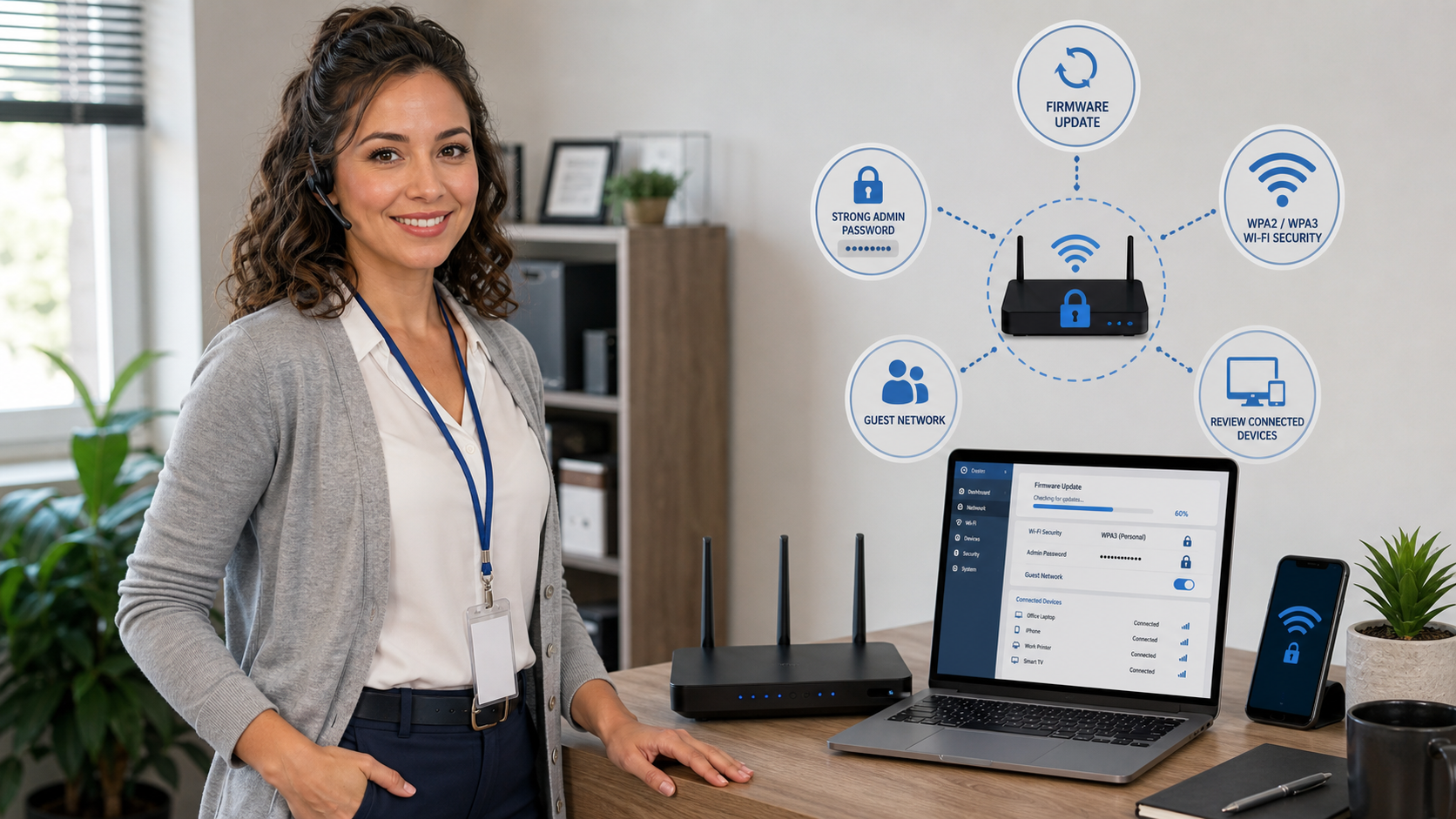
Quick tech tip: take 20 minutes today to check your router. Your router is the front door for your home or small-business network, and a few basic settings can prevent a lot of trouble later.
This is not about turning your network into a complicated enterprise setup. It is about confirming the basics: the router is updated, the router admin password is not the factory default, the Wi-Fi password is strong, guest Wi-Fi is separated from your main devices, and unknown devices are not quietly sitting on your network.
In this article:
Why This Router Check Matters
Most people think about Wi-Fi only when it is slow. Attackers think about routers differently: the router can expose settings pages, DNS settings, port forwards, weak passwords, old firmware, and connected devices. If a router is badly configured, someone may not need to compromise your laptop first. They may be able to attack the network edge or use a weak Wi-Fi setup to get close to your devices.
The Federal Trade Commission’s home Wi-Fi guidance recommends using strong encryption, changing default router settings, keeping router software updated, and creating a guest network when visitors need internet access. CISA and NSA guidance also emphasize router updates, strong passwords, disabling unnecessary services, and replacing unsupported equipment.
The 20-Minute Router Security Check
1. Find The Router Admin Page
Start from a device already connected to your Wi-Fi. Open the router app if your internet provider or router brand uses one. Otherwise, check the label on the router or your provider’s documentation for the admin address. Common local addresses include 192.168.0.1, 192.168.1.1, or 10.0.0.1, but do not guess forever if those do not work.
- If your router is owned by your internet provider, use the provider’s app or support page first.
- If you bought the router yourself, search the model number and the manufacturer’s official support page.
- If you cannot log in and the network is business-critical, stop before factory resetting anything.
2. Check For Firmware Or Software Updates
Look for a section named Firmware, Software Update, System, Administration, or Router Update. If there is an automatic-update option from a reputable manufacturer or internet provider, enable it unless your business has a managed IT policy that handles router updates on a schedule.
Do not unplug the router during a firmware update. Plan for a short internet outage, usually a few minutes. If the router runs your phones, credit-card terminal, security cameras, or remote-work access, do the update outside peak business hours.
3. Change The Router Admin Password
This is different from your Wi-Fi password. The router admin password controls the settings page. If it is still admin, password, the internet provider default, or a password printed on an old setup card that many people have seen, change it.
- Use a long unique password and store it in a password manager or sealed business IT record.
- Do not reuse your email, bank, or Wi-Fi password as the router admin password.
- For a business, make sure the owner or manager knows where the recovery information is stored.
If your router supports separate user accounts, avoid sharing one admin login with everyone. Shared admin passwords make it harder to know who changed a setting and harder to remove access when someone leaves.
4. Confirm WPA2 Or WPA3 Wi-Fi Security
Open the wireless security settings and look for WPA2, WPA3, or WPA2/WPA3 mixed mode. Avoid open Wi-Fi, WEP, and old WPA-only settings. If the Wi-Fi password is short, reused, or has been shared widely over the years, change it and reconnect trusted devices.
For a small business, schedule the change. Printers, cameras, payment devices, TVs, tablets, and point-of-sale equipment may need to be reconnected. Do not make the change five minutes before opening if several devices depend on Wi-Fi.
5. Turn On Guest Wi-Fi For Visitors And Personal Devices
Guest Wi-Fi gives visitors internet access without putting them on the same network as office PCs, printers, shared files, and business systems. That matters when customers, contractors, family members, or employee personal devices need temporary access.
Use a different guest Wi-Fi password from your main Wi-Fi password. If your router has an option like allow guests to access local network, leave that off unless you have a specific reason. For more detail, see our earlier guide: set up guest Wi-Fi before sharing your password.
6. Review Connected Devices
Most router apps have a connected-device list. Look for devices you do not recognize, old phones, unused smart plugs, unknown cameras, former employee devices, or equipment with vague names. A mystery device is not automatically malicious, but it is worth identifying.
- Rename known devices in the router app if the router supports friendly names.
- Remove or block devices you are confident are not yours.
- Change the Wi-Fi password if you find devices that should not have access.
- For business networks, document important devices before blocking anything.
7. Disable Risky Convenience Features You Do Not Use
Some router features are useful in the right environment but risky when left on by default. Look for these settings:
- Remote administration: turn it off unless a trusted IT provider intentionally manages the router remotely.
- WPS push-button or PIN setup: turn it off if you do not use it. It is convenient, but it can weaken the normal password-based Wi-Fi setup.
- UPnP: consider disabling it if you do not need game consoles, cameras, or apps to open ports automatically. For businesses, review this carefully because it can affect apps and remote access.
- Old port forwards: remove forwards for cameras, remote desktop, servers, or old systems that no longer need outside access.
What Can Go Wrong
- You can lock yourself out of the router. Save the new admin password before you sign out.
- Changing Wi-Fi passwords disconnects everything. Plan time to reconnect printers, cameras, TVs, phones, tablets, and workstations.
- Firmware updates can briefly interrupt internet service. Do not run updates during a payment, phone, security-camera, or remote-work crunch.
- Disabling UPnP or port forwards can break remote access. If cameras, remote desktop, VPN, or business apps depend on those settings, review before changing.
- Old routers may not receive updates anymore. If the manufacturer no longer supports the model, replacement is usually better than trying to secure outdated hardware forever.
When To Call An IT Professional
Call for help if this router supports a business, payment system, phone system, camera system, remote access, medical or legal office, guest Wi-Fi for customers, or multiple employees. A simple home router checklist is helpful, but small-business networks often need proper firewall rules, VLANs, managed Wi-Fi, backups of router configuration, and documentation.
You should also call before factory resetting a router you do not fully understand. A reset can wipe internet-provider settings, static IP details, VPN settings, port forwards, Wi-Fi names, and device reservations. That can turn a small security cleanup into a full outage.
Useful Sources
- FTC: How To Secure Your Home Wi-Fi Network
- CISA: Home Router Security
- NSA: Best Practices For Securing Your Home Network
- Wi-Fi Alliance: Wi-Fi Security