

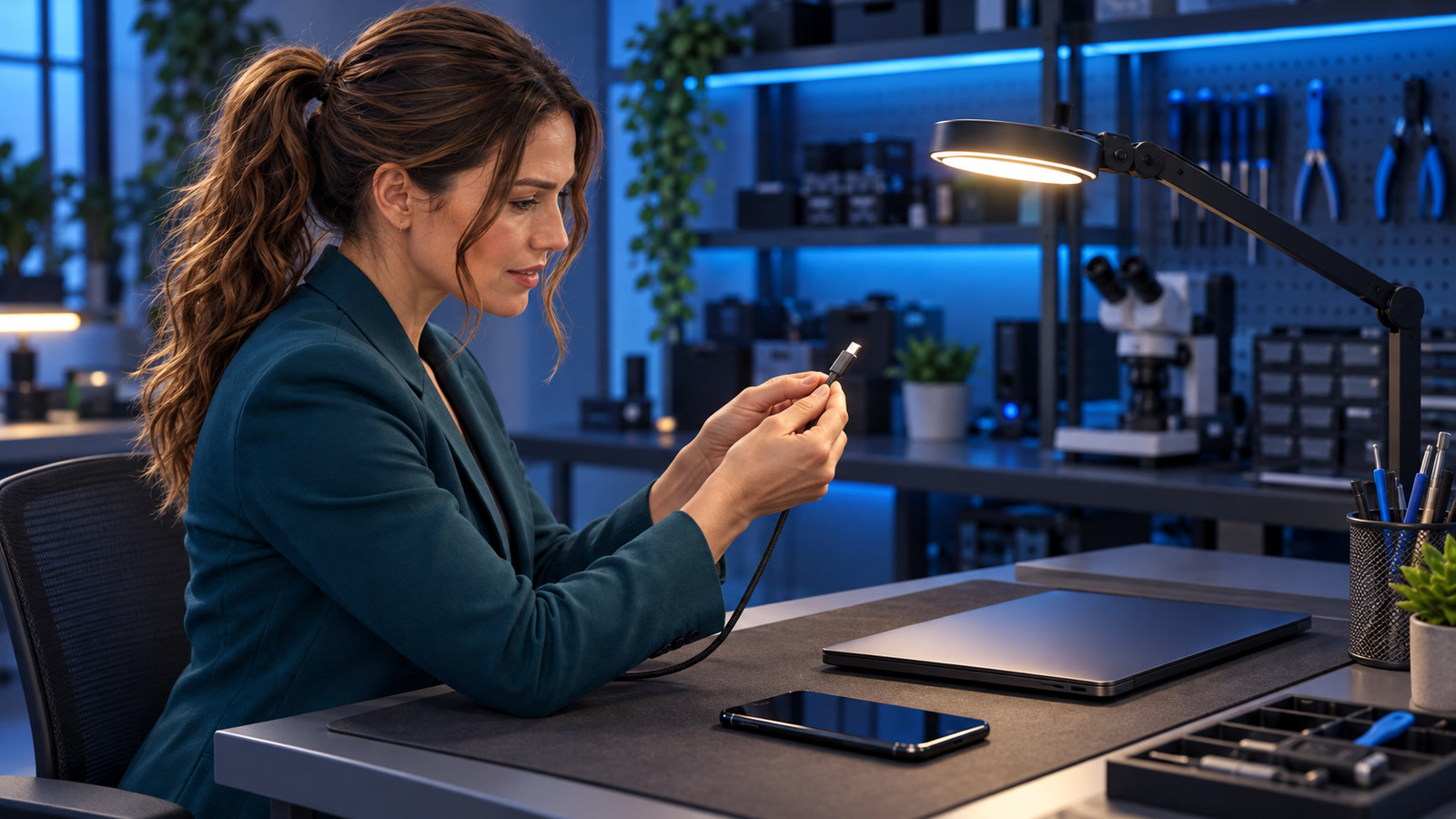
Practical triage: A USB-C charger can make a phone, laptop, tablet, or dock feel warm during normal use. A different warning sign is heat concentrated at one plug, cable end, or charging port—especially when it comes with a bent connector, frayed insulation, looseness, discoloration, moisture, a burning smell, intermittent charging, or video dropouts. Localized heat does not identify one cause by itself, but it is a reason to stop charging and inspect the connection before repeated use turns a small problem into damaged hardware.
Stop using it now if you see or smell damage
- Unplug from wall power first, if you can do so without touching a dangerously hot, wet, smoking, sparking, or visibly damaged area.
- Stop using the cable if the USB-C shell is bent or loose, the housing is cracked or separated, the insulation is torn, wires are exposed, or internal pins appear bent or missing. Dell tells users to stop using and replace a cable showing this kind of physical damage because a damaged cable can harm device ports.[3]
- Do not charge a wet device or use a wet connection. Apple and Google both warn that damaged charging equipment or charging in the presence of moisture can cause fire, electric shock, injury, or property damage.[1][2]
- Practical safety guidance: If you see smoke, swelling, sparking, melting, or flame, move away, avoid handling the device, and follow local emergency guidance.
The problem: normal warmth is not the same as a hot connection
Google says a Pixel phone and its charger generate heat during normal operation, and that heat-producing uses can make the phone warmer than under ordinary conditions.[2] Apple likewise warns against prolonged skin contact with a connected charging cable or connector because it can cause discomfort or injury.[1] Those statements establish that some warmth can be expected; they do not make every hot plug or port normal.
Practical triage rule: compare where the heat is concentrated and what else is happening. Mild, broadly distributed warmth during fast charging or heavy use is a different pattern from one cable end or port becoming sharply hotter than the surrounding device. Treat the second pattern as a connection warning, not as a diagnosis. Possible explanations include cable damage, contamination, moisture, wear, an ill-fitting connection, charger trouble, or a damaged device port; this guide cannot determine which one from temperature alone.
Phone readers: swipe the table left to see every column.
| What you notice | What it means for triage | What to do |
|---|---|---|
| The device body and charger are mildly warm, with no smell, damage, charging interruptions, or one concentrated hot spot | Can be consistent with normal operation; it is not proof that every component is healthy | Keep ventilation clear, avoid prolonged skin contact, and continue watching for a localized change.[2] |
| One USB-C plug, cable end, or port is much hotter than the rest | Abnormal pattern that needs inspection; heat alone does not identify the failed part | Stop charging, let everything cool, and follow the isolation steps below. |
| Heat plus a bent shell, cracked housing, fraying, exposed wire, looseness, or damaged pins | The cable has visible damage | Retire and replace that cable; do not straighten it and put it back into service.[3] |
| Heat follows the device port across more than one known-good compatible cable | The cable is no longer the only reasonable suspect | Stop using that port and arrange device or dock inspection. |
| Moisture, corrosion-like residue, melting, burning odor, smoke, swelling, or sparking | Stop-use condition | Disconnect only if safe, do not test another cable, and seek appropriate service or emergency help. |
Who is affected—and who is not automatically affected?
Treat as affected
- The cable with a hot, bent, loose, cracked, frayed, separated, or discolored connector.
- The exact device port that becomes hot with more than one suitable known-good cable.
- A charger or dock whose USB-C output repeatedly produces the problem with more than one suitable cable and device.
- Any device, cable, charger, or dock exposed to liquid at the connection.
- A phone or laptop with swelling, enclosure deformation, smoke, melting, sparking, or a persistent burning smell.
Not automatically affected
- Every USB-C cable you own merely because one cable failed.
- Every port on a multiport charger or dock merely because one connection became hot.
- The battery solely because the plug felt warm; battery damage needs its own evidence.
- The charger solely because one worn cable end became hot.
- The cable solely because the device port became hot; isolate the parts before assigning blame.
“Not automatically affected” is not a safety clearance. Stop and widen the response if the symptom follows another component or a new warning sign appears.
Step by step: isolate the cable, charger, dock, or device port
1. End the charging session safely
Stop the workload, unplug wall power, and then disconnect the USB-C connection if it is safe to touch. If the device itself is unusually hot, Google advises disconnecting it from power, moving it to a cooler place, and not using it until it has cooled.[2] Practical safety guidance: Do not cool electronics with water, a freezer, or an external heat-removal trick that introduces condensation.
2. Let every part cool before inspection
Practical safety guidance: Place the device, charger, dock, and cable on a hard, dry, nonflammable surface with airflow. Do not cover them, place them on bedding, or hold a hot connector against your skin. Apple and Google both warn against prolonged skin contact with charging equipment, and Google cautions against charging on soft surfaces or covering charging equipment.[1][2]
3. Inspect the cable without repairing it
- Check both USB-C ends in good light.
- Look for a connector shell that is tilted, bent, loose, cracked, separated, or pushed back.
- Check the strain-relief area for tearing, stretching, sharp kinks, or exposed wire.
- Look into the connector without inserting a tool. Pins should not appear bent or missing.
- Retire the cable if any of those signs are present. Dell specifically identifies bent housings, cracked plastic, exposed wires, separated casing, and bent or missing pins as damage that warrants replacement.[3]
Practical safety guidance: Do not tape over a damaged connector, bend the shell back, scrape contacts with metal, spray cleaner into the plug, or keep it as a “charging-only” spare. A cable that is unsafe for one USB-C job is not made safe by reducing your expectations.
4. Inspect the device port—without digging inside it
With the device powered down and disconnected, use a light to look for foreign material, moisture, an off-center internal tongue, darkening, melted plastic, or a connector that no longer seats normally. Practical safety guidance: Do not probe the port with a pin, knife, paper clip, or other metal object. Do not add liquid cleaner or compressed air unless the device manufacturer’s instructions for that exact model explicitly permit it.
If liquid was involved, do not perform a powered “quick test.” Google says not to charge a wet phone, and Apple warns that charging when moisture is present can cause fire, electric shock, injury, or damage.[2][1] Follow the manufacturer’s model-specific liquid guidance or arrange service.
5. Decide whether a cable-only test is appropriate
Stop condition: Do not test again if there was moisture, melting, smoke, sparking, swelling, a burning smell, visible port damage, or a connector too hot to handle safely. Those signs call for stop-use and service, not repeated substitution.
If the only finding is a visibly damaged cable and the device port looks dry, clean, straight, and undamaged, replace the cable with one that is suitable for the device’s required power and features. Dell notes that a USB-C cable used for its laptop-and-monitor scenario must support the needed charging and video functions; in other words, the connector shape alone does not establish capability.[3]
6. Use one controlled substitution—not a chain of guesses
- Practical diagnostic guidance: Use a known-good, undamaged cable that meets the device maker’s power and feature requirements.
- Practical diagnostic guidance: Use the normal compatible charger for the device, not an unknown adapter introduced at the same time.
- Practical diagnostic guidance: Start with the device idle and observe the connection. Do not leave the test unattended.
- Practical diagnostic guidance: Stop immediately if localized heat, odor, looseness, charging interruptions, or display/data dropouts return.
- Practical diagnostic guidance: Change only one part at a time. If you swap the cable, charger, dock, and device together, the result will not tell you which part carried the problem.
USB-IF’s public search can help verify whether a specifically named product is listed as certified to bear the USB-IF logo. USB-IF says its list is limited to products that passed its compliance program, but also says the entries are maintained by member companies and that it does not take responsibility for their contents.[4] Certification is a useful purchasing check—not a promise that a particular cable is undamaged, genuine, compatible with every feature, or safe after wear.
7. Follow the symptom to the next component
- The replacement cable stays cool and stable: retire the original cable. Continue watching the port for looseness or renewed heat.
- The same device port heats with a known-good cable: stop using that port and arrange device repair or inspection.
- The symptom follows one charger or dock output: stop using that output and have the charger or dock evaluated or replaced according to its manufacturer’s guidance.
- The symptom follows one cable across devices: retire that cable even if it still charges.
- Charging, data, or video cuts in and out when the plug moves: stop wiggling it to make it work. Dell identifies intermittent operation, failed charging, and failed video as possible symptoms of cable damage in its covered USB-C setup.[3]
Cable-replacement signs versus device-repair signs
Phone readers: swipe the table left to see every column.
| Replace the cable and monitor | Stop using the port and seek service |
|---|---|
| Damage is confined to the cable: bent plug shell, cracked housing, frayed jacket, exposed wire, separated casing, or visibly damaged pins.[3] | The device port has melting, darkening, an off-center or broken internal tongue, corrosion-like residue, or physical looseness. |
| A suitable known-good replacement cable stays stable and does not reproduce the localized heat. | Localized heat returns at the same port with more than one suitable known-good cable. |
| The old cable produces intermittent power, data, or video across more than one compatible setup, while the replacement does not. | The plug will not seat normally, falls out, must be held at an angle, or charging repeatedly starts and stops at that port. |
| No moisture, smoke, swelling, sparking, melting, burning odor, or device deformation is present. | Any moisture, burning odor, smoke, sparking, melting, swelling, or enclosure deformation is present. |
Practical triage: This split is a troubleshooting boundary, not a guarantee. A damaged cable can harm a port, and a damaged port can damage or overheat a replacement cable. If both show signs, retire the cable and stop using the port.
Good response versus bad shortcuts
Good
- Stop the session and let parts cool before inspection.
- Retire visibly damaged cables instead of trying to reshape them.
- Keep wet connections unpowered.
- Use one suitable known-good replacement and change one variable at a time.
- Stop the test as soon as localized heat or another warning sign returns.
- Check an exact product model in USB-IF’s certified product search when certification matters.[4]
- Search the CPSC recalls database by the exact manufacturer and model if you are checking whether a product has a recall—not because this symptom proves one exists.[5]
Bad
- Practical caution: Keep charging overnight to see whether the hot spot returns.
- Practical caution: Wiggle or hold the plug at an angle to maintain charging.
- Practical caution: Push a metal tool into the port or scrape its contacts.
- Practical caution: Tape a cracked connector and keep it as a spare.
- Practical caution: Test a wet port because the outside now looks dry.
- Practical caution: Assume any cable with USB-C ends supports the required power, video, and data features.
- Practical caution: Treat certification or the absence of a recall result as proof that a worn individual cable is safe.
Three realistic examples
Example 1: The phone is warm, but the plug is not a hot spot
Illustrative example: A phone becomes evenly warm during fast charging while a navigation app is running. The cable is intact, charging is stable, the port is dry, and the plug is not markedly hotter than the surrounding area. The user reduces the workload, keeps the phone uncovered with airflow, and monitors it. This pattern can fit normal heat generation, but a new localized hot spot, warning message, odor, or charging interruption would change the response.[2]
Example 2: One cable end is hot and visibly crooked
Illustrative example: A laptop charges only when the cable is tilted, and the device-end connector becomes hot. After unplugging and cooling, the metal shell is visibly bent. The user retires the cable rather than straightening it, checks that the laptop port is not loose or discolored, and performs one attended test with a suitable known-good cable. Dell lists bent connector housings and intermittent operation among cable-damage signs and tells users to replace damaged cables.[3]
Example 3: A new cable becomes hot at the same tablet port
Illustrative example: The original cable looked normal, but the tablet’s port became sharply hot. A suitable known-good cable reproduces the hot spot at the same port during a brief attended test. The user stops there, powers down the tablet, and arranges inspection instead of buying a third cable. The repeated location points the triage away from a cable-only conclusion; it does not establish the exact internal fault.
Frequently asked questions
How hot is too hot for a USB-C plug?
There is no reliable finger-based temperature threshold that diagnoses a USB-C fault across all products. Stop if the heat is concentrated at one connection, causes discomfort, or appears with odor, discoloration, looseness, intermittent operation, moisture, or visible damage. Apple warns that prolonged contact with a connected charging cable or connector can cause discomfort or injury.[1]
Can I keep using a cable if it still charges?
Not when it is physically damaged or the connection repeatedly becomes a localized hot spot. Charging success does not cancel bent metal, exposed wire, broken housing, missing pins, or intermittent behavior. Dell’s guidance is to stop using and replace a cable showing those damage signs.[3]
Can lint in the port cause heat?
Practical diagnostic guidance: Foreign material can interfere with how a connector seats, but this article cannot determine that lint caused a specific hot connection. Power down and inspect visually. Do not insert a metal tool or add liquid cleaner. If the plug will not seat normally or the port shows damage, use professional or manufacturer-approved service.
Is a USB-IF-certified cable guaranteed not to overheat?
No. USB-IF says products in its public certified list have passed its compliance program, while noting that member companies maintain the listings.[4] That is useful product-level evidence, not a guarantee against counterfeits, incompatibility, later wear, liquid exposure, or damage to the individual cable in your hand.
Does a hot charging port mean the battery is failing?
Practical triage: Not by itself. Localized connection heat can involve the cable, plug, charger, dock, or device port, and temperature alone does not identify the cause. Practical safety guidance: Treat swelling, enclosure separation, smoke, or device-wide overheating as separate stop-use signs. Do not press on or puncture a swollen device.
Should I check for a recall?
Yes, when you have the exact manufacturer and model, checking is reasonable. Use the U.S. Consumer Product Safety Commission’s recalls search as a model recall lookup.[5] This article does not claim that your model—or USB-C products generally—has a recall. No search result is a substitute for stopping use when you can already see damage or unsafe behavior.
Related guides from The IT Guys
- USB-C Cable Charges but Won’t Show Video or Move Data? Match the Cable to the Job — use this when the connection is cool and undamaged but the cable may lack the required feature.
- USB-C Dock Keeps Dropping Monitors or Ethernet? — isolate a stable-but-unreliable dock path after ruling out heat and damage.
- USB-C Dock Is Connected—but the Laptop Battery Is Draining — check power budgets and cable capability when the hardware is not showing stop-use signs.
- Spilled Coffee on a Laptop or Got Your Phone Wet? — follow the liquid-response path instead of testing the charging port.
- Your Laptop Is Bulging — use this separate stop-use guide when the enclosure is lifting or the battery may be swollen.
Your next action
Practical safety guidance: If the connection is hot now, stop charging and let it cool. Retire a visibly damaged cable. If the same port becomes hot with a suitable known-good cable—or if you see moisture, melting, darkening, looseness, swelling, smoke, sparking, or smell burning—stop using that port or device and arrange qualified service. Bring the device, charger or dock, and the exact cables involved so the technician can inspect the whole power path.