

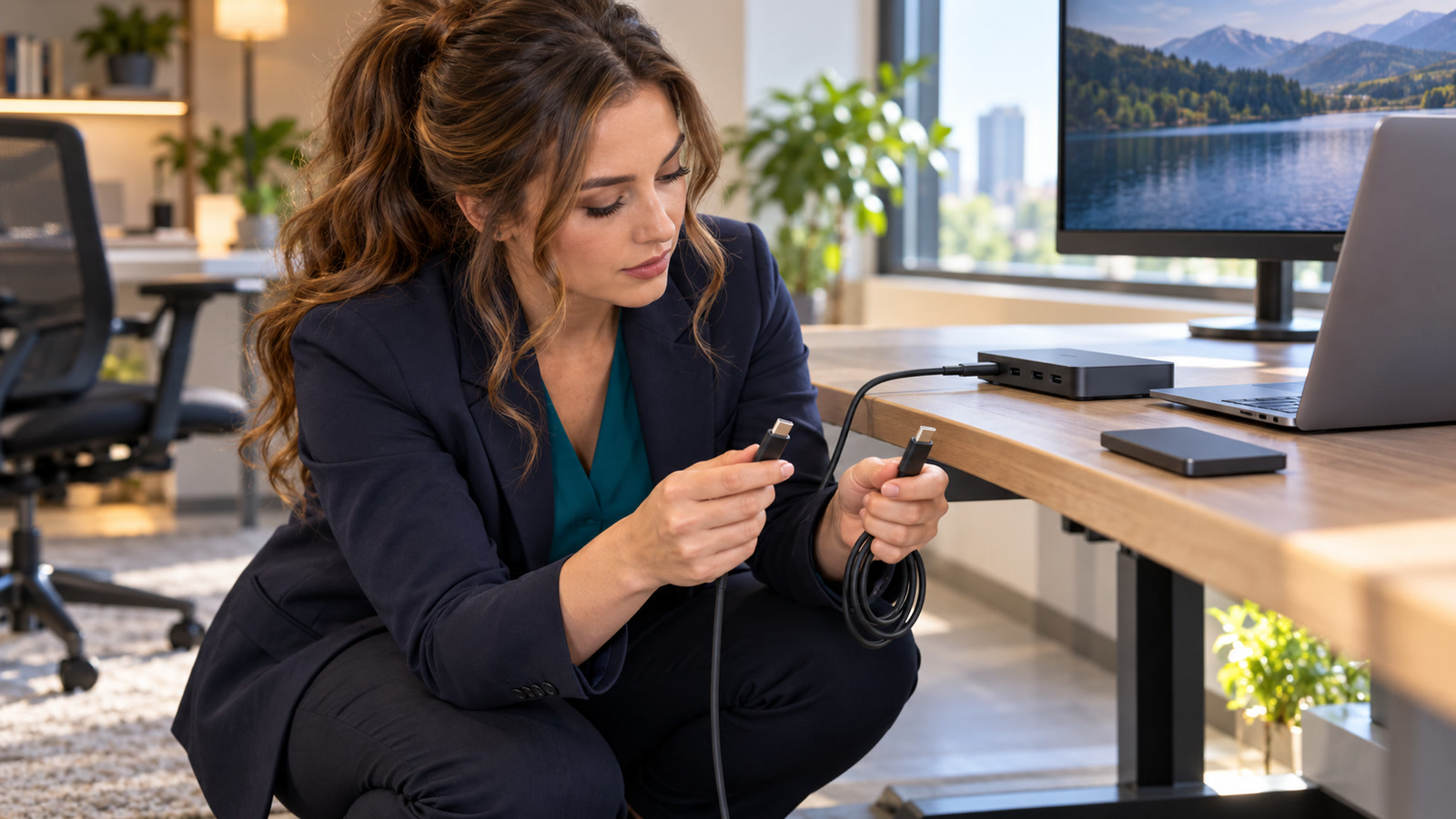
Practical guidance: a USB-C plug fitting into a USB-C port proves only that the connector fits—not that the cable can carry the video, data speed, or charging power your setup needs. Microsoft’s Windows guidance explicitly lists unsupported cable features as a cause of limited USB-C, Thunderbolt, and display functionality, while Apple documents a USB-C charge cable that charges but is limited to USB 2.0 data and does not support video.[1][3]
Guidance checked: September 30, 2026 at 1:16 p.m. EDT (17:16 UTC). Specifications vary by the exact computer port, cable, dock, monitor, charger, and firmware. Check the manuals and support pages for every link in the chain before buying a replacement or assuming the laptop, dock, or monitor has failed.
The costly mistake: replacing the dock before proving the cable
USB-C is a connector family, not one guaranteed feature set. Practical guidance: two cables can look nearly identical while one is intended mainly for charging and the other carries high-speed data, display traffic, and laptop power. Apple’s own comparison is concrete: its USB-C Charge Cable supports charging, but data is limited to 480 Mbps and video is unsupported; its Thunderbolt 3 cable supports video, up to 40 Gbps Thunderbolt data, up to 10 Gbps USB data, and up to 100 W charging.[3]
What remains unknown until you test: the computer port may lack video output, the monitor may expose more than one USB-C port with different jobs, the dock may need its power adapter, the charger may be undersized, or the device may need firmware or driver work.[1][6] The practical approach is to test one capability and one link at a time.
Who is affected—and who is not?
| Situation | Likely relevance | First check |
|---|---|---|
| Laptop charges through a dock, but the monitor stays blank | High | Confirm the laptop port, cable, dock, and monitor path all support video—not merely charging. |
| External SSD works but transfers are unexpectedly slow | High | Check the rated data speed of the port, cable, hub, and drive; Apple recommends checking device specifications to identify the supported data standard.[3] |
| Monitor works, but laptop battery drains under load | Related, but not only a cable issue | Compare the laptop’s power requirement with the monitor or dock’s delivered power and the cable’s supported wattage.[1] |
| One USB-C port works and another does not | High | Read the computer manual. Microsoft documents that a device can have a USB-C port that does not support the connected cable, dock, or display feature.[1] |
| HDMI monitor connected through a USB-C adapter | High | Verify the computer port supports display output and the adapter supports the required resolution and refresh rate.[4] |
| Plain USB-A cable or a device with no USB-C connection | Not this exact guide | Use the device’s own connector and protocol documentation. |
| Display was reliable for months and suddenly flickers or disconnects | Possible cable or connection fault | Reseat both ends and test a known-good specified cable before replacing hardware.[2] |
Think in four separate capabilities
1. Connector
USB-C describes the small reversible connector. A matching shape does not establish the supported data rate, display mode, charging wattage, or Thunderbolt capability.
2. Data
A cable may carry only USB 2.0 data, faster USB data, USB4, or Thunderbolt. USB-IF’s current certified-cable labeling distinguishes data performance and power, while noting that some USB 2.0 Type-C charging cables can still be rated for 60 W or 240 W.[5]
Before changing drivers or buying hardware
- Photograph the cable ends, printed markings, port symbols, dock model, monitor model, and charger wattage.
- Record what works separately: charging, keyboard/mouse, Ethernet, storage, one monitor, a second monitor, audio, and wake-from-sleep.
- Practical guidance: do not assume a cable is full-featured because it charges the laptop.[3][5]
- Do not flash firmware, uninstall devices, or factory-reset a dock until the basic capability match is known.
A safe diagnostic ladder
Define the exact failure
Write a one-line symptom: “charges but no video,” “video works but Ethernet disconnects,” “SSD connects at slow speed,” or “dock works only when its charger is attached.” This prevents several independent USB-C functions from being treated as one vague failure.
Map the entire connection chain
List the computer model and exact port, cable, dock or adapter, monitor or storage device, and power source. If the monitor has separate USB-C upstream, downstream, data-only, or charging ports, verify that the cable is in the correct one. Practical guidance: a cable cannot add video to a host port that does not output video.[4][6]
Read the port and cable specifications
Use the computer, dock, monitor, and cable documentation—not connector appearance or marketplace wording. Look for explicit support for the capability you need: USB data rate, USB4 or Thunderbolt, DisplayPort Alt Mode or supported display output, and power in watts. Microsoft recommends using the cable supplied by the device or dock manufacturer or a certified USB4 cable when troubleshooting USB4 limitations.[1]
Return to the known-good baseline
Use the original dock or monitor power adapter and, when available, the original full-featured cable supplied for that device. Connect the dock or monitor directly to the computer—remove extension cables, couplers, travel hubs, KVMs, and chained adapters for the first test. Microsoft’s USB-C guidance recommends direct connection for several limited-function conditions.[1]
Substitute one known-good cable
Choose a cable whose specifications explicitly meet the job; do not substitute another unmarked charging cable from a drawer. Keep the computer, port, dock, display, charger, resolution, and power state unchanged. Microsoft’s external-monitor guidance says trying another cable can identify a faulty cable when the replacement works.[2]
Test functions separately
First test video at a modest supported resolution. Then test charging while the laptop is under normal workload. Then test one high-speed storage device and compare the result with its documented interface. Finally reconnect Ethernet, audio, cameras, and additional displays one at a time. This creates evidence about which capability or bandwidth step fails.
Only then move to software and firmware
If the same known-good, correctly specified cable and device fail on a supported port, follow the computer or dock manufacturer’s model-specific update, driver, and firmware instructions.[1]
What to buy: a capability statement, not “a USB-C cable”
Write the requirement before shopping. For example: “USB-C to USB-C, supports this monitor’s video mode, at least the required USB data rate, and at least the laptop’s required charging wattage, at this cable length.” Prefer the device maker’s validated cable or a properly certified product with explicit performance and power markings. USB-IF says cables that pass its compliance program use approved markings for data rate and power wattage; a charging-power logo alone does not necessarily state high data performance.[5]
Bad listing
- “Fast USB-C cable”
- No tested data rate
- No video statement
- No wattage
- No certification or model compatibility
- Only stock imagery and vague “universal” claims
Useful specification
- Connector type at both ends
- Explicit data rate
- Explicit display or protocol support
- Explicit power rating in watts
- Length
- Certification and device compatibility where relevant
Two examples
Harmless mismatch
A phone’s charging cable powers a laptop slowly but shows no picture through a USB-C monitor. Replacing it with the monitor’s documented video-capable cable restores the display. The laptop and monitor were healthy; the first cable simply did not provide the required function.
Costly wrong turn
A business replaces a dock and monitor after intermittent black screens, then discovers the original cable was pinched behind a standing desk and an unmarked spare supported charging but not the required display path. The replacement expense did not address the failed link, and the workstation stayed unreliable.
Frequently asked questions
If the laptop charges, does that prove the cable supports a monitor?
No. Practical guidance: charging and video are separate capabilities. Apple documents a USB-C charge cable that supports charging but not video, and Microsoft lists unsupported cable features as a cause of limited display connections.[3][1]
Does every USB-C port on a laptop support video?
No. Check the exact model’s manual or support page. Dell documents systems and ports where USB-C supports only data, while video requires a port that supports DisplayPort Alt Mode or Thunderbolt.[6]
Will a higher-watt cable automatically make data faster?
No. Power and data ratings are separate. USB-IF’s cable-logo guidance specifically accounts for USB 2.0 Type-C cables that may carry substantial charging power while data remains limited to USB 2.0 performance.[5]
Do I always need an expensive Thunderbolt cable?
No. Buy for the documented job. A supported USB-C cable may be enough for a single display, ordinary charging, or moderate data. Thunderbolt is appropriate when the host, device, and workload require its certified capabilities. Paying for a feature the endpoints cannot use does not improve the connection.
Why does the display work but the laptop still loses battery?
The video path can work while delivered power is below the laptop’s demand. Compare the laptop’s requirement, the dock or monitor’s delivered wattage, the power adapter, and the cable rating. Our separate guide explains how to diagnose a USB-C dock that is connected while the laptop battery still drains.
What if video or Ethernet drops only when I move the cable?
Reseat both ends and test a known-good specified cable before replacing other hardware.[2]
What if a known-good cable does not fix the problem?
Verify the host port and device capabilities, simplify the chain, test another supported port or computer when available, and then proceed to the manufacturer’s driver and firmware path. If monitors or Ethernet keep dropping after that, use our USB-C dock disconnect diagnostic ladder.
Action checklist
- Describe the failed function precisely.
- Map the computer port, cable, dock or adapter, monitor or peripheral, and power source.
- Read the specification for each link.
- Return to the original direct connection.
- Test one known-good cable that explicitly supports the required video, data, and power.
- Reconnect one function at a time.
- Move to approved drivers and firmware only after the physical capability match passes.
- Label proven cables by role so the next “identical” cable does not restart the mystery.
Bottom line
Practical guidance: do not diagnose USB-C by connector shape. Prove the port, cable, dock or adapter, display or peripheral, and charger all support the exact function you need. A controlled cable substitution can avoid an unnecessary hardware replacement; a written capability requirement can reduce the chance of repeating the same mismatch.[1][2][3][5]
Sources
- Microsoft Support: Fix USB-C problems in Windows
- Microsoft Support: Troubleshoot external monitor connections in Windows
- Apple Support: About the Apple Thunderbolt 3 (USB-C) Cable
- Apple Support: Adapters for the Thunderbolt or USB-C port on your Mac
- USB-IF: USB Type-C Cable Logo Usage Guidelines
- Dell Support: Monitor USB-C port displays no video