

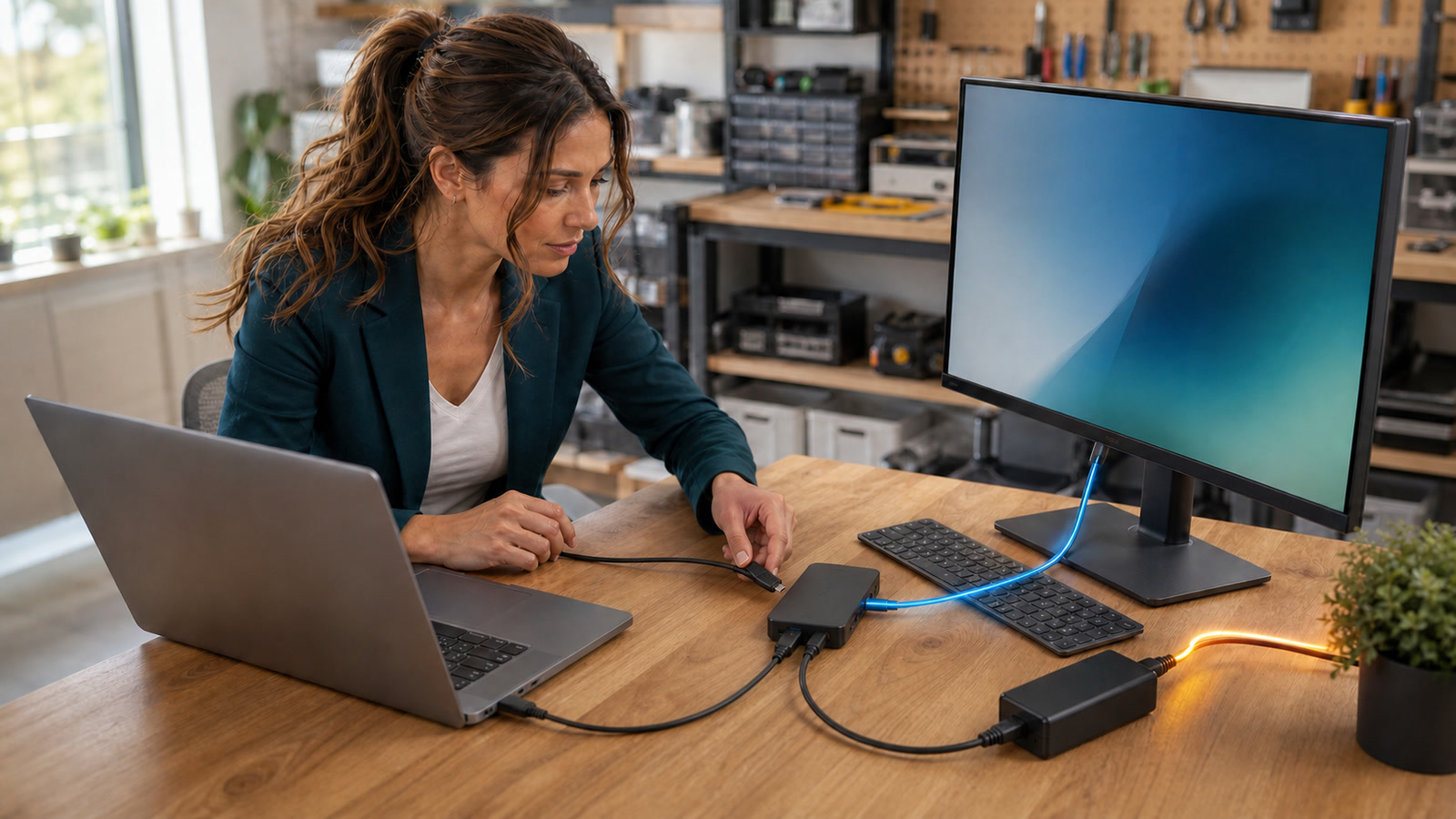
Your USB-C dock can light up, run a keyboard, and show a monitor while the laptop still charges too slowly—or loses battery during the workday.
Guidance checked: August 28, 2026, 1:04 p.m. EDT / 17:04 UTC
The connector may fit, but charging, video, data speed, and Thunderbolt or USB4 support are separate capabilities.[1] This guide gives home and small-business users a reversible test ladder for finding the weak link before buying another dock, replacing a battery, or resetting a perfectly healthy computer.
The costly problem: one cable hides several separate limits
Microsoft’s current Windows guidance treats “Slow charger,” “PC isn’t charging,” limited display connections, USB4 limitations, and Thunderbolt limitations as different USB-C conditions. It says the computer, charger, cable, port, dock, and display must support the features being used—not merely share the same connector shape.[1]
USB Power Delivery defines negotiated power roles and levels rather than making the connector shape a power guarantee.[2] USB-IF says current USB Power Delivery specifications can support power levels up to 240 watts in compatible products, but that is a ceiling for the standard, not a guarantee for a particular laptop, charger, cable, or dock.[2]
Practical guidance: diagnose the connection as a chain. A working mouse proves only that some data passed. A lit monitor proves only that a video path worked. Neither result proves that the laptop received enough power for its workload.[1]
Who is affected—and who probably is not
Likely affected
- The battery percentage falls during video calls, accounting work, compiling, gaming, or other heavier use while a dock is attached.
- Windows shows Slow charger, PC isn’t charging, or Display connection might be limited.
- A Mac reports Slow Charger, or System Information shows less charger wattage than expected.[3][4]
- One display works, but a second display, Ethernet, storage, or charging becomes unreliable when added.
- Direct charging works, but charging through the dock or monitor does not.
- The problem began after replacing only the cable, charger, dock, monitor, or laptop.
Probably not this issue
- A computer battery is swollen or the case is lifting. EPA says swelling indicates battery damage and a potential fire hazard, and advises contacting the manufacturer and following its instructions.[6] Use our swollen-battery safety guide.
- Every wired and wireless device is offline. Investigate power, modem/router service, or an Ethernet loop instead.
- The computer charges correctly but a single drive is missing; follow our evidence-preserving external-drive checklist.
Before changing anything: record the working clues
- Write down exact models. Record the laptop, dock, charger, monitor, and cable markings. “USB-C dock” is not a complete model.
- Photograph the connections. Many docks have separate upstream host, downstream device, and power-input USB-C ports that look alike.
- Record the laptop’s original charger wattage. Use the manufacturer label or model specification. Do not rely on the cable’s appearance.
- Note the symptom under a repeatable workload. Record battery percentage, charging message, connected displays, and attached peripherals at the start and after 15 minutes.
- Preserve rollback. Do not uninstall every USB device, change random BIOS options, or factory-reset the dock before a physical baseline test.
Step 1: establish a direct-charging baseline
- Shut down or save all work, then disconnect the dock and nonessential USB devices.
- Connect the laptop’s original or manufacturer-recommended adapter directly to its designated charging port.
- Confirm that the operating system recognizes external power.
- Repeat the same 15-minute workload and record whether the battery rises, holds, or falls.
Microsoft recommends connecting a USB-C device directly to the PC when a hub or dock is involved, and Apple recommends a power adapter and cable that deliver at least the minimum wattage for the Mac model for the best charging experience.[1][4] Practical guidance: if direct charging also fails, use the computer maker’s model-specific power guidance before buying a new dock.[1][4]
Step 2: do the power-budget math
Compare four different numbers:
- Laptop need: the wattage of its recommended adapter.
- Dock power input: what the dock’s wall adapter supplies.
- Dock host output: the maximum wattage the dock can deliver to the laptop.
- Cable rating: the power level the laptop-to-dock cable is designed to carry.
Do not assume the dock passes its entire adapter rating to the laptop. Dell documents one travel hub that accepts 130 W but delivers at most 90 W to the host; with a 65 W input, it delivers 50 W, and with 45 W input it provides less than 45 W and no laptop charging.[5] Those figures apply to that cited model, but the principle is broadly useful: read the dock’s host Power Delivery output, not only the large number printed on its adapter.
Practical interpretation: a laptop can charge while idle and lose battery under load without either battery or dock being “dead.” The available power may simply be below the computer’s current demand. That is a capacity mismatch, not proof of hardware failure.[1][5]
Step 3: verify the correct ports and capabilities
- Check the laptop manual or manufacturer specification for the exact USB-C port used. Confirm whether it accepts charging and supports the display mode or Thunderbolt/USB4 feature you need.
- On the dock, identify the upstream host port or captive host cable. Do not plug the laptop into a downstream data-only port.
- Connect the dock’s specified wall adapter to its power-input port.
- Test the dock with only power and the laptop attached. Add the monitor only after charging behavior is known.
Microsoft notes that display output requires the PC, cable, adapter, and display to support the same Alternate Mode, such as DisplayPort Alternate Mode.[1] A USB-C port can support one documented function without every other USB-C function, so the machine’s port specification is stronger evidence than the connector shape.[1]
Step 4: test a known-capable cable
Use the dock’s original host cable when available. Otherwise use a cable whose documentation explicitly supports the required power and data/video standard; Microsoft notes that a fitting cable may still lack a required USB-C, display, USB4, Thunderbolt, or power capability.[1]
- Do not judge only by whether the monitor lights; watch the charging state and test the dock’s data devices too.
- Change one cable at a time and label the known-good result.
Microsoft’s USB-C troubleshooting guidance repeatedly calls out cables that do not support the required power, data, display, USB4, or Thunderbolt capability.[1] USB-IF’s current Power Delivery material also distinguishes supported power levels and product capabilities; the standard’s maximum does not make every cable equivalent.[2]
Step 5: add displays and peripherals one at a time
- Start with dock power and the laptop only.
- Add one display at its ordinary resolution and refresh rate.
- Add Ethernet, keyboard, mouse, storage, camera, audio, and other devices one at a time.
- After each addition, check the charging indicator, battery trend, display stability, and device recognition.
- If the failure appears only after a particular display mode or device is added, compare that combination with the dock and laptop manufacturer’s supported configuration.
Record the exact addition that makes the symptom return, then compare that combination with the supported configuration; sequence alone does not prove the cause. Practical guidance: two physical display connectors on a dock do not guarantee that every host laptop can drive both at every resolution and refresh rate.[1]
Step 6: update only the documented components
After the physical and power tests, check the laptop and dock manufacturer’s support pages for the exact models and follow their documented update workflow. For example, Microsoft directs supported Surface Dock owners to identify the exact dock in the Surface app or use the model-specific package it names; other vendors and models differ.[7]
Practical guidance: firmware is not the first guess. If the original charger works directly and a lower-output dock fails predictably under load, software cannot add missing watts.[1][5]
Good and bad troubleshooting choices
Phone readers: swipe the table left to see every column.
| Choice | Good point | Bad point or caution |
|---|---|---|
| Original charger directly to laptop | Creates the cleanest charging baseline. | Does not test dock video, Ethernet, or peripherals. |
| Powered dock with documented host output | Can provide one-cable charging and connectivity. | The adapter’s input wattage may be higher than the dock’s host output.[5] |
| Known full-featured host cable | Tests power, video, and high-speed data with one controlled variable. | A cable’s connector and outer thickness do not prove its supported modes.[1] |
| Random cable swapping | Occasionally exposes a bad cable. | Without labels and one-variable testing, it can create contradictory results. |
| Buy the highest-wattage charger available | A compatible higher-capacity source can avoid an undersized-source bottleneck. | The power path remains limited by the mutually supported capabilities of the laptop, dock, charger, and cable; a bigger printed number is not a universal fix.[1][2][4] |
Two realistic examples
Harmless mismatch
A bookkeeper’s 65 W laptop works normally on its original adapter. Through a travel hub powered by a small phone charger, the monitor and keyboard work but the battery drops during a long video meeting. Direct charging passes. The hub’s documented host output is below the laptop’s recommended power. Practical interpretation: test a compatible power path whose dock output and cable meet the laptop’s need before replacing the battery.[1][5]
Costly wrong turn
A dual-monitor desk starts flickering after an unmarked replacement cable is installed. Instead of restoring the known cable and testing one display at a time, the user removes graphics drivers, changes firmware settings, and buys a second dock. The original host cable restores charging and both displays. The expensive detour came from treating every USB-C cable as equivalent.
Verify the fix before you trust the desk
- Reconnect the final approved charger, dock, and host cable.
- Confirm the correct charging state with the laptop idle.
- Run the normal 15-minute workload and confirm the battery rises or remains within the expected charging behavior for the model.
- Exercise every required display, Ethernet connection, USB device, camera, storage device, and audio path.
- Sleep and wake the laptop once, then recheck charging, displays, and network.
- Label the charger and host cable, and record the working port, dock firmware version, and supported display arrangement.
On a Mac, Apple says you can check delivered wattage by holding the Option key while choosing Apple menu → System Information, then selecting Power → AC Charger Information.[4] On Windows, record any USB-C notification and compare it with Microsoft’s condition-specific guidance.[1]
Frequently asked questions
Can a USB-C dock work but still not charge the laptop?
Yes. Basic data or video can work while the host-power path is absent or undersized. Confirm the dock’s host Power Delivery output, cable capability, and laptop charging-port support.[1][5]
Is a higher-wattage USB-C adapter dangerous?
For a Mac, Apple says a compatible USB-C power adapter or display that supports USB Power Delivery may provide higher or lower wattage, while recommending at least the model’s minimum wattage for the best experience.[4] For other laptops, follow that manufacturer’s compatibility requirements; do not assume Apple’s guidance covers every PC.
Why does the battery stop at a percentage even with the right charger?
Charging limits and battery-health features can intentionally hold charging. Apple distinguishes Slow Charger from Charging On Hold and a configured charge limit.[3] Check the model’s battery settings before treating a deliberate limit as dock failure.
Does Thunderbolt automatically mean every dock feature will work?
No. The laptop, dock, cable, display arrangement, power supply, and supported generation still matter. Verify the complete tested configuration in the manufacturers’ documentation.[1]
Should I replace the battery first?
Practical guidance: do not replace the battery first when the laptop charges correctly from its known-good direct adapter. That result points first toward the dock power path, port, cable, or configuration.[1][5] If direct charging also fails or battery health warnings appear, move to model-specific battery and power diagnostics.
When should a business standardize the setup?
When several employees share desks, document one supported laptop family, dock model, power adapter, host cable, firmware baseline, and display arrangement so each desk can be tested against the same known configuration.
Your next action
Take one problem desk and perform the direct-charger baseline before buying anything. Record the laptop’s recommended wattage, the dock’s host output, the cable’s documented capability, and the exact USB-C port in use. If the direct path passes, rebuild the docked setup one device at a time until the failure returns.
Need help untangling a USB-C dock, charger, cable, or dual-monitor setup in Port Saint Lucie, Jensen Beach, Fort Pierce, or Vero Beach? Schedule an appointment with The IT Guys.
Sources
- Microsoft Support — Fix USB-C problems in Windows
- USB Implementers Forum — USB Charger (USB Power Delivery)
- Apple Support — Charge your Mac laptop computer (published July 30, 2026)
- Apple Support — Use a power adapter with your Mac (published May 21, 2026)
- Dell Support — Undersized Power Adapter Error When Laptop Connected through Certain Docks and Dongles
- U.S. EPA — Frequent Questions on Lithium-Ion Batteries
- Microsoft Support — Update your Surface Dock