

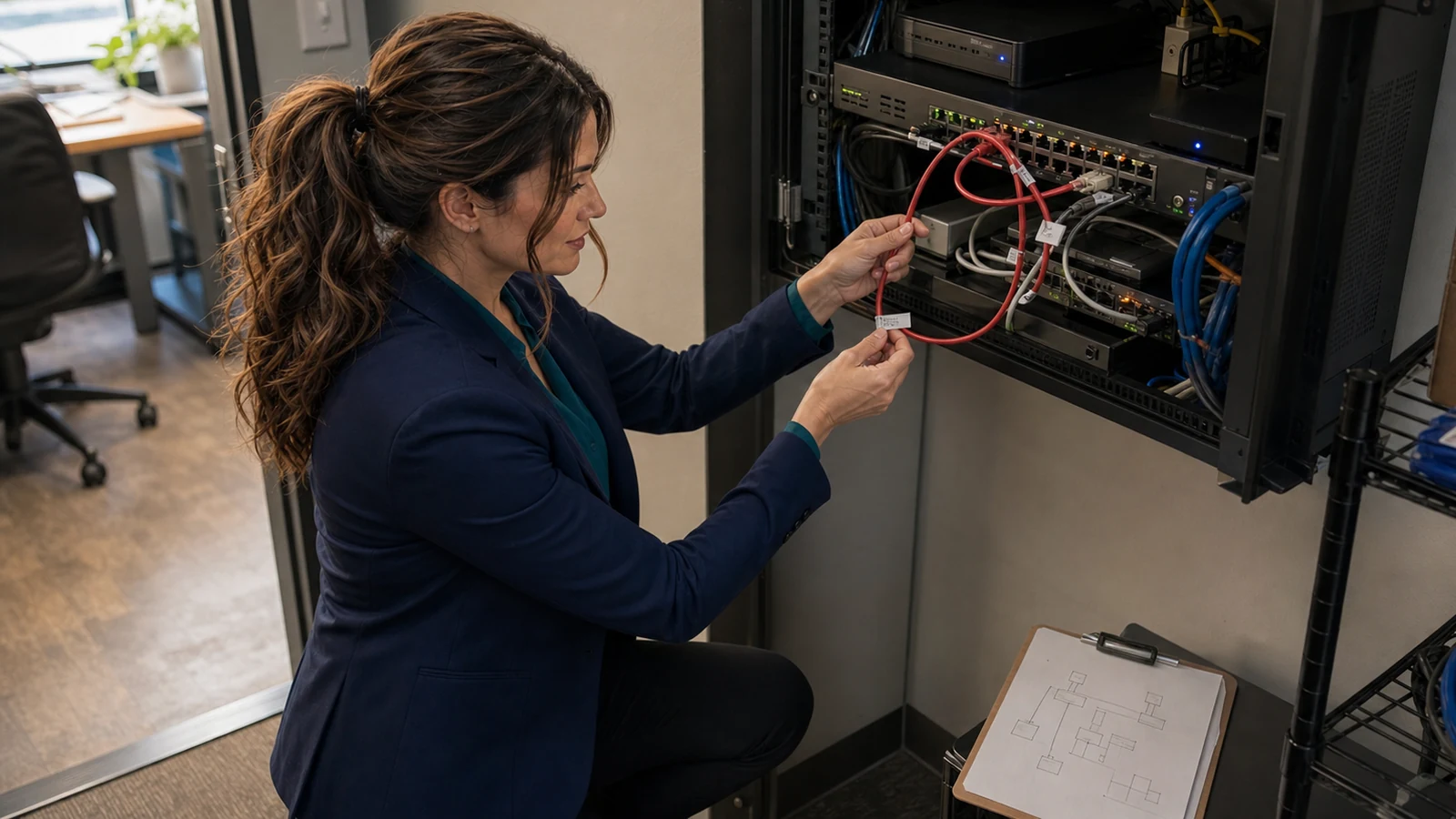
If internet, Wi-Fi, phones, printers, cameras, and shared files all become painfully slow at once, the router may be innocent. One Ethernet cable connected into the wrong two ports can create a switching loop that floods a home or small-business network with repeated traffic. Before anyone factory-resets the router, use this safe isolation plan to find the loop, restore service, and keep it from returning.
The problem in plain English
An Ethernet switch learns which device is behind each port and forwards traffic accordingly. But if two active paths form a circle, some Ethernet frames can keep circulating instead of reaching a final destination. Broadcast and unknown-destination traffic may be copied repeatedly until links and switch processors are overwhelmed.
The costly result: an entire office can appear to lose its ISP even while the modem is online. Cloud apps time out, calls break up, payment terminals fail, cameras stop recording, printers disappear, and staff may waste hours rebooting equipment that was not broken.
Who is likely affected—and who is not?
A loop is plausible
- Many wired and wireless devices fail together, but modem/ONT status looks normal.
- The trouble began immediately after a desk move, new switch, access point, mesh node, phone, camera, wall-jack change, or cable cleanup.
- Switch port LEDs flash extremely fast or seem to pulse together even when little work is happening.
- Devices alternate between working, timing out, and reconnecting.
- A managed switch reports loop, MAC-flap, topology-change, storm, blocked-port, or Spanning Tree events.
Probably a different outage
- Only one computer, cable, app, printer, or Wi-Fi band is affected.
- Every device loses only internet access while local printers, file shares, and device management remain healthy.
- The ISP modem shows a loss-of-signal or service alarm.
- A breaker, UPS, or PoE switch lost power.
- A firewall policy, DNS service, DHCP scope, or VLAN change explains the exact affected group.
Why one cable can take down everything
Cisco Meraki’s documentation says Spanning Tree Protocol (STP) is used to prevent Layer 2 loops and broadcast storms. Aruba describes the same goal as building a loop-free Ethernet topology by selectively blocking some ports while allowing others to forward. In a correctly designed managed network, STP or Rapid STP can place one redundant path into a blocking state until it is needed.
Problems arise when STP is absent, disabled, misconfigured, filtered, or defeated by equipment that creates an unexpected path. Common real-world mistakes include plugging both ends of one patch cable into the same unmanaged switch, connecting two switches with two ordinary cables instead of a configured link aggregation group, or adding a wired connection to a device that is already bridging the same networks wirelessly.
First 10 minutes: restore service without erasing evidence
1. Stop resets and document what changed
- Write down the time service failed and which systems stopped working.
- Ask what cable, switch, access point, desk, phone, camera, or mesh node changed immediately beforehand.
- Photograph switch ports and cable positions before unplugging anything. Never photograph passwords or private screen content.
- If a managed dashboard or switch is still reachable, save the event log, topology view, port status, and STP state before the evidence rolls over.
2. Decide whether it is safe to isolate cables
Do not unplug unfamiliar links in a hospital, alarm, access-control, emergency-call, industrial, or other life-safety environment. In an ordinary office, pause if the rack contains labeled WAN, firewall, server, storage, phone-system, uplink, stack, or fiber connections you do not understand. Two links between managed switches may be intentional when configured as a stack or link aggregation group; removing the wrong one can create a second outage.
3. Test the newest or most suspicious edge connection first
- Start with the cable or small switch added most recently—not the modem, router, firewall, or main switch power.
- Disconnect one suspect Ethernet cable at one end, label it, and wait about 30–60 seconds for switching and addressing to settle.
- Test one wired computer against a local gateway, then a known website. Also test one critical local service such as a printer or file share.
- If service returns, leave the suspect cable disconnected. Photograph both endpoints and identify what the cable was intended to connect before reusing it.
- If nothing changes, reconnect only when you are certain it was not part of the loop, then move to the next recent edge change. Keep a written sequence so you do not create new confusion.
Good isolation: one labeled edge cable at a time, followed by a repeatable test. Bad isolation: yanking every cable, rebooting all switches together, or factory-resetting the router. The bad approach destroys the topology evidence and can leave a business with both a loop and lost configuration.
Use managed-switch evidence when available
A managed switch can shorten the hunt. Look for the exact time of failure and review:
- STP topology changes or blocked ports: these show the switch reacting to a redundant path. A blocked port can be the protection working, not a failed port.
- Loop-detection or MAC-flap events: the same source address appearing rapidly on different ports can lead you toward the two sides of a loop. Meraki cautions that loop and MAC-flap detection are diagnostic features; detection by itself does not protect the network from a broadcast storm.
- Broadcast, multicast, or unknown-unicast rates: abnormal spikes across several ports support the storm diagnosis.
- CPU and port utilization: simultaneous saturation with little legitimate work is suspicious.
- Port descriptions and neighbors: compare the live path with the documented diagram before disabling anything.
Do not assume the busiest port caused the loop. An uplink may merely be carrying the storm created elsewhere. Follow the topology and events, then isolate the smallest suspect branch first.
Prevention options: good points and cautions
Phone readers: swipe the table left to see the full “Caution” column.
| Control | Good point | Caution |
|---|---|---|
| RSTP/STP | Creates a loop-free topology and can preserve a standby redundant path. | Root priority, trunks, VLANs, and interoperability must be designed—not guessed. Do not randomly enable or disable it during an outage. |
| Loop or MAC-flap detection | Produces useful alerts and identifies suspect ports. | Detection may not block the storm. Read the vendor’s exact behavior. |
| Storm control | Limits certain excessive broadcast, multicast, or unknown-unicast traffic at a port. | Thresholds set too low can drop legitimate discovery, voice, video, or failover traffic. It complements rather than replaces STP. |
| BPDU Guard / Root Guard / Loop Guard | Protects selected parts of an STP design from unsafe topology changes or missing control messages. | These are not universal “make it safe” switches. Applied to the wrong uplink or trunk, they can shut down a needed path. Use a model-specific design. |
| Managed switches with port labels | Provide logs, topology visibility, per-port counters, and consistent configuration. | Require maintenance, backups, updates, and someone who understands the configuration. |
| Unmanaged switches | Cheap and simple for a small, single-uplink edge. | Usually provide little evidence or protection. Avoid redundant cabling and undocumented daisy chains. |
Example: the office that looked like an ISP failure
A small office moves a printer and adds a five-port desktop switch. One cable correctly connects that switch to a wall jack; a second spare cable is accidentally plugged from another wall jack into the same switch. Both jacks return to the main switching network, forming a circle. Within seconds, Wi-Fi clients disconnect, cloud calls distort, and card processing times out. Rebooting the ISP modem changes nothing.
The safe response is to preserve port photos, identify the just-added switch, disconnect one of its two uplinks, and verify the gateway, internet, printer, calls, and cameras. The permanent repair is a single documented uplink—or a deliberately engineered redundant design on managed hardware—not “whatever combination seems to work.”
After service returns: prove the whole network is healthy
- Confirm wired and wireless clients receive the expected IP address, gateway, and DNS settings.
- Test local printers, file shares, phones, cameras/recording, payment devices, and cloud apps—not only one speed test.
- Check switch CPU, port utilization, error counters, STP state, and event logs for at least several minutes.
- Verify the ISP path separately. Our backup-internet test plan covers a true provider outage.
- Update the network diagram, label both ends of uplinks, record switch model/port numbers, and back up managed-device configurations.
- Review the router and switch update posture using our router security checklist.
- Keep guest and smart-device traffic separated according to our network-segmentation guide; segmentation does not replace loop prevention, but it limits how broadly other failures spread.
Frequently asked questions
Can an Ethernet loop break Wi-Fi too?
Yes. Access points and wireless controllers usually depend on the wired switching network. A storm can consume their uplinks, DHCP/DNS access, and management path even though the radio hardware still has power.
Should I reboot the main switch?
A reboot may create a brief quiet period but will not remove a physical loop. It also clears useful volatile evidence. Preserve logs and isolate the loop first unless the vendor or administrator’s recovery plan specifically requires a controlled reboot.
Why is one switch port blocked even though the cable is good?
STP may be intentionally blocking a redundant path to keep the topology loop-free. Do not force it into forwarding without understanding the network design; the blocked state may be preventing the outage.
Will storm control fix the root cause?
No. It can limit selected traffic and reduce impact, but the accidental topology still needs correction. Poor thresholds can also discard legitimate traffic. Treat storm control as one layer in a managed design.
Can mesh Wi-Fi cause a loop?
It can when equipment bridges the same network over both wireless and wired paths in an unsupported or misconfigured design. Follow the exact mesh vendor’s backhaul instructions; do not assume every node can use arbitrary wired and wireless uplinks together.
Your next step
Photograph the network connections and identify the most recent cable or switch change before resetting anything. If the rack contains business-critical phones, cameras, storage, access control, VLAN trunks, fiber, stacked switches, or unlabeled uplinks, stop before unplugging blindly. The IT Guys can help homes and small businesses in Port Saint Lucie, Jensen Beach, Fort Pierce, and Vero Beach trace the loop, preserve the configuration, and document a safer topology.