

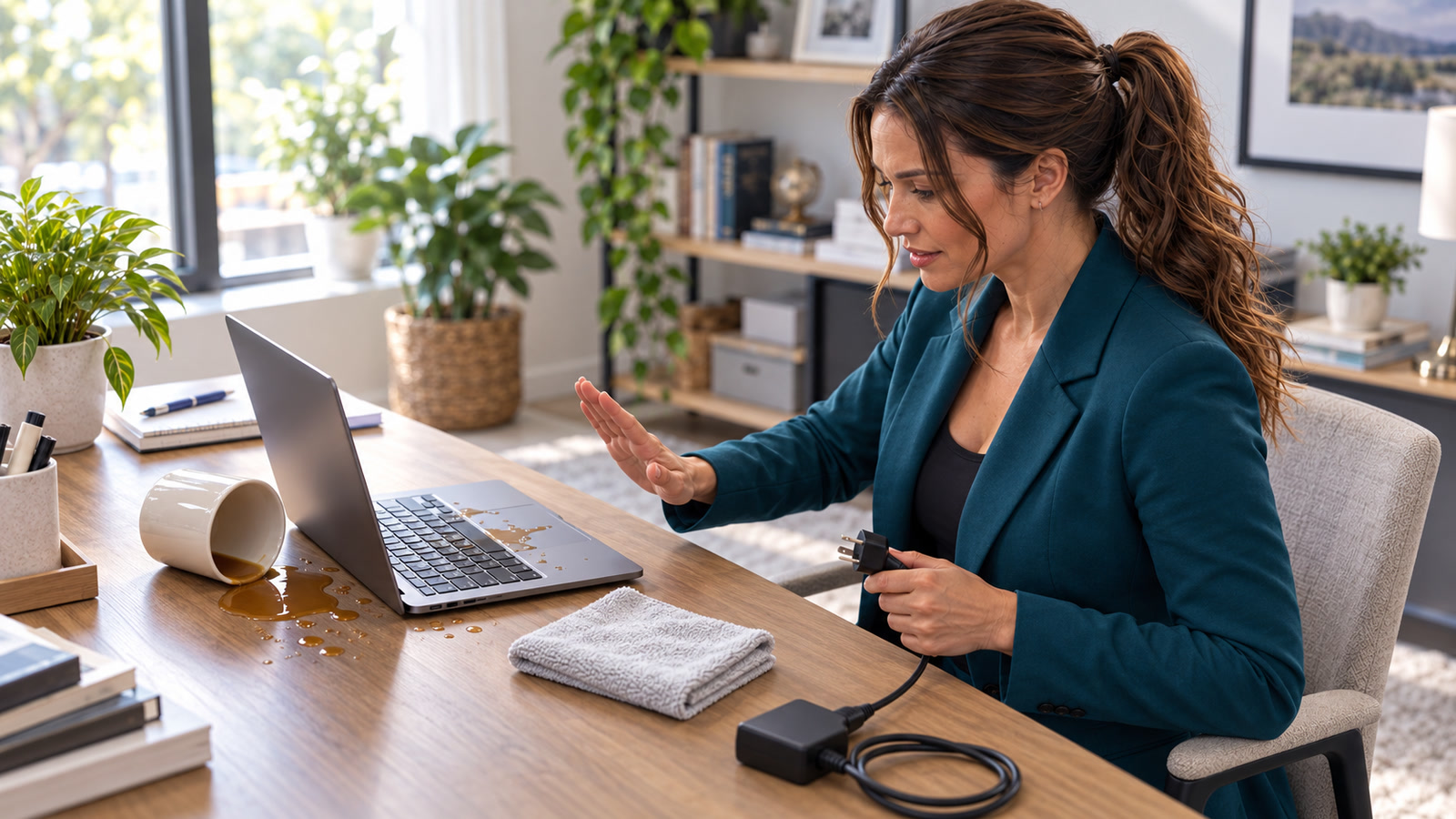
A wet device can still light up, ring, or show a normal screen while liquid or residue remains inside.[1][4] Practical guidance: resist the urge to check whether it still works. Remove power safely, shut it down, and stop testing before a recoverable spill becomes a board, battery, port, or data-loss problem.[1][2][4]
Guidance checked: October 6, 2026 at 1:13:13 p.m. EDT (17:13:13 UTC). This is a first-response and escalation guide, not a model-specific repair manual. Practical guidance: follow the current instructions for your exact device, and do not open sealed hardware or handle wet mains-powered equipment unless you are qualified to do so.[1][2][3][4]
The expensive instinct: “Let me see if it still turns on”
iFixit’s laptop-spill guidance says the goal is to prevent liquid or sediment from bridging electrical connections and to limit corrosion; it recommends turning the laptop off, unplugging it, and disconnecting the battery when that can be done safely.[4] Apple separately warns that charging an iPhone with a wet connector can corrode pins and cause permanent damage or connectivity failures.[1]
Practical guidance: a working screen is not clearance to keep using, charging, restarting, backing up, or diagnosing the wet device. Make the next action about safety and power removal—not proof that the device survived.[1][4]
First decide whether it is safe to touch
If you are standing in water, the device is submerged while connected to mains power, or you notice heat, smoke, hissing, bubbling, bulging, melting, or a burning odor, back away and do not reach for the cord or power button.[4] Practical guidance: keep people away and isolate building power only through a safe method; do not resume the normal spill checklist while an electrical or reacting-battery hazard remains.[4]
Stop condition: do not continue a normal spill checklist around a reacting battery, wet outlet, submerged charger, or energized puddle. This article does not turn those conditions into a do-it-yourself repair.[4]
Affected—or not affected?
Use this first-response guide
- Coffee, water, soda, juice, milk, cleaner, or another liquid reached a laptop, phone, or tablet.
- A phone reports liquid or moisture in its charging connector.
- The device appears normal, but liquid reached a keyboard, vent, port, seam, speaker, or charging area.
- Practical guidance: when a business device may contain important data, preserve that priority before authorizing any reset or replacement.[4]
Different or urgent path
- Fire, smoke, heat, hissing, swelling, or electrical danger: retreat and use the emergency path.[4]
- Only the cable is wet: practical guidance: disconnect it safely and let the cable and accessory dry; do not assume the device connector is dry.[1]
- No liquid exposure: use the symptom-specific battery, charging, no-boot, or overheating workflow instead.
- Floodwater, salt water, sewage, or chemicals: practical guidance: treat contamination and personal safety as professional-response issues rather than an ordinary drying job.[4]
The first 60 seconds for a laptop
Step 1: Disconnect external power—only if the area is safe and dry
Practical guidance: unplug the charger from the laptop and the safe end of the power path without touching wet plugs, outlets, power strips, or puddles. Disconnect docks, monitors, USB devices, external drives, and other peripherals. If the surroundings are unsafe, stop and isolate power through a safe method instead.[4]
Step 2: Force the laptop fully off
iFixit advises powering the laptop off promptly rather than spending time navigating menus while liquid can continue moving inside.[4] Practical guidance: do not save files, run a diagnostic, restart, or reconnect power “just for a second.” If the machine will not shut down normally, use the manufacturer’s emergency power-off method for that model.[4]
Step 3: Blot the surface without pushing liquid deeper
iFixit recommends using an absorbent towel to remove visible surface liquid while taking care not to move it around inside or press the power button again.[4] Practical guidance: blot—do not scrub—around the keyboard, seams, vents, and ports. Keep the device stable rather than repeatedly flipping it through positions that can spread liquid across more components.[4]
Step 4: Treat the battery as still connected unless you know otherwise
iFixit recommends disconnecting the battery during liquid-damage work, but opening and battery access differ by model.[4] Practical guidance: remove a genuinely user-removable battery only through the documented model procedure. Do not improvise with a sealed case, adhered battery, swollen pack, unfamiliar screws, or hidden cable; keep the laptop off and seek qualified service.[4]
For a wet phone or tablet
- Remove it from the liquid and turn it off. Google’s Pixel guidance says to lift a wet phone out, turn it off, dry it with a soft cloth, and leave it on a flat surface to finish drying at room temperature.[2]
- Disconnect charging cables and accessories. Apple says to unplug both ends of the cable and not reconnect until the phone and cable are completely dry.[1]
- Leave the connector empty. Apple says not to insert cotton swabs, paper towels, or other foreign objects; Samsung likewise warns not to insert an object into a wet charging port.[1][3]
- Use room-temperature airflow and model-specific instructions. Apple recommends a dry area with airflow; Google says a flat surface at room temperature.[1][2]
- Do not casually override a moisture warning. Apple exposes an emergency override but warns against charging while wet.[1] Practical guidance: treat that override as an emergency exception, not a troubleshooting shortcut.[1]
There is no universal drying timer
Apple says an iPhone connector may need up to 24 hours, while Samsung gives an approximate one-to-two-hour evaporation time for the charging port covered by its guidance.[1][3] Google gives a room-temperature drying method without one universal time in the cited Pixel page.[2] Practical guidance: use the manufacturer’s current instructions for the exact model and exposure; do not transfer a phone-connector estimate to a soaked laptop.[1][2][3]
Skip the popular “fixes” that make the situation harder
Good response
- Remove power safely and shut down.[1][4]
- Blot visible liquid without forcing it into openings.[4]
- Leave connectors empty and use room-temperature airflow.[1][2][3]
- Practical guidance: record the liquid, amount, location, time, and what the device did afterward before service decisions.[4]
- Practical guidance: escalate early when contaminated liquid or important data is involved.[4]
Apple explicitly says not to use external heat, compressed air, foreign objects, or rice on a wet iPhone connector.[1] iFixit says rice does not work for laptop spills and can waste time while corrosion continues.[4] Practical guidance: air-drying can remove moisture, but it does not prove that sticky, salty, acidic, conductive, or corrosive residue is gone.[4]
What spilled matters as much as how much
iFixit distinguishes relatively neutral liquid from acidic or basic spills and explains that corrosion and residue can require deeper cleaning.[4] Samsung’s phone-port page gives a product-specific fresh-water rinse instruction when liquid other than fresh water enters the covered charging port.[3] Practical guidance: do not generalize that Samsung phone instruction to laptops, non-water-resistant devices, batteries, displays, or sealed equipment.[3]
- Small fresh-water splash on an exterior surface: practical guidance: still power down and inspect; the contamination burden may be lower than with a sticky or corrosive liquid, but the device is not cleared by appearance alone.[4]
- Coffee, soda, juice, milk, beer, cleaners, or soapy water: practical guidance: expect residue even after the visible moisture evaporates.[4]
- Salt water, floodwater, sewage, or unknown chemicals: practical guidance: treat the exposure as contaminated and escalate promptly rather than applying an ordinary drying timer.[4]
- Liquid through a keyboard, vent, hinge, speaker, charging port, or seam: practical guidance: assume it may have reached internal components until inspection shows otherwise.[4]
When to stop DIY work and call a repair professional
iFixit recommends a repair shop when liquid likely went deep into a laptop and the owner does not want to open and clean it; it notes that repair shops may have inspection experience and specialized cleaning equipment.[4] Google and Samsung both direct owners toward repair or service when water damage exists or the prescribed moisture steps do not resolve the issue.[2][3]
- Practical guidance: escalate when the device was submerged or liquid entered the keyboard, vents, hinge, battery area, or multiple ports.[4]
- Practical guidance: escalate when the liquid was sugary, salty, acidic, soapy, dirty, or otherwise contaminated.[4]
- Practical guidance: do not open or keep handling a device when the battery is internal, adhered, swollen, hot, discolored, or unfamiliar to you.[4]
- Practical guidance: involve qualified service early when the device contains irreplaceable, customer, regulated, or business-critical data.[4]
- Practical guidance: seek inspection when you see corrosion, smell residue, hear unusual sounds, or the device behaves intermittently after drying.[4]
- Practical guidance: seek manufacturer or qualified service when the moisture warning keeps returning, or charging and accessories still fail after the documented process.[2][3]
What to tell the shop
Practical guidance: provide the exact liquid, approximate amount, entry point, incident time, whether the device remained powered, every action attempted, and whether data preservation outranks device replacement. Ask whether the shop evaluates liquid damage and performs board-level cleaning before transporting the device.[4]
Protect the data without powering the wet device back on
- Practical guidance: from a different trusted device, check whether the needed files already exist in OneDrive, Google Drive, iCloud, a server share, or another verified backup—without powering the wet device back on.[4]
- Practical guidance: record the wet device’s model, serial number, drive-encryption or recovery-key status, important accounts, and the last known successful backup before service decisions.[4]
- Practical guidance: tell the repair provider that data preservation is the priority before authorizing a reset, board exchange, storage erase, or trade-in.[4]
- Practical guidance: for a business device, document who had custody and whether customer or regulated information may have been exposed to loss—not merely whether the hardware can be replaced.[4]
Practical guidance: do not promise that drying, cleaning, or a successful first boot will recover every file or make the device reliable. If it does return to service, make a verified backup immediately before treating it as normal equipment.[4]
Controlled return to service
- Practical guidance: wait for the manufacturer’s model-specific drying interval or a qualified technician’s clearance; do not use one internet timer for every device.[1][2][3]
- Practical guidance: inspect the cable, charger, port, keyboard, case, battery area, and surrounding accessories for moisture, residue, odor, deformation, heat, or corrosion before reconnecting power.[1][4]
- Practical guidance: when the device is finally powered, watch for charging alerts, heat, unstable battery behavior, sticky keys, port failures, display glitches, audio problems, random restarts, or intermittent shutdowns.[1][4]
- Practical guidance: back up important data immediately, then test functions in a controlled order rather than assuming one successful startup proves the incident is over.[4]
- Practical guidance: power down again and seek service if any warning, heat, odor, instability, charging problem, or recurring moisture message appears.[2][3][4]
Two realistic examples
Harmless failure
A phone shows a moisture alert after a few rain drops reach the connector. The owner disconnects the cable, leaves the port empty in a dry area with airflow, follows the manufacturer’s instructions, and the alert clears. No object, heat, rice, or repeated charging test was needed.
Costly wrong turn
A laptop takes a sweet coffee spill but still displays the desktop. The owner keeps working, connects the charger to finish a file, then uses a hair dryer. The laptop later shuts down, and residue has spread beyond the keyboard. Practical guidance: the safer decision was to remove power, shut down, preserve the incident details, and arrange cleaning before testing.[4]
Frequently asked questions
Should I put a wet phone or laptop in rice?
No. Apple says rice particles can damage an iPhone, and iFixit says rice does not work for laptop spills and can delay useful action while corrosion continues.[1][4]
Can I use a hair dryer or compressed air?
Apple says not to use external heat or compressed air on a wet iPhone connector.[1] Practical guidance: do not transfer heat or pressure to other wet electronics as an improvised shortcut; use current model-specific drying and service instructions instead.[1][4]
Is wireless charging safe after a moisture warning?
Apple and Samsung say supported wireless charging may be used when the back of the device is dry, within their product-specific guidance.[1][3] Practical guidance: wireless charging does not make internal liquid intrusion safe; if the device was submerged, contaminated, hot, damaged, or wet beyond the port, keep it off and seek model-specific support.[1][3]
My phone is water-resistant. Am I protected?
Not completely. Google says normal wear and tear can reduce a Pixel phone’s water resistance, and Samsung notes that most of its tablets are not water-resistant.[2][3] Practical guidance: check the exact model’s current rating and service terms rather than assuming every seal remains effective.[2][3]
How long should I wait before turning it on?
There is no universal answer. Apple gives up to 24 hours for the covered iPhone connector condition, Samsung gives an approximate one-to-two-hour port-evaporation time for its covered devices, and laptop exposure can involve a larger internal area and contaminated residue.[1][3][4] Practical guidance: use current model-specific instructions or professional inspection.[1][3][4]
Can I open the laptop and disconnect the battery myself?
Practical guidance: only if the model has a documented user-service procedure and you are competent to perform it safely.[4] iFixit recommends battery disconnection during liquid-damage work but also directs readers who do not want to open a laptop toward a repair shop.[4] Practical guidance: do not improvise around a sealed, adhered, swollen, hot, or unfamiliar battery.[4]
Related IT Guys guides
- Laptop case bulging or trackpad lifting? Use the battery-safety path when swelling—not liquid alone—is the immediate hazard.
- No boot device found? Follow the storage-preservation ladder only when there is no obvious liquid-damage stop condition.
- Prepare for hurricanes and protect home or business data before storm water, outages, and evacuation pressure arrive.
Your next action
Practical guidance: write a five-line spill card for the home or office: make the area safe; unplug safely; power off; do not test, heat, blow, or use rice; record the liquid and call the right repair provider. Put the card near shared laptops, reception desks, point-of-sale workstations, and charging areas before the next accident.[1][4]
Need help deciding whether a wet device is safe to inspect, clean, or replace? Book an appointment with The IT Guys.