

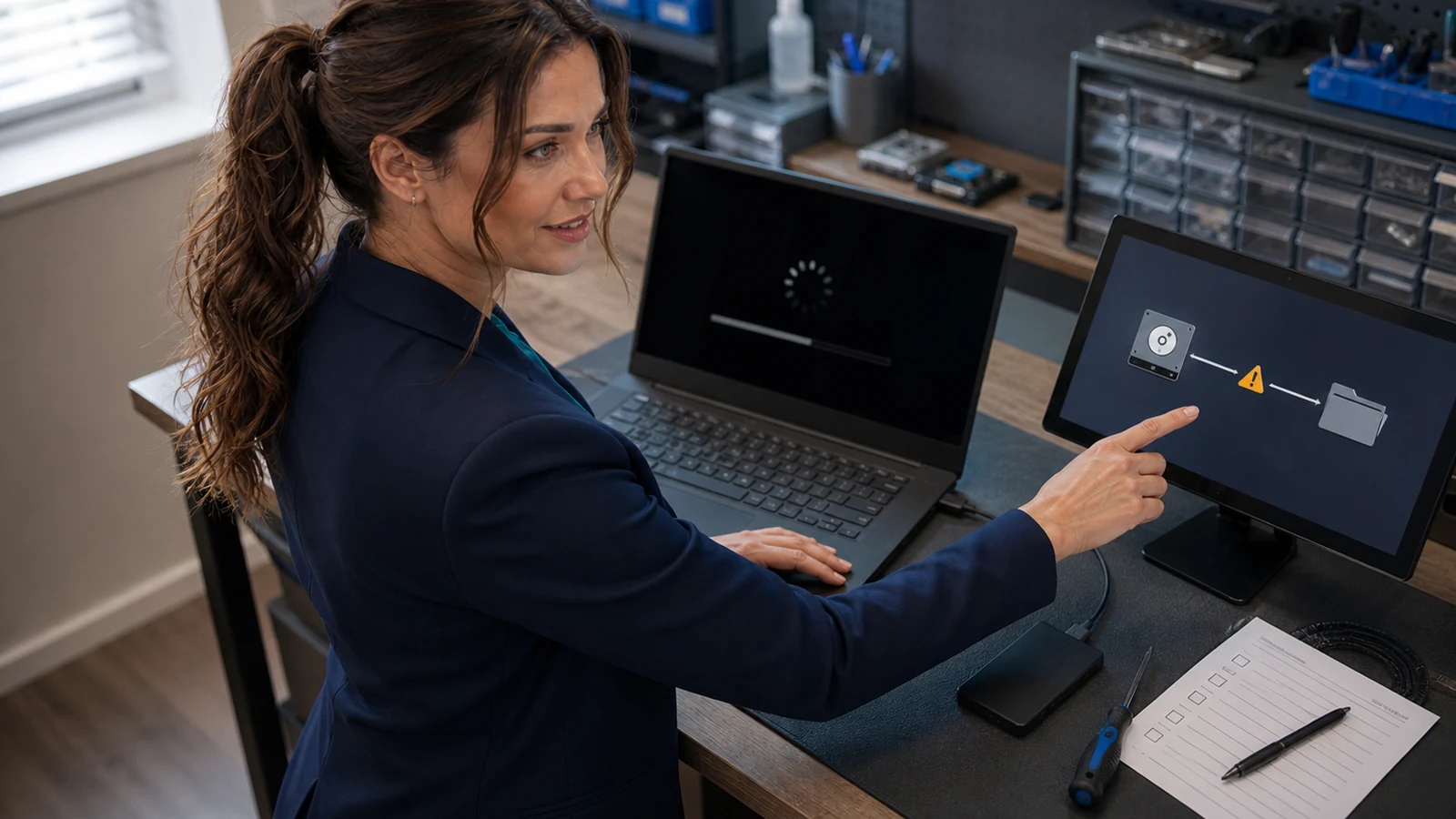
A “No Boot Device,” “Operating System Not Found,” or blank Windows boot screen does not automatically mean your files are gone. It means the computer’s firmware could not hand control to a working Windows boot path. The cause may be as simple as a USB drive or changed boot order—or as serious as a failed SSD. The expensive mistake is treating every case like a Windows problem and reinstalling before checking whether the storage device is healthy and the data is protected.
The problem in plain English
Your PC starts in firmware—usually UEFI—before Windows loads. The firmware must detect the internal SSD or hard drive, find a valid Windows Boot Manager entry, and then launch the Windows boot files. A break anywhere in that chain can produce a similar-looking message, but the safe fix depends on where the chain broke.
- Drive not detected: possible loose connection, failed SSD/HDD, controller problem, or firmware/storage-mode issue.
- Drive detected but Windows Boot Manager missing or below another device: boot order or boot-entry problem.
- Windows Boot Manager starts but Windows fails: damaged boot files, failed update, encryption prompt, or Windows corruption.
Who is affected—and who is not?
This guide applies to Windows 10 and Windows 11 desktops and laptops that stop before the sign-in screen and show a boot-device, operating-system, Automatic Repair, or similar startup error. It is especially relevant after a BIOS/UEFI update, power interruption, drive replacement, accidental firmware reset, or sudden SSD failure.
This is not the right workflow for a PC that signs into Windows normally but runs slowly, a forgotten Windows password, a BitLocker screen that already displays a recovery-key ID, or a computer with obvious liquid, fire, or impact damage. If the machine smells burned, clicks repeatedly, was flooded, or contains irreplaceable unbacked-up data, power it down and avoid repeated restart attempts.
Before touching anything: preserve the evidence
- Photograph the exact error, including any code, drive name, BitLocker key ID, or diagnostic failure ID.
- Write down what changed immediately before the failure: BIOS update, storm, hard shutdown, Windows update, new drive, dock, or USB device.
- If business data is not backed up, decide whether the data is worth more than the computer. A repair attempt that writes to a failing drive can reduce recovery options.
- Locate your BitLocker recovery key before changing firmware settings or attempting repair. Microsoft explains where personal, work/school, printed, and organizational keys may be stored.
Step-by-step: troubleshoot in the safest order
1. Remove accidental boot devices
Shut the computer down. Disconnect USB flash drives, external hard drives, memory cards, phones, and docking stations. Leave only power, display, keyboard, and mouse connected, then start it once. A firmware boot order that tries removable media first can stop at the wrong device.
Good: one clean test with unnecessary peripherals removed. Bad: repeatedly forcing power off while the internal drive is clicking or the screen says firmware is updating.
2. Check whether the firmware can see the internal drive
Open the manufacturer’s one-time boot or firmware menu using the key shown at startup—commonly F2, F10, F12, Esc, or Delete. Menu names vary, so use the support page for your exact PC model. Look only for storage information and the boot list.
- If the SSD/HDD model is absent: stop treating this as a Windows reinstall problem. Run the manufacturer’s built-in storage diagnostic if available. A failed or missing drive needs hardware diagnosis; reinstalling cannot repair a drive the firmware cannot detect.
- If the drive is present: look for Windows Boot Manager. On a normal modern Windows 11 setup, that entry should generally be ahead of network, USB, and other boot targets.
- If the drive appears intermittently: stop. Intermittent detection can point to a failing drive, connection, slot, or controller. Protect the data before more testing.
3. Do not randomly change UEFI, Secure Boot, or storage mode
Switching between UEFI and Legacy/CSM, disabling Secure Boot, or changing AHCI/RAID/VMD settings can make an otherwise intact installation unbootable and can trigger BitLocker recovery. Microsoft notes that Windows 11 uses UEFI and Secure Boot as part of its supported security configuration. Restore only a setting you know changed, or follow instructions for the exact manufacturer and model.
If a firmware update reset settings, compare them with your service documentation or prior photos. Do not use “Load Defaults” casually on a business PC with RAID, drive encryption, or specialized storage.
4. Run hardware diagnostics before software repair
Most major PC makers include preboot diagnostics. Run the storage test first; use the extended test when the quick test passes but the failure persists. Record every failure ID. If the test reports a drive failure, do not run repeated repairs or initialize/format the drive. Replace the drive only after deciding how the data will be recovered and verifying that a restorable backup exists.
5. If the drive passes, use Windows Recovery Environment
Microsoft’s Windows Recovery Environment (WinRE) is designed to repair common causes of an unbootable operating system. If WinRE opens automatically, choose Troubleshoot → Advanced options → Startup Repair. If it does not open, use official Windows installation or recovery media and choose the repair option rather than starting an installation.
Run Startup Repair once and record the result. If the failure began immediately after an update, WinRE also offers options such as uninstalling a recent update or using System Restore when a suitable restore point exists. These tools can still request a BitLocker recovery key.
6. Protect the files before manual boot repair
If the drive is healthy enough to read but Startup Repair fails, back up important files before commands that modify partitions or boot data. Microsoft documents BCDBoot as a tool for configuring or repairing boot files, but the correct command depends on which partition contains Windows and which partition is the system partition. Drive letters inside WinRE may not match the letters you see in normal Windows.
Do not copy a random BCDBoot, DiskPart, bootrec, clean, convert, or format command from a forum. A command that was correct for somebody else’s partition layout can target the wrong disk. This is the point where an experienced technician should identify the partitions, confirm encryption state, make a backup or image, and preserve a rollback path.
7. Reinstall Windows only as the last resort
A clean installation can erase personal files, applications, settings, and manufacturer tools. Microsoft’s installation-media guidance explicitly separates in-place recovery choices from clean installation. Reinstall only after the drive has passed hardware checks, the files are backed up or intentionally abandoned, the BitLocker key status is understood, and you have confirmed that startup repair or a properly supervised boot repair will not solve the problem.
Stop and get help when…
- The internal drive is missing, fails diagnostics, clicks, disappears, or becomes extremely slow.
- The data is not backed up and would be expensive or impossible to recreate.
- BitLocker asks for a key you cannot locate.
- The PC uses RAID, Intel VMD/RST, multiple operating systems, or a custom partition layout.
- The failure followed liquid damage, lightning, a power surge, or a firmware update that did not finish.
- You are about to initialize, format, clean, convert, or repartition a disk.
Two realistic examples
Example A: the harmless USB distraction
A home PC shows “Operating System Not Found” after a backup drive was left connected. Removing the USB drive lets Windows start normally. The internal SSD appears in firmware, Windows Boot Manager is first, and diagnostics pass. No reinstall is needed.
Example B: the expensive “quick reinstall”
A small-business laptop suddenly shows “No Boot Device.” The SSD appears only on some restarts and fails the extended diagnostic. Repeated repair attempts and an attempted reinstall write to the unstable drive. The safer response would have been to stop after intermittent detection, preserve the failing drive, confirm backups, and decide whether professional recovery was justified.
FAQ
Does “No Boot Device” always mean the SSD is dead?
No. It can also mean the wrong boot target is first, the Windows Boot Manager entry is damaged, firmware settings changed, or Windows boot files are corrupt. Drive detection and diagnostics separate hardware trouble from boot-path trouble.
Should I disable Secure Boot to make Windows start?
Not as a generic fix. Windows 11 is designed to use UEFI and Secure Boot. Changing the boot mode or Secure Boot state can trigger BitLocker recovery or create a second problem. Follow model-specific instructions only when you know the prior configuration.
Can Startup Repair delete my files?
Startup Repair is intended to fix startup problems rather than erase personal files, but any repair on a failing drive carries risk. If the files are irreplaceable and the drive is unstable, prioritize recovery or imaging before repairs.
Why does BitLocker appear after a BIOS update?
BitLocker can request recovery when it detects a security-relevant change to the startup environment. Use the recovery-key ID shown on screen to match the correct key in your Microsoft account, work/school account, printout, or organization’s records.
Is reinstalling Windows faster than diagnosing the boot problem?
Sometimes it looks faster, but it is the wrong first step when the drive is failing or the files are not backed up. Diagnosis can prevent data loss and may reveal a simple boot-order problem that requires no reinstall.
Related help from The IT Guys
- How to prolong the life of your SSD or NVMe drive
- Secure Boot certificate update guidance and BitLocker preparation
- At-home computer repair services in Port Saint Lucie and nearby communities
Your safest next action
Take a photo of the error, unplug unnecessary USB devices, check whether the internal drive and Windows Boot Manager appear in firmware, and stop if the drive is absent or fails diagnostics. If your files matter and you are unsure which disk or partition a repair command will change, do not guess. The IT Guys serves Port Saint Lucie, Jensen Beach, Fort Pierce, and Vero Beach.
Sources
- Microsoft Support: Find your BitLocker recovery key
- Microsoft Support: Recovery options in Windows
- Microsoft Learn: Windows Recovery Environment
- Microsoft Learn: BCDBoot command-line options
- Microsoft Support: Reinstall Windows with installation media
- Microsoft Support: Windows 11 and Secure Boot
- Dell Support: causes of “No Boot Device” and “Operating System Not Detected” errors