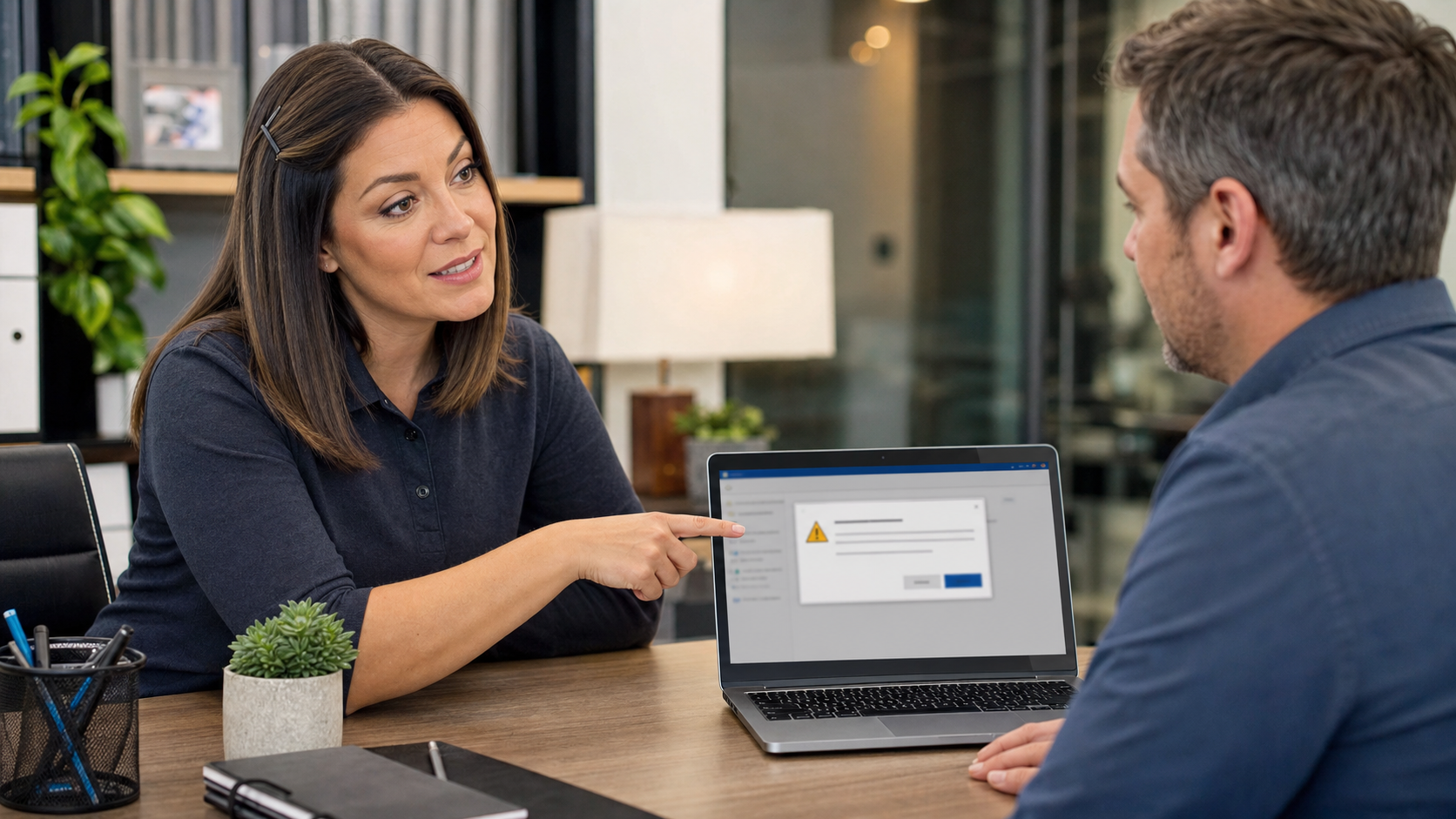
Today’s practical tech tip: before you let anyone view or control your computer remotely, pause and verify who they are through a known-good contact method. Remote support is useful when it is expected. It is dangerous when a caller, pop-up, chat message, or urgent email pressures you into starting it.
This matters for home users, offices, medical practices, real estate teams, shops, and any small business where one computer may have access to email, banking, payroll, customer records, invoices, cloud files, or saved browser sessions. A scammer does not always need to break into your computer with fancy malware. Sometimes they just convince someone to open a legitimate support tool and click Allow.
Why Remote Support Needs A Simple Safety Rule
Tools such as Microsoft Quick Assist can be helpful because they let a trusted support person view your screen, annotate what they see, chat with you, and, if you allow it, request control of the computer. Microsoft’s own Quick Assist instructions are built around trust and consent: the person receiving help enters a code, allows screen sharing, and can choose whether to allow or cancel full control.
The problem is that scammers use the same human workflow. The FTC warns that tech support scammers may claim there is a fake computer problem, ask for remote access, and then try to steal money, passwords, or personal information. Microsoft also warns that online scams may involve someone pretending to fix your computer while actually stealing information or installing malware. In 2026, Microsoft described attacks where criminals impersonated IT or help desk staff in Microsoft Teams and convinced users to grant remote assistance access, blending into normal support activity.
The practical rule is simple: only start remote support after you initiated contact through a known-good number, website, ticket, or support channel. If the support session starts with an unexpected phone call, pop-up warning, text message, Teams chat, email, or search-result phone number, stop first.
The 60-Second Check Before You Click Allow
- Ask, “Did I start this support request?”
If you called your IT provider, opened a ticket, or requested help from a known support portal, that is different from someone contacting you out of the blue. Unexpected support offers deserve extra skepticism. - Verify the person outside the message thread.
Call the business, vendor, or IT provider using a phone number already saved in your records, printed on a previous invoice, or listed on the official website you typed yourself. Do not use the number inside the pop-up, suspicious email, or unexpected chat. - Confirm the exact reason for access.
A real support person should be able to explain what they need to see, what they plan to change, and roughly how long it should take. “Your computer is infected, hurry” is not a good enough reason. - Close private work before sharing.
Shut down banking, payroll, medical records, password manager windows, tax documents, customer lists, private email, and anything else the helper does not need. Remote viewing can expose whatever is on the screen. - Stay present during the session.
Do not walk away. Watch what is opened, what is downloaded, and what settings are changed. If the helper asks you to log into banking, buy gift cards, move money, disable security, or ignore warnings, end the session. - End the session when the job is done.
Use the tool’s leave, stop sharing, or disconnect button. If you allowed control, cancel control before leaving. Then close the remote support app.
If You Use Microsoft Quick Assist
On Windows, Microsoft Quick Assist can be launched from the Start menu, and some devices also support the Windows key + Ctrl + Q shortcut. The person helping gives a code. The person receiving help enters the code and must allow the connection. If full control is requested, the person receiving help must allow that too.
Use those prompts as decision points, not as routine clicks. Read them. If the name, context, or reason does not match the support request you expected, do not approve it. A code does not prove the helper is legitimate; it only connects the session.
Small Business Version: Make It A Written Rule
For a business, the best protection is a short rule employees can actually remember:
No one gets remote access unless the employee opened a ticket or verified the request with the office manager, owner, or IT provider using a known-good phone number.
That one sentence helps stop several common failure points: fake Microsoft calls, fake bank security calls, vendor impersonation, Teams help desk impersonation, and pop-up support scams. It also gives employees permission to slow down instead of feeling rude or unhelpful.
For offices with Microsoft 365, remote access rules should also fit into a broader security process. Admins may need to review external Teams communication settings, employee reporting options, endpoint protection alerts, and whether remote management tools are allowed or monitored. The goal is not to block every support session. The goal is to make sure support sessions are expected, verified, logged, and limited to what is needed.
Red Flags That Mean Stop
- A pop-up says your computer is infected and tells you to call a number.
- Someone calls claiming to be Microsoft, Apple, your bank, Amazon, PayPal, or your internet provider and says they need to remote into your computer.
- A chat message from an unknown or external account claims to be internal IT.
- The person asks you to install a remote-control tool you do not normally use.
- The person asks for passwords, MFA codes, recovery codes, gift cards, cryptocurrency, wire transfers, or banking access.
- The person tells you not to call your normal IT provider, manager, bank, or family member.
- The person pressures you to act immediately or says your account will be closed if you disconnect.
What To Do If You Already Let Someone In
If you think you gave remote access to the wrong person, do not keep clicking around and hoping it is fine. Take these steps in order:
- Disconnect the session. Close the remote support window. If you cannot tell whether it is closed, shut down the computer.
- Disconnect from the internet if sensitive accounts may be at risk. Unplug Ethernet or turn off Wi-Fi until a trusted technician can review the machine.
- Use a different trusted device to change passwords. Start with email, banking, Microsoft/Google/Apple accounts, password manager, payroll, accounting, domain registrar, and remote access accounts.
- Call your bank or card provider if money, refunds, gift cards, wire transfers, or payment apps were discussed. Speed matters with financial fraud.
- Tell your real IT provider what happened. Mention the tool used, the time, the phone number or email involved, what was downloaded, and whether you logged into any accounts.
- Report the scam. The FTC accepts scam reports at ReportFraud.ftc.gov through its tech support scam guidance.
When To Call An IT Professional
Call for help immediately if the remote helper installed software, opened Command Prompt or PowerShell, changed security settings, asked you to disable antivirus, accessed email or cloud files, viewed banking/payroll, added browser extensions, created a new user account, or asked you to keep the session secret. For a business computer, also call if the device touches shared drives, Microsoft 365, QuickBooks, payment systems, patient/customer records, or admin accounts.
An IT professional can check for newly installed remote access tools, suspicious startup items, browser changes, mailbox forwarding rules, unknown admin users, changed MFA methods, unusual sign-ins, and signs that files were copied or synced. That review is much more reliable than simply uninstalling one visible app and assuming the problem is gone.
Bottom Line
Remote support is not bad. Unverified remote support is the problem. Make the habit boring and consistent: you request help, you verify the helper, you close private work, you stay present, and you disconnect when done. That small pause can prevent a fake support call from turning into a stolen-account, stolen-money, or business-disruption problem.