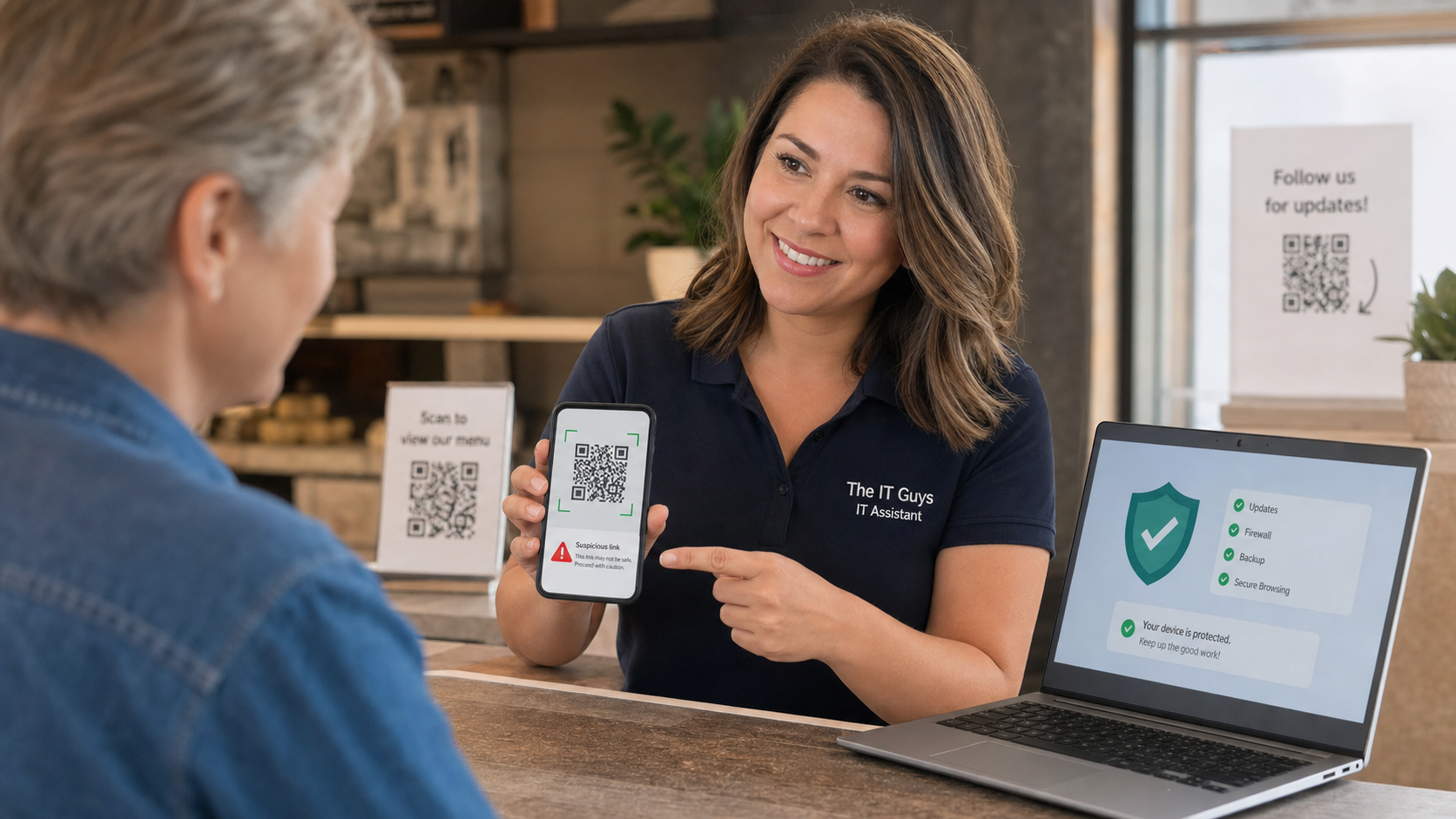
QR codes are useful. They can open a restaurant menu, start a parking payment, connect a visitor to Wi-Fi, pull up a review page, or make a sign-up form faster. The problem is that a QR code also hides the destination until your phone has already scanned it.
Today’s practical tech tip: before you scan a QR code and enter a password, payment card, one-time code, or business information, pause long enough to verify where it is sending you. For home users, this helps avoid fake delivery, parking, package, and giveaway scams. For small businesses, it also protects customers, staff, payment workflows, and printed signs that may be easy for someone to tamper with.
In this article:
Why This Matters
The Federal Trade Commission warns that scammers can use QR codes to send people to spoofed websites that steal information or install malware. The FBI has also warned about QR-code fraud, including situations where criminals use QR codes in unexpected packages or physically place bogus codes over legitimate ones. CISA’s general phishing guidance is a good reminder too: harmful links do not have to arrive only as normal email links.
The risky moment is usually not the scan itself. The risky moment is what happens next: entering a password, approving a payment, downloading an app, sharing a verification code, or trusting a page that only looks like the real company.
Step 1: Let Your Phone Preview The Link
Most modern phone cameras show a preview before opening the page. Use that preview as a checkpoint.
- Open the camera app or the QR scanner you normally use.
- Point at the QR code, but do not rush to tap the link.
- Read the domain name in the preview. Look for misspellings, extra words, odd endings, or shortened links.
- If it is a payment, login, delivery, bank, Microsoft 365, Google, Apple, payroll, tax, or vendor page, be stricter. Type the known website yourself if anything feels off.
- If the preview is hidden, unclear, or only shows a shortened link, treat that as a reason to slow down.
Example: a sign that says it belongs to a city parking service should not send you to a random shortened URL or a lookalike domain. A flyer that claims to be from your bank should not send you to a page asking for your full card number, online banking password, and text-message code.
Step 2: Check The Physical Code For Tampering
QR-code scams are not always digital. A scammer can place a sticker over a legitimate QR code on a parking meter, public poster, table sign, donation box, or business counter display.
- Look for sticker edges: if a code looks pasted over another code, do not use it.
- Compare nearby signs: if five signs point to one official domain and one sign points somewhere else, avoid the odd one.
- Use the official app or website: for parking, tolls, utilities, delivery carriers, banks, and government services, it is safer to open the known app or type the official address yourself.
- Ask staff: in a restaurant, clinic, school, church, or local shop, ask whether the QR sign is theirs before entering payment or personal information.
Step 3: Never Use A QR Code To Share A Verification Code
A major warning sign is any page that asks for a one-time verification code, authenticator approval, MFA prompt, password reset code, or remote-access approval after you scanned a QR code from an unexpected message or sign. The FTC specifically warns that scammers try to trick people into sharing verification passcodes. A legitimate company should not need you to hand over a login code because you scanned a mystery QR code.
If a QR page says your account will be closed, your package will be returned, your payment failed, your computer is infected, or your employee account must be reverified immediately, stop. Open the official app or website directly instead.
Step 4: Small Businesses Should Review Their Own QR Codes
If your business uses QR codes for menus, forms, Wi-Fi, invoices, customer reviews, event sign-ins, or payments, do a quick audit this week.
- Walk through the business and scan every public QR code you provide.
- Confirm each code opens the correct domain, not an old campaign link, broken page, or third-party short link no one recognizes.
- Replace worn, peeling, or easy-to-cover signs with cleaner signs that include the written website address below the QR code.
- Train staff to question QR stickers that appear on doors, counters, table tents, checkout areas, or payment stations without approval.
- For payment QR codes, use a provider account you control and review transaction history regularly.
- Keep a simple list of official QR destinations so staff can compare suspicious signs quickly.
One practical improvement: print the destination in plain text under the QR code, such as examplebusiness.com/menu. That gives customers a way to sanity-check the destination before they tap.
What Can Go Wrong
- Fake login pages: the page may look like Microsoft, Google, Apple, a bank, a delivery carrier, or a local service, but the domain is not correct.
- Payment redirection: a fake parking or invoice page may collect card details while the real bill remains unpaid.
- Malware or shady apps: a QR code may push you toward a download outside the normal app store process.
- Business reputation damage: if a scam QR sticker sits on your counter or door, customers may blame your business even if you did not place it there.
- MFA theft: if someone tricks an employee into entering a password and approving a code, the attacker may get into email, cloud storage, payroll, or vendor systems.
When To Call An IT Professional
Call for help if you entered a password, payment information, Social Security number, business banking details, MFA code, or remote-access approval after scanning a QR code you now suspect was fake. Also call if a business device downloaded an app, browser profile, configuration profile, or remote-support tool from a QR page.
For small businesses, an IT professional can help check email sign-ins, revoke suspicious sessions, reset affected passwords, review mailbox rules, inspect endpoint security alerts, verify payment pages, and replace unsafe QR signs with cleaner customer-facing versions.
Quick Checklist
- Preview the QR link before opening it.
- Be suspicious of shortened links, misspellings, and urgent warnings.
- Do not scan unexpected QR codes from texts, emails, packages, or random flyers.
- Do not enter passwords, payment details, or verification codes unless you trust the destination.
- For important accounts, open the official app or type the website yourself.
- Businesses should inspect public QR signs for tampering and print the destination URL below the code.
Sources And Further Reading
- FTC: Scammers hide harmful links in QR codes to steal your information
- FTC: Scam alert, QR code on an unexpected package
- FBI: Building a digital defense against QR code scams
- FBI: Unsolicited packages containing QR codes used to initiate fraud schemes
- CISA: Recognize and report phishing
- FTC: Use two-factor authentication to protect your accounts
Related Reading From The IT Guys
- Quick Tech Tip: Run A Password Health Check Before One Reused Login Becomes A Problem
- Quick Tech Tip: Check Email Forwarding Rules Before They Leak Your Messages
- Quick Tech Tip: Give Your Router A 10-Minute Security Check
FAQ
Are all QR codes dangerous?
No. QR codes are just a convenient way to open information. The danger is that you cannot read the destination until your phone decodes it, and a fake code can send you to a fake page.
Is it safer to use a QR scanner app?
Sometimes, but be careful. A random scanner app can introduce its own privacy and ad problems. The built-in camera scanner on a modern phone is usually enough if you slow down, preview the domain, and avoid entering sensitive information on suspicious pages.
What should I do if I already scanned a suspicious QR code?
If you only previewed it and closed it, you are probably fine. If you entered credentials, payment details, personal information, or an MFA code, change the affected password from the official website, turn on MFA, contact the bank or service provider if payment information was involved, and ask IT to check for suspicious sessions or device changes.