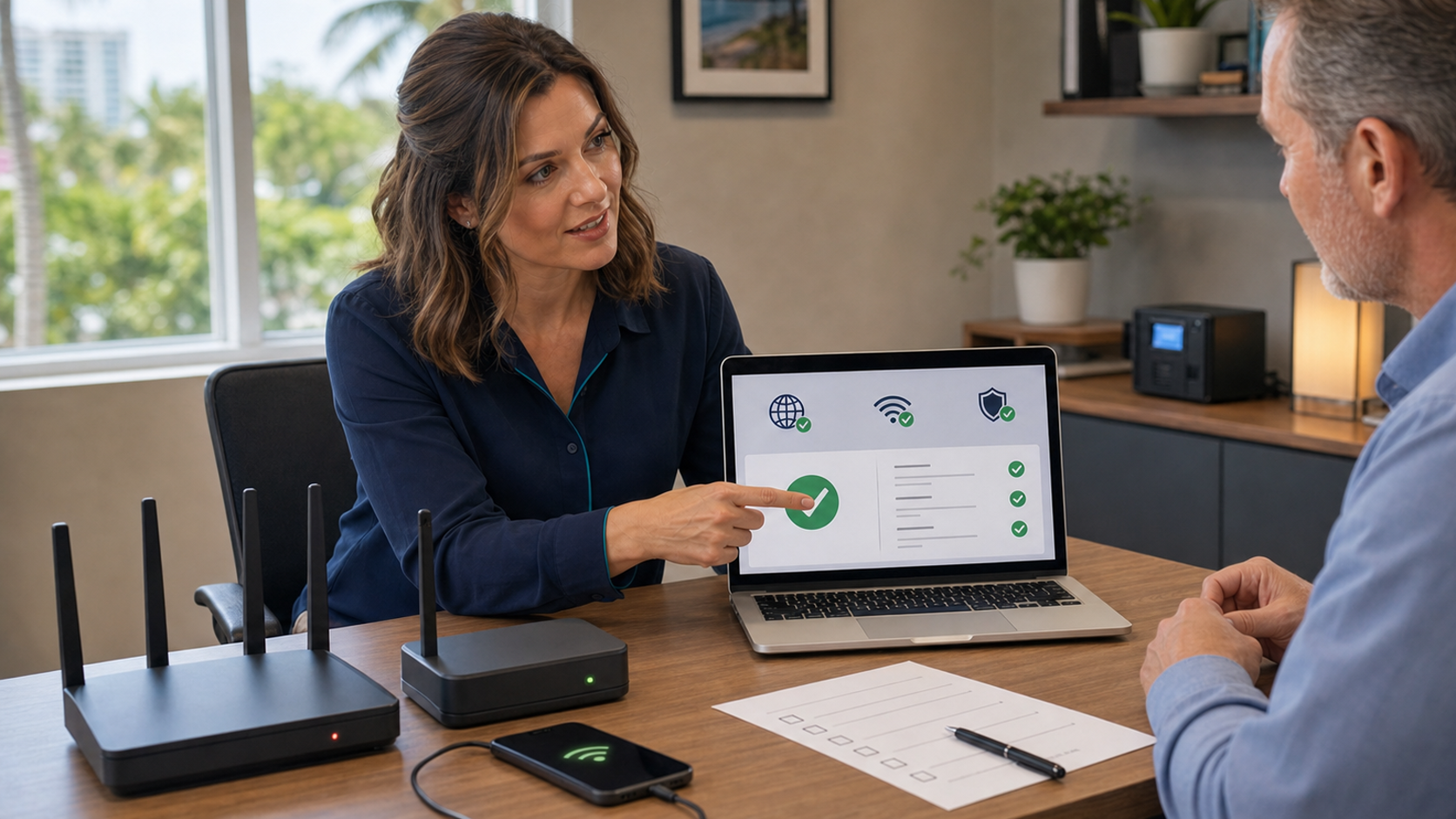
A short internet outage can stop a small business even when every computer is working. Card terminals may lose authorization, cloud accounting and scheduling can disappear, VoIP phones can go silent, and remote workers may be locked out. At home, an outage can interrupt remote work, telehealth, security-camera access, and schoolwork. The expensive part is often not the repair—it is the downtime.
The practical fix is not simply “use your phone.” It is to build a tested backup-internet plan that matches the work you truly must keep running. A phone hotspot may be enough for one laptop. A busy office may need a dedicated cellular gateway or dual-WAN firewall. In every case, the backup should be secured, powered, documented, and tested before the primary provider fails.
Today’s 20-minute action: Choose the one device and one task that must work during an outage, connect them to your backup connection, mark that network as metered when appropriate, and complete one real test transaction or workflow.
The problem: an untested backup is only a hope
Many people discover the hidden problems only after the outage starts: tethering is not included in the cellular plan, the hotspot password is unknown, the phone battery is nearly empty, the laptop downloads a large update, the payment terminal cannot use ordinary Wi-Fi, or the “backup” carrier is affected by the same local problem.
Contingency planning guidance from the National Institute of Standards and Technology (NIST) emphasizes evaluating systems and operations to determine recovery requirements and priorities. For a home office or small business, that translates into a manageable question: what has to keep working, for how long, and what alternate connection has actually been tested?
Who is affected—and who may not need extra hardware
You should make a backup plan if you rely on:
- Cloud bookkeeping, scheduling, point-of-sale, electronic signatures, or line-of-business software.
- VoIP phones, cloud fax, Teams, Zoom, or other internet-based communications.
- Remote access to an office, server, NAS, security system, or hosted desktop.
- Online orders, customer portals, shipping labels, inventory, or vendor systems.
- Remote work, telehealth, online classes, or internet-connected home security.
- A primary internet connection that has already caused costly downtime.
You may not need a dedicated failover appliance if:
- An outage is merely inconvenient and work can safely wait.
- One laptop and a phone hotspot can handle the only critical task.
- Your work must stop during a power failure for safety or operational reasons.
- Your required equipment cannot use cellular service and the vendor offers no approved alternative.
Even then, document whom to call, where the provider account number is stored, and how employees or family members will communicate.
Choose the right backup connection
| Option | Good points | Bad points and cautions | Best fit |
|---|---|---|---|
| Phone hotspot | Low added cost, fast to activate, works with most laptops and tablets. | May have tethering limits, uses phone battery, can overheat, and usually requires manual connection. | One person or one critical laptop. |
| Dedicated mobile hotspot | Does not tie up an employee’s phone; can serve several devices; easy to relocate. | Separate plan and battery to maintain; still usually manual; consumer models can struggle with many devices. | Small team or mobile office. |
| Cellular gateway or dual-WAN firewall | Can fail over automatically, preserve the office Wi-Fi network, and apply business firewall rules. | Higher equipment and service cost; setup and monitoring matter; some applications may notice the public IP change. | Businesses where minutes of downtime are costly. |
| Second wired provider | Potentially faster and less data-constrained than cellular. | May share the same pole, conduit, building entry, or upstream dependency as the primary connection. | High-bandwidth operations after path diversity is verified. |
Important: Two service bills do not automatically mean two independent paths. Ask whether the backup uses a different carrier and physical route. In Port Saint Lucie, Jensen Beach, Fort Pierce, and Vero Beach, storm damage, construction cuts, local power loss, and cellular congestion can affect several services at once.
Step-by-step: build a backup-internet plan that works
1. List the critical tasks—not every device
Write down the tasks that create the greatest harm when unavailable. Examples include taking a card payment, answering the main phone number, opening the day’s schedule, processing payroll, receiving a medical message, or accessing a remote-work system. Name the device and person needed for each task.
Avoid trying to keep the entire office online by default. Guest Wi-Fi, smart TVs, cloud-camera uploads, large backups, game downloads, and operating-system updates can consume a limited cellular plan before the important work is done.
2. Decide how much downtime and data you can tolerate
Estimate how long the business can wait before switching and how much data the minimum workflow uses. A few emails and web forms are different from multi-party video meetings, large design files, or continuous camera uploads. Check the cellular plan for hotspot eligibility, high-speed data limits, throttling, roaming, and overage terms. Do not assume “unlimited” phone data means unlimited high-speed tethering.
3. Pick a backup that does not repeat the same failure
If the primary service is cable or fiber, cellular is often a practical alternate path. Where continuity is essential, use a carrier with good signal at the actual work location—not merely a strong coverage-map color. If the primary and backup are both cellular, consider whether they use different underlying carrier networks.
4. Secure and label the connection
- Use WPA2 or WPA3 security with a strong, unique hotspot password.
- Do not leave the hotspot permanently open or use a password printed in public view.
- Change default administrator credentials on a gateway or firewall.
- Update firmware before deployment and periodically afterward.
- Limit the devices allowed to connect; remove old or unknown devices after a test.
- Store recovery instructions in an approved password manager or sealed continuity document—not in a group text.
Apple’s official instructions explain how to enable Personal Hotspot on an iPhone or cellular iPad, including Wi-Fi, USB, and Bluetooth connection methods. Google provides corresponding instructions to share an Android mobile connection by hotspot or tethering. Menu names can vary by phone maker, operating-system version, carrier, and plan.
5. Stop background traffic from eating the plan
On a Windows laptop, set the backup Wi-Fi network as metered. Microsoft says a metered connection in Windows can restrict some background updates and app syncing to reduce data use. Some apps will behave differently, and some Windows updates will not install automatically, so turn the setting off later if the network is no longer limited.
Also pause nonessential cloud sync, online backups, camera uploads, game launchers, and large downloads during failover. Do not disable endpoint security, the firewall, or required VPN protection just to save bandwidth.
6. Keep the right equipment powered
A cellular backup does not help if the phone, laptop, firewall, Wi-Fi access point, or gateway has no power. Charge the hotspot and keep an appropriate cable and charger with the plan. For stationary equipment, use a correctly sized UPS and test its battery. Our related guide explains how to test a UPS battery backup before the next power flicker.
Remember that a UPS provides temporary runtime, not indefinite power. Do not connect laser printers, heaters, or other high-draw equipment to battery-backed outlets unless the UPS manufacturer explicitly supports it.
7. Write a one-page outage procedure
Keep it short enough to use under pressure:
- Confirm the primary service is actually down and record the time.
- Check the provider’s status page from a cellular phone.
- Power-cycle equipment only if your provider or IT procedure calls for it; do not repeatedly reset managed equipment.
- Turn on the approved backup connection or confirm automatic failover.
- Connect only the approved devices.
- Verify the firewall/VPN and complete one critical workflow.
- Notify staff which services are available and which must wait.
- When the primary service returns, fail back, disable the temporary hotspot, and record data used and problems found.
Include support numbers from contracts or known official sources. This is also a good time to review our advice to verify urgent requests with a known-number callback; outage pressure is a poor time to trust an unexpected “support” call or link.
8. Run a controlled test
Schedule the test during a quiet period. Save open work, notify participants, and disconnect the primary WAN according to the router or provider procedure rather than pulling random cables. Confirm:
- The designated laptop connects and receives internet access.
- DNS, approved websites, email, VPN, and cloud applications work.
- The business phone number follows the planned outage behavior.
- An approved test payment or other critical transaction works, if the vendor permits it.
- Inbound and outbound remote access behaves as expected.
- The connection is marked metered where appropriate.
- The hotspot, gateway, laptop, and network equipment have adequate runtime.
- The primary service restores cleanly and automatic failback does not interrupt work unexpectedly.
Repeat the test after changing providers, firewalls, payment systems, VPNs, or phone systems—and at least periodically even when nothing appears to have changed. A documented 15-minute test can reveal more than a box that has sat unopened for a year.
Common mistakes and costly cautions
Do not assume every card terminal may use a personal hotspot
Payment systems have vendor, network, and compliance requirements. Use only the connection method approved by the payment processor or terminal provider. Never move payment-card data into an improvised form or personal app because the regular terminal is offline.
Internet failover does not automatically preserve inbound services
Cloud apps that your staff opens outbound will often continue, but site-to-site VPNs, hosted servers, remote cameras, and inbound firewall rules may depend on a fixed public IP address. Cellular providers commonly use network designs that make unsolicited inbound access difficult. Test the exact remote-access path and use a vendor-supported design.
VoIP needs its own continuity setting
If the local phone loses internet, callers may still reach the cloud phone provider. Configure and test provider-side forwarding, mobile-app ringing, voicemail, or an emergency number in advance. Do not wait for the office handset to go dark.
Automatic failover can hide a long outage
A smooth switch is good, but it can quietly consume cellular data for hours. Configure alerts, usage thresholds, and a visible status check. Someone should own the decision to limit nonessential traffic or escalate the provider ticket.
A domain outage is different from an ISP outage
A backup connection helps when your location cannot reach the internet. It does not repair an expired domain, DNS mistake, suspended cloud account, or provider-wide application failure. Review our separate checklist to prevent a domain-renewal mistake from taking down your website and email.
Realistic examples
Home-office example
A remote worker needs email, a browser-based scheduling system, and one short video call. A tested phone hotspot, charged power bank, strong hotspot password, metered Windows profile, and paused cloud backup may be sufficient. The worker knows how to switch before the meeting and has confirmed the employer VPN works over cellular.
Five-person office example
The business depends on cloud phones, scheduling, and two approved payment terminals. A managed dual-WAN firewall with a dedicated cellular gateway can keep the approved office network online automatically. Guest Wi-Fi and large cloud backups are blocked during failover; the VoIP provider forwards calls if local phones do not register; the gateway and firewall are on a tested UPS. The owner receives alerts when failover starts and ends.
Bad example
During an outage, everyone joins one employee’s phone, video meetings continue, cloud sync runs, and nobody knows the tethering allowance. The phone overheats and loses power, the data plan slows, and the payment terminal still does not work. The business had a hotspot, but not a plan.
Frequently asked questions
Is a phone hotspot secure enough for business use?
It can be appropriate for limited, approved work when it uses strong WPA2/WPA3 security, a unique password, current phone software, and only trusted devices. It does not remove the need for HTTPS, endpoint protection, a firewall, or a required business VPN. Follow your employer’s and application vendor’s policies.
Should I buy a 5G backup router?
Buy one when the cost of downtime justifies automatic or multi-device failover and the device is compatible with your firewall, carrier, signal conditions, and required applications. A device alone is not enough; include the data plan, antennas if needed, configuration, alerts, UPS runtime, and periodic testing in the budget.
Will the backup work during a hurricane or large outage?
Maybe, but do not promise it. Cellular towers can lose power, backhaul, or capacity, and many nearby users may shift to mobile data at the same time. A different carrier path, charged equipment, conservative data use, and offline copies of essential contact information improve resilience, but no single connection is guaranteed.
Can I plug the phone into the office router?
Only if the router, phone, cable method, and carrier plan support it and the configuration is approved. USB tethering support varies. An incorrect setup can bypass intended firewall policy or fail without warning. For an office, use a supported WAN or cellular-gateway design.
How often should we test?
Test after any relevant provider or equipment change and on a regular schedule suited to the cost of downtime—quarterly is a practical starting point for many small businesses. Test more often when continuity is critical or the environment changes frequently.
Does marking a connection as metered block all updates?
No. Microsoft describes it as a way to control and reduce data use; apps may behave differently and some Windows updates will not install automatically. It is a traffic-management aid, not an absolute data cap or security control.
Your next step
Do not start by buying hardware. Start by naming one critical task, one approved device, one backup connection, and one responsible person. Test that exact path while the primary internet is still available. Then document what failed and decide whether a phone hotspot is enough or whether the cost of downtime supports a managed cellular or dual-provider solution.
If you need help designing or testing reliable backup internet for a home office or small business in Port Saint Lucie, Jensen Beach, Fort Pierce, or Vero Beach, contact The IT Guys. We can help evaluate carrier signal, firewall compatibility, UPS runtime, VoIP behavior, and a practical failover test without selling more complexity than you need.
Sources and further reading
- NIST SP 800-34 Rev. 1: Contingency Planning Guide for Federal Information Systems
- Apple Support: Connect to the Personal Hotspot of an iPhone or iPad
- Android Help: Share a mobile connection by hotspot or tethering
- Microsoft Support: Metered connections in Windows
Published July 30, 2026. Product menus, carrier terms, and service behavior can change; verify current requirements with your provider and equipment vendor.