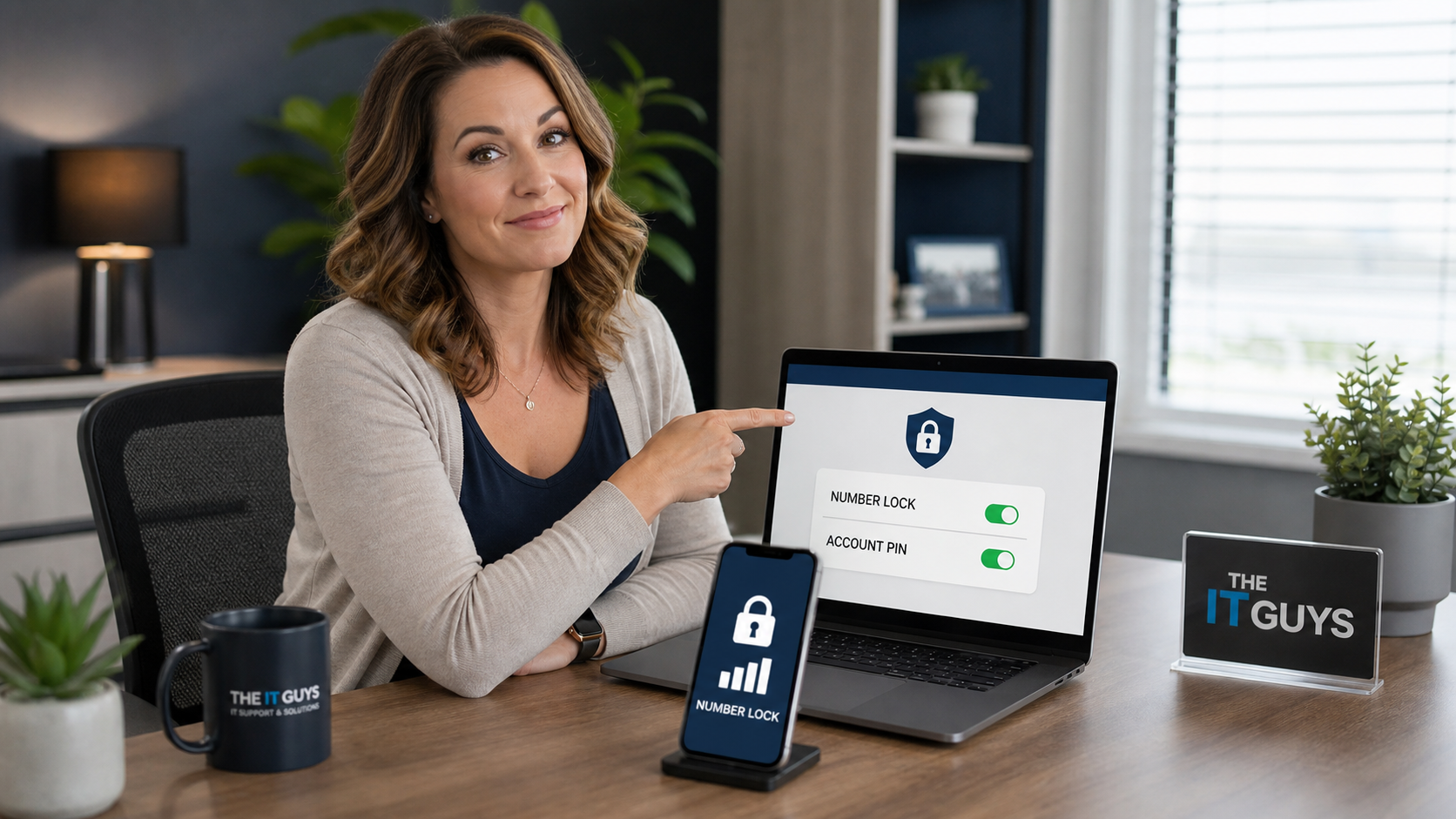
Today’s practical tech tip: lock down your mobile carrier account before someone tries to steal your phone number.
Your cell number is more than a way to receive calls. For many people and small businesses, it is also a recovery path for email, banking, payroll, vendor portals, Microsoft 365, Google Workspace, social media, and payment apps. That makes the phone account itself worth protecting.
A SIM-swap or port-out scam happens when a criminal convinces a mobile carrier to move your number to a device or carrier they control. Once that happens, your phone may suddenly show no service, and the attacker may start receiving calls or text-message verification codes meant for you. The FCC warns that port-out fraud can target private accounts, and its SIM-swap tip card recommends asking your phone company to add a PIN or password to your account.
The good news: most people can make this attack harder in 10 to 20 minutes by turning on their carrier’s number-transfer lock, setting a strong account PIN, and moving important accounts away from text-message-only sign-in.
Why this matters for normal people and small businesses
If your phone number is stolen, the immediate problem is loss of service. The bigger risk is account recovery. Attackers may try to reset passwords for email, banking, payroll, social media, cloud storage, and business tools while you are still trying to figure out why your phone stopped working.
For a small business, one owner or manager’s phone number can be tied to domain renewals, payment processors, point-of-sale systems, vendor portals, QuickBooks, bank alerts, and Microsoft or Google admin recovery. A phone-number takeover at the wrong time can turn into a much larger business interruption.
Step 1: Turn on your carrier’s number lock or port-out protection
Start with the account that controls your main mobile number. If you manage business lines, check the owner, administrator, and finance manager lines first.
- Verizon: look for Number Lock and SIM Protection in My Verizon. Verizon says Number Lock helps protect a mobile number from unauthorized transfer, and SIM Protection helps block moving the number to another device until the protection is turned off.
- AT&T consumer wireless: use the myAT&T app and look for Wireless Account Lock. AT&T says this free feature can disable specific account changes and transactions, including SIM/eSIM swaps and number transfers.
- AT&T business wireless: review Business Account Lock for business accounts.
- T-Mobile: review T-Mobile’s guidance on Port Out Protection. T-Mobile says it is a free feature for T-Mobile postpaid, business, prepaid, and Metro customers.
- Other carriers: search your carrier’s support site or app for terms like number lock, port-out protection, SIM protection, account lock, or transfer lock.
After you enable the lock, write down where you found it. The lock is helpful, but you may need to temporarily disable it later if you are legitimately upgrading a phone, replacing an eSIM, or moving to a different carrier.
Step 2: Set a strong carrier account PIN or passcode
Do not reuse a PIN from your debit card, voicemail, alarm system, or a previous carrier. Use a unique PIN or passcode that is not easy to guess from your birthday, address, phone number, or last four digits.
- Sign in to your carrier account directly from the carrier’s official app or website.
- Open profile, account security, or sign-in settings.
- Find the account PIN, passcode, transfer PIN, security PIN, or customer-service authentication setting.
- Change it to a unique value.
- Save it in your password manager, not in a note named “phone PIN.”
This is especially important for shared family and business plans. Make sure only trusted account owners or administrators can change security settings, order SIM replacements, add authorized users, or approve line transfers.
Step 3: Stop relying on text messages for your most important accounts
Text-message codes are better than no multi-factor authentication, but they are weaker than phishing-resistant methods or app-based options. CISA’s phishing-resistant MFA guidance explains that SIM swapping can let attackers receive SMS codes after they take control of a phone number. CISA’s mobile communications best-practice guidance also recommends adding a PIN and MFA to mobile carrier accounts to reduce SIM-swapping risk.
For the accounts that matter most, use stronger sign-in methods where available:
- Passkeys or security keys for email, password managers, banking, Microsoft, Google, Apple, and admin accounts.
- An authenticator app instead of SMS codes when passkeys are not available.
- Backup codes stored safely in your password manager or printed and locked away.
- Separate admin accounts for business systems so one stolen phone number does not control everything.
Step 4: Clean up recovery information while you are there
A number lock helps, but it does not fix weak recovery settings. Take a few extra minutes and check the recovery email, alternate phone numbers, authorized users, and billing contact information on your carrier account.
- Remove old employees, old family members, former office managers, and unused authorized users.
- Make sure the recovery email is one you control and actively monitor.
- Turn on alerts for account changes, SIM changes, eSIM changes, number-transfer requests, and new-device sign-ins.
- For businesses, document who is allowed to approve phone replacements, eSIM changes, and carrier transfers.
What can go wrong
Number locks and account locks are designed to protect you, but they can slow down legitimate changes. If you are buying a new phone, replacing a broken device, converting from SIM to eSIM, changing carriers, or moving a line into a business account, you may need the account owner to unlock the line first.
That is not a reason to leave the protection off. It is a reason to know where the setting is before there is pressure, a broken phone, or a busy sales counter involved.
Warning signs of a SIM-swap or port-out problem
- Your phone suddenly shows SOS, no service, or no cellular connection while nearby phones work normally.
- You receive a text or email about a SIM change, eSIM activation, number transfer, or account change you did not request.
- Password reset emails appear for accounts you did not touch.
- Banking, email, social media, or business accounts start sending unexpected verification prompts.
- Your carrier login suddenly stops working or says your phone number is no longer on the account.
If you think your number was stolen
- Contact your carrier immediately from another phone, the official app, or an official store. Do not use phone numbers from random texts or emails.
- Tell them you suspect SIM-swap or port-out fraud and ask them to freeze changes while they investigate.
- Change passwords for your email first, then banking, payment, payroll, domain, cloud, and social accounts.
- Remove SMS as the primary recovery method where possible and switch to passkeys, security keys, or authenticator apps.
- Ask the carrier for documentation of the incident if financial fraud or account takeover occurred. The FCC’s SIM-swap and port-out rules require providers to maintain a process for customers to report fraud and obtain documentation upon request.
- Watch bank and credit-card activity closely and consider placing fraud alerts or freezes if identity theft is suspected.
When to call an IT professional
Call for help if the phone number is tied to a business owner, Microsoft 365 or Google Workspace admin account, domain registrar, payroll account, banking login, point-of-sale system, or password manager recovery path. Also call if an employee’s number may have been taken over, because you may need to revoke sessions, reset MFA, review inbox rules, check cloud audit logs, and make sure the attacker did not leave a hidden recovery method behind.
The IT Guys can help local homes and small businesses review carrier-account protections, clean up recovery settings, harden Microsoft 365 and Google accounts, and build a safer account-recovery plan before a stolen phone number becomes a larger problem.
Quick checklist
- Enable number lock, port-out protection, SIM protection, or account lock with your carrier.
- Set a unique carrier account PIN or passcode.
- Remove old authorized users.
- Turn on account-change alerts.
- Move important accounts away from SMS-only verification.
- Store backup codes safely.
- Document who can approve phone changes for business lines.
Bottom line: your phone number may be a key to your digital life. Lock it like one.