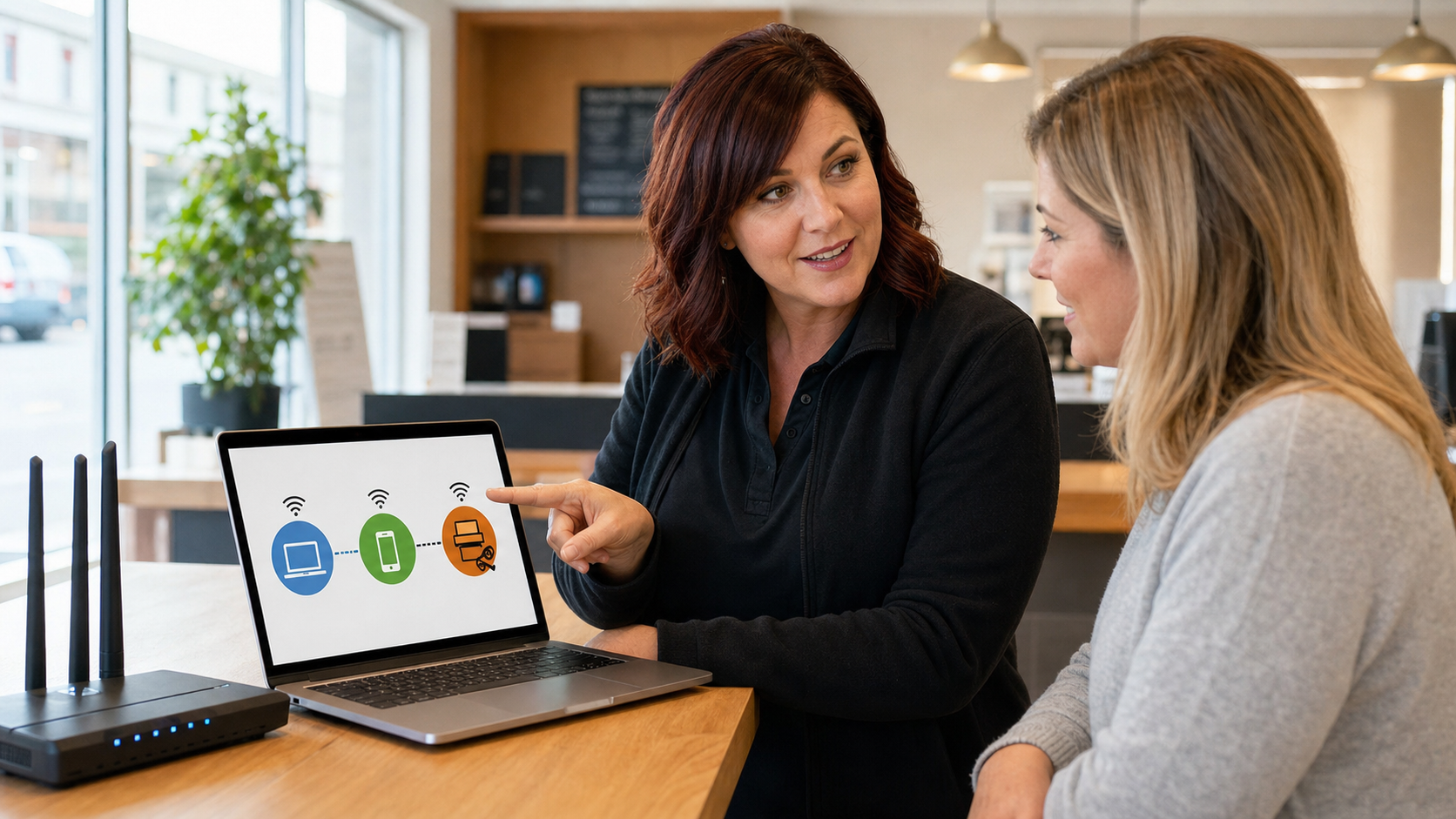
Today’s practical tech tip is simple: stop putting every device on the same Wi-Fi network. If your staff laptops, customer phones, smart TVs, security cameras, printers, card terminals, and vendor tablets all share one flat network, one weak or infected device can create a much bigger mess than it should.
For homes, this helps keep visitors and smart devices away from personal computers. For small businesses, it is even more important. A lobby TV, a waiting-room tablet, or a customer’s phone should not have the same network access as the computer that handles email, payroll, customer files, estimates, or bookkeeping.
The quick version
Create at least two Wi-Fi networks:
- Main or Staff Wi-Fi: work computers, trusted phones, admin tablets, and systems that need access to business resources.
- Guest Wi-Fi: customers, visitors, contractors, and personal devices that only need internet access.
If your router or business Wi-Fi system supports it, add a third network for smart devices such as TVs, cameras, thermostats, signage players, speakers, and other “internet of things” equipment. Some routers call this an IoT network, device isolation, guest isolation, client isolation, or VLAN.
Why this matters
The Federal Trade Commission’s small-business cybersecurity guidance recommends securing the router, changing default router credentials, turning off remote management, using WPA2 or WPA3 encryption, and protecting the wireless network as part of normal business security. CISA also warns that unsecured wireless networks can let nearby users connect through your access point, and its Internet of Things guidance recommends properly securing wireless networks used for connected devices and considering a separate dedicated network for those devices.
That separation is useful because many small-business devices are not equal. A laptop that receives security updates, uses MFA, and is managed by the business is very different from a low-cost camera, a smart TV, a receipt printer, or a customer phone you do not control. When everything is on one network, a weak device may be able to see printers, file shares, admin pages, point-of-sale systems, or other equipment that should not be exposed.
Step-by-step: set up safer Wi-Fi separation
1. Make a quick device list
Before changing settings, write down what connects to Wi-Fi today. Keep it practical:
- Staff laptops and desktops
- Owner and employee phones
- Printers and scanners
- Card readers or point-of-sale equipment
- Cameras, doorbells, smart TVs, speakers, thermostats, and signage players
- Customer or visitor devices
Mark each one as staff, guest, or smart/IoT. If you are not sure where something belongs, ask what it needs to reach. If it only needs the internet, it probably does not belong on the staff network.
2. Sign in to your router or Wi-Fi controller
Use the router’s app or web admin page. If you are using a mesh system, look for settings such as Guest Network, Wi-Fi, Advanced, Security, Device Isolation, or IoT Network. Google’s Nest Wifi help, for example, documents creating and editing a Guest Wi-Fi network in the Google Home app. TP-Link’s Deco support notes that Deco guest networks can let visitors use the internet without accessing resources on the main private network when the system is operating in router mode.
If you do not know the router admin password, do not guess repeatedly. Check your IT notes, password manager, or ISP equipment label. If the password is still the factory default, change it before you do anything else.
3. Turn on Guest Wi-Fi
Create a guest network with a name that is easy to recognize but not too revealing. A simple format works well:
- Good: MainStreetAuto-Guest
- Avoid: MainStreetAuto-Accounting-BackOffice
Use a different password from the staff Wi-Fi password. If customers need access, print the guest password on a small sign or QR code and keep the staff password private. Change the guest password occasionally, especially after events, contractor work, or staff changes.
4. Confirm that guest isolation is actually enabled
This is the step people skip. A second Wi-Fi name is not always the same as a properly isolated network. Look for settings such as:
- Block guests from accessing local network
- Allow guests to access each other: off
- Client isolation: on
- Access intranet/local LAN: off
- Device isolation or IoT isolation: on
After turning it on, test it. Connect a phone to Guest Wi-Fi and see whether it can find office printers, shared folders, router admin pages, or network drives. For most businesses, a guest device should reach the internet and nothing else.
5. Move smart devices off the staff network
Smart TVs, cameras, speakers, signage players, and inexpensive Wi-Fi gadgets often need internet access but do not need to see workstations. Move them to the guest or IoT network unless they truly need local access. If a printer, scanner, or camera system must be reachable by staff computers, place it deliberately and document why.
Do this during a quiet part of the day. Some devices are annoying to reconnect, and a camera or printer may need a restart after changing Wi-Fi.
6. Use modern Wi-Fi security
For private networks, use WPA2 or WPA3 encryption. Avoid WEP and open networks. The FTC specifically calls out WPA2 or WPA3 encryption for wireless security, and that advice is still a good baseline for small offices and homes.
Use a strong staff Wi-Fi password that is not reused anywhere else. A long passphrase is usually easier to share securely with staff than a short password full of substitutions.
7. Label the setup in your IT notes
Write down which network is for which type of device. Do not write the password on a sticky note near the router. Store it in a password manager or a sealed business continuity document that the owner can reach in an emergency.
A simple note is enough:
- Staff Wi-Fi: business computers and trusted staff phones only
- Guest Wi-Fi: customers, vendors, personal devices, temporary access
- IoT Wi-Fi: TVs, cameras, smart devices, signage, speakers
What can go wrong
The most common issue is breaking something that depends on local network discovery. Printers, casting devices, camera viewers, smart speakers, and some point-of-sale devices may expect the phone or computer controlling them to be on the same network.
That does not mean you should give up on separation. It means you should place devices intentionally. For example, a back-office printer may belong with staff devices, while a lobby TV belongs on IoT Wi-Fi. A customer guest network should not be allowed to browse internal printers just because it is convenient.
Another issue is “access point mode.” Some consumer mesh systems lose certain isolation features when they are running as simple access points behind another router. If your guest network does not seem isolated during testing, the network layout may need to be adjusted.
When to call an IT professional
- You run point-of-sale systems, security cameras, medical/legal/financial records, or customer databases.
- You need guest Wi-Fi at a business location but also need reliable printers, shared drives, or cloud-managed cameras.
- You are not sure whether your router is actually isolating guest devices.
- Your router still uses the default admin password or has not had firmware updates in a long time.
- You need separate staff, guest, camera, and payment networks with firewall rules.
For a small office, the goal is not to make Wi-Fi complicated. The goal is to make sure a visitor phone, smart gadget, or forgotten device does not have a straight path to the systems that run the business.