

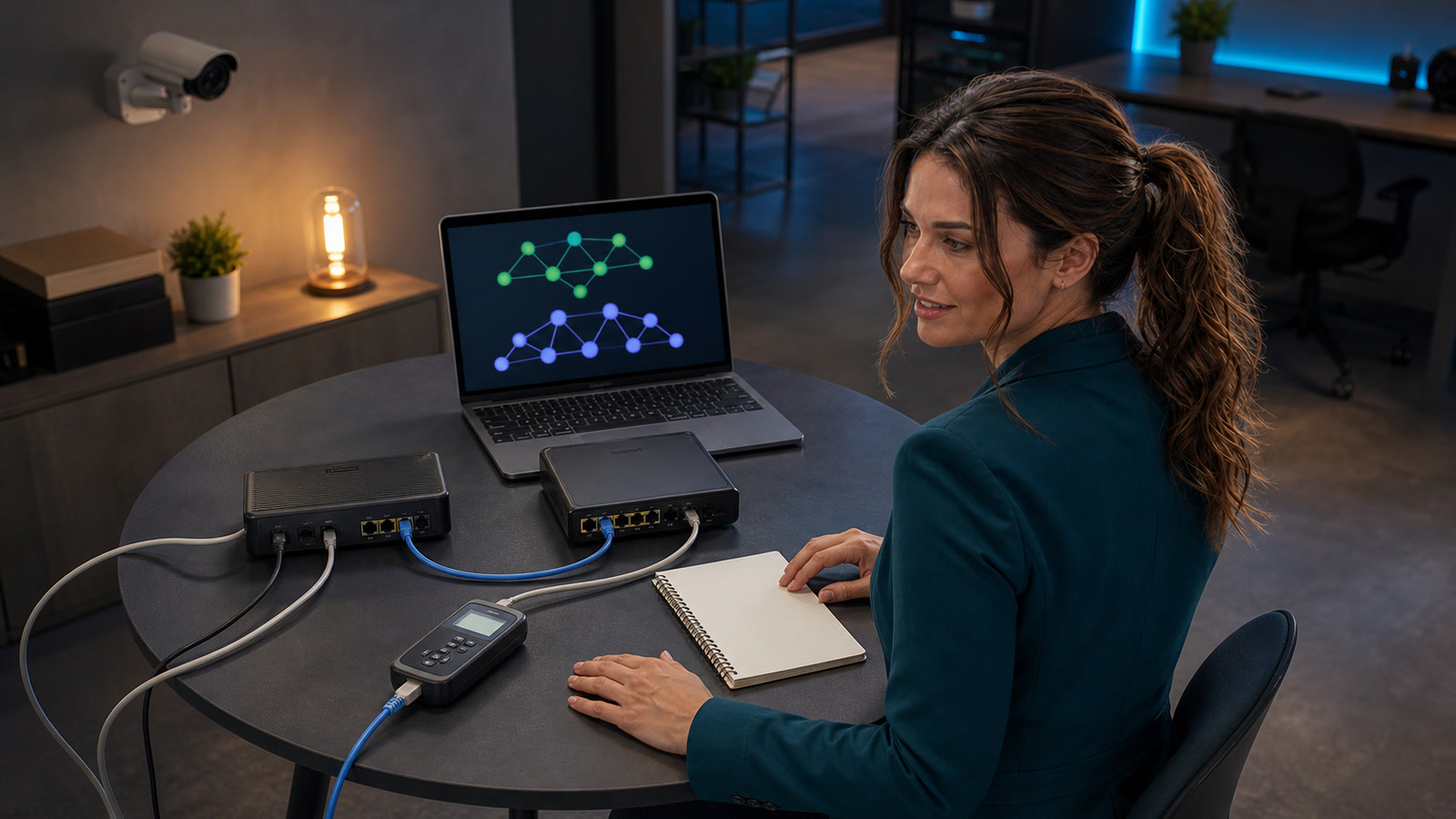
A camera works in the office but not from cellular data. A remote desktop connection stopped after the ISP installed a new gateway. A VPN server still runs, yet nobody can reach it from outside. The natural reaction is to blame the camera, computer, firewall, or new router.
Pause before replacing hardware. If the failure began after an ISP, modem, gateway, mesh, or router change, the new network may now translate IPv4 traffic twice. That can happen inside your building as double NAT, or inside the provider’s network as carrier-grade NAT (CGNAT). Google notes that double NAT often has little noticeable effect for ordinary users, but it can create trouble for port forwarding and UPnP.[1] RFC 6598 likewise documents incoming-connection problems for some applications behind carrier-grade NAT.[4]
This guide starts with read-only checks. It does not tell you to open random ports, disable the firewall, or paste commands from a forum. The goal is to identify which device controls the internet edge, then choose the smallest supported correction.
The problem in plain English
Your local devices normally use private IPv4 addresses. RFC 1918 reserves 10.0.0.0/8, 172.16.0.0/12, and 192.168.0.0/16 for private networks; those addresses are not globally unique and are not meant to be routed across the public internet.[3] A router commonly translates traffic between those inside addresses and an outside address.
Double NAT means two routers in sequence are each performing that translation. A common layout is:
Internet → ISP modem/router gateway → your Wi-Fi router → camera or server
Google describes this exact pattern: an ISP gateway performs NAT, then a second connected router performs NAT again.[1] An inbound connection must therefore pass the correct rule at both routing layers. Netgate’s port-forward troubleshooting guide says that when another NAT router sits upstream, the edge router must also forward the traffic to the inside firewall before its own forward can deliver it to the target.[5]
CGNAT moves one of those translation layers into the ISP. RFC 6598 reserves 100.64.0.0/10 as Shared Address Space for provider networks connecting carrier-grade NAT equipment to customer-premises equipment.[4] Your router can look perfectly healthy while unsolicited inbound IPv4 traffic stops at a translation layer you do not administer.
Who is likely affected—and who probably is not
Likely affected
- A camera, NVR, NAS, game server, or remote desktop service reached through a manually configured inbound port forward.
- A small-business VPN server that outside users initiate connections to.
- A device or application that reports strict or failed NAT behavior after a gateway change.
- A setup where remote access works on the local Wi-Fi but fails when tested from a separate cellular connection.
- A network that now has an ISP gateway and a personal router, both operating in router mode.
Probably not this issue
- The camera or server also fails from another device on the same trusted LAN.
- Only one computer fails while other outside clients still connect successfully.
- The target service is stopped, the target device changed local address, or its local firewall is rejecting the connection.
- The service uses a vendor-managed connection that does not depend on your manual inbound IPv4 forward.
- Every device has lost normal internet access; troubleshoot power, cabling, modem/ONT status, and the WAN connection first.
If a camera or printer changed local address during the upgrade, use our guide to stabilize a printer or camera with a DHCP reservation before rebuilding port forwards. A forward aimed at yesterday’s local address cannot reach today’s device.
The safe diagnostic ladder: read first, change later
Step 1: define exactly what broke
Write down the service, target device, expected hostname or public address, protocol if known, and the date the failure began. Record what changed: ISP, modem, fiber ONT, gateway, router, mesh system, cabling, or plan. Do not factory-reset anything. Photograph the current wiring and export router settings if the product supports it.
Test the actual service from inside the trusted LAN. If it fails locally, fix the target first. Netgate lists a non-listening target service, a target-host firewall, and an incorrect target gateway among common reasons a forward fails.[5] NAT changes cannot repair a service that is not running.
Step 2: find your computer’s local address and gateway
On Windows, open Command Prompt and run ipconfig. Microsoft says the command, used without parameters, displays IPv4 and IPv6 addresses, the subnet mask, and the default gateway for each adapter.[6] Use the active Ethernet or Wi-Fi adapter, not a disconnected or virtual adapter.
The default gateway is usually the local router your computer reaches first. Enter its known local address in a browser or use the manufacturer’s official app. Do not enter router credentials into a page reached from a search advertisement or an unfamiliar domain.
Step 3: count the routing devices
Follow the cable from your router’s WAN or internet port. Does it connect to a plain modem/ONT, or to an ISP box that also broadcasts Wi-Fi and has its own LAN ports? Then inspect both devices’ status pages without changing settings.
If your personal router’s WAN IPv4 address is in an RFC 1918 private range, an upstream device is likely routing or translating traffic before it reaches your router.[3] In a two-box home layout, that is strong evidence of double NAT—but it does not identify the upstream owner by itself. The ISP gateway may be routing, or the provider may be assigning private space upstream. Preserve the address and continue the comparison.
Step 4: compare the router WAN IPv4 address with the public IPv4 address
From the router’s status page, record the WAN IPv4 or internet IPv4 address. Separately, while connected through that same internet service, use a reputable public-IP check or the ISP’s support process to record the public IPv4 address seen on the internet.
- The addresses match: your router appears to hold the public IPv4 address. Double NAT or CGNAT is less likely to be the cause; continue with outside testing, rule review, and target-service checks.
- The router WAN is RFC 1918 private space: there is another routing layer upstream. Check whether the ISP gateway is in router mode before concluding the provider uses CGNAT.[3]
- The router WAN is within
100.64.0.0through100.127.255.255: that is RFC 6598 Shared Address Space designated for provider CGN deployment.[4] Treat it as important evidence, not final proof. - The addresses differ for another reason: do not force a label. Save both values and ask the ISP whether the connection is behind CGNAT or another upstream NAT.
Important: do not diagnose CGNAT from one address observation. Compare the router WAN IPv4 with the public IPv4, check for an ISP gateway in router mode, and ask the ISP to confirm whether it provides a directly reachable public IPv4 address. RFC 6598 warns that even a globally unique address on customer equipment is not always proof of global reachability when that address sits behind CGN.[4]
Step 5: test from outside, not from your own Wi-Fi
Turn off Wi-Fi on a phone and test over cellular data, or use another genuinely external connection. Netgate recommends testing port forwards from outside the network because an inside test can depend on NAT reflection and cannot reveal ISP or upstream-device restrictions.[5]
Record whether the attempt times out, is refused, or reaches the wrong service. If your router offers logs for an existing rule, enable only the documented logging option and repeat one approved test. Seeing the attempt arrive at the edge points troubleshooting inward; seeing nothing keeps attention on the public address, ISP, upstream router, or wrong destination.
Step 6: verify the existing forward and target
Confirm that the target device still has the intended local address, the service is listening on the expected port, the target uses the correct default gateway, and its local firewall permits only the required traffic. Netgate also says the firewall rule must target the internal address of the destination system, not the outside interface address.[5]
Do not create extra rules “just to test,” expose a management page directly, place an entire computer in a DMZ as a shortcut, or disable the firewall. If you cannot state what service needs inbound access and why, stop and get qualified help.
Good fixes, bad shortcuts, and their tradeoffs
On a phone? Swipe the table horizontally to see the caution column.
| Option | When it is reasonable | Caution |
|---|---|---|
| Put the ISP gateway in bridge mode | You own a capable downstream router and the ISP supports bridge mode for that gateway. | Bridge mode turns off NAT on the ISP gateway so the downstream router becomes the sole NAT device.[1] Voice, TV, mesh, security, and support features vary by provider; confirm the exact procedure first. |
| Remove an unnecessary second router | The ISP supplies a separate modem and router, and your chosen router can connect directly to the modem. | Google recommends removing the ISP router in that two-device arrangement, but cabling and ISP activation requirements vary.[1] |
| Use access-point or bridge mode on the secondary Wi-Fi device | The ISP gateway must remain the router and the second device only needs to provide Wi-Fi. | Features can disappear. Google documents that bridging its primary Wi-Fi device can remove mesh and other router functions, and it does not recommend that path for its normal mesh setup.[2] |
| Forward through both routers | Double NAT cannot be removed and an administrator can maintain both layers. | Netgate says the edge router must forward to the inner firewall, which then forwards to the target.[5] This is more complex to document and troubleshoot. |
| Ask the ISP for a reachable public IPv4 option | The ISP confirms CGNAT and the service truly requires unsolicited inbound IPv4. | Availability, price, address stability, and business-plan requirements are provider-specific. Obtain the terms before changing service. |
After any routing-mode change, verify internet access, Wi-Fi, phones, cameras, VPNs, guest networks, and every business service that depends on the router. If business calling is involved, review our VoIP outage, failover, and 911 plan before taking the WAN offline.
Two realistic examples
Example 1: the camera recorder was not broken
An ISP replaces a plain modem with a gateway that performs routing. The office keeps its existing firewall behind it. Local camera viewing still works, but remote viewing through the old inbound rule fails. The firewall’s WAN address is now private. The office confirms the gateway is routing, obtains the ISP’s supported bridge-mode procedure, changes one layer during a maintenance window, and retests from cellular data. Replacing the recorder would not have removed the upstream NAT layer.
Example 2: the address suggested CGNAT, but the ISP made the diagnosis
A home VPN stops accepting inbound connections after a plan change. The router reports a WAN address in 100.64.0.0/10, while a public-IP check shows a different address. The customer does not start opening more ports. They save both values and ask the ISP whether the line is behind CGNAT. Only after confirmation do they discuss a reachable public IPv4 option and retest the existing, narrowly scoped VPN configuration.
Frequently asked questions
Does a private WAN address always mean CGNAT?
No. It proves the router does not hold a globally unique address at that interface, but the upstream layer could be your ISP gateway, another router on the property, or provider NAT. Check the physical layout, compare WAN and public IPv4 addresses, then confirm with the ISP.
Does 100.64.x.x prove CGNAT?
It is inside the Shared Address Space reserved by RFC 6598 for service-provider CGN use, so it is strong evidence.[4] It still should be combined with the WAN-versus-public comparison and ISP confirmation rather than treated as a one-screen verdict.
Will bridge mode always fix remote access?
No. It can remove a local double-NAT layer, but it does not start a stopped service, correct a wrong target address, repair a target firewall, or remove CGNAT in the provider network. Google also documents product-specific feature losses when its own Wi-Fi router is bridged.[2]
Why does remote access work on Wi-Fi but fail on cellular?
The Wi-Fi test may be staying inside the LAN or relying on NAT reflection. Netgate says an inside test is not necessarily evidence that the service works from the internet.[5] Repeat the test from a genuinely external network.
Should I factory-reset both routers?
No. A reset can erase the evidence and the configuration you need to compare. Record the topology, WAN address, public address, LAN ranges, existing forwards, and target address first. Change one documented control at a time and keep a rollback path.
Your next action
Do one read-only comparison today: record your router’s WAN IPv4 address, record the public IPv4 seen through the same connection, and sketch every box between the internet line and the affected device. If the addresses differ, or the WAN address is private or within 100.64.0.0/10, do not buy equipment yet. Ask the ISP whether its gateway is routing and whether the service uses CGNAT or provides a directly reachable public IPv4.
If you need help mapping the network or planning a controlled change, contact The IT Guys. Bring the router model numbers, a wiring photo, both IPv4 values, and the name of the remote service that stopped working.
Sources
- [1] Google Home and Nest Help — Fix Double NAT when two routers run at the same time
- [2] Google Home and Nest Help — Bridge mode
- [3] IETF — RFC 1918: Address Allocation for Private Internets
- [4] IETF — RFC 6598: IANA-Reserved IPv4 Prefix for Shared Address Space
- [5] Netgate Documentation — Troubleshooting NAT Port Forwards
- [6] Microsoft Learn — ipconfig