

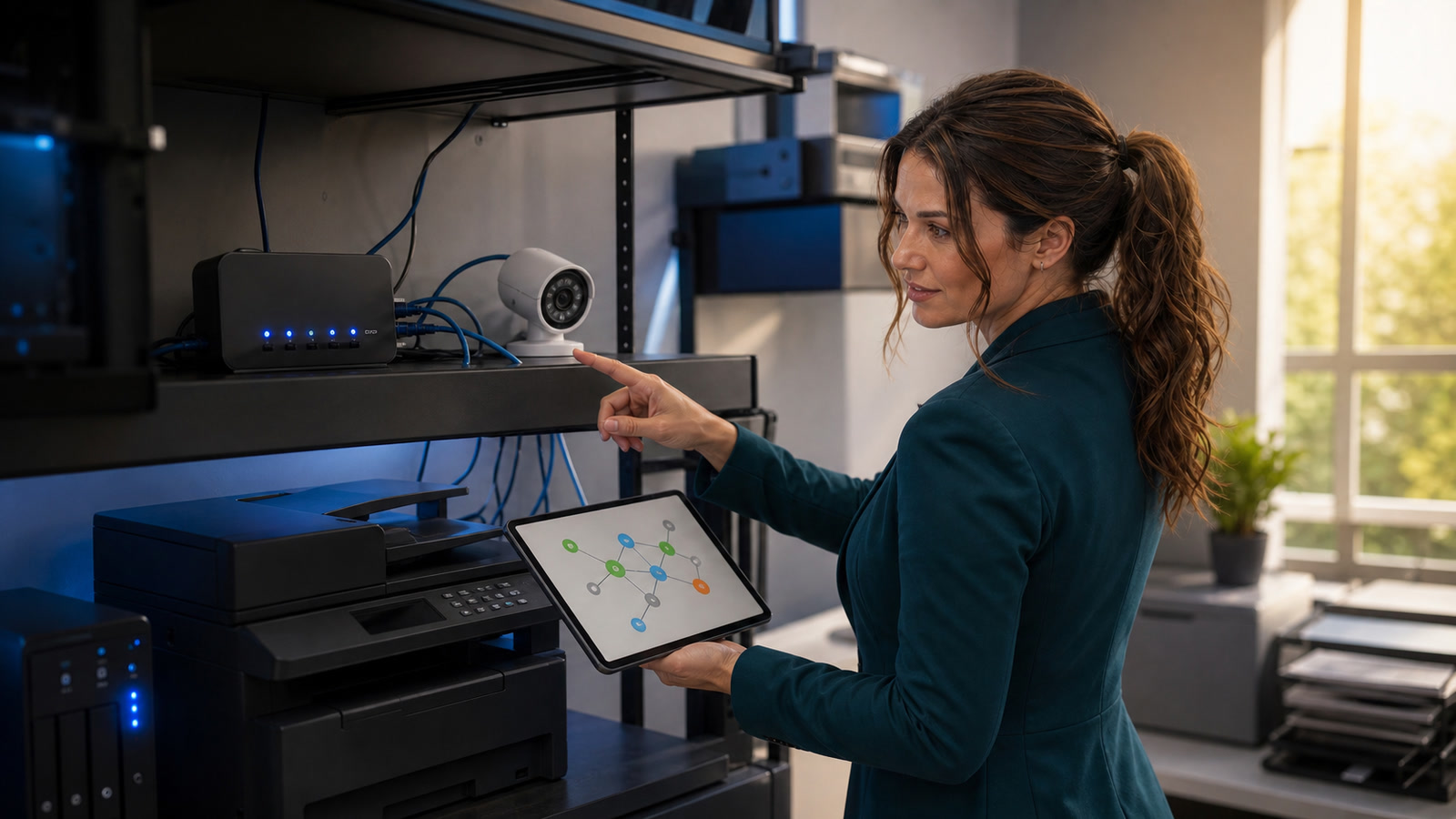
If a network printer, camera, recorder, or NAS vanishes after a router reboot, the device may not be broken—the address used to reach it may have changed.
Guidance checked: August 25, 2026, 1:12 p.m. EDT / 17:12 UTC
This guide shows home and small-business users how to diagnose that failure, give the device a stable local address, avoid creating an IP conflict, and update the computers or apps that still point to the old address. The safest default is usually a DHCP reservation in the router, not a guessed “static IP” typed into the device.
The costly problem: the device is online, but everything looks in the wrong place
DHCP is the system most routers use to assign local network settings automatically. The underlying standard allows dynamic addresses to be leased for a limited time and later reused.[1] That is excellent for phones, laptops, and guest devices. A printer queue, NVR channel, scanner address book, home-automation integration, or saved browser bookmark may be less forgiving when it expects one address and the device later receives another.
Practical guidance: treat a changed address as one possible cause, not a diagnosis.[3] Do not start assigning addresses until the device is powered, connected, visible in the router’s current client list, and shown at a different address from the one saved by the dependent system.
Who is affected—and who probably is not
Likely affected
- A Windows or Mac printer queue was added by a numeric IP address.
- A security camera or recorder was added to an NVR or app by local address.
- A NAS, scanner, point-of-sale accessory, smart-home hub, or local web panel is reached through a saved IP address.
- The trouble began after a router reboot, replacement, firmware update, DHCP-pool change, or long power outage.
- The device’s current address in the router does not match the address saved in the client, queue, or recorder.
Probably not this issue
- A USB-only printer has no network address.
- Every device on the network is offline; investigate the router, modem, power, or an Ethernet loop first.
- The printer is reachable and prints, but scan-to-email fails; use our secure scan-to-email troubleshooting guide.
- A cloud-only camera is missing from its vendor account even though its local connection is healthy.
- The device is absent from the router’s connected-device list and has no link or Wi-Fi indicator; solve power and physical connectivity before addressing.
How we know the address can move—or collide
The IETF DHCP standard distinguishes automatic, dynamic, and manual allocation. Dynamic allocation uses a time-limited lease and allows addresses to be reused; manual allocation lets an administrator assign a client’s address while DHCP conveys it.[1] Consumer-router documentation describes Address Reservation as associating a device’s MAC address with a reserved address so it receives the same address when it reconnects.[2]
Conflict risk is real, not theoretical. Cisco Meraki documents that two devices using the same address are likely to experience connectivity trouble, and lists a manually configured static address inside an active DHCP scope as a common cause.[3] That is why “pick a high number and hope” is not a safe procedure.
Before changing anything: preserve the working clues
- Photograph or export the current settings. Save the router LAN address, subnet, DHCP start/end range, reservation list, device name, current IP, and device MAC address.
- Record how the device connects. A printer or camera may have separate wired and wireless MAC addresses. Reserve the interface it actually uses.
- Check for an unexpected or competing DHCP server. An old router, mesh node in router mode, server, or misconfigured access point can hand out competing settings. If an unauthorized or unintended device is serving DHCP on the same LAN, stop and correct that condition before adding reservations.[3]
- Keep a rollback path. Know how to return the device to “Automatic” or “DHCP.” Do not factory-reset it as a first step.
- Make one change at a time. A reservation, a device-side static configuration, and a client queue update are separate controls. Combining all three at once makes the failure harder to locate.
Stop condition: If you do not know the DHCP range, subnet, gateway, or correct device MAC address, do not invent them. Use the router and device manuals or get help before changing network settings.
Step 1: prove that an address mismatch is the problem
- Find the device’s current address. Check the router’s Connected devices, Clients, Attached devices, or DHCP leases page. Match by device name and MAC address—not name alone.
- Compare it with the saved destination. For a printer, inspect its port or connection details. For an NVR or automation platform, inspect the channel or integration settings. For a browser bookmark, compare the numeric address.
- Open the current address locally. While connected to the same trusted LAN, try the device’s documented management page. A login page or status page confirms that something is answering; verify the displayed model or identity before changing it.
- Test the actual function. A ping response alone does not prove printing, recording, scanning, or storage works. Print a test page, open live view and recorded playback, or access the intended share.
If the current address is different and the device works when the client is pointed to it, you have strong evidence of an addressing mismatch. If the current address is identical, investigate power, Wi-Fi quality, cable/link, service state, credentials, firewall rules, and vendor-specific errors instead.
Step 2: choose the safer stable-address method
| Method | Good points | Bad points / cautions |
|---|---|---|
| DHCP reservation in the router | Centralized; the device can keep automatic network settings; easier to document and change. | Router menus vary; the reservation must use the correct wired or wireless MAC; a router replacement does not automatically carry the reservation forward. |
| Manual static address on the device | Works when the router cannot reserve an address; supported by many printers, cameras, and recorders. | You must correctly enter address, subnet mask, gateway, and sometimes DNS; a manual address inside the live DHCP pool can collide unless it is excluded or otherwise protected.[3] |
| Leave it fully dynamic | Simplest for phones, tablets, laptops, and cloud-managed devices that do not depend on a saved local address. | Not suitable when another system reliably needs to reach the device at one numeric address. |
Practical recommendation: Use a router reservation when the router supports it and the dependent system truly needs a stable address. Use a device-side static address only when you understand the LAN plan and can protect that address from DHCP reuse. Reservation and pool rules vary by router model, so follow the exact manual rather than a universal numeric example.[2]
Step 3: create a DHCP reservation
- Sign in to the router through its known local management address or official app. Do not search the web for a generic “router login” and enter credentials into an unverified page.
- Open the LAN or DHCP section. The feature may be named Address Reservation, DHCP Reservation, Static Lease, Fixed IP, or IP/MAC Binding.
- Select the already-connected device when possible. Otherwise enter the exact MAC address recorded earlier.
- Reserve the device’s current, known-working address if the router allows it and no conflict exists. Do not reuse an address already assigned or reserved for another device.
- Save and enable the entry. TP-Link’s current example requires a MAC address, an address on the same subnet, an enabled status, and a reboot for its illustrated models; it also warns that menus vary by model.[2]
- Reconnect or reboot only the target device so it requests fresh settings. Avoid rebooting the whole business network unless the router’s documented procedure requires it.
- Return to the router and verify the same MAC now holds the reserved address.
Step 4: if reservation is unavailable, configure a manual address carefully
Device menus vary. Brother documents a printer utility that can change IP address, subnet mask, and gateway and set the boot method to Static.[5] Reolink documents DHCP and Static options for supported cameras, NVRs, and hubs, but notes that battery cameras and cameras managed behind some NVR/hub configurations may not expose individual network settings.[4]
- Confirm the router’s LAN subnet, gateway, and DHCP range.
- Choose an unused address on the same subnet that the DHCP server will not hand to another client. The correct method may be an exclusion, a reduced pool, or a documented static range.
- Enter the address, subnet mask, gateway, and DNS only as required by the device’s official instructions.
- Save. Expect the old management page to disconnect because the device has moved.
- Open the new address and verify the exact device identity.
- Document the assignment by device name, purpose, interface, MAC, address, date, and owner.
Do not copy a stranger’s numbers. Addresses such as 192.168.1.50, masks such as 255.255.255.0, and gateway endings such as .1 are examples—not universal settings. The wrong subnet or gateway can strand the device.
Step 5: update every system that still uses the old address
Windows printer
Microsoft’s current Windows guidance says that if a printer is not found automatically, use Settings → Bluetooth & devices → Printers & scanners → Add device → Add a new device manually, then follow the Add Printer workflow.[6] For an existing business queue, the least disruptive fix may be to update its Standard TCP/IP port rather than create duplicate queues, but the exact path and permissions vary. Preserve the driver, defaults, accounting codes, finishing options, and sharing configuration before removal or recreation.
Mac printer
Apple’s current Mac guide supports adding a network printer by specifying its IP address or hostname and requires the correct protocol, model/software, and any special queue name.[7] Record the existing queue details first. Do not assume that IPP, AirPrint, LPD, or a vendor driver is interchangeable for every printer.
Cameras, recorders, NAS, and automation
- Change only the saved address for the verified device.
- Preserve usernames, certificates, recording settings, storage paths, and automation rules.
- Do not remove a camera from an NVR until you know whether re-adding it could affect recording history or licensing.
Step 6: prove the fix survives the event that used to break it
- Verify the router shows one device, one expected MAC, and one stable address.
- Open the management page and confirm the device identity.
- Exercise the real workflow: print from each required computer, scan if applicable, view live and recorded camera video, open the NAS share, or run the automation.
- Power-cycle only the target device. Confirm it returns with the same address and the workflow still works.
- During an approved maintenance window, reboot the router and repeat the checks.
- Review router logs or conflict alerts. Meraki’s guidance says two different MAC addresses claiming the same address is a conflict signal and recommends identifying both clients before resolving it.[3]
Practical guidance: a successful browser login is not the finish line; test the real business function and verify that it survives reconnection.[6]
Two examples
Harmless mismatch
A small office printer was installed at one numeric address. After the ISP replaced the router, the printer joined the new LAN at another address. The printer was healthy; Windows still targeted the old destination. The office reserved the printer’s current address by its Wi-Fi MAC, updated the queue, printed from each workstation, and verified the same address after a controlled reboot.
Costly wrong turn
A camera is assigned a guessed manual address inside the router’s active pool. Days later, the router leases that address to a tablet. Video becomes intermittent, the camera sometimes appears under the wrong client identity, and troubleshooting starts chasing Wi-Fi. The safer correction is to isolate the two devices, restore unique addresses, then use a documented reservation or protected static range.
Frequently asked questions
Should every device get a reservation?
No. Reserve addresses for devices that another system must reliably reach: key printers, certain cameras/recorders, NAS appliances, servers, controllers, and similar fixed resources. Dynamic addressing is usually appropriate for ordinary phones, tablets, laptops, and guest devices.
Is a reservation the same as a static IP?
Both can produce a stable address, but management differs. A reservation is stored in the DHCP server and tied to a client identifier or MAC. A device-side static address is stored on the device and must be coordinated with the DHCP plan.
Can I reserve the current address?
Often yes, if the router supports it, the address belongs to the correct MAC, and no duplicate or conflicting reservation exists. Confirm the router’s documented rules before saving.
Why did the device still go offline after reservation?
The address may not have been the root cause. Check whether you reserved the wrong interface, the client still targets the old address, a second DHCP server exists, Wi-Fi or power is unstable, the device is on a different VLAN/guest network, or the service itself is failing.
Should I disable DHCP?
Not as a general fix. A normal home or small-business LAN needs one properly controlled DHCP service for ordinary clients. Disabling it without a complete addressing plan can disconnect many devices.
When should I call for help?
Get help when the network has multiple routers, VLANs, managed switches, a Windows DHCP server, redundant firewalls, many cameras, regulated data, remote sites, or a device whose reset/removal could erase recordings or business configuration.
Your next action
Choose one problem device. Record its current IP, actual wired or wireless MAC, router DHCP range, and the address saved by the dependent computer or recorder. If they do not match, create one documented reservation, update one client, and test the real workflow through a device reboot before touching anything else.
Need help stabilizing a printer, camera, recorder, or small-business network in Port Saint Lucie, Jensen Beach, Fort Pierce, or Vero Beach? Schedule an appointment with The IT Guys.
Sources
- IETF — RFC 2131: Dynamic Host Configuration Protocol
- TP-Link — How to configure Address Reservation on a wireless router (updated June 4, 2026)
- Cisco Meraki — Troubleshooting DHCP Conflicts
- Reolink — How to change to DHCP or a static IP address
- Brother — Changing printer network settings
- Microsoft Support — Add or install a printer in Windows
- Apple Support — Add a printer to your printer list on Mac