

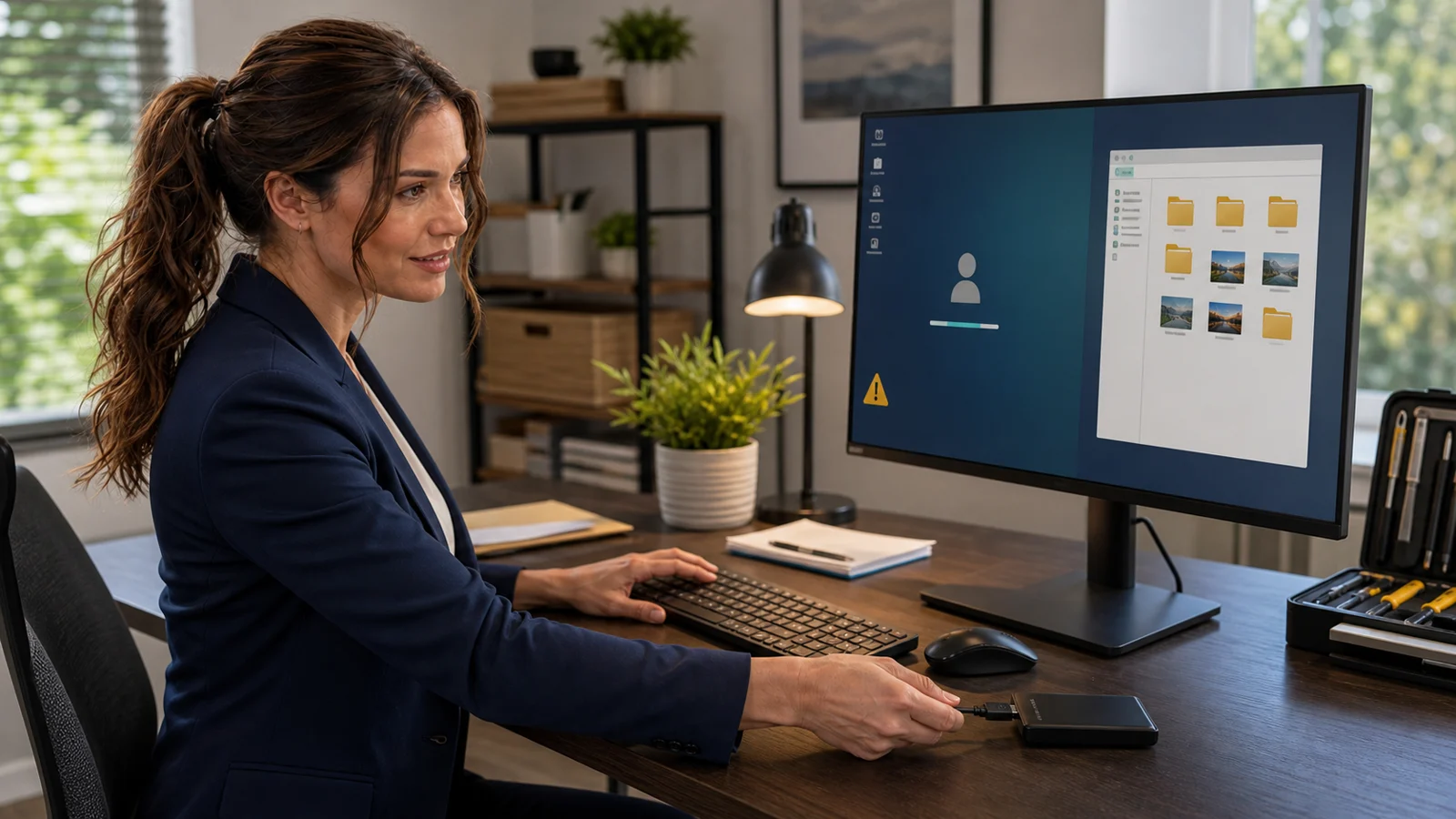
If Windows suddenly shows an empty desktop, default wallpaper, missing shortcuts, or a “temporary profile” warning, your files may still be on the computer—but anything you create in that temporary session can disappear when you sign out. The first job is not to reset Windows or delete the “old” user folder. It is to preserve the work that exists right now, prove which profile loaded, and move from reversible checks to repair.
This guide gives home users and small businesses a safe order of operations for Windows 10 and Windows 11. It explains what is affected, what can merely look similar, when Microsoft’s restart and Safe Mode steps are reasonable, and where to stop before a rushed fix turns a profile problem into data loss.
The problem: Windows loaded a substitute workspace
A Windows user profile connects your sign-in to a specific set of folders, desktop settings, application data, and registry settings. When Windows cannot load that profile, it may sign you into a temporary one. That substitute can make the computer look new even though the original data remains under another folder in C:\Users.
Strong clues
You see “We can’t sign in to your account” or “You’ve been signed in with a temporary profile,” the wallpaper and taskbar reset, browser profiles appear signed out, and familiar Desktop or Documents files are absent.
Why it gets costly
A user may keep working in the temporary session, sign out, and lose those new changes—or delete the original profile folder because it looks abandoned. A business can also lose local email archives, templates, application settings, and hours of billable work.
What it does not prove
An empty desktop does not prove the drive was erased, the account was hacked, or every file is gone. It also does not prove the drive is healthy. Preserve evidence before deciding.
Best first question
“What changed immediately before this sign-in?” Record updates, power loss, storage warnings, antivirus changes, domain or Microsoft-account changes, and any exact message.
Who is affected—and who may have a different problem
This guide applies when: a Windows 10 or Windows 11 PC displays a temporary-profile/sign-in error, reports that the user profile cannot be loaded, or clearly signs the expected account into a blank substitute profile.
It may be a different issue when:
- You selected a different Windows account at the sign-in screen.
- Your files live in OneDrive and the computer is offline, OneDrive is signed out, or Files On-Demand has not downloaded them.
- Desktop icons are hidden but the correct profile is loaded.
- A monitor was disconnected and windows or shortcuts moved to another display.
- Only one application reset while Desktop, Documents, and the profile path remain normal.
- The drive is missing, clicking, reporting SMART/storage errors, or Windows shows “No boot device.” Follow our no-boot-device data-preservation guide instead of repeatedly repairing the profile.
The safe temporary-profile recovery ladder
Freeze the risky part: preserve this session’s new work
Do not sign out yet. Save every open file. Then copy files created or changed since the last normal sign-in to an external drive. Make a new folder such as Temporary-profile rescue — August 15, 2026 so those files cannot be confused with an older backup.
Check Desktop, Documents, Downloads, Pictures, and any application-specific save location you used during this session. If an app stores work only in its own database or cloud account, use its normal export or save-a-copy feature where available.
Stop condition: if the drive disconnects, reports read errors, becomes extremely slow, or makes abnormal noises, stop copying and get the storage evaluated. Repeated write-heavy attempts can make a failing-drive recovery harder.
Photograph the exact warning and identify the loaded profile
Photograph the notification or sign-in error with your phone. Press Windows key + R, enter cmd, and run echo %USERPROFILE%. This read-only check prints the folder Windows is currently using. A path such as C:\Users\TEMP or an unfamiliar variation supports the temporary-profile diagnosis; a normal-looking path does not by itself guarantee the profile is healthy.
Also record the Windows account name shown under Settings → Accounts → Your info. On a work PC, note whether it is connected to an organization. Do not disconnect a work account or leave a domain as a troubleshooting experiment.
Look for the original folder without changing it
Open File Explorer and browse to C:\Users. Look for the familiar original account folder. Open only ordinary personal folders you have permission to access and confirm whether expected files are present.
Do not rename, delete, merge, or take ownership of profile folders yet. Do not enable hidden protected operating-system files and then copy the entire profile wholesale. Microsoft’s corrupted-profile procedure specifically warns against changing those visibility options during the copy process.
Check backup and encryption readiness
Confirm that irreplaceable files exist in at least one other location. Cloud sync is useful, but a green sync icon is not the same as a tested backup; verify a few files from another device or the provider’s website. Our one-file restore test explains the difference.
If Device Encryption or BitLocker is enabled, locate the recovery key before entering Windows Recovery Environment or making storage/boot changes. Microsoft notes that encrypted devices may require the BitLocker key when changing startup settings. A profile repair should not become an encryption lockout.
Try one normal restart—then reassess
After the temporary-session work is safely copied, choose Power → Restart; do not hold the power button unless Windows is completely unresponsive. Sign in to the original account and check the profile path, Desktop, Documents, and one application.
Microsoft says a restart can clear temporary sign-in errors and notes that more than one restart may sometimes be needed. Keep this bounded: if the temporary profile returns after a small number of controlled attempts, stop cycling and move to diagnosis.
Use Safe Mode as a diagnostic—not a magic repair
Microsoft recommends restarting in Safe Mode, signing in with the original profile, checking whether files and settings return, then restarting normally and checking again. Safe Mode starts Windows with only essential services and drivers, which can help separate a profile-loading conflict from normal startup software.
From the sign-in screen, hold Shift while selecting Power → Restart, then choose Troubleshoot → Advanced options → Startup Settings → Restart. Choose Safe Mode. You will usually need the account password; PIN and biometric sign-in may be unavailable. Have the BitLocker recovery key first if the device is encrypted.
Stop condition: if you do not know which Windows account password or BitLocker key belongs to the PC, do not improvise with reset or bypass tools.
Check the boring causes before rebuilding the profile
Confirm the system drive has free space, Windows updates completed, date/time are sensible, and security software is healthy. A nearly full or unhealthy drive can prevent normal profile loading and makes a migration risky. Run the computer maker’s storage diagnostics if there are health warnings.
If the problem started after security software or another startup component changed, do not permanently disable protection. Microsoft’s guidance allows temporary troubleshooting of software that scans during sign-in, but it also says to restore Microsoft Defender services to Automatic afterward. On a managed business PC, involve the administrator before changing protection.
If the profile is corrupted, migrate safely to a new one
Microsoft’s supported fallback is to create a new local administrator account, sign into it, and copy personal data from the old profile into the new profile. Copy ordinary user data—not the entire hidden profile state—and test the new account before retiring anything.
Email programs, accounting software, browser profiles, certificates, mapped drives, printers, and licensed applications may need separate export, import, sign-in, or reconfiguration. Microsoft specifically notes that locally stored email messages and addresses may require a separate import, and applications may need reconfiguration or reinstallation.
Keep the old profile and your backup intact until the new account has passed a practical checklist: documents open, cloud sync points to the right place, email history is present, bookmarks/passwords are accounted for, printers work, and line-of-business applications open the correct data.
Good moves versus expensive wrong turns
Good, low-risk moves
- Save temporary-session work before sign-out.
- Photograph exact errors and record what changed.
- Check
%USERPROFILE%and inspectC:\Usersread-only. - Verify backups and the BitLocker recovery key.
- Use controlled restarts and Safe Mode in Microsoft’s order.
- Create and test a new profile before retiring the old one.
- Handle email archives and business apps separately.
Bad, high-risk moves
- Keep working in the temporary profile for days.
- Sign out before rescuing newly changed files.
- Delete or rename the original folder because it “looks unused.”
- Run a registry-profile “fix” copied from a random forum.
- Copy all hidden profile files and old registry hives into the new account.
- Choose Reset this PC or reinstall Windows before proving the data is safe.
- Disable security software permanently or on a managed PC without approval.
Two examples that show why order matters
Harmless-looking failure with a safe outcome
After an interrupted update, a home PC displays a temporary-profile warning. The user saves the spreadsheet edited that morning to an external drive, records C:\Users\TEMP, confirms the original files still exist under the old profile, and verifies a cloud copy. A controlled restart restores the normal profile. The rescued spreadsheet is compared with the original and kept. No reset, folder deletion, or registry edit was needed.
The costly wrong turn
A small-business user sees an empty desktop and assumes the “old” folder belongs to a former employee. They continue invoicing in the temporary session, delete the original folder to free space, and then sign out. The new invoices disappear and the local email archive and application settings from the original profile are gone. The correct order would have preserved the temporary work, backed up the original folder, checked drive health, and migrated to a tested new account.
When to stop and call for help
- The original folder is missing, inaccessible, encrypted, or on a drive showing errors.
- The temporary profile returns after controlled restart and Safe Mode checks.
- The PC contains QuickBooks, tax, medical, legal, point-of-sale, or other line-of-business data.
- Outlook or another mail program has local archives that are not in cloud mail.
- The computer belongs to a domain, Microsoft Entra ID organization, school, or managed workplace.
- You do not have the BitLocker key, an administrator account, or a verified backup.
- Someone already renamed folders, edited ProfileList registry keys, reset permissions, or started a Windows reset.
Frequently asked questions
Are my old files deleted when Windows uses a temporary profile?
Not necessarily. The original profile folder often still exists, but you must verify it. The urgent risk is that files created or changed inside the temporary profile can be lost at sign-out. Preserve those first.
Can I just keep using the temporary profile?
No. It is not a durable workspace. Settings and files created there may not persist, and repeated use can scatter versions of the same work across temporary, original, cloud, and backup locations.
Should I copy the entire old profile into a new account?
No. Copy ordinary personal data carefully. Hidden profile state, registry hives, caches, sync databases, and application data can carry corruption or create permissions problems. Follow Microsoft’s profile-copy guidance and migrate application data separately.
Will Safe Mode erase anything?
Safe Mode itself is a limited startup mode, not a reset. However, entering recovery options on an encrypted device may require the BitLocker key. Rescue temporary-session work and confirm recovery access before restarting.
Could OneDrive make the desktop look empty?
Yes. If Desktop backup was enabled under one Microsoft account and OneDrive is signed out, offline, paused, or attached to another account, files may appear absent. Check the loaded Windows profile and OneDrive account separately; do not move folders blindly between them.
What about the popular ProfileList registry fix?
Registry changes can make a system unbootable or point an account at the wrong folder when the underlying cause is permissions, storage health, security software, or corruption. This guide deliberately stops before context-free registry surgery. Back up first and diagnose the exact machine.
Can “Reset this PC” fix the profile?
It may replace Windows components, but it is a high-impact last resort—not a first diagnostic step. Applications, settings, encryption access, and local-only data can be affected. Prove backups and exhaust safer profile repair or migration options first.
Related help from The IT Guys
- Test one file restore before you trust your backup
- Make sure your important folders are actually backed up
- Turn on device encryption—and save the recovery key
- No boot device found: what to do before reinstalling
- At-home computer services
- Small-business IT services
Take one action now
If your normal desktop vanished, do not sign out until today’s changed files are copied somewhere safe. Then photograph the warning and record the current profile path. If the old profile contains business data, local email, or irreplaceable files, schedule an appointment with The IT Guys before deleting folders, editing the registry, or resetting Windows. We serve Port Saint Lucie, Jensen Beach, Fort Pierce, and Vero Beach.
Official sources
- Microsoft Support: “We can’t sign in to your account” error message
- Microsoft Support: Fix a corrupted user profile
- Microsoft Support: Troubleshoot problems signing in to Windows
- Microsoft Support: Windows startup settings and Safe Mode
Windows editions, workplace policies, storage layouts, and encryption settings vary. This article provides a safe triage sequence, not a substitute for a verified backup or machine-specific diagnosis.