

Short version: Satisfactory 1.2 is now the update dedicated-server owners need to move to if they want their server to match players running the current 1.2 game client. The update process is not complicated, but it should be done in the right order: warn players, make a manual save, stop the server cleanly, back up saves and config files, run the SteamCMD update for app ID 1690800, restart the service, and verify the server version before inviting everyone back in.
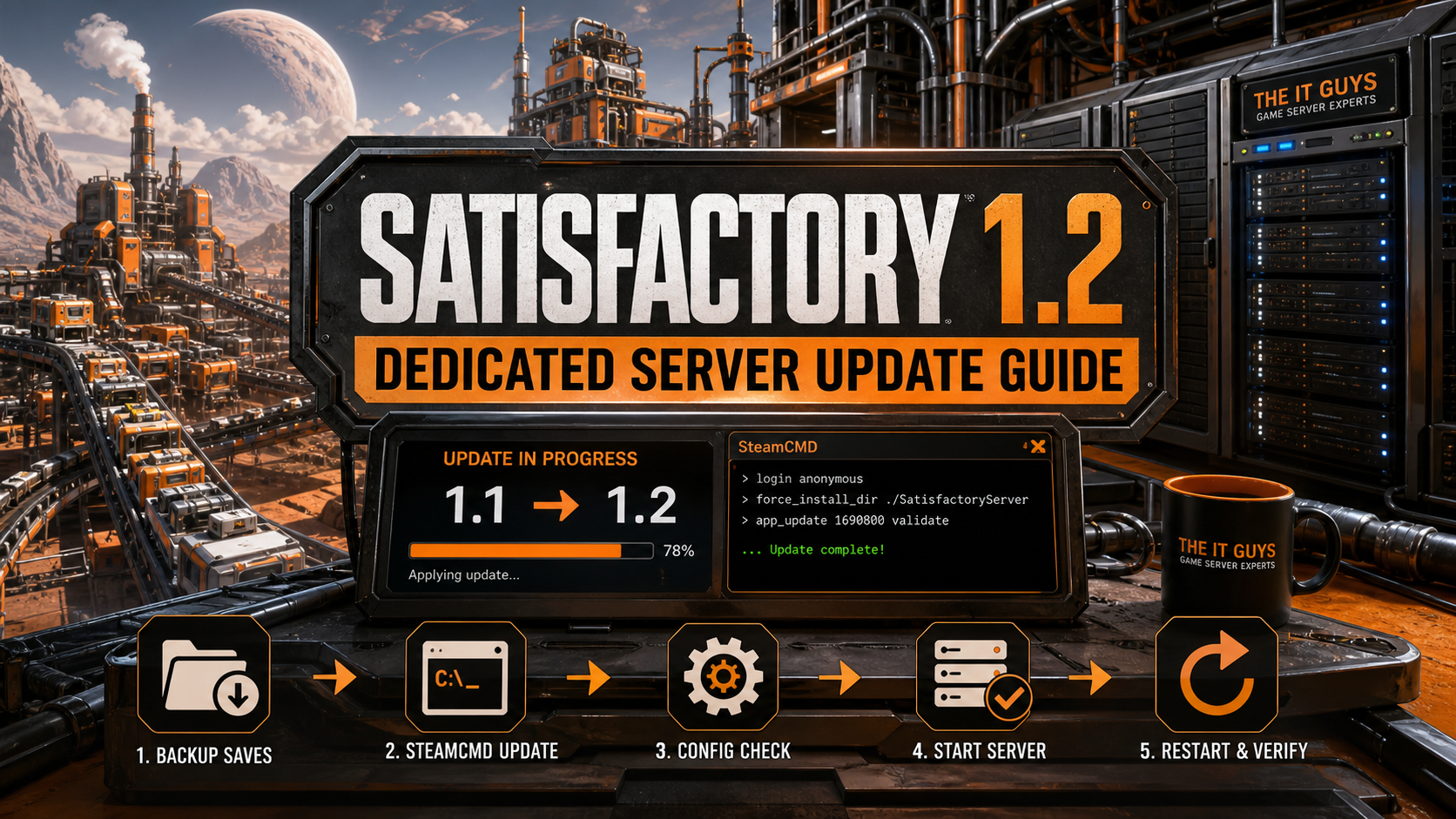
This guide is written for regular players, small community server hosts, and IT-minded factory builders who run a Satisfactory dedicated server on Windows or Linux. It focuses on moving a server from the older 1.1 era to 1.2 using the official dedicated-server app path.
What Changed With Satisfactory 1.2
Satisfactory 1.2 is a major post-1.0 update. For normal players, the exciting parts are weather, Fluid Trucks, the rebuilt vehicle path system, new Game Modes, controller improvements, photo-mode improvements, daisy-chained power connectors, and other quality-of-life changes. For dedicated-server owners, the important part is simpler: once players update to 1.2, the server needs to be on the matching current build too.
If a player has a newer client and the dedicated server is still on an older build, connection problems are expected. Sometimes the game will show a version mismatch. Sometimes a server appears online but refuses the session. Either way, the fix is usually to update the dedicated-server files and restart the server cleanly.
The official Satisfactory dedicated-server wiki lists the dedicated-server Steam app ID as 1690800. That is the app ID used by SteamCMD for installing and updating the dedicated-server binaries.
Before You Update From 1.1 To 1.2
Do not start by slamming the restart button. Satisfactory dedicated servers are usually stable, but a large update is still a real maintenance event. Saves, blueprints, configuration files, service files, and firewall rules are worth protecting before the update.
- Tell players there will be downtime. Give them a few minutes to finish what they are doing.
- Save the game manually from the server manager or admin tools if possible. Do this before stopping the process.
- Make sure nobody is connected. The official service guidance warns that the server process does not automatically save the game on graceful shutdown, so do not assume a stop command protects everything by itself.
- Back up the saved games folder. Keep at least one copy outside the live server directory.
- Back up configuration files. If you customized ports, server settings, or service files, keep a copy.
- Note the install path. The SteamCMD command needs the same directory where the dedicated server is installed.
- Check disk space. Updates need room to download, validate, and replace files.
Typical save and configuration locations vary based on how the server was installed, the operating system, and the account running the service. If you installed the server manually, look under the server’s FactoryGame/Saved directory and the Unreal Engine config paths inside that saved-data structure. If you run it as a system service, remember that the service account may have its own home/profile path.
The SteamCMD Update Command
For a SteamCMD install, the official update pattern is the same command used for installation, pointed at the same server directory. Replace the install directory with your actual path.
steamcmd +force_install_dir "<game_server_directory_change_this>" +login anonymous +app_update 1690800 validate +quitExample Linux path:
steamcmd +force_install_dir "/home/steam/SatisfactoryDedicatedServer" +login anonymous +app_update 1690800 validate +quitExample Windows path:
steamcmd.exe +force_install_dir "C:\GameServers\SatisfactoryDedicatedServer" +login anonymous +app_update 1690800 validate +quitThe validate part tells SteamCMD to check local files against the current server build. It can take longer than a basic update, but after a major update it is worth the extra time because it catches missing or mismatched files.
Linux Systemd Servers
If your Satisfactory dedicated server runs under systemd, the clean approach is usually:
- Warn players.
- Make a manual save if players were connected.
- Stop the service.
- Back up saves and config files.
- Run SteamCMD update for app ID
1690800. - Start the service again.
- Check the service status and logs.
sudo systemctl stop satisfactory

steamcmd +force_install_dir "/home/steam/SatisfactoryDedicatedServer" +login anonymous +app_update 1690800 validate +quit

sudo systemctl start satisfactory
sudo systemctl status satisfactory --no-pager
If your service file already uses ExecStartPre with SteamCMD, restarting the service may trigger the update automatically. The official service example uses an ExecStartPre line similar to this:
ExecStartPre=/usr/games/steamcmd +force_install_dir "/home/your_user/SatisfactoryDedicatedServer" +login anonymous +app_update 1690800 validate +quitThat setup is convenient because every service start checks for an update first. The tradeoff is that a restart can take longer while SteamCMD validates files.
One useful detail from the official service guidance: set KillSignal=SIGINT in the service file instead of relying on the default termination behavior. The wiki notes that SIGTERM can kill the process immediately. For a game server, graceful stop behavior matters.
Windows Servers
For a Windows host, the same logic applies. Stop the server process or service first, run SteamCMD against the installed server directory, then start the server again.
cd C:\SteamCMD
steamcmd.exe +force_install_dir "C:\GameServers\SatisfactoryDedicatedServer" +login anonymous +app_update 1690800 validate +quit
If you use Windows Services, NSSM, Windows Task Scheduler, AMP, Pterodactyl, Docker, or another panel, do not update while the server binary is still running. Stop the instance first. After the update, start the service from the same control panel or service manager you normally use.
If the server was installed through the desktop Steam client instead of SteamCMD, the official wiki says Steam should update it shortly after the update is released, but the server may need to be shut down and Steam may need to verify local files or restart to force an update check. For a dedicated server, SteamCMD is usually cleaner because it is repeatable and scriptable.
How To Verify The Server Updated Correctly
After the update, do not just assume the server is ready because the process started. Verify it.
- Check the server manager in Satisfactory. Confirm the server appears online and accepts management actions.
- Check logs. The official service page notes that server logs are written under the server install directory in
FactoryGame/Saved/Logs. - Confirm players can connect. Test with one user before announcing that the maintenance is done.
- Watch for version mismatch errors. If players updated their game client but the server still shows mismatch behavior, rerun the SteamCMD command and verify you used the correct install directory.
- Check firewall and port rules if the server disappeared. Updates should not normally change your network rules, but a restarted service can expose old configuration mistakes.
The default Satisfactory dedicated-server networking has changed over time, and many guides online still mention older port assumptions. Use your current server configuration and the current official dedicated-server documentation as the source of truth. If you host from home, remember that router port forwarding, Windows Firewall, Linux firewall rules, and ISP limitations can all affect visibility.
If You Were On Experimental Before 1.2 Went Stable
Some server owners tested Satisfactory 1.2 early on Experimental. If your server update command still includes -beta experimental, you may stay pinned to the Experimental branch instead of following the stable/live branch. The official dedicated-server FAQ says that if Steam remembers the Experimental branch and you want to move back to Stable, using -beta public can force the switch.
steamcmd +force_install_dir "/home/steam/SatisfactoryDedicatedServer" +login anonymous +app_update 1690800 -beta public validate +quitFor most 1.1 to 1.2 updates, you do not need -beta experimental. You want the current public branch unless you intentionally run a testing server.
Common Problems After The 1.2 Update
Players Still See A Version Mismatch
This usually means the server did not update, the wrong install directory was updated, or the client and server are on different branches. Rerun SteamCMD with validate, confirm the install path, and remove old Experimental branch arguments unless you need them.
The Service Starts, Then Stops
Check logs first. On Linux, run journalctl -u satisfactory --no-pager and check FactoryGame/Saved/Logs. On Windows, check the server log folder and Event Viewer if the server is managed as a service.
The Server Updated But The Save Acts Strange
Restore your pre-update backup if needed. Large factories, mods, old automation routes, and branch switching can all create weird edge cases. The safer workflow is to keep the backup, test the updated save, then let players back in once the server looks stable.
Mods Or Modded Saves Break
This is common after major Satisfactory updates. Dedicated servers and mods are a separate layer of risk. Check the mod manager and individual mod pages before loading a mod-heavy world on 1.2.
Quick Admin Checklist
- Post downtime notice to your players.
- Make a manual save.
- Stop the server cleanly.
- Back up saves, blueprints, and configuration.
- Run
app_update 1690800 validatethrough SteamCMD. - Remove
-beta experimentalunless you intentionally want Experimental. - Use
-beta publicif Steam keeps pulling the wrong branch. - Restart the server.
- Check logs and service status.
- Have one player test connection before reopening the server.
Related Reading
- Satisfactory 1.2 Arrives June 2: Weather, Fluid Trucks, Game Modes, Vehicle Paths, And Everything New
- RAM And Hard Drive Prices Are Surging In 2026: What To Buy Now And What To Delay
- Quick Tech Tip: Set Devices To Lock Automatically Before You Step Away
FAQ
What Is The Satisfactory Dedicated Server Steam App ID?
The dedicated-server Steam app ID is 1690800. That is the ID used in the SteamCMD command app_update 1690800 validate.
Do I Need To Reinstall The Server For 1.2?
Usually, no. If the server was installed through SteamCMD, stop it and run the normal SteamCMD update command against the existing install directory. Reinstalling is normally only needed when the install is broken, the wrong path was used, or a panel/container setup is badly misconfigured.
Should I Use Experimental Or Public For 1.2?
For a normal community server, use the public/stable branch. Experimental is for testing. If your server was previously pinned to Experimental, remove -beta experimental, and use -beta public if Steam keeps remembering the Experimental branch.
Will Updating Delete My Save?
It should not delete your save, but you should still back up saves before updating. The risk is not just deletion. A bad stop, wrong service account, mod conflict, branch switch, or failed disk can create trouble. Backups are cheap compared with losing a factory.
Can The IT Guys Help With A Satisfactory Server?
Yes. The IT Guys can help with Windows or Linux game-server hosting basics, backups, firewall rules, service setup, remote access, and troubleshooting. For game-specific bugs, Coffee Stain’s official Q&A site and the official Satisfactory wiki are still the best places to verify known issues.
Sources
- Official Satisfactory Wiki: Dedicated servers
- Official Satisfactory Wiki: Running a dedicated server as a service
- Official Satisfactory Wiki: Dedicated-server configuration files
- Official Satisfactory Wiki: Patch 1.2.0.0
- Satisfactory Q&A site for official bug reports and feedback
- Satisfactory Steam news and announcements