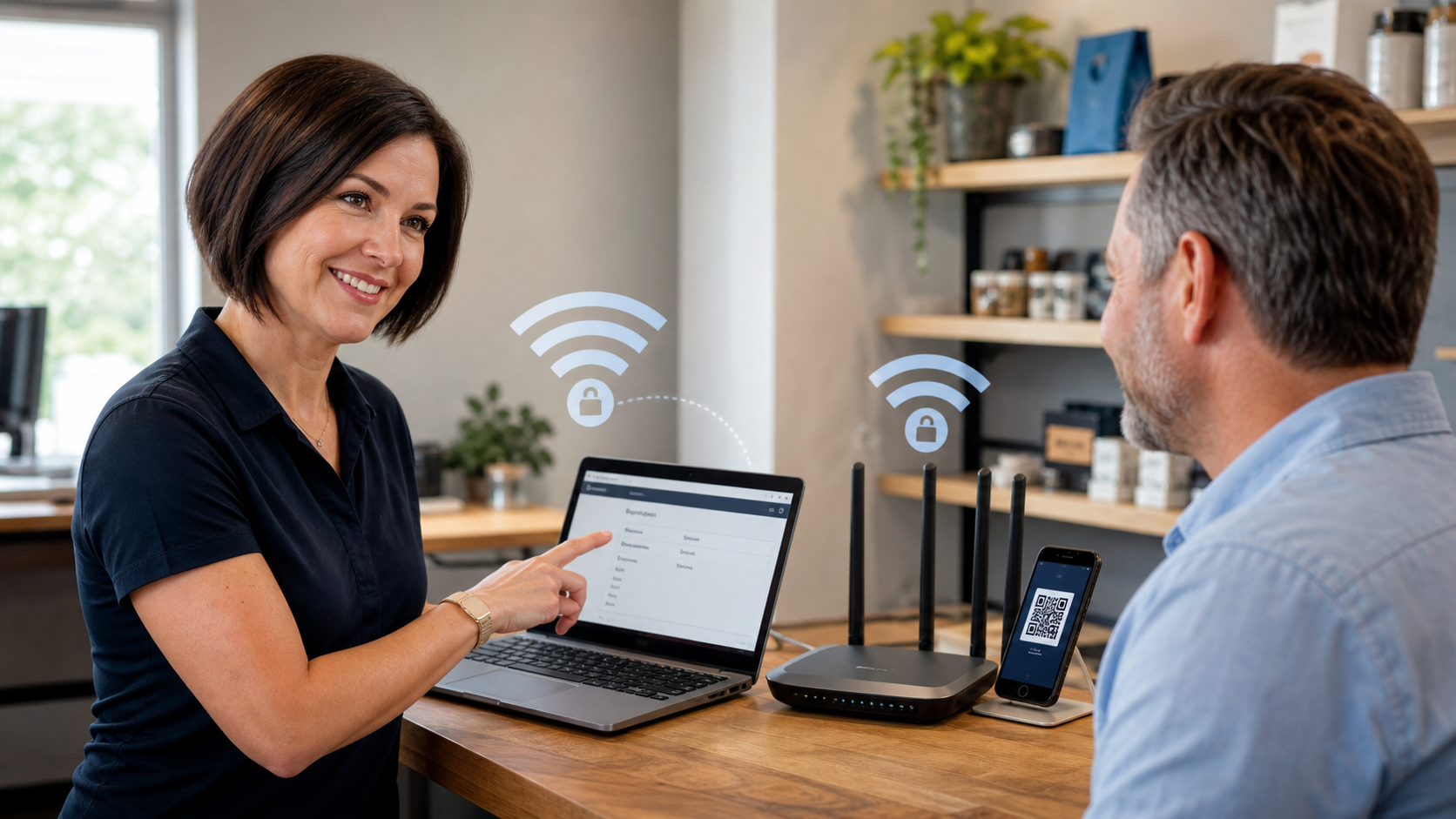
Practical tech tip for May 29, 2026: if you ever give your Wi-Fi password to visitors, vendors, family, customers, delivery drivers, renters, or temporary staff, set up a separate guest Wi-Fi network instead of sharing the main network password.
This is one of those small technology habits that pays off quietly. A guest Wi-Fi network gives people internet access without handing out the same password used by your phones, laptops, printers, cameras, point-of-sale devices, QuickBooks computer, smart TVs, and other equipment. For a small business, it also helps keep customer or visitor devices away from work devices that should not be casually reachable on the same local network.
Why Guest Wi-Fi Is Worth Setting Up
Most homes and small businesses now have more than just one or two computers online. A typical network may include Windows PCs, Macs, phones, tablets, printers, cameras, doorbells, smart speakers, thermostats, streaming boxes, payment terminals, work laptops, cloud backup devices, and customer-facing equipment. Once someone knows the main Wi-Fi password, they may be able to reconnect later unless the password changes. If that password has been shared for years, you may not really know who still has it.
The Federal Trade Commission specifically recommends setting up a guest network because it gives visitors a separate login, reduces how many people know the primary Wi-Fi password, and can help keep a guest device with malware away from your primary network and devices. That is practical advice for homes, but it matters even more in small offices, salons, repair shops, medical-adjacent offices, real estate offices, restaurants, churches, nonprofits, and local retail spaces.
A guest network is not magic security. It does not replace strong router passwords, updates, endpoint protection, backups, or good business firewall design. But for many regular people and small businesses, it is one of the easiest ways to stop casual network over-sharing.
What A Guest Network Actually Does
On many modern routers, a guest Wi-Fi network creates a second Wi-Fi name with its own password. Guests connect to that name instead of the main Wi-Fi. Depending on the router, guest devices may be blocked from seeing local devices on the primary network and may only be allowed to reach the internet.
The exact behavior depends on the router or mesh system. Some consumer routers isolate guest devices well. Some only create a separate name and password. Some business-grade systems can create real VLAN-separated networks with firewall rules. That difference matters. If your business handles customer records, payments, medical information, accounting files, security cameras, or shared office equipment, it is worth checking whether your guest Wi-Fi is truly isolated from the private side of the network.
A Good Guest Wi-Fi Setup Looks Like This
- Main network: used only by trusted business or household devices.
- Guest network: used by visitors, temporary workers, customer devices, smart TVs in waiting rooms, and other devices that do not need access to private equipment.
- Different passwords: the guest password should not match the main Wi-Fi password or the router admin password.
- Device isolation enabled: if the router offers a setting such as guest isolation, access intranet, local network access, or allow guests to see each other, choose the safer option unless you have a reason not to.
- Clear name: use a name people can recognize, such as TheITGuys-Guest, OfficeGuest, or SmithHome-Guest. Avoid putting private details like apartment number, alarm brand, or router model in the name.
- Rotation plan: change the guest password occasionally, especially after events, staffing changes, short-term rentals, or vendor-heavy projects.
Step-By-Step: Set Up Guest Wi-Fi
- Find your router or mesh app. Many routers are managed through a phone app, such as a mesh Wi-Fi app, ISP app, or router brand app. Others use a web address printed on the router label or in the manual.
- Sign in with the router administrator account. This is not the same thing as the Wi-Fi password. If the router still uses a default admin password, change that before doing anything else.
- Look for Guest Network, Guest Wi-Fi, or Guest Access. The exact wording varies by brand. NETGEAR, Linksys, TP-Link, Google/Nest Wi-Fi, eero-style systems, ISP routers, and business access points all handle this a little differently.
- Turn on the guest network. Give it a simple name that is clearly separate from the main network.
- Create a strong guest password. Use a password that is easy enough to share but not easy to guess. Avoid your business phone number, street name, pet name, or anything printed on signs.
- Disable local network access if available. Look for settings that control whether guests can access local devices, intranet, shared folders, printers, or other guest devices. For most visitor Wi-Fi, internet-only access is best.
- Save the settings and test from a phone. Join the guest Wi-Fi from a phone, confirm internet works, then check that private devices such as printers, file shares, or cameras are not casually visible.
- Make sharing easy. If your router app supports a QR code, print it for staff or keep it at the front desk. If you use Apple devices, Apple also documents Wi-Fi password sharing and QR-style sharing options on newer iPhone software.
- Document the setup. Keep the router login method, guest network name, and password rotation date in a secure place, not on a sticky note under the router.
Important Cautions Before You Flip The Switch
Do not change random router settings during business hours unless you are ready for downtime. A wrong setting can knock phones, payment terminals, printers, cameras, or workstations offline. If your office depends on Wi-Fi for payments, phones, security cameras, or scheduling, do this during a quiet window.
Do not put business devices on guest Wi-Fi just because it works. Guest Wi-Fi may block printing, file sharing, casting, camera viewing, network scanning, and some device discovery features. That is usually the point. If a device needs to communicate with a printer, server, NAS, QuickBooks workstation, or management system, it may belong on a properly secured internal network instead.
Do not assume every guest network is truly isolated. Some consumer routers use the words “guest network” loosely. If you need compliance-friendly separation for customer data, card processing, medical workflows, legal files, or business records, ask for a real network review instead of relying on a checkbox.
Do not reuse your main password. If the guest network has the same password as the main network, you lose much of the benefit. Use a different password and change it when needed.
What Can Go Wrong
- Printers disappear: phones or laptops on guest Wi-Fi may not see printers on the main network.
- Smart TVs and casting stop working: Chromecast, AirPlay, screen sharing, and similar tools often need devices to be on the same network.
- Security cameras become unreachable: cameras or viewing tablets may need planned network rules instead of guest access.
- Point-of-sale devices break: card readers, tablets, receipt printers, and terminals may rely on specific network communication.
- Speed feels slower: some routers limit guest bandwidth or put guest devices on a congested band.
- Old devices cannot connect: if you choose WPA3-only security, older devices may not support it. WPA2/WPA3 transition mode may be needed on some mixed networks.
Small Business Example
Imagine a small front office with two work PCs, one printer, a QuickBooks workstation, a camera system, staff phones, and a waiting area where customers sometimes ask for Wi-Fi. Without guest Wi-Fi, staff may give customers the same password used by business devices. Over time, that password ends up on customer phones, old employee phones, vendors’ tablets, and maybe even devices the business no longer remembers.
A better setup is simple: business devices stay on the private network, visitors use the guest network, and any device that needs special access is reviewed intentionally. That one change does not make the network perfect, but it reduces casual exposure and makes future troubleshooting cleaner.
When To Call The IT Guys
Call The IT Guys if your business router does not have a clear guest Wi-Fi option, if the settings mention VLANs or firewall rules and you are not sure what they mean, if printers or payment devices stop working after a network change, or if you need to separate customer Wi-Fi from business systems correctly.
You should also call for help if you run a business where Wi-Fi touches payment processing, customer records, cameras, employee devices, shared files, medical-adjacent workflows, or remote access. In those cases, the goal is not just “make another Wi-Fi name.” The goal is a clean network layout that supports the way the business actually works.
Useful Source Links
- FTC: How To Secure Your Home Wi-Fi Network
- FTC: Securing Your Internet-Connected Devices At Home
- CISA: 5 Steps To Protecting Your Digital Home
- Google Nest Help: Create, Edit And Share A Guest Wi-Fi Network
- NETGEAR Support: Set Up Guest Wi-Fi Using The Nighthawk App
- Linksys Support: Guest Access Feature In Linksys Smart Wi-Fi Routers
- TP-Link Support: Configure A Guest Network
- Apple Support: Share Your Wi-Fi Password From iPhone Or iPad
Quick Takeaway
If someone only needs internet access, they probably do not need your main Wi-Fi password. Set up guest Wi-Fi, use a different password, turn on guest isolation where available, test it, and keep the private network for devices you actually trust.
Related Reading
- Quick Tech Tip: Check Your Browser Extensions Before They Cause Trouble – a practical follow-up checklist readers can use right away
- Quick Tech Tip: Stop Sharing Passwords by Text and Use a Shared Vault Instead – a practical follow-up checklist readers can use right away
- German Researchers Warn Ordinary Wi-Fi Could Identify People With Near-Perfect Accuracy – related guidance from The IT Guys archive
FAQ
Who is this guide for?
This article is written for regular home users and small businesses that want practical technology guidance without unnecessary jargon.
What should I check before following the steps?
Make sure the instructions match your device, account, software version, and business requirements. If something looks different, pause before guessing.
When should I ask for help?
If the device or account is important for work, contains sensitive data, or the change could affect backups, email, payments, or customer access, it is worth getting help first.