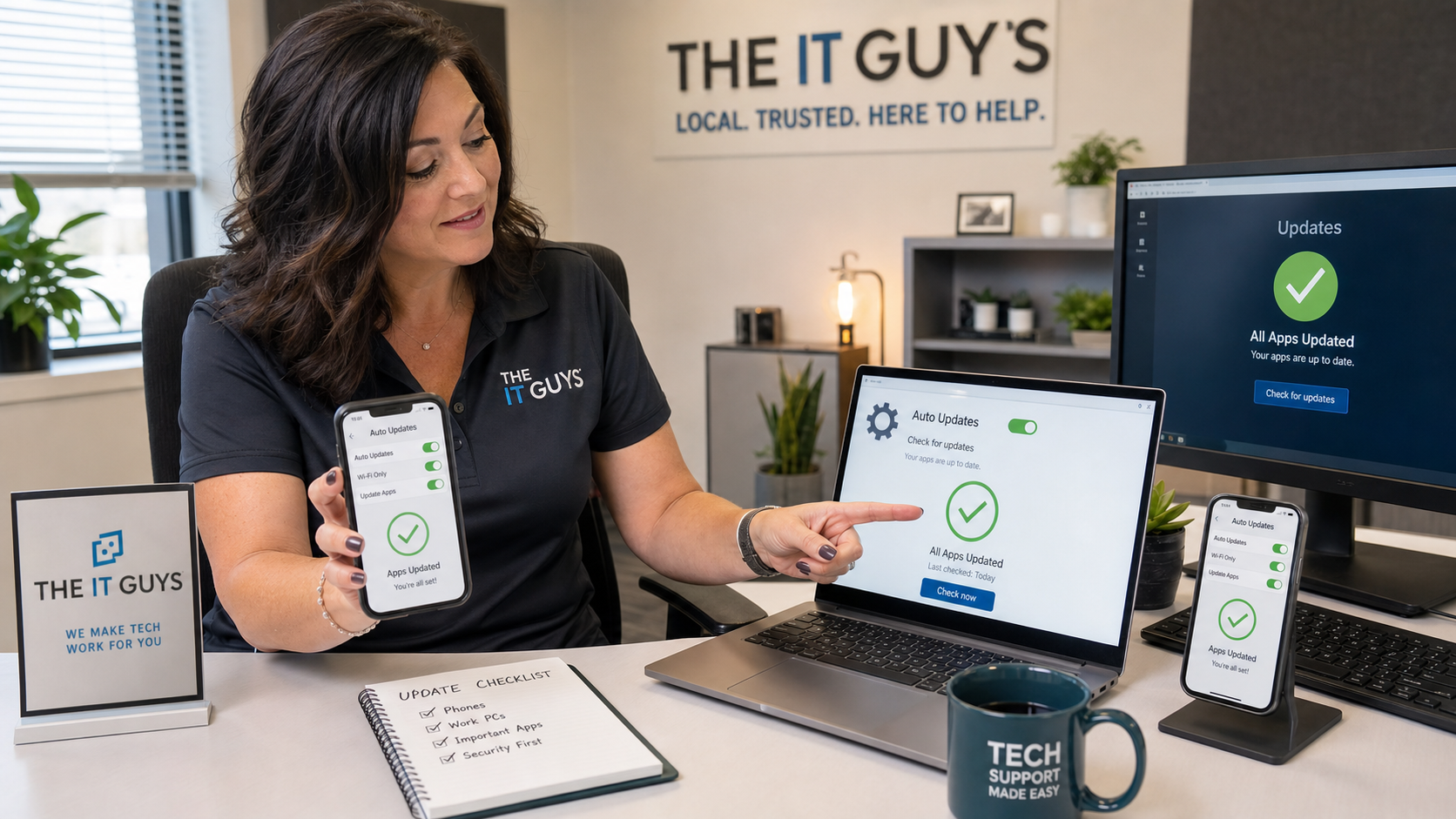
Quick tech tip: take ten minutes today to make sure automatic app updates are actually turned on for the phones, tablets, and Windows PCs you use every day. Operating system updates get most of the attention, but outdated everyday apps can still leave you with security fixes missing, broken sign-ins, old browser components, or software that fails right when you need it.
This matters at home and it matters even more in a small business. A front desk phone, estimating tablet, bookkeeping laptop, point-of-sale PC, or technician’s field device may depend on apps that update outside the main Windows, iPhone, Android, or Mac update screen. If those updates are paused, ignored, or stuck behind a sign-in problem, the device can look “up to date” while important apps are not.
Why App Updates Deserve Their Own Check
Microsoft says Microsoft Store app updates can be installed automatically and notes that some app publishers manage their own updates inside the app. Google’s Play Help explains how to update Android apps automatically, and Apple’s App Store guidance covers automatic app downloads and updates for iPhone and iPad. In plain English: there is no single update switch that covers every possible app on every device.
That is why this is worth checking directly. Your operating system may be current, but your password manager, browser, PDF reader, remote meeting app, accounting helper, scanner app, phone banking app, or business chat app may still be behind. Updates often fix bugs, security issues, compatibility problems, and sign-in failures. They can also change permissions or break older workflows, so businesses should pair automatic updating with basic awareness and a recovery plan.
The 10-Minute App Update Check
Do this from the device itself, while connected to a trusted Wi-Fi network and plugged into power if the battery is low. Avoid update links from emails, texts, ads, or pop-ups. Open the official app store or the app’s own settings instead.
- Check the main app store first. On Windows, open Microsoft Store and review app update settings. On iPhone or iPad, open Settings > App Store. On Android, open Google Play and review app auto-update settings.
- Run one manual update check. Even if automatic updates are enabled, manually check for pending updates so you can catch stuck downloads, account prompts, expired payment methods, or storage problems.
- Look at the apps you depend on for work. Open your browser, password manager, email app, scanner/printer app, Microsoft 365 apps, QuickBooks-related tools, Teams/Zoom, remote support tools, and line-of-business apps. Some of them update from inside the app instead of through the store.
- Remove apps you no longer use. Updating is good, but uninstalling old, unused apps is better when the app no longer has a job. Fewer apps means fewer permissions, fewer notifications, and fewer things to maintain.
- Restart if updates ask for it. Some updates do not fully finish until the app closes or the device restarts. Schedule the restart instead of ignoring it for days.
- Write down exceptions. If one business-critical app must stay on a specific version, document why, who approved it, and how that device will be protected until the app can be updated safely.
Windows PCs: Do Not Stop At Windows Update
Windows Update is important, but it does not automatically prove that every installed app is current. Microsoft’s Windows Update FAQ explains that Windows downloads and installs system updates to keep the device secure and up to date. Microsoft Store apps have their own update path, and Microsoft notes that some publishers manage updates through their own app.
- Open Start, search for Microsoft Store, and open it.
- Select your profile icon, then open Store settings.
- Make sure App updates is turned on.
- Open Library and choose Get updates or Check for updates if available.
- For apps installed outside the Store, open the app and look under Help, About, Settings, or Check for updates.
Pay extra attention to browsers, PDF tools, remote meeting apps, printer utilities, backup agents, security software, password managers, and remote access tools. Those apps touch sensitive data or network access, so stale versions can create more risk than an old game or wallpaper app.
iPhone And iPad: Check App Store Updates
On iPhone and iPad, the App Store can install app updates automatically, but it is still worth opening the settings once in a while. This catches devices where automatic updates were turned off to save data, paused during travel, blocked by low storage, or held up because the Apple ID needs attention.
- Open Settings.
- Tap App Store.
- Under automatic downloads, make sure App Updates is enabled if that is appropriate for the device.
- Open the App Store, tap the account/profile icon, and pull down to refresh pending updates.
- Update anything important before you head into a meeting, trip, job site, or payment-processing shift.
If this is a shared business iPad or a device used for a point-of-sale, scheduling, or field-work app, test the app after updating. Automatic updates are usually the right default, but business devices should also have a known rollback or support path in case a vendor releases a bad update.
Android Phones And Tablets: Review Play Store Auto-Update
On Android, Google Play can update apps automatically, but the setting may be limited by network preference. Some users choose Wi-Fi only, which is reasonable, but then never connect the device to Wi-Fi long enough for updates to finish.
- Open Google Play.
- Tap the profile icon and open Settings.
- Review Network preferences and Auto-update apps.
- Open Manage apps & device and check for pending updates.
- If updates are failing, check storage space, Google account prompts, Wi-Fi stability, battery saver settings, and whether the device is too old for the current app version.
Small Business Cautions
For most home users, automatic app updates should be on. For businesses, the answer is still usually “keep apps updated,” but the rollout needs a little more care. A broken update on one personal phone is annoying. A broken update on every register, front desk PC, or technician tablet can interrupt the whole workday.
- Do not update everything five minutes before opening. Give yourself time to test important apps.
- Keep one known-good process documented. If a scanner app, accounting plug-in, or payment app breaks, staff should know who to call and what device can be used as a backup.
- Watch permission changes. Some app updates request new permissions. Do not approve broad access blindly, especially for contacts, photos, location, microphone, files, or mail.
- Separate managed and personal devices. Business devices should use managed accounts and policies where possible, not a random employee’s personal app-store account.
- Do not confuse updates with backups. Updating an app does not protect the data inside it. Make sure business files, photos, invoices, and databases are backed up separately.
What Can Go Wrong
App updates are generally a security and reliability win, but there are a few practical failure points to watch:
- Low storage can stop updates. Phones and tablets with almost no free space may silently fail or keep retrying.
- Old devices may be unsupported. If the app no longer supports your operating system, you may need an OS update or a replacement device.
- Store sign-in problems can block updates. Expired passwords, account lockouts, or payment prompts can hold app updates hostage.
- Vendor apps may update separately. Tax software, printer tools, VPN clients, remote support tools, and business programs may use their own update system.
- Automatic updates can expose weak workflows. If one app update breaks the whole business, that is a sign the process needs a fallback device, vendor support contact, or staged update plan.
When To Call An IT Professional
Call for help if updates repeatedly fail, an important app says the device is no longer supported, staff are sharing one app-store account, a business app requests surprising new permissions, a point-of-sale or accounting app breaks after updating, or you need a safer rollout plan across multiple computers and mobile devices.
The IT Guys can help home users and small businesses around Port Saint Lucie, Jensen Beach, Fort Pierce, and Vero Beach check update settings, clean up old apps, make sure business devices are using the right accounts, and build a practical update plan that does not interrupt the workday.
Useful Official References
- Microsoft Support: turn on automatic app updates for Microsoft Store apps
- Microsoft Support: get updates for apps and games in Microsoft Store
- Microsoft Support: Windows Update FAQ
- Apple Support: update apps manually on Apple devices
- Google Play Help: update Android apps automatically
- Microsoft Support: update Microsoft 365 apps for Mac automatically