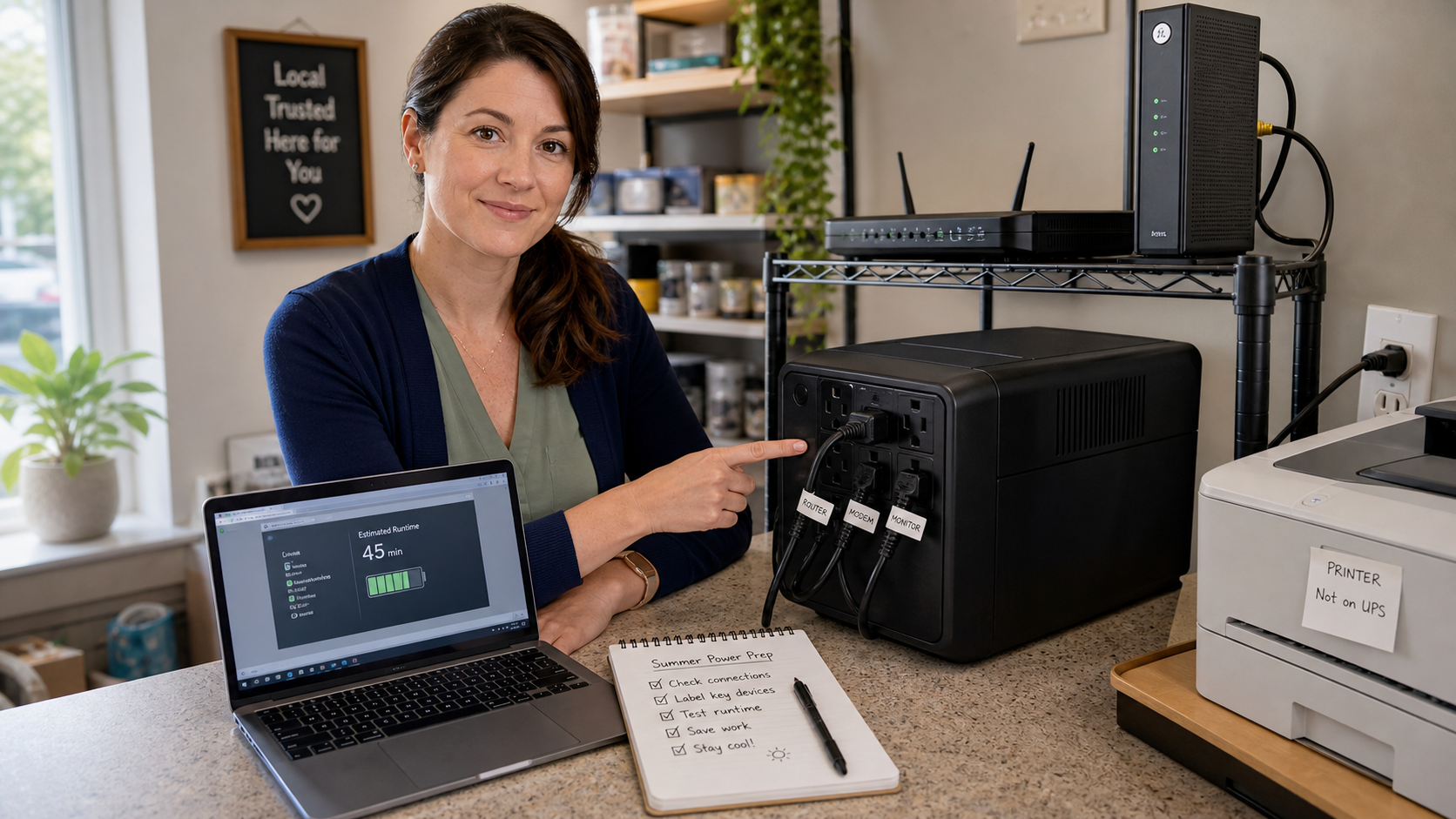
Today’s practical tech tip: test the small UPS battery backup that keeps your internet, computer, register, camera recorder, or file server alive when the power flickers.
A UPS, short for uninterruptible power supply, is not meant to run the whole office for hours. Its real job is simpler: keep critical equipment stable through short power blips, give you enough time to save work, and let important systems shut down cleanly instead of crashing when power drops.
That only works if the right equipment is plugged into the right outlets, the battery still holds a useful charge, and somebody knows what to do when it starts beeping. Ten minutes of checking now can prevent corrupted files, offline phones, down credit-card processing, broken network gear, and avoidable panic later.
Start With The Right Goal
For most homes and small businesses, a desktop-size UPS should protect a short list of essentials:
- Internet gear: modem, fiber ONT, router, firewall, and the main network switch.
- One critical workstation: the computer used for dispatch, point-of-sale, accounting, phones, or scheduling.
- Storage and recorders: NAS devices, small servers, camera NVRs, or backup drives that should not lose power suddenly.
- Phone and payment basics: VoIP adapter, cordless phone base, payment terminal, or receipt printer only if the UPS is properly sized for it.
The goal is not to plug in every convenience device. The more equipment you add, the shorter the battery runtime becomes. A UPS that would keep a modem and router running for a useful window may last only a few minutes if it also has a desktop tower, monitor, speakers, charger, and extra accessories attached.
Step-By-Step: Do A Safe UPS Check
- Find the battery-backed outlets. Many UPS units have two sides: battery backup plus surge protection on one side, and surge-only outlets on the other. Read the labels before moving cords.
- Plug in only the critical equipment. Put the modem, router, firewall, main switch, one essential computer, NAS, or NVR on the battery-backed outlets. Put noncritical chargers and accessories elsewhere.
- Do not plug a laser printer into the UPS battery side. Laser printers can draw a large amount of power when heating the fuser, and APC/Schneider Electric specifically does not recommend protecting laser printers with a UPS. Use a proper surge protector or a suitable circuit instead.
- Charge the UPS fully. If it was just installed, moved, or stored, give it time to charge before judging runtime.
- Check the load indicator. If the UPS has a display or software, confirm it is not overloaded and note the estimated runtime. A heavily loaded UPS may show only a few minutes.
- Label the cords. Use simple labels like “router,” “modem,” “front desk PC,” “NAS,” and “printer – not on UPS.” This saves time when someone else has to troubleshoot.
- Run a controlled test. Save open work first. Then unplug the UPS from the wall, not the equipment from the UPS. Confirm the protected devices stay on, the alarm sounds as expected, and the estimated runtime is realistic.
- Stop the test before the battery is low. Plug the UPS back in while there is still plenty of battery left. This is a health check, not a deep discharge test.
- Write down the result. Record the date, what was plugged in, whether the devices stayed up, and about how much runtime the UPS reported.
- Plan the shutdown path. If the UPS supports USB or network shutdown software, configure it for systems that need a graceful shutdown, especially NAS devices and small servers.
What To Put On Battery Backup
The best UPS setup depends on what would hurt most during a brief outage. For a small office, internet gear is usually the first priority because it supports phones, cloud software, payments, remote access, cameras, and email. A modem and router often use far less power than a full desktop PC, so protecting the network can give you a better return than trying to keep every workstation running.
If you have a NAS, file server, or camera recorder, sudden power loss can be more serious than a normal desktop turning off. Synology’s UPS documentation, for example, describes using UPS support so a NAS can enter Standby Mode, stop services, unmount volumes, and shut down more safely when battery conditions require it. Other NAS and server platforms have similar UPS or shutdown-agent options.
For a home, the priority list is usually modem, router, medical or accessibility communication gear if applicable, one laptop charger, and maybe a small network switch. Ready.gov also recommends planning batteries and other alternative power sources, such as portable chargers or power banks, for outage needs.
Small-Business UPS Checklist
- Front desk: protect the modem/router, payment terminal, VoIP adapter, and the one workstation needed to finish a transaction or close open work.
- Network closet: protect the firewall, main switch, fiber/cable modem, and any small controller that keeps Wi-Fi or phones running.
- Back office: protect accounting computers, NAS devices, local backup drives, and security-camera recorders that should shut down cleanly.
- Label everything: battery-backed outlet, surge-only outlet, wall-only equipment, UPS model, install date, and battery replacement date if known.
- Assign ownership: one person should know how to mute the alarm, read the runtime, and decide when to shut down systems.
- Review after changes: recheck the UPS after adding a printer, second monitor, network switch, camera recorder, desktop tower, or new router.
Common Mistakes
- Plugging everything into the battery side: this shortens runtime and can overload the UPS.
- Putting the printer on the UPS: laser printers are a common problem because of their high power draw. They can trip or overload smaller UPS units.
- Assuming the battery is still good: UPS batteries age. If the unit is several years old, beeping often, or showing very little runtime, it may need a replacement battery or replacement UPS.
- Protecting the computer but not the network: a workstation that stays on is less useful if the modem, router, firewall, or switch immediately shuts off.
- No shutdown software: a NAS or server that runs until the UPS battery is empty can still crash hard. Configure graceful shutdown where available.
- No documentation: during an outage, nobody wants to trace unmarked black power cords under a desk.
What Can Go Wrong During Testing
A controlled UPS test should be boring. If it is not, stop and investigate. Warning signs include an overload alarm, devices turning off immediately, a burning smell, hot plugs, visibly damaged cords, swollen battery casing, rapid battery drain, or a UPS that clicks on and off repeatedly. Do not keep testing a device that appears damaged or overloaded.
Also be careful with equipment that should not be interrupted, such as servers, point-of-sale systems, medical-related devices, camera recorders, active backups, or computers running database software. Save work, notify users, and test during a quiet window. For business systems, it is better to schedule a short maintenance check than to surprise the office by yanking power in the middle of work.
When To Call An IT Professional
Call an IT professional if the UPS protects a server, NAS, phone system, security cameras, payment system, medical office workstation, law/accounting files, inventory system, or anything that supports multiple employees. You should also get help if you need longer runtime, multiple UPS units, generator integration, shutdown software, rack equipment, network closet cleanup, or battery replacement planning.
For larger setups, the question is not just “which UPS should I buy?” It is “what has to stay online, for how long, how does it shut down safely, and who is responsible when the power comes back?” That design work matters more than the sticker on the box.
Sources
- Ready.gov: Power Outages
- Ready Business: Power Outage Toolkit
- Schneider Electric/APC: Recommendations for protecting a laser printer
- Schneider Electric/APC: UPS Selector and runtime guidance
- Synology Knowledge Center: UPS support in DSM
- APC: UPS selector and shutdown software resources
Bottom Line
Pick one UPS today. Confirm the critical gear is on the battery-backed outlets, remove anything that does not belong there, label the cords, run a short controlled test, and write down the runtime. A UPS is only useful if it protects the right equipment and everybody knows what it will do when the lights flicker.