
Quick answer: most modern SSDs and NVMe drives last a long time when they are kept reasonably cool, allowed to run TRIM, given some free space, updated when the vendor has a firmware fix, and backed up before anything goes wrong. You do not need to baby an SSD, disable every Windows feature, or move normal system files to a slower drive. The goal is to avoid the handful of habits that create unnecessary writes, heat, or recovery risk.
This guide is written for Windows 11 and Windows 10 home users, gaming PCs, and small-business computers. It covers what actually matters for SSD lifespan, what is mostly myth, when an NVMe heatsink is worth buying, and three practical heatsink options to consider.
What Actually Wears Out An SSD?
SSDs store data in NAND flash cells. Those cells tolerate a limited number of program/erase cycles, so vendors rate drives using endurance measurements such as TBW, or terabytes written. Kingston explains TBW as the amount of data a drive is expected to endure being written before failures become more likely. A larger-capacity version of the same SSD usually has a higher TBW rating because there are more flash cells to spread writes across.
For most normal users, endurance is not the first thing that kills a drive. Age, firmware bugs, heat, power events, controller failures, and plain accidents can matter just as much. A family PC writing documents, browsing, doing school work, and storing photos is usually nowhere near the write volume of a video-editing workstation, security-camera recording box, scratch-disk system, or database server.
- Normal use is fine: Windows updates, browser cache, Office files, game updates, OneDrive sync, and normal pagefile activity are expected workloads.
- Heavy writes deserve planning: 4K/8K video editing, constant torrenting, virtual machines, large build caches, database logs, and surveillance recording can burn through budget drives faster.
- Capacity matters: a cramped 256GB SSD used as a busy system drive usually has less room for wear leveling than a 1TB or 2TB drive with breathing room.
- Backups still matter: SSD health percentages are useful, but they are not a promise that the drive will give you weeks of warning before failure.
Keep TRIM And Optimize Drives Enabled
TRIM is one of the big reasons modern SSDs stay fast and healthy without special maintenance. When files are deleted, TRIM lets the SSD know which blocks no longer contain useful data, so the drive can handle internal cleanup more efficiently later.
Microsoft’s Optimize Drives guidance says Windows defragments hard drives, but trims SSDs. That distinction matters. On Windows 11 and Windows 10, the built-in Optimize Drives tool is not the old “defrag everything every week” behavior people remember from spinning hard drives. Windows detects SSDs and performs SSD-appropriate optimization.
- Open Start and search for Defragment and Optimize Drives.
- Confirm the drive is listed as a solid-state drive if Windows detects it correctly.
- Leave scheduled optimization on unless you have a specific managed-IT reason to change it.
- If you run it manually, select the SSD and choose Optimize. For SSDs, that means trim/optimization, not old-style hard-drive defragmenting.
If you want to check TRIM from an elevated Command Prompt, Microsoft’s Windows tool is:
fsutil behavior query DisableDeleteNotifyA result of DisableDeleteNotify = 0 means TRIM is enabled for that file system. Most healthy Windows 10 and Windows 11 installs already have this right.
Leave Free Space For The Controller To Work
An SSD needs free blocks for wear leveling, garbage collection, and steady write performance. Kingston’s SSD lifespan guidance recommends leaving at least 10% free space for general maintenance and background OS activity. Samsung’s SSD over-provisioning material also explains that reserved or available free space gives the controller room to perform cleanup and wear-leveling work more efficiently.
For everyday home and office systems, a practical target is:
- Minimum: keep at least 10% free on the SSD.
- Better: keep 15% to 20% free if the drive is small, nearly full, or used for heavy writes.
- Best for business PCs: buy enough capacity up front so Windows updates, user profiles, cloud sync, accounting data, and app caches do not constantly push the drive into the red.
If a computer is always at 95% full, the fix is not a mystery registry tweak. Clean up what you can, move archives to a proper storage location, or install a larger SSD. A larger drive often improves both endurance headroom and day-to-day performance.
Use Storage Sense, But Configure It Carefully
Microsoft describes Storage Sense as a Windows feature that frees disk space by deleting unnecessary files such as temporary files, Recycle Bin contents, and some offline cloud content depending on configuration. Microsoft’s Storage Sense support page also notes that Storage Sense works on the system drive.
- Good idea: enable temporary-file cleanup and Recycle Bin cleanup after a reasonable number of days.
- Be careful: do not tell Storage Sense to delete Downloads aggressively unless you treat Downloads as temporary.
- Cloud files: if OneDrive is used, understand when files may become online-only before changing those settings.
- Business PCs: use policy or documented settings so employees do not accidentally delete needed working files.
Storage Sense helps lifespan indirectly by keeping the drive from staying packed full. It is not magic wear protection, but a clean, reasonably open system drive is easier for Windows and the SSD to manage.
Do Not Disable The Pagefile Or Hibernation Blindly
Old SSD tuning guides often told people to disable the Windows pagefile, turn off hibernation, move browser caches, disable indexing, and relocate every write-heavy folder. That advice made more sense in the early SSD era when drives were tiny, expensive, and less durable. On a modern SSD, blanket disabling can cause more trouble than it saves.
- Pagefile: leave it system-managed for most computers. Windows uses it for memory management and crash dumps. Disabling it can cause app failures or make troubleshooting harder.
- Hibernation: disabling hibernation can free disk space, but it also disables Hibernate and may affect Fast Startup behavior. Consider it only if you understand the tradeoff and need the space.
- Indexing/Search: Windows Search does write some index data, but normal indexing is not a serious endurance problem for a modern drive. Disable or narrow indexing only if search is misbehaving, indexing unusual data sets, or hurting performance.
- Browser cache: moving caches to a hard drive usually makes the computer feel worse. For normal use, leave it alone.
The better rule is simple: reduce unnecessary bulk writes, but do not break useful Windows features to save tiny amounts of write activity.
Firmware Updates And Vendor Health Tools
SSD firmware updates can fix compatibility, reliability, thermal behavior, or performance problems. They are worth checking, especially on business machines, high-end NVMe drives, and systems showing sleep/wake, disappearing-drive, or throttling symptoms.
- Kingston SSD Manager supports Windows 10 and Windows 11 x64 and can show health, disk usage, SMART details, and firmware information for supported Kingston drives.
- Kingston’s SMART monitoring guidance recommends health checks, current storage drivers, proper shutdowns, BIOS updates when needed, regular backups, and firmware checks.
- Samsung Magician, Crucial Storage Executive, Western Digital Dashboard, and vendor-specific tools are usually the right place to check drive-specific firmware and health details.
Firmware updates should be treated like a maintenance window, not something to click during a storm. Back up important files first, plug in laptops, avoid power interruptions, and read the vendor notes before applying the update.

Watch Temperature And Throttling
NVMe drives are fast because they move a lot of data through a small controller and compact flash packages. That speed creates heat. Heat does not automatically mean the drive is dying, but high sustained temperatures can cause throttling and may shorten component life over time.
Samsung has documented thermal protection features such as Dynamic Thermal Guard on SSDs, where the drive can reduce performance to bring temperature under control. That is normal protection behavior. If you see occasional throttling during a large game install, clone, benchmark, or video export, it may simply mean the drive hit its thermal limit. If the drive is constantly hot at idle or throttles during ordinary work, the system needs attention.
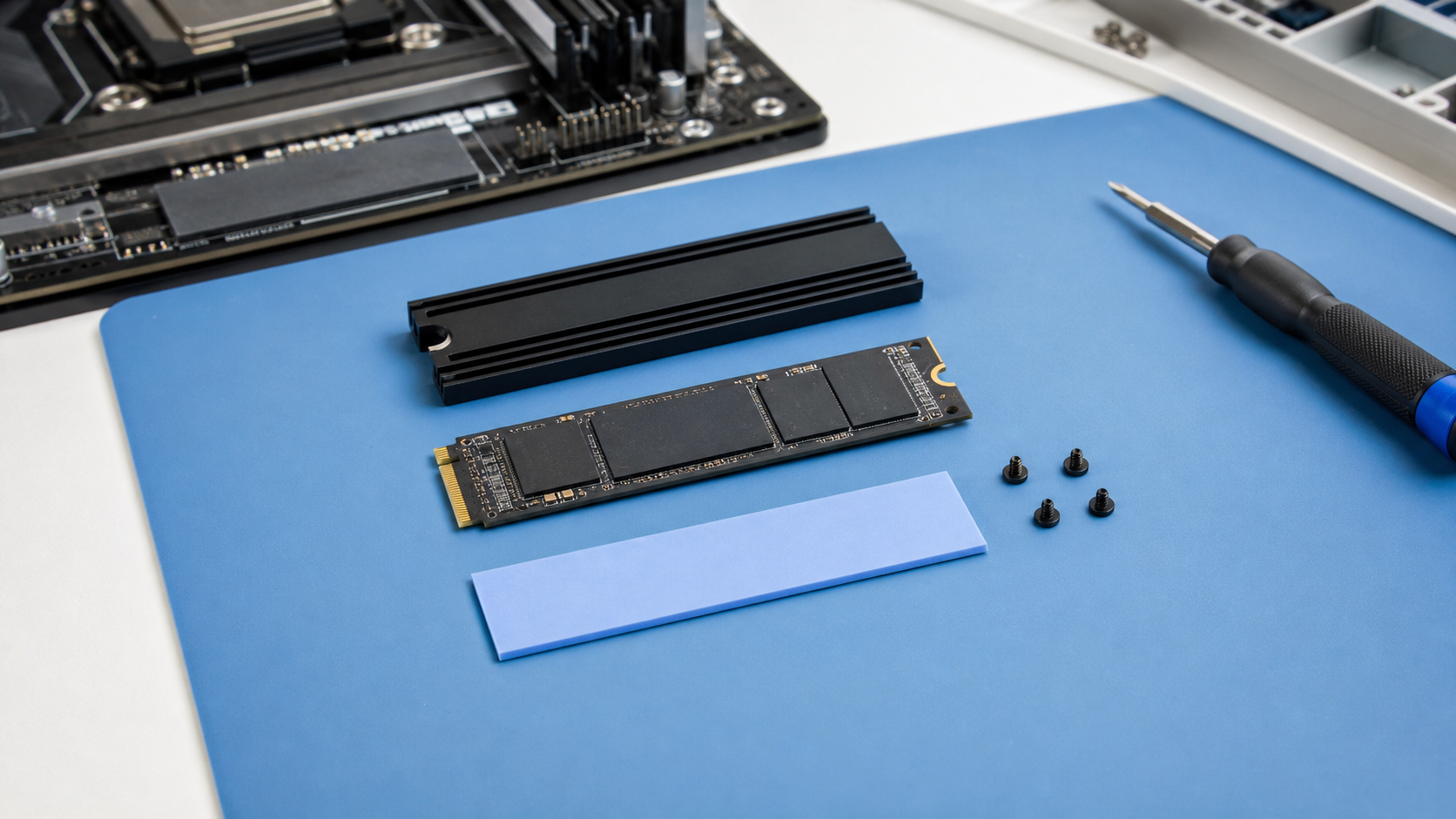
- Desktop with motherboard heatsink: use the board’s M.2 heatsink if it has one and the thermal pad contacts the controller/flash correctly.
- Desktop without heatsink: add a basic M.2 heatsink for Gen4 or Gen5 drives, especially if the slot is near a GPU or airflow is weak.
- Laptop: do not assume a desktop-style heatsink will fit. Many laptops need thin thermal pads, OEM brackets, or no extra height at all.
- PS5: Sony’s PS5 M.2 SSD installation guide says not to use an M.2 SSD without a heat-dissipation mechanism such as a heatsink or heat-transfer sheet.
When An NVMe Heatsink Is Worth It
A heatsink is most useful when the drive performs long sustained writes or reads: game installs, large file copies, video exports, backups, disk imaging, virtual machines, and Gen4/Gen5 workloads. It is less critical for a cool-running Gen3 drive used mostly for documents and browsing, but it can still help if the drive is trapped under a hot graphics card.
- Good fit: M.2 2280 drive, desktop motherboard slot with vertical clearance, steady case airflow, thermal pad making firm contact.
- Bad fit: heatsink too tall for the graphics card, CPU cooler, laptop bottom cover, mini-PC chassis, or PS5 model.
- Installation caution: remove protective film from thermal pads, do not overtighten screws, avoid bending the SSD, and keep pads off components they are not meant to cover.
- Do not stack heatsinks: Sony specifically recommends against adding another heatsink to an M.2 SSD that already has a built-in heatsink for PS5 use.
Three NVMe Heatsinks Worth Considering
Prices and stock change constantly, so these are not coupon picks. They are practical, consumer-available thermal solutions with verifiable product pages and clear fitment notes.
1. be quiet! MC1 Pro M.2 SSD Cooler
The be quiet! MC1 Pro is a clean desktop M.2 2280 heatsink with an integrated heatpipe. be quiet! lists compatibility with single-sided and double-sided M.2 2280 modules and dimensions of 74 x 24 x 13 mm.
- Best for: desktop PCs where you want a relatively low-profile, tidy, black heatsink.
- Check first: clearance under a graphics card and whether your motherboard already has an M.2 heatsink.
- Avoid for: laptops, mini-PCs, and PS5 installs unless the exact enclosure clearance supports it.
2. Sabrent M.2 2280 SSD Rocket Heatsink, SB-HTSK
The Sabrent SB-HTSK is a more substantial desktop heatsink using a copper-and-aluminum design. Sabrent lists it for desktop computers, compatible with single-sided and double-sided M.2 2280 SSDs, with thermal tape, screws, and screwdriver included. Its listed height is 0.90 inches, so clearance matters.
- Best for: desktops with an exposed M.2 slot and enough room around the drive.
- Check first: GPU clearance, case airflow, and whether the slot sits below a large expansion card.
- Avoid for: tight small-form-factor systems and laptop installs.
3. Sabrent M.2 NVMe Heatsink For PS5, SB-PSHS
For PlayStation 5 storage upgrades, the Sabrent SB-PSHS is designed specifically for the PS5 SSD expansion slot and replaces the console’s M.2 bay cover. Sabrent lists CNC aluminum construction, thermal tape, screws, and dimensions of 4.95 x 1.3 x 0.32 inches.
- Best for: PS5 owners adding a compatible PCIe Gen4 NVMe SSD that does not already have its own heatsink.
- Check first: your PS5 model, SSD dimensions, and Sony’s current M.2 SSD requirements.
- Avoid for: desktop motherboard slots. This is a PS5 thermal solution, not a general PC heatsink.
Write-Heavy Habits To Watch
You do not need to worry about every browser tab or temporary file. Focus on the big write sources instead.
- Surveillance recording: use a drive rated for constant recording or write-intensive use.
- Video editing: keep source media, cache, and export locations planned. A higher-end SSD with a stronger TBW rating is worth it for daily editing.
- Virtual machines: snapshots, updates, and disk images can write heavily. Keep free space and back up VM data separately.
- Game libraries: frequent huge updates are normal, but a larger SSD reduces full-drive stress and cleanup headaches.
- Downloads and torrents: constant writing, unpacking, and seeding can be hard on small budget drives.
SMART Health Monitoring Helps, But Backups Save You
SMART data can show useful signs such as spare block use, temperature, media errors, unsafe shutdowns, power-on hours, and percentage used. Vendor tools, CrystalDiskInfo, business RMM tools, and many BIOS/UEFI dashboards can expose this information. The catch is that SMART is not a guarantee. Some drives fail suddenly; others warn you for months.
- Check SSD health every few months on home PCs.
- Check business-critical PCs and servers on a schedule.
- Replace drives that show media errors, rapidly falling health, repeated disconnects, or unexplained read/write failures.
- Keep at least one backup that is not on the same SSD.
- For small businesses, use image backups or managed backups, not just “important files copied sometimes.”
For related backup planning, see our guide on checking backups before you need them and our reminder to understand cloud version history.
Practical Windows Checklist
- Leave Windows Optimize Drives scheduled optimization enabled.
- Keep 10% to 20% free space on SSDs, especially system drives.
- Use Storage Sense for temp files and Recycle Bin cleanup, but be cautious with Downloads and cloud-file settings.
- Do not disable pagefile, indexing, hibernation, or write caching unless there is a clear reason and a rollback plan.
- Install SSD firmware updates only from the drive vendor or PC manufacturer, and back up first.
- Check SSD health and temperature periodically.
- Add an NVMe heatsink when the drive runs hot, performs sustained transfers, or the device manufacturer requires it.
- Verify backups before replacing, updating firmware, cloning, or repurposing a drive.
FAQ
Should I defrag an SSD?
Do not use old third-party defrag tools on SSDs. Use Windows Optimize Drives. Microsoft says Windows trims SSDs as part of optimization, while hard drives are defragmented.
Does indexing wear out an SSD?
For normal home and office use, no. Indexing writes some data, but it is not usually a meaningful endurance problem on modern SSDs. If indexing is stuck, noisy, or pointed at huge changing folders, fix that specific problem instead of disabling search everywhere.
Should I turn off write caching?
Usually no. Write caching can improve performance, but sudden power loss can risk unwritten data. On desktops without a UPS or systems with power problems, focus on stable power and backups rather than randomly changing disk policies. Business servers and workstations may need a more specific storage policy.
What SSD temperature is safe?
Check your exact drive’s spec sheet. Many NVMe SSDs are designed to throttle before damage, but sustained high temperatures are still a sign to improve airflow, use the motherboard heatsink, add a heatsink, or move the drive to a cooler slot if possible.
Can The IT Guys check my SSD?
Yes. We can check SSD health, free space, firmware status, backup coverage, thermal behavior, and whether a replacement or larger drive makes sense. That is especially useful before a drive clone, Windows reinstall, business workstation upgrade, or PS5 storage installation.
Sources And Further Reading
- Microsoft Support: Defragment / optimize your data drives in Windows
- Microsoft Learn: Configure Storage Sense in Windows
- Microsoft Support: Manage drive space with Storage Sense
- Kingston: SSD Longevity – 5 Tips for Getting the Most out of Your New SSD
- Kingston: Understanding SSD Endurance, TBW and DWPD
- Kingston: Understanding SSD Over-provisioning
- Kingston: Maintaining Your SSD’s Health Using SMART Monitoring
- Samsung Semiconductor: SSD Over-provisioning application note
- PlayStation Support: How to add an M.2 SSD to a PS5 console
- be quiet!: MC1 Pro M.2 SSD cooler
- Sabrent: M.2 2280 SSD Rocket Heatsink, SB-HTSK
- Sabrent: M.2 NVMe Heatsink for the PS5 Console, SB-PSHS