

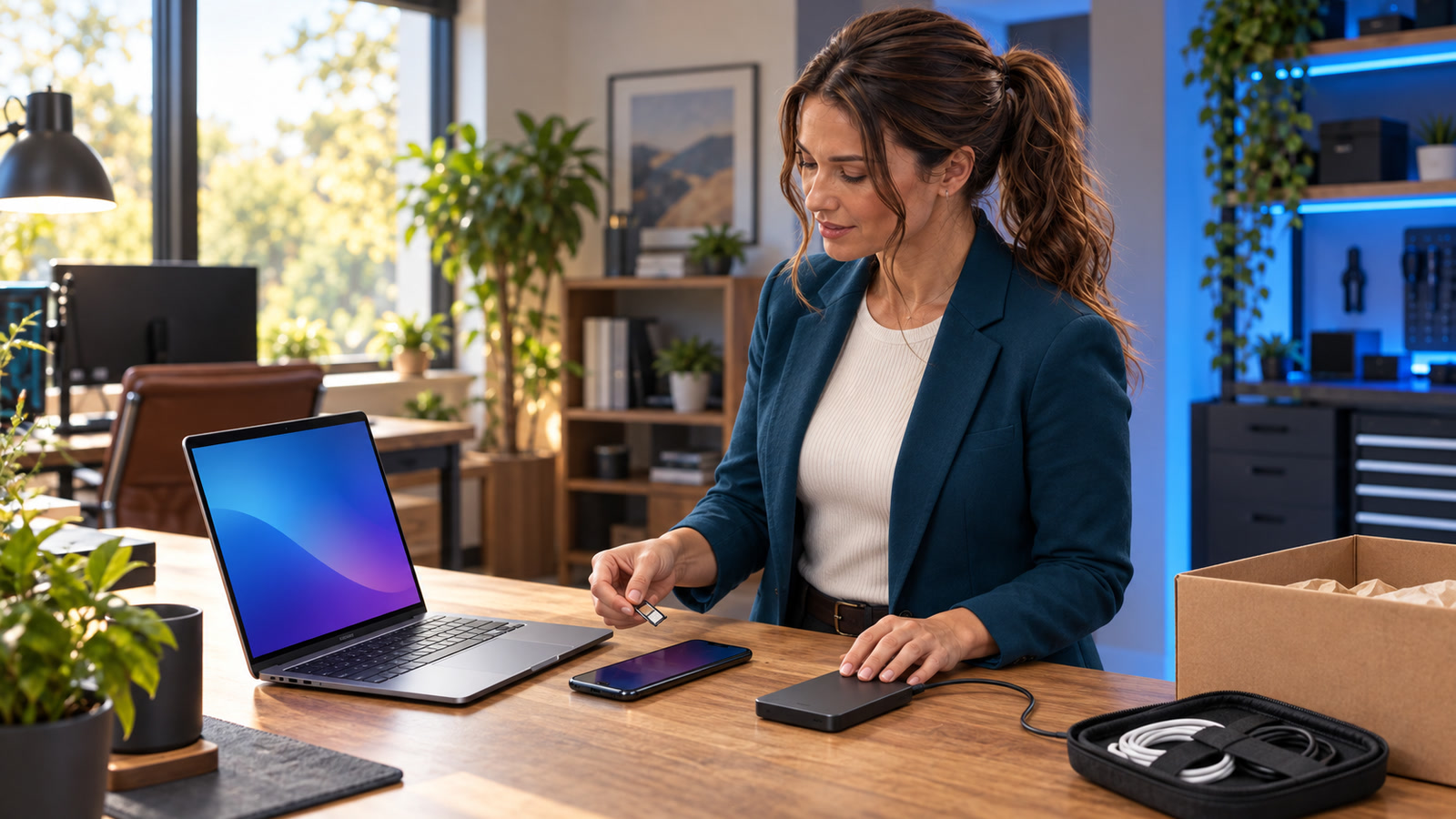
Do not let an old computer or phone leave your control until you have proved the backup works, removed account and activation ties, erased the device with the correct platform tool, and checked that it starts at the first-run setup screen. The Federal Trade Commission’s sequence for an old computer is simple—back up the information, erase the hard drive, and dispose of the computer—and its phone guidance adds removal of SIM and SD cards.[1][2]
Guidance checked: September 29, 2026 at 1:13 p.m. EDT (17:13 UTC). Use the current instructions for the exact operating system, manufacturer, carrier, and management policy; Google specifically recommends the manufacturer’s support site for device-specific Android steps.[8] This is practical disposal guidance, not a guarantee that a consumer reset satisfies a regulated organization’s sanitization standard.[3][9]
The costly mistake is treating “delete” as “ready to leave”
Dragging files to the Recycle Bin, deleting photos one by one, removing a desktop shortcut, or signing out of one app does not prepare an entire device for a new owner. A computer or phone can also remain tied to a Microsoft, Apple, Google, carrier, mobile-device-management, or financing account after local files are gone.
There is a second risk in rushing: wiping the only usable copy of family photos, tax records, customer documents, password-vault data, or authenticator access. The safe order is inventory → backup → restore test → transfer critical access → de-register → erase → verify → release. Do not rearrange it because a buyer, trade-in deadline, or shipping label is waiting.
Who is affected—and who needs a stricter process?
| Situation | Use this checklist? | Extra requirement |
|---|---|---|
| Personal Windows PC, Mac, iPhone, iPad, Pixel, or other Android phone that still works | Yes | Follow the matching vendor path below and verify first-run setup. |
| Small-business device containing ordinary customer, accounting, email, or work files | Yes, with documentation | Record device identity, backup location, erasure method, result, date, and responsible person. |
| Company-managed, leased, financed, school-owned, or carrier-return device | Stop first | Use the owner’s return and device-management process; do not remove management or ownership controls without authorization. |
| Device that will stay with the same trusted user | Usually not a disposal event | A reset may be useful for troubleshooting, but do not erase merely because a generic checklist says to. |
| Broken device that cannot boot, unlock, or complete an erase | Escalate | Do not hand over intact storage on the promise that someone else will wipe it. Use an authorized repair, sanitization, or destruction path. |
| Regulated, highly confidential, legal-hold, or contractual data | This consumer checklist is not sufficient by itself | Follow the organization’s approved media-sanitization and evidence policy. |
| Swollen, punctured, hot, or physically damaged lithium battery | Safety stop | Do not place it in household garbage or ordinary recycling. Check the manufacturer, carrier, recycler, and local rules before transport or shipping.[10] |
NIST defines media sanitization as making access to target data infeasible for a given level of effort and says an organization’s program should select controls based on the sensitivity of its information.[9] Microsoft also states that Windows’ consumer data-erasure function does not meet government and industry data-erasure standards.[3] That distinction matters: a consumer reset can be appropriate for an ordinary family PC while still being the wrong evidence standard for regulated records or a formal business sanitization program.
The complete handoff sequence
Identify the device, destination, and data sensitivity
Record the make, model, serial or asset number, storage type when known, current user, ownership, and where the device is going: sale, trade-in, donation, recycling, lease return, or internal reassignment. Ask whether it held tax records, health information, customer data, payment information, proprietary work, saved browser sessions, password-vault access, or authentication keys. This determines whether the normal consumer path is appropriate or a stricter business process is required.
Back up what matters—and test the copy
The FTC recommends deciding what must be saved, estimating the required space, and transferring files to a new computer, cloud storage, or an external storage device before erasing a computer.[1] A completed progress bar is not a restore test. From a different device or a separate account session, open a sample of photos, documents, email exports, financial files, and any business databases. Confirm file dates, folder coverage, and application-specific exports.
If the device uses an authenticator app, passkeys stored only on that device, a password manager, a digital wallet, or encrypted files, transfer or recover those items before the erase. The FTC warns that a person changing phone numbers should update services that use the number for identification and may need to reactivate an authenticator app.[2] For a fuller sign-in continuity check, use our backup sign-in plan before MFA locks you out.
Move licenses, subscriptions, and trusted access
Deauthorize software whose license is limited to a certain number of computers. Move any locally stored certificates or line-of-business configuration through the vendor’s documented export process. For a business device, confirm who owns the Microsoft 365, Google Workspace, Apple, backup, security, and remote-management records before removing the endpoint.
Do not manually delete cloud-synchronized contacts, calendars, reminders, documents, or photos as a substitute for erasing an iPhone or iPad. Apple warns that manual deletion while signed in to iCloud can remove those items from iCloud and connected devices.[6]
Remove removable storage and account locks
Remove physical SIM cards, SD or microSD cards, USB receivers, security keys, and any external drive that is not part of the handoff. The FTC specifically tells phone owners to remove SIM and SD cards before disposal.[2] If the phone uses eSIM, follow the carrier and platform prompts rather than assuming that removing a plastic card ends service.
Clear activation and ownership ties through the platform’s supported flow. Apple says that erasing an iPhone or iPad through its documented process turns off Find My and Activation Lock, and it tells sellers to remove the old device from their trusted-device list.[6] Google’s trade-in instructions require removal of device security and activation locks before the factory reset and say a completed reset should no longer require the previous device or account password.[7]
Use the platform’s disposal path—not a casual file deletion
Follow the matching path in the next section. Keep the device connected to power when practical, allow the process to finish, and do not interrupt a long blank screen merely because it appears stuck. Microsoft warns that a Windows reset can show a black screen for an extended period and that manually restarting during the reset can cause it to fail.[3]
Verify the first-run state before release
After the erase, start the device without completing setup. It should present the normal welcome or setup assistant rather than your desktop, home screen, user profile, files, or a prompt for the previous owner’s account. Google says that if a password is still required after a trade-in reset, the reset is incomplete.[7] Apple tells Mac sellers to stop at Setup Assistant and shut down instead of creating another account.[5]
For a small business, photograph or record only the non-sensitive verification state, then document the asset, method, date, result, and next custodian. Do not retain photos that expose recovery keys, personal data, serial numbers beyond the business need, or customer information.
Platform-specific erase paths
Windows 11 or Windows 10
- Back up important files and verify the BitLocker recovery key before beginning if the device is encrypted.[3]
- Open Settings → System → Recovery → Reset PC in Windows 11. In Windows 10, use Settings → Update & Security → Recovery.[3]
- Choose Remove everything, not “Keep my files,” for a device leaving your control.[3]
- Enable Clean data when the PC will be sold, donated, recycled, or given away.[3]
- Follow the on-screen instructions and let the reset complete; when first-run setup appears, do not create a new profile and power down.[3]
- Remove and unlink the PC from the Microsoft account’s device page after backup and reset.[4]
Microsoft says “Remove everything” removes personal files, apps, and settings, while “Clean data” is the option intended for donation, recycling, or sale because it makes recovery harder.[3] Microsoft separately documents removing and unlinking the reset PC from the Microsoft account.[4]
Mac
- Back up or transfer the Mac’s files.[5]
- On a Mac with Apple silicon or a T2 Security Chip running macOS Monterey 12 or later, use Erase All Content and Settings.[5]
- If that feature is unavailable, follow Apple’s model- and version-specific sequence: deauthorize where required, sign out of iCloud and iMessage, erase from macOS Recovery, and reinstall macOS.[5]
- When Setup Assistant appears, do not create a new user. Press Command-Q and shut down.[5]
Apple limits Erase All Content and Settings to supported hardware and macOS versions; older or unsupported Macs require the longer Recovery process.[5] Do not improvise Disk Utility steps across unfamiliar Intel, Apple-silicon, multi-volume, or Boot Camp layouts—use Apple’s instructions for the exact Mac.
iPhone or iPad
- Back up and transfer the data; add another trusted phone number first if the number will change.[6]
- Unpair an Apple Watch and transfer or cancel AppleCare when applicable.[6]
- Use Apple’s sign-out flow for the installed iOS or iPadOS version.[6]
- Open Settings → General → Transfer or Reset [device] → Erase All Content and Settings.[6]
- When prompted on an eSIM device, erase the eSIM profile if the service is not staying with the device.[6]
- Remove the old device from the trusted-device list and verify the Hello/setup screen.[6]
Apple says Erase All Content and Settings removes Apple Pay cards, photos, contacts, music, and apps from the device; it does not delete the user’s content from iCloud. Apple also says the documented erase turns off Find My and Activation Lock.[6]
Android phone or tablet
- Back up the device, confirm access to the Google Account, and know the screen-lock PIN, pattern, or password.[8] Separately verify any manufacturer account required by that device.[8]
- Transfer authenticator, wallet, passkey, and messaging data that will not automatically restore.[2][8]
- Remove Google and manufacturer accounts through Settings when the vendor’s trade-in procedure calls for it.[7]
- Remove physical SIM and memory cards and handle eSIM service through the carrier or device prompt.[2][7]
- Use the Settings app’s Erase all data (factory reset) path. Because menus vary, check the manufacturer’s current instructions for the exact model.[7][8]
- Verify the welcome screen and confirm that the prior account is not demanded during a basic setup check.[7]
Google says a factory reset erases the phone’s data, recommends backing up first, and advises using the manufacturer’s support site for device-specific instructions.[8] Google’s own trade-in sequence is transfer data, remove activation locks, factory reset, erase downloaded SIMs, and remove the physical SIM.[7]
Good and bad handoff records
Bad: “We deleted everything”
- No asset or serial reference
- No backup location or restore test
- No platform/version or erase method
- No proof that account locks were cleared
- No first-run verification
- No named responsible person or date
Good: bounded, reproducible evidence
- Asset identity and authorized destination
- Backup and representative restore test recorded
- Accounts, activation locks, SIM/SD media, and management state checked
- Exact vendor-supported erase path recorded
- First-run state verified without creating a new profile
- Exceptions escalated instead of guessed
Two examples: one recoverable delay, one expensive loss
Recoverable delay: activation lock remains
A seller erases a phone but skips the ownership-removal steps. The buyer reaches setup and is asked for the previous owner’s account. The phone is not ready for handoff, but the seller still has account access and can complete the supported removal process. The sale is delayed; data loss has not yet occurred.
Expensive loss: the backup existed only in name
A business resets a departing employee’s laptop after seeing a green cloud icon. Later it discovers that a local accounting export, browser certificate, and authenticator seed never synchronized. The reset worked exactly as requested; the process failed because nobody inventoried application-specific data or performed a restore test. Recovery can become costly or impossible.
Stop conditions: do not press Erase yet
- The device contains irreplaceable data and there is no verified backup.
- You cannot access the account, recovery key, screen lock, or credentials required to finish the supported reset.
- The device is managed, leased, financed, owned by an employer or school, under legal hold, or subject to a retention policy.
- Storage appears to be failing, the device repeatedly disconnects, or a reset could destroy the last readable copy. See our drive-health warning guide before write-heavy testing.
- The device is broken and cannot verify completion.
- A battery is swollen, punctured, unusually hot, smoking, or leaking.
- The data requires an approved business sanitization method and evidence that the consumer reset cannot provide.
After the erase: release, donate, or recycle responsibly
EPA guidance says to delete personal information before donating or recycling electronics, remove batteries when they must be recycled separately, and keep lithium-ion batteries and devices containing them out of household garbage and ordinary recycling bins.[10] Use a manufacturer, retailer, carrier, local-government, or qualified electronics-recycling path that accepts the device and battery condition you have.
Computers and phones are not the only devices that retain data. Office multifunction printers can store address books, scan destinations, job history, credentials, and sometimes document data. Before one leaves a business, use our separate office-printer erasure checklist. After any handoff, also review signed-in devices so stale sessions do not linger.
Frequently asked questions
Is a factory reset enough before selling a device?
For an ordinary personal device, the vendor-supported reset is a central step, but it is not the whole handoff. Back up and restore-test first, transfer authentication and licenses, remove SIM/SD media, clear activation or ownership ties, use the correct erase option, and verify the first-run screen. Business or regulated data may require an approved sanitization standard and documentation beyond a consumer reset.[9]
Can I just delete my files and empty the Recycle Bin or Trash?
No. That does not remove applications, account sessions, alternate user profiles, recovery data, cached content, or every copy of personal information. Use the operating system’s documented whole-device disposal process.
Should I use “Keep my files” when selling a Windows PC?
No. Microsoft says “Keep my files” preserves personal documents and photos. For a PC leaving your control, choose “Remove everything” and enable “Clean data” when the device will be sold, donated, or recycled.[3]
Should I manually delete photos from an iPhone before erasing it?
Do not use manual deletion as the disposal method while signed in to iCloud. Apple warns that manually deleting synchronized items can remove them from iCloud and other connected devices. Back up, transfer, and use Erase All Content and Settings instead.[6]
What if the phone asks for the previous owner’s account after reset?
It is not ready for the next owner. Complete the manufacturer’s supported activation-lock or account-removal process. Google’s trade-in guidance says a completed reset should no longer require a password; if one is still required, the reset is incomplete.[7]
What if the device will not turn on?
Do not surrender intact storage based only on a recycler’s promise to erase it later. If data sensitivity matters, use an authorized repair or sanitization provider that can document the outcome, or retain the storage device for an approved destruction path. Avoid DIY puncturing, drilling, crushing, or battery disassembly.
Does encryption mean I can skip the reset?
No. Encryption is valuable protection, but a responsible handoff still removes accounts and keys, uses the supported erase or sanitization process, verifies the result, and documents exceptions. The correct method depends on device design, ownership, data sensitivity, and organizational policy.[9]
How do I prove a backup is usable?
Open representative files from the destination, restore a small sample to another location, verify dates and folder coverage, and test application-specific exports. Include items that do not behave like ordinary files—password vaults, authenticator access, certificates, local databases, email archives, and license records.
Bottom line
A safe device handoff is a verified chain, not a single reset button. Prove the backup, move critical access, remove removable media and account locks, run the correct vendor-supported erase, stop at first-run setup, and document the result. If ownership, hardware health, battery safety, legal retention, or the required sanitization standard is unclear, stop before erasing or releasing the device.
Sources
- FTC: How To Remove Your Personal Information Before You Get Rid of Your Computer
- FTC: How To Remove Your Personal Information Before You Get Rid of Your Phone
- Microsoft Support: Reset your PC
- Microsoft Support: Before you recycle, sell, or gift your Xbox or Windows PC
- Apple Support: What to do before you sell, give away, trade in, or recycle your Mac
- Apple Support: What to do before you sell, give away, or trade in your iPhone or iPad
- Google Store Help: Learn how to ship your trade-in device
- Android Help: Reset your Android device to factory settings
- NIST SP 800-88 Rev. 2: Guidelines for Media Sanitization
- U.S. EPA: Electronics Donation and Recycling