

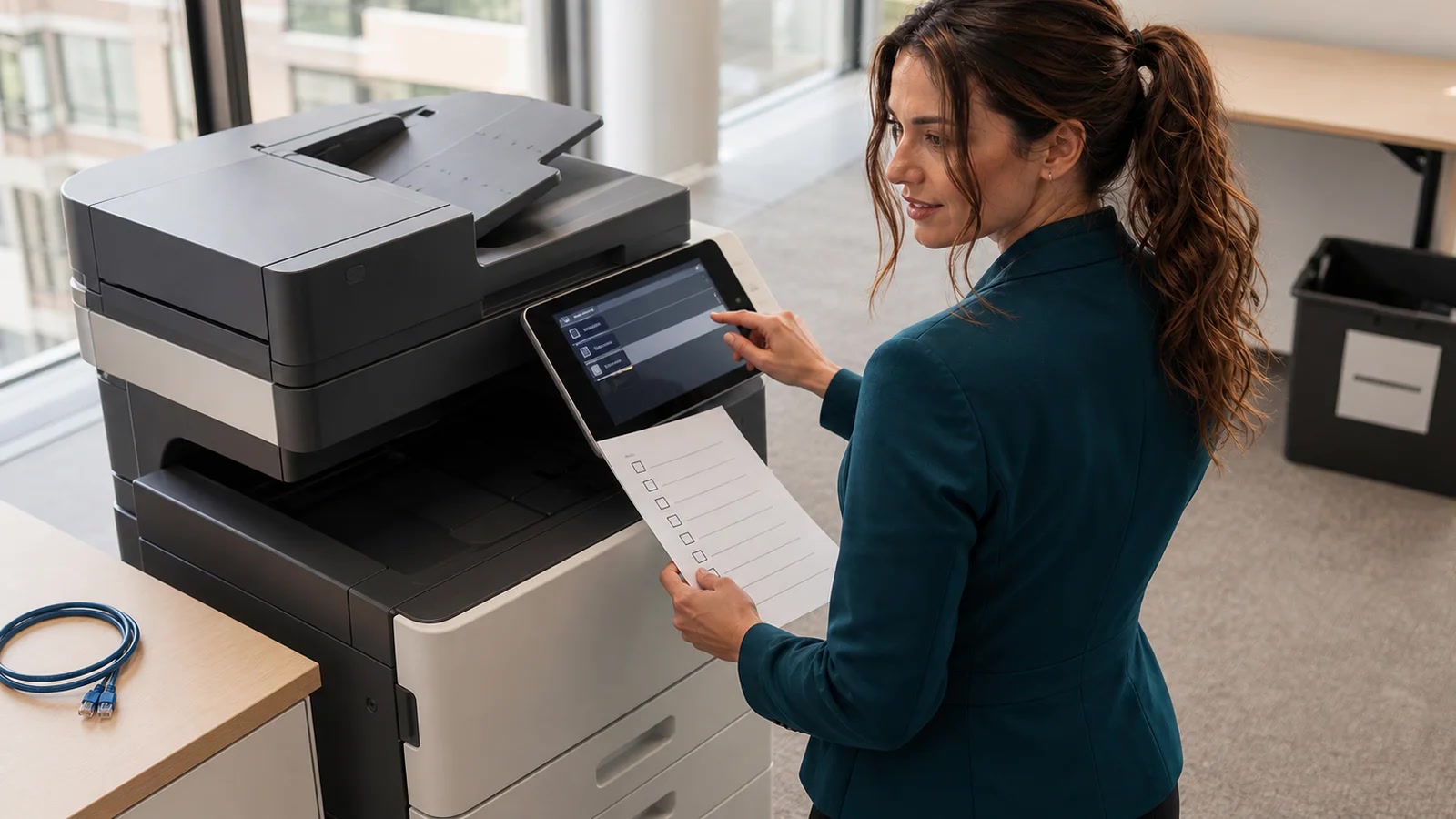
A modern office printer can remember far more than its Wi-Fi name. Before you sell, donate, recycle, return, or replace a multifunction printer, treat it like a small computer: preserve what the next setup needs, revoke its outside access, erase customer data with the exact model’s supported procedure, and verify the result before the machine leaves your control.
This matters at home, too, but the stakes rise quickly in a small business. A copier may have handled tax forms, invoices, legal documents, employee records, medical information, signed contracts, customer email addresses, fax numbers, scan destinations, Wi-Fi credentials, certificates, and saved cloud-service settings. Not every printer stores every item, and not every reset clears the same things.
The problem in plain English
The factory-reset button people find first may reset only network settings. That can forget the Wi-Fi connection while leaving jobs, mailboxes, address books, fax data, certificates, accounting codes, scan destinations, or data on internal storage untouched. On the other hand, a true “erase customer data” or “initialize all data” operation can be irreversible and may remove settings your lease company or replacement technician needs.
The costly mistake is doing these steps in the wrong order: wiping before documenting the setup can create downtime; unplugging and handing over the device without wiping can expose business data; deleting a saved cloud credential only from the printer can leave that credential valid elsewhere.
Who is affected—and who may need a simpler checklist?
Use the full process
- Business copiers, leased multifunction printers, and devices with an internal hard drive or solid-state storage.
- Machines that scan to email, network folders, SharePoint, cloud storage, fax, or document-management systems.
- Printers with saved contacts, user mailboxes, secure-print PINs, accounting codes, certificates, or badge/card-reader integrations.
- Any device that handled customer, employee, financial, health, legal, or regulated information.
A simpler device—but not “nothing to do”
- A basic USB-only printer with no scanner, fax, network connection, address book, cloud features, or internal job storage may retain little customer data.
- A small home Wi-Fi printer may not retain document images, but it can still remember network and vendor-account configuration.
- A removable USB drive or memory card is separate storage. Remove it and sanitize it according to the data it held.
- If the manual does not describe storage or erasure, ask the manufacturer or authorized service provider instead of assuming.
Why “just press factory reset” is not a safe plan
Reset names are not standardized. Brother’s cited support page, for example, describes a network reset. Xerox documents an “Erase Customer Data” feature that clears customer-specific jobs, configurations, and settings while retaining printer-specific counters. Canon’s model-specific manual separately documents “Initialize All Data/Settings,” including overwriting data that remains on the hard disk.
Those are different scopes. The correct choice depends on the exact model, firmware, installed storage, ownership agreement, and the sensitivity of the data. The Federal Trade Commission also warns businesses that digital copiers can store data about documents they copy, print, scan, fax, or email. This is why the model manual—not a generic internet shortcut—must control the procedure.
The safe retirement sequence
1. Identify the exact device and who owns it
- Photograph the model, serial number, asset tag, and current meter/counter readings.
- Record whether the device is owned, leased, rented, under managed print service, being returned under warranty, or going to an electronics recycler.
- Ask the lessor or service company—in writing—who is responsible for data erasure, whether storage will be removed, and whether they provide a sanitization certificate.
- Inventory attached items: internal drive, fax module, card reader, USB drive, SD card, optional print server, and external authentication hardware.
Stop condition: do not remove or destroy storage from a leased or warranty-return device without written authorization. You could damage property you do not own or make the return ineligible.
2. Preserve only the configuration you are allowed to keep
Before erasure, export or document the non-secret settings needed for the replacement: IP addressing, paper trays, print defaults, authorized scan destinations, address-book ownership, fax routing, certificate requirements, and accounting setup. Canon explicitly advises backing up important data or exporting it before initialization.
- Do not put passwords, private keys, app passwords, Wi-Fi keys, or unredacted customer contacts into the retirement ticket.
- Store the export in an access-controlled business location, not on the printer’s removable media.
- Record firmware version and optional hardware because restore files can be model- and version-specific.
- Keep a before-state checklist and the name of the person who approved destruction.
3. Revoke outside access before wiping the local copy
A local reset cannot invalidate a secret that still works in Microsoft 365, Google Workspace, an SMTP relay, a vendor cloud, a network share, or a document-management system. Remove the printer from vendor portals and print subscriptions as appropriate. Revoke or rotate dedicated app passwords, API tokens, certificates, service-account credentials, and scan-folder passwords from the service that issued them.
If the printer used a shared employee password, the design was already fragile. Do not copy that password into the replacement. Build a dedicated, least-privileged workflow instead. Our secure scan-to-email guide explains safer Microsoft 365 and Google Workspace options.
4. Remove local content and user-facing records
- Print, scan, copy, fax, hold, proof, secure-print, and failed-job queues.
- User mailboxes, document boxes, stored forms, overlays, templates, and remembered originals.
- Address books, favorites, fax speed dials, email groups, one-touch buttons, and scan histories.
- Saved SMB/NAS paths, FTP/SFTP destinations, SharePoint/cloud destinations, sender identities, and home folders.
- Local users, department IDs, accounting codes, PINs, badge mappings, and administrator sessions.
- Certificates, private keys, trusted-server exceptions, Wi-Fi profiles, VPN settings, and proxy credentials.
Cleaning an address book is useful during normal operation—see our printer and scanner address-book checklist—but it is only one part of retirement sanitization.
5. Run the exact model’s customer-data erasure
Find the current administrator guide using the full model number and installed firmware. Look for terms such as Erase Customer Data, Initialize All Data/Settings, Data Sanitization, Disk Overwrite, Secure Erase, or Crypto Erase. Confirm in the manual exactly what is removed and what remains.
- Connect the device to reliable power. A UPS may be appropriate for a long erase if the manufacturer permits it.
- Start the supported erase from the local control panel or approved administrative interface.
- Do not power the device off, unplug it, or interrupt the process. Canon warns that initialization can take 30 minutes or more and that power loss during initialization can cause defects.
- Wait for the process to finish and the device to restart. Save the completion screen, log, or certificate without capturing secrets.
6. Match the sanitization method to the data and destination
NIST Special Publication 800-88 Revision 2 frames sanitization as making access to target data infeasible for a given level of effort. In practical terms, organizations choose among clearing, purging, and destroying media based on confidentiality, media technology, future use, and assurance requirements. A normal settings reset is not automatically equivalent to a validated storage sanitization method.
Phone readers: swipe the table left to see the full “Bad fit / caution” column.
| Approach | Good fit | Bad fit / caution |
|---|---|---|
| Vendor customer-data erase | Reusable device; supported model-specific operation; documented scope. | Do not assume a network reset has the same scope. Verify internal drive coverage. |
| Vendor secure/crypto erase or overwrite | Supported storage sanitization with documented completion and verification. | Exact capability depends on model, media, encryption design, and firmware. |
| Authorized drive removal and sanitization | High-sensitivity owned equipment or a documented lease-return option. | Do not open, damage, degauss, or remove a drive from leased/warranty equipment without approval. |
| Physical destruction by a qualified vendor | Failed media or data too sensitive for reuse, with chain-of-custody evidence. | Destroys reuse value; environmental and contractual requirements still apply. |
7. Verify the result before custody changes
- Restart the printer and confirm it presents first-run or unconfigured behavior expected by the manual.
- Print a configuration page and verify old Wi-Fi, IP, DNS, proxy, email, fax, and directory settings are absent.
- Open the address book, job history, document boxes, secure-print queue, fax history, and scan destinations; verify they are empty.
- Confirm the old device is removed from vendor/cloud portals and cannot authenticate to mail, storage, or network services.
- Check that removable media is physically accounted for.
- Record date, model, serial, method, operator, result, exceptions, next custodian, and any sanitization certificate.
After verification, disconnect Ethernet and do not reconnect the printer to the production network. Label it “sanitized—do not reconnect,” then transfer it through the approved return, reuse, donation, or recycling chain.
Two examples: one harmless, one expensive
Harmless-looking case: a home Wi-Fi printer
A family replaces a simple all-in-one printer. It has no hard drive, fax, address book, or scan-to-cloud account, but it remembers the home Wi-Fi network and is registered to a vendor app. They remove it from the vendor account, use the model’s full settings reset—not only a print-queue deletion—verify that it starts unconfigured, remove the USB drive used for scans, and recycle it responsibly.
Costly wrong turn: the leased office copier
A business unplugs a leased copier after printing the meter page and assumes the service company will handle everything. The copier still contains customer contacts, stored scan destinations, held jobs, an active scan-to-folder credential, and internal storage. The safer outcome would have been to document responsibility before pickup, revoke the credential at the server, run the lease-approved customer-data erase, verify the result, and retain the provider’s chain-of-custody or sanitization record.
What not to do
- Do not assume “network reset” means “erase all data.”
- Do not erase first and investigate later. Preserve authorized configuration and lease requirements before the irreversible step.
- Do not photograph or export secrets into a normal service ticket.
- Do not merely delete a credential from the printer. Revoke or rotate it at the issuing service.
- Do not use generic disk-wiping software on an embedded printer drive. Use the manufacturer’s supported method or an authorized sanitization provider.
- Do not test with real customer documents after the wipe. Use a harmless test page only if verification requires a functional check.
- Do not donate a failed device just because it will not boot. Failed electronics can still contain readable storage.
Frequently asked questions
Does every printer keep copies of everything I printed?
No. Storage behavior varies widely. Some simple printers buffer jobs temporarily; business copiers may have persistent storage and optional document mailboxes. The correct answer comes from the exact model’s storage and security documentation.
Is deleting the printer from Windows or macOS enough?
No. That removes a local computer’s printer connection. It does not erase the physical printer, revoke cloud registration, clear scan destinations, or sanitize internal storage.
Is a factory reset enough?
Only if the manufacturer’s documentation for your exact model says that operation clears every relevant customer-data area and your risk assessment accepts that method. A network-only reset is not enough for a device with other stored data.
What if the printer will not turn on?
Do not send it to an ordinary recycler until storage is accounted for. Check warranty and lease restrictions, then use an authorized service or qualified data-destruction provider that can document removal, sanitization, or destruction of the storage.
Should I keep a certificate?
For a business device, especially one that handled sensitive or regulated data, keep a record of the model, serial, method, date, operator, verification, and custody transfer. When a service provider performs the work, request its sanitization or destruction record and compare the serial number.
Can I sell the printer after wiping it?
Usually, if you own it, the wipe is supported and verified, cloud/vendor ownership has been removed, and no contract or regulated-data rule requires destruction. Include only the setup information the buyer needs—never your old configuration export.
Your next step
Before the pickup truck arrives, photograph the exact model and serial number, identify who owns the device, and locate the manufacturer’s customer-data erasure instructions. If the printer handled confidential records, has internal storage, will not boot, or belongs to a leasing company, stop before guessing. The IT Guys can help homes and small businesses in Port Saint Lucie, Jensen Beach, Fort Pierce, and Vero Beach inventory the device, preserve the replacement settings, revoke access, coordinate the supported wipe, and document verification.
Sources
- Federal Trade Commission: Digital Copier Data Security—A Guide for Businesses
- NIST SP 800-88 Rev. 2: Guidelines for Media Sanitization
- Canon manual example: Initializing All Data/Settings
- Xerox support example: Reset the Printer to Factory Defaults / Erase Customer Data
- CISA: Proper Disposal of Electronic Devices
- Brother support example: Reset Network Settings to Factory Default