

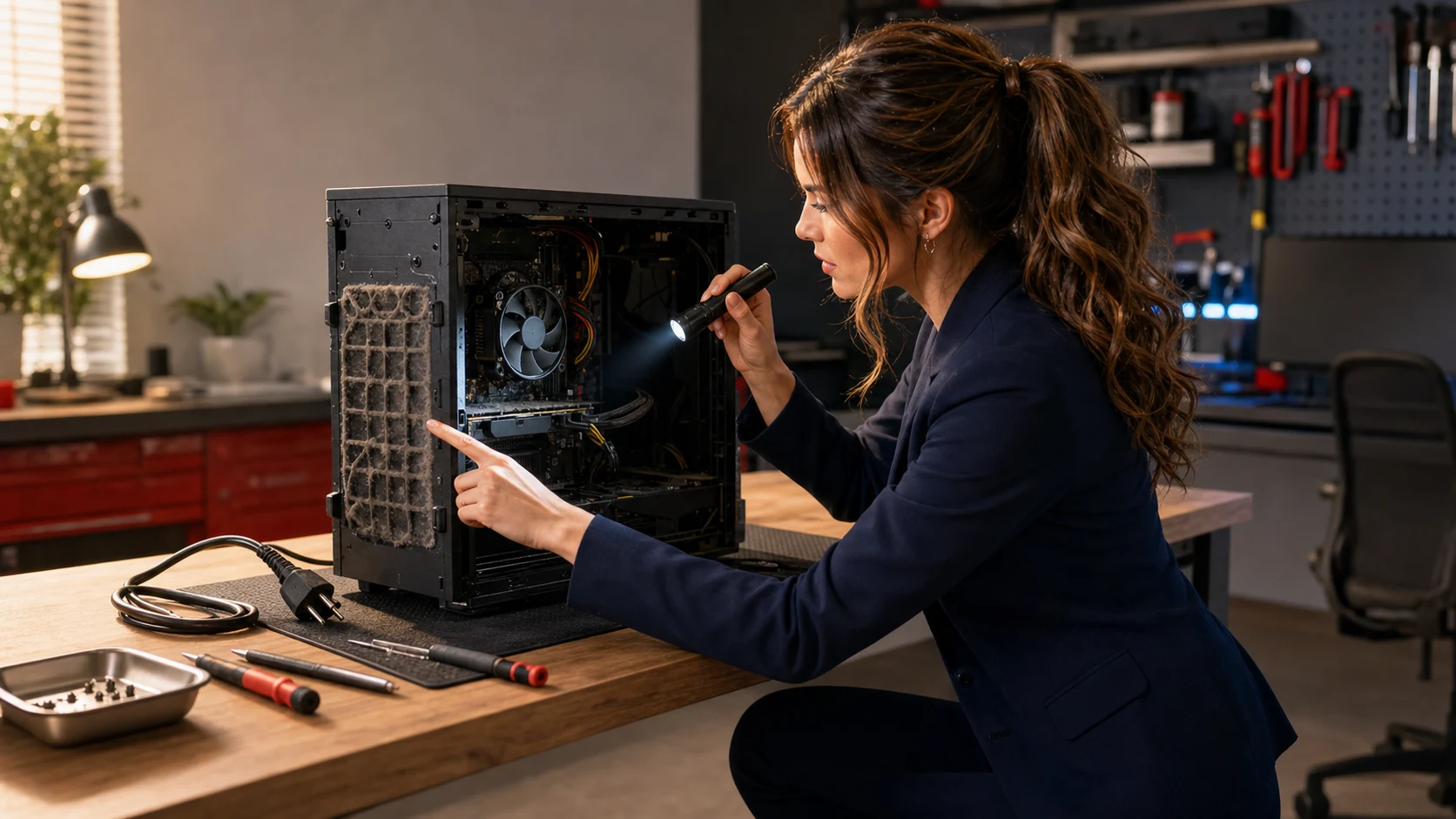
A computer that suddenly gets loud, slows down, freezes, or shuts itself off may be protecting itself from excess heat—not merely “getting old.” Ignoring the warning can turn an airflow problem or failing fan into lost work, repeated downtime, and an expensive board or storage failure.
This guide gives home users and small businesses a safe diagnostic ladder: start with what you can observe, separate a busy computer from a cooling failure, make only low-risk changes, and stop before a DIY attempt creates a bigger repair.
What overheating often looks like
Noise
The fan runs hard for long periods during light work, pulses constantly, rattles, scrapes, or suddenly goes silent when the computer is hot.
Performance
Apps become sluggish, video stutters, or performance drops after several minutes because the system may be reducing speed to control heat.
Instability
The computer freezes, restarts, or powers off during video calls, updates, gaming, accounting work, or other sustained loads.
Physical clues
Vents are blocked with lint, the machine sits on fabric, the exhaust is unusually hot, or one side has little airflow despite loud fan noise.
Affected—and not necessarily affected
This applies to: Windows desktops and laptops, Macs, mini PCs, workstations, point-of-sale computers, and other fan-cooled systems that are unusually hot, noisy, slow, or unstable.
Not every warm computer is overheating. Fans may legitimately run during operating-system updates, video exports, games, antivirus scans, cloud syncing, or large backups. Thin laptops can also feel warm during normal work. The key difference is whether the heat or fan behavior is new, persists during light use, causes throttling or shutdowns, or comes with a physical warning sign.
The safe overheating diagnostic ladder
Save your work and document the pattern
Write down what was running, how long the computer had been on, whether it slowed down before shutting off, and any exact error or fan message. Photograph warning screens. If the machine still runs reliably, confirm that important files are backed up before doing stress tests, updates, or hardware work.
Useful example: “The desktop shuts off after 12 minutes of a Teams call, but stays on at the login screen” is far more actionable than “it gets hot.”
Move it to a safe, ventilated location
Put a laptop on a firm, stable surface—not a bed, couch, blanket, lap pillow, or stack of papers. Give desktop intakes and exhausts several inches of clearance. Move the system away from direct sun, a hot parked vehicle, an enclosed cabinet, or an air-conditioning vent that can introduce condensation.
Apple’s published guidance for Mac laptops says to use a stable work surface that allows good ventilation, avoid beds and pillows, and operate within the temperature range specified for the product. The same airflow principle is sensible for other manufacturers, but always check the model’s own manual.
Separate heavy software load from a cooling failure
After a normal restart, let the computer sit for five to ten minutes. On Windows, open Task Manager with Ctrl + Shift + Esc and inspect the Processes tab for sustained CPU, GPU, or disk activity. On a Mac, use Activity Monitor and inspect CPU activity. A backup, update, browser tab, or stuck application may explain a temporary fan surge.
Do not randomly end unfamiliar system processes. Close known apps normally, let legitimate updates finish, and scan with the computer’s trusted security software if an unknown process remains unusually busy. Microsoft also documents how to review startup apps in Settings or Task Manager; disable only applications you recognize and do not need at every sign-in.
Inspect the vents without opening the computer
Shut down fully. Unplug the charger or power cord and disconnect peripherals. Look for lint mats, pet hair, dust buildup, or an intake pressed against a wall. Use a bright light; do not insert metal tools into a vent.
If the manufacturer permits external vent cleaning, use short, controlled bursts of electronics-safe compressed air while following the service manual. Keep the can upright. Do not use a household vacuum inside the computer, do not let a fan spin wildly from air pressure, and do not spray liquid cleaner into a vent. Some laptops are easy to damage or require internal fan access for an effective cleaning—stop if the instructions call for disassembly you are not trained to perform.
Listen and feel for airflow—briefly
Reconnect power, start the computer, and listen from outside the case. A smooth change in fan speed is generally healthier than grinding, scraping, clicking, repeated start-stop behavior, or total silence under load. Compare airflow at the exhaust, but keep fingers, hair, clothing, and tools away from openings.
Stop condition: if the computer again shuts down, displays a fan error, smells abnormal, or has no airflow while getting hot, power it off. Repeated restarts are not a repair.
Run the manufacturer’s built-in diagnostics
Use the support or preboot diagnostics designed for the exact model. Dell, HP, Lenovo, Apple, and other manufacturers provide model-specific tests and service guidance. Record any fan, thermal, battery, or sensor code exactly. Avoid generic “driver updater,” “fan booster,” or registry-cleaner utilities; they can add risk without proving that the cooler is functioning.
Install only appropriate firmware and system updates
Firmware, BIOS, operating-system, and manufacturer utility updates can correct power-management or fan-control problems. Use the computer maker’s official support page and confirm the exact model. Keep the computer on reliable power, do not interrupt a firmware update, and do not update firmware while the machine is repeatedly overheating or shutting down.
For a desktop in an outage-prone area, verify the battery backup first with our UPS testing checklist.
Retest with one controlled workload
Use the same ordinary task that exposed the problem—such as one video call or a normal business application—and watch whether fan noise, responsiveness, and stability improve. Do not jump directly to a synthetic stress test. If the computer remains stable only when idle, the cooling system still needs attention.
Good fixes versus expensive wrong turns
Good, low-risk moves
- Back up important data first.
- Use a hard, ventilated surface.
- Remove external obstructions with power off.
- Identify sustained software load before blaming hardware.
- Use exact-model diagnostics and service instructions.
- Record error codes and stop after another shutdown.
Bad, high-risk moves
- Keep restarting after thermal shutdowns.
- Run the laptop on a blanket or inside a closed cabinet.
- Spray cleaner, lubricant, or canned air blindly inside.
- Let compressed air overspin a fan.
- Install random fan-control or “optimizer” software.
- Replace thermal paste or open a battery-equipped laptop without the correct procedure and skills.
Two examples that show why order matters
Harmless-looking cause
A home laptop becomes loud every morning, but the fan settles after cloud backup and security scanning finish. Task Manager shows the expected applications using resources, airflow is unobstructed, and the computer never throttles or shuts down. The practical fix may be scheduling the workload or reducing unnecessary startup apps—not opening the laptop.
Costly wrong turn
A small-business desktop powers off during invoicing. Someone repeatedly restarts it, then installs a fan-control utility that forces a quieter profile. The real problem is a failing CPU fan. Lowering fan speed hides the warning and increases heat, turning a replaceable fan into a risk to the motherboard and data. The safer path is to stop after the repeated shutdown, preserve data, record the fan behavior, and repair the cooling fault.
When professional service is the right next step
- The computer has shut down from heat more than once.
- A fan grinds, scrapes, reports an error, or does not spin.
- The vents are clean but performance still collapses under ordinary load.
- The system needs internal cleaning, fan replacement, heat-sink service, or thermal-compound work.
- The device is under warranty or difficult to open safely.
- It contains irreplaceable business data or is needed for payroll, point of sale, medical scheduling, or other time-sensitive work.
Frequently asked questions
Is a loud fan automatically bad?
No. A fan can be doing its job during a legitimate heavy workload. Investigate when the behavior is new, constant during light use, paired with reduced performance, or accompanied by shutdowns, fan errors, grinding, or poor airflow.
Can a cooling pad fix an overheating laptop?
It may improve external airflow, but it cannot repair a failed fan, blocked internal heat sink, detached thermal interface, swollen battery, or runaway software process. Treat it as an accessory—not a diagnosis.
Should I replace the thermal paste?
Not as a first step. Correct disassembly, battery isolation, heat-sink sequencing, compatible material, and reassembly torque matter. Check airflow, software load, diagnostics, warranty status, and the exact service manual first.
Can I vacuum dust from the computer?
A normal household vacuum can create static and can overspin or damage small fans. External surface cleaning and manufacturer-approved methods are safer. Internal cleaning is best done with the correct anti-static precautions and the fan physically controlled.
Why does it slow down before shutting off?
Modern systems can reduce processor or graphics performance as temperature rises. That protective behavior can buy time, but it does not make a recurring cooling fault safe to ignore.
Is this the same as a swollen battery?
No. Heat can have many causes. A lifted case, raised keyboard or trackpad, chemical smell, or visible swelling changes the response: stop using the device and follow battery-safety guidance rather than pressing the case closed or continuing diagnostics.
Related help from The IT Guys
- Swollen laptop or phone battery: when to stop using it
- Test your UPS battery backup before the next power flicker
- At-home computer services
- Small-business IT services
Take one action now
If the fan is constantly loud, airflow is weak, or the computer has already shut down from heat, save your files and stop forcing it through another workday. Schedule an appointment with The IT Guys for a cooling-system inspection, internal cleaning, fan diagnosis, and data-safety check in Port Saint Lucie, Jensen Beach, Fort Pierce, or Vero Beach.
Sources
- Apple Support: Keep your Mac laptop within acceptable operating temperatures
- Microsoft Support: Configure startup applications in Windows
- Dell Support: Troubleshoot overheating, shutdown, or thermal issues
- Dell Support: Troubleshoot fan issues
Manufacturer procedures vary by model. Use the service manual and warranty terms for your exact computer. This article provides general safety and triage guidance, not a substitute for model-specific repair instructions.