

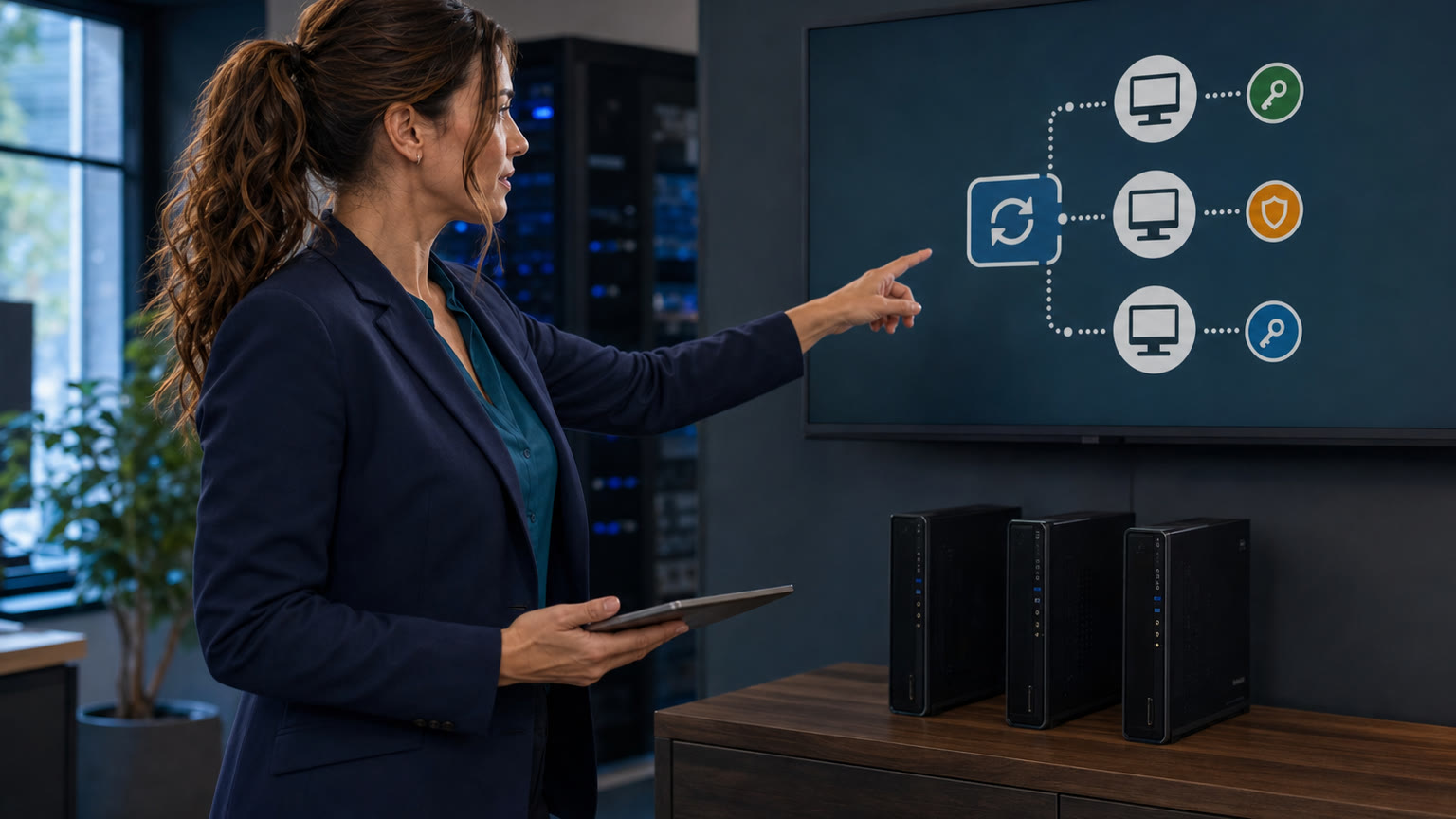
One reused local-administrator password can turn a single infected Windows PC into a key for the rest of the office. If the same local admin account and password exist on every workstation, an attacker who captures its password hash on one machine may be able to reuse that credential elsewhere without ever learning the readable password. Microsoft built Windows Local Administrator Password Solution—Windows LAPS—to replace that shared secret with a different, automatically rotated password for each managed device.
The costly problem
Small offices often create one emergency local administrator account during setup, then copy it to every PC so support is easy. The convenience is real, but so is the blast radius. MITRE documents “pass the hash” as a way adversaries use stolen password hashes to move laterally. Microsoft specifically lists protection against pass-the-hash and lateral-traversal attacks as a Windows LAPS benefit.
Important: LAPS reduces one major path for credential reuse. It does not replace patching, endpoint protection, MFA for cloud accounts, tested backups, or network segmentation.
Who is affected—and who is not?
You should review this now if…
- Your business has two or more Windows PCs with the same local administrator password.
- A technician, vendor, or employee knows a shared “computer admin” password.
- Remote support sometimes needs a local account when the normal sign-in system is unavailable.
- Your devices are Microsoft Entra joined, hybrid joined, or joined to Windows Server Active Directory.
- You cannot say who is allowed to retrieve a device’s local admin password or when it was last changed.
This guide is not a direct fit if…
- You have one standalone home PC and no shared local administrator credential across devices.
- Your computers are only macOS, ChromeOS, or Linux; those platforms need different management tools.
- Your Windows PCs are unmanaged workgroup devices. Windows LAPS is designed around Microsoft Entra ID or Windows Server Active Directory backup and policy.
- You already use Windows LAPS and have verified unique passwords, restricted retrieval rights, rotation, and recovery.
A one-PC household can still benefit from a separate daily-use standard account and a protected administrator account, but that is a different scope.
Why “a very strong shared password” is still the bad option
A 25-character password is difficult to guess. It is not difficult to reuse after its authentication material has been stolen. MITRE explains that pass-the-hash can authenticate without the cleartext password. When every PC has the same local account password, the same captured material may work on multiple systems.
Windows LAPS changes the design: each managed computer gets its own password, the password is backed up to an authorized directory, and policy controls rotation. Microsoft’s Intune documentation says policies can enforce password requirements, back up the local admin credential to Microsoft Entra ID or on-premises Active Directory, schedule rotation, and trigger a manual rotation.
Phone readers: swipe the table left to compare the approaches.
| Approach | Good points | Bad points / limits |
|---|---|---|
| Same local admin password everywhere | Easy for support to remember | Large blast radius; hard to audit; former staff or vendors may retain access; one stolen credential can threaten many PCs |
| Different passwords in a technician’s spreadsheet | Reduces password reuse if genuinely unique | Manual rotation and access control are fragile; spreadsheets are easily copied or left stale |
| Windows LAPS with Microsoft Entra ID or Active Directory | Unique per-device passwords, scheduled rotation, controlled retrieval, recovery support | Requires supported, joined, managed Windows devices; directory permissions and policy must be designed and tested |
The safe step-by-step fix
Inventory before changing anything
List every Windows workstation and server, its join state, Windows version, current local administrator accounts, and the people or tools that use them. Do not delete the current support account during discovery. Record business-critical devices—accounting PCs, point-of-sale systems, file servers, camera servers, and line-of-business workstations—so they receive a controlled pilot.
On each test PC, review membership of the local Administrators group. Look for accounts copied by an old image, former IT provider, or setup script. Treat an unknown admin as an investigation item, not something to remove blindly.
Choose the management and backup path
For cloud-managed, Microsoft Entra-joined devices, Windows LAPS can back up the managed password to Microsoft Entra ID and can be configured through Microsoft Intune. For traditional or hybrid environments, Group Policy can configure Windows LAPS and back up credentials to Windows Server Active Directory.
Do not send LAPS passwords to email, tickets, chat, spreadsheets, or documentation systems “for convenience.” The directory is the controlled source of truth.
Confirm support, updates, roles, and licensing
Check Microsoft’s current Windows LAPS applicability table for every operating-system build, then install required updates before rollout. Confirm that your Microsoft subscription includes the management features you plan to use. The Windows feature and the Intune management service are related but not identical; do not assume every Microsoft 365 plan includes Intune.
For Microsoft Entra ID, enable the tenant’s LAPS capability and assign only the documented roles that need password retrieval or rotation. For on-premises Active Directory, follow Microsoft’s schema and permission steps and decide which organizational units will be in scope.
Define the managed local account
Decide whether policy will manage the built-in Administrator account or a named local support account. Microsoft notes that automatic account management is available on supported newer Windows 11 releases; older supported systems may require you to provision the intended account separately. A policy cannot rotate a custom account that does not exist.
Use a long random password, an appropriate complexity setting, and a rotation interval based on risk. Avoid a human-readable pattern such as Company-August-PC01!; predictability defeats the point.
Restrict who can retrieve the password
Create a small support role rather than granting broad directory administration. Separate the ability to retrieve a local password from unrelated tenant or domain privileges. Log retrieval and require technicians to document why emergency local access was needed.
CISA recommends separating administrator accounts from user accounts and limiting admin use to designated administrative purposes. A support technician should not browse the web or read email while signed in with the managed local admin account.
Pilot on low-risk devices
Start with two or three representative PCs—not the owner’s only accounting machine and not every workstation at once. Confirm that policy applied, a unique password was backed up, an authorized person can retrieve it, an unauthorized person cannot, and the password actually works for local sign-in when the device is disconnected from the network.
Then retrieve credentials for two pilot PCs and verify they are different. Never copy the passwords into the test record; record only the successful result, device, time, and authorized tester.
Exercise rotation after use
Use the directory or management action to rotate a pilot password after support access, then verify that the old password fails and the new credential works. A password that is unique but never rotated can still become a long-lived secret.
Also test the normal scheduled rotation. Monitor for devices that stop checking in, fail to back up a new password, or retain a stale policy.
Roll out in waves and retire the shared secret
Expand by department or location. Preserve a tested recovery path for devices that are offline or damaged. Only after each wave passes should you disable or remove the old shared local account. If another tool, scheduled task, service, or vendor still depends on that account, replace the dependency rather than quietly preserving the password forever.
Cautions that prevent lockouts
- Do not deploy account-name policy before confirming the account exists on systems where automatic account management is unavailable.
- Do not give everyone retrieval rights. A vault is only as safe as its permissions.
- Do not remove the old account before the pilot works offline. Directory outages are when local recovery access matters most.
- Do not rotate a password that a running service still uses. First replace that bad service-account design.
- Do not store screenshots of the password. Retrieve it only when needed and rotate after use.
- Do not confuse LAPS with a domain or cloud administrator password. LAPS manages a local administrator credential on the device.
A realistic 12-PC example
A small medical or professional office has 12 Windows PCs. An old installer created LocalSupport with the same password on all 12. One receptionist’s PC is compromised, and an attacker obtains that account’s password hash. With the reused design, the attacker may try the same authentication material against neighboring PCs.
After a controlled Windows LAPS rollout, each device has a different random local admin password. The help desk can retrieve the password for PC-07 without learning the credential for PC-08. After support uses PC-07’s password, it is rotated. LAPS does not guarantee that PC-07 is clean, but it removes the shared key that made every other computer easier to reach.
How to know the project is actually finished
- Every in-scope PC reports a managed local administrator account.
- Two sampled devices have different passwords without recording those passwords.
- Authorized staff can retrieve a password; ordinary users cannot.
- The password works during an offline recovery test.
- Manual and scheduled rotation both succeed.
- The former shared account is disabled or removed after dependencies are cleared.
- Retrieval and rotation events are monitored.
- Your backups, endpoint security, patching, and incident-response plan remain in place.
Frequently asked questions
Is Windows LAPS a password manager for employees?
No. It manages a local administrator account on each device. Employees still need an approved password manager or passkey strategy for websites and business applications.
Does LAPS protect a PC from malware?
Not by itself. Its job is to limit credential reuse and securely manage local recovery access. Malware prevention, application control, endpoint detection, patching, backups, and user training remain necessary.
Can a technician use one LAPS password on every PC?
No—that is precisely what LAPS is designed to avoid. The technician retrieves the current password for the specific device being serviced.
What if the computer cannot reach the internet or domain?
The directory stores the last successfully backed-up credential, which is why the pilot must include an offline sign-in test. If the device never completed policy and backup, do not assume recovery will work.
Should we rename the built-in Administrator account?
Renaming can reduce obvious guessing but does not replace a unique, rotated password. Microsoft’s newer automatic account-management options can manage account details on supported systems; test the exact setting across your fleet.
What about a home with two PCs?
If both machines reuse the same local administrator password, using different strong passwords already reduces reuse. Windows LAPS is generally most practical when the devices are managed through Microsoft Entra ID or Active Directory. A home user should avoid exposing remote administration, keep recovery information safe, and use a separate non-admin account for routine work.
Related The IT Guys guides
- Stop using an administrator account for everyday work—the daily-use side of least privilege.
- Ransomware on the screen? What to do in the first 15 minutes—containment if an incident is already happening.
- Small Business IT Services—support for inventory, policy, deployment, and recovery testing.
Sources
- Microsoft Learn: Windows LAPS overview—supported platforms, password backup, and security benefits.
- Microsoft Learn: Windows LAPS with Microsoft Intune—policy, backup, retrieval, and rotation capabilities.
- Microsoft Learn: Get started with Windows LAPS and Windows Server Active Directory—schema, permissions, policy, and retrieval workflow.
- MITRE ATT&CK T1550.002: Pass the Hash—how stolen hashes can be used without the cleartext password.
- CISA #StopRansomware Guide—separate administrator accounts, least privilege, and lateral-movement defenses.
Action for today
Pick two Windows PCs and answer one question: do they share the same local administrator password? If the answer is yes—or nobody knows—stop copying that credential to new devices and plan a small Windows LAPS pilot before an emergency forces the issue.